Introduction
The Canon PowerShot SX700 HS is a compact digital camera designed for capturing high-quality images and videos. It features a powerful optical zoom, advanced image processing, and integrated wireless connectivity for easy sharing and remote control.

Figure 1: Front view of the Canon PowerShot SX700 HS Digital Camera, showcasing its lens and compact design.
Key Features
- 16.1 Megapixel High-Sensitivity CMOS Sensor: Captures detailed images with reduced noise, especially in low-light conditions.
- DIGIC 6 Image Processor: Enhances image quality, improves low-light performance, and enables Full HD video recording at 60p.
- Canon HS SYSTEM: Combines the CMOS sensor and DIGIC 6 processor for excellent low-light performance without flash.
- 30x Optical Zoom (25–750mm equivalent): Provides extensive telephoto reach for capturing distant subjects with clarity.
- Intelligent IS (Image Stabilization): Automatically selects the optimal shake correction method for both still images and videos, ensuring steady shots.
- Zoom Framing Assist: Aids in tracking moving subjects at maximum telephoto by temporarily zooming out to help locate the subject, then returning to the original zoom position.
- Full HD 1080p/60p Video: Records smooth, high-quality video with a dedicated movie button, saving in MP4 format for easy sharing.
- Built-in Wi-Fi® and NFC: Allows for wireless transfer of photos and videos to compatible mobile devices and computers, and remote camera control.
- Creative Shot Mode: Automatically applies various artistic filters to create five unique variations of an original image.
- Smart AUTO: Automatically selects optimal camera settings from 58 predefined shooting situations for simplified high-quality imaging.
- Hybrid Auto: Records short video clips before each still image and combines them into a highlight reel.
- ECO Mode: Optimizes battery life by managing LCD monitor and camera power.
Setup
1. Unpacking the Camera
Verify that the following items are included in your package:
- Canon PowerShot SX700 HS Digital Camera
- Wrist Strap WS-800
- Battery Pack NB-6LH
- Battery Charger CB-2LY
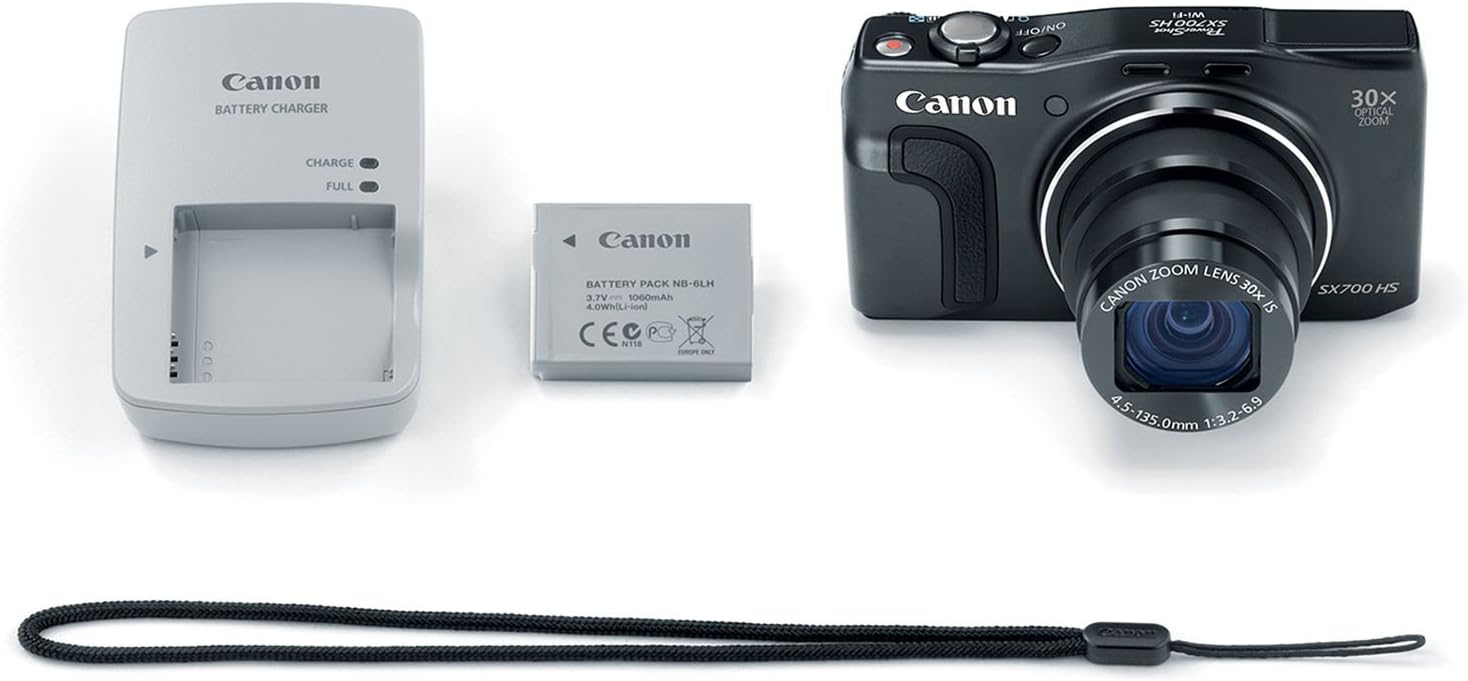
Figure 2: The Canon PowerShot SX700 HS camera alongside its battery, charger, and wrist strap.
2. Charging the Battery
- Insert the Battery Pack NB-6LH into the Battery Charger CB-2LY.
- Plug the charger into a power outlet. The charging indicator light will show the charging status.
- Once charging is complete, remove the battery.
3. Inserting the Battery and Memory Card
Open the battery/card slot cover on the bottom of the camera. Insert the charged battery pack and an SD/SDHC/SDXC memory card into their respective slots, ensuring correct orientation. Close the cover securely.
Operating the Camera
1. Power On/Off
Press the ON/OFF button located on the top of the camera to power it on or off. The lens will extend when powered on.
2. Taking Photos
To take a photo, frame your subject using the LCD screen. Press the shutter button halfway down to focus, then press it fully to capture the image.
3. Using the Zoom
Use the zoom lever around the shutter button to adjust the focal length. Push it towards 'W' for wide-angle (zooming out) and 'T' for telephoto (zooming in). The camera features 30x optical zoom.
4. Flash Operation
To activate the built-in flash, slide the flash switch on the side of the camera. The flash will pop up. You can then select flash modes (Auto, On, Slow Synchro, Off) via the camera's menu or dedicated button.

Figure 3: The Canon PowerShot SX700 HS with its pop-up flash extended, ready for use in low-light conditions.
5. Shooting Modes
Rotate the mode dial on the top of the camera to select various shooting modes:
- Manual (M): Full control over aperture and shutter speed.
- Aperture-priority (Av): Set aperture, camera selects shutter speed.
- Shutter-priority (Tv): Set shutter speed, camera selects aperture.
- Program (P): Camera automatically selects optimal aperture/shutter speed.
- Smart AUTO: Automatic scene detection and setting optimization.
- Creative Shot: Generates artistic variations of your photos.
- Hybrid Auto: Creates a video digest of your day's photos.
- Movie: Dedicated mode for video recording.
- Other specialized modes like Sports, Portrait, Handheld Night Scene, Low Light, and various creative effects.

Figure 4: Rear view of the camera, highlighting the LCD display and the intuitive layout of the control buttons and mode dial.
6. Recording Videos
Press the dedicated movie button to start and stop Full HD 1080p/60p video recording. Videos are saved in MP4 format.
7. Zoom Framing Assist
When using the telephoto zoom, press and hold the Zoom Framing Assist button to temporarily zoom out, making it easier to locate a moving subject. Release the button to return to the previous zoom level, with the subject intelligently kept in focus.
Video 1: Demonstration of Canon's Zoom Framing Technology, illustrating how the camera assists in tracking subjects during high zoom.
8. Intelligent IS
The Intelligent IS system automatically detects camera movement and applies the best stabilization method. For stills, it selects from Normal IS, Panning IS, Macro (Hybrid) IS, and Tripod modes. For video, it uses Dynamic IS, Powered IS, Macro (Hybrid) IS, and Active Tripod IS.
Video 2: Explanation of Canon's Intelligent IS Technology, showing how it stabilizes images and videos in various shooting scenarios.
9. DIGIC 6 Image Processor
The DIGIC 6 Image Processor significantly improves image quality, especially in low light, and enhances video performance, including Full HD 60p recording and MF Peaking for precise focusing.
Video 3: Overview of Canon's DIGIC 6 Technology, detailing its role in image processing and camera performance.
10. Hybrid Auto
Hybrid Auto mode records a short video clip (up to four seconds) each time you take a still image, then automatically compiles these clips and photos into a video summary of your day.
Video 4: Demonstration of Canon's Hybrid Auto Technology, showing how it creates a video summary from still images.
11. ECO Mode
Activate ECO Mode to conserve battery power by managing the LCD monitor and camera power, allowing for more shots per charge.
Video 5: Explanation of Canon's ECO Mode Technology, detailing its function in extending battery life.
Connectivity (Wi-Fi & NFC)
The PowerShot SX700 HS offers advanced wireless connectivity for seamless sharing and control.
1. Connecting to Mobile Devices (Wi-Fi)
Use the built-in Wi-Fi to connect your camera to iOS or Android devices via the free Canon CameraWindow app. This allows for immediate sharing to social media and remote camera control.
Video 6: Tutorial on Canon's Wi-Fi Setting Technology, guiding users through connecting their camera to other devices.
2. Connecting to Computers (Image Sync)
With Image Sync, you can transfer images to your computer on the same wireless network. Images are sent directly or temporarily stored on CANON iMAGE GATEWAY if a direct connection isn't immediately available.
Video 7: Guide to Canon's Wi-Fi Image Sync feature, demonstrating how to synchronize photos with a computer.
3. NFC (Near Field Communication)
For compatible Android devices, simply touch the camera's NFC icon to your device to automatically launch the CameraWindow app for quick sharing and setup.
Video 8: Explanation of Canon's NFC Technology, showing how to establish a quick wireless connection with compatible devices.
Maintenance
1. Cleaning the Camera
- Body: Wipe the camera body with a soft, dry cloth. For stubborn dirt, use a cloth lightly dampened with water or a mild cleaning solution, then wipe dry.
- Lens: Use a lens brush to remove dust, then gently wipe with a lens cleaning cloth. Avoid touching the lens surface with your fingers.
- LCD Screen: Use a soft, dry cloth to gently wipe the screen.
2. Battery Care
- Store batteries in a cool, dry place when not in use.
- Avoid fully discharging the battery frequently to prolong its lifespan.
- Do not expose batteries to extreme temperatures.
3. Storage
When storing the camera for extended periods, remove the battery and memory card. Store the camera in a dry, well-ventilated area, preferably in a camera bag to protect it from dust and impact.
Troubleshooting
If you encounter issues with your camera, try the following basic troubleshooting steps:
- Camera does not power on: Ensure the battery is fully charged and correctly inserted.
- Cannot take photos: Check if a memory card is inserted and has sufficient free space. Ensure the lens cap is removed.
- Images are blurry: Verify that the camera is in focus. Check for smudges on the lens. Ensure Intelligent IS is active if shooting handheld.
- Wi-Fi connection issues: Confirm the camera and mobile device are within range and that Wi-Fi settings are correctly configured on both devices.
For more detailed troubleshooting, refer to the full user manual available on the Canon support website.
Specifications
| Feature | Specification |
|---|---|
| Model Name | Canon PowerShot SX700 HS |
| Photo Sensor Resolution | 16.1 MP |
| Optical Zoom | 30x |
| Digital Zoom | 4x |
| Maximum Focal Length | 750 Millimeters |
| Minimum Focal Length | 25 Millimeters |
| Video Resolution | FHD 1080p |
| Screen Size | 3 Inches |
| Image Stabilization | Optical |
| Connectivity Technology | HDMI, NFC, USB, Wi-Fi |
| Supported File Format | JPEG (Exif 2.3) |
| ISO Range | Auto, 100-3200 |
| Item Weight | 0.59 Pounds |
| Model Number | 9338B001AA |
Warranty & Support
The Canon PowerShot SX700 HS Digital Camera comes with a 1-year limited warranty. For warranty claims, technical assistance, or further support, please visit the official Canon support website or contact their customer service.
For additional resources and detailed guides, please visit the Canon Store.


