
1. Introduction
This manual provides instructions for the ELECOM TK-FBP067BK Bluetooth Wireless Keyboard, designed for use with Windows and Android tablets. This stationary keyboard features a unique design that allows your tablet to stand securely, providing a stable typing experience. It connects easily via Bluetooth and offers a compact yet comfortable typing layout.
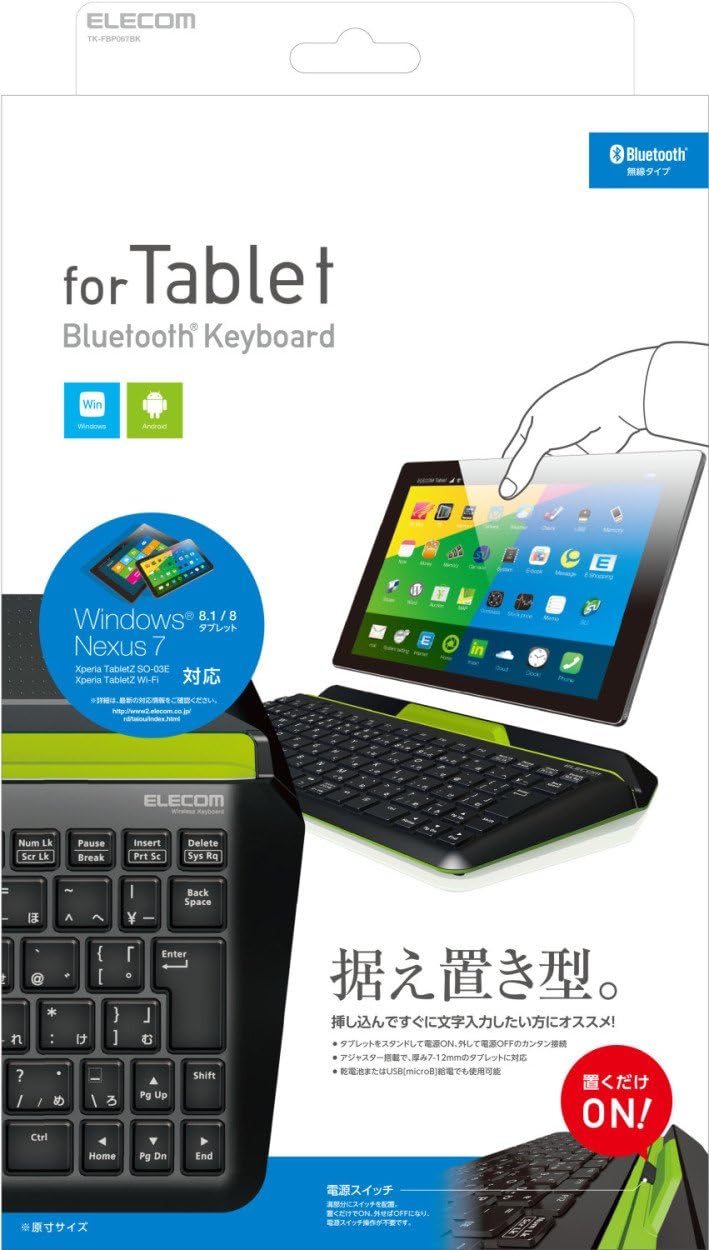
Figure 1: ELECOM TK-FBP067BK Bluetooth Wireless Keyboard with a tablet in its stand.
2. Product Features
- Integrated Tablet Stand: A new design allows your tablet to stand directly on the keyboard for a stable setup.
- Stable Typing: Designed to be heavier than standard keyboards for stable typing.
- Adjustable Stand: Includes a tablet adjuster to change the stand thickness in 3 stages, accommodating various tablet sizes (7-12mm).
- Easy Bluetooth Connection: Simple wireless connection to your tablet, keeping your workspace tidy.
- Automatic Power ON/OFF: The stand features a power switch that automatically turns ON when a tablet is placed and OFF when removed. (Note: The main power switch on the keyboard body must be OFF for this feature to work.)
- Dual Power Options: Operates on one AA battery or can be powered via a microB USB connection (USB AC adapter sold separately).
- OS Mode Switching: A dedicated key allows switching between Windows and Android modes.
- Comfortable Typing: Compact design with a 17.5mm key pitch and 87 Japanese keys.
- Pantograph Key Mechanism: Utilizes the same key mechanism found in laptop keyboards for a responsive feel.
- Fingerprint-Resistant Finish: The top case has a matte finish to minimize visible fingerprints.
- Hotkeys: Equipped with 6 hotkeys for quick access to volume control and media player functions.
- Isolation Key Design: Each key is independent, reducing typing errors.
- Original Font: Keycaps feature a stylish and easy-to-read original font.
- Android App Support: Compatible with ELECOM's 'ELECOM Keyboard layout' app (Android 4.1 or later) for accurate key input matching keycap legends on Android devices.
- Anti-Slip Feet: Four large anti-slip rubber feet on the bottom ensure stable placement.

Figure 2: Key features of the keyboard, including the stable stand, automatic power on/off, adjustable tablet support, and USB power capability.
3. Setup
3.1. Power Supply
- Battery Installation:
Locate the battery compartment on the underside of the keyboard. Insert one AA battery, ensuring correct polarity.
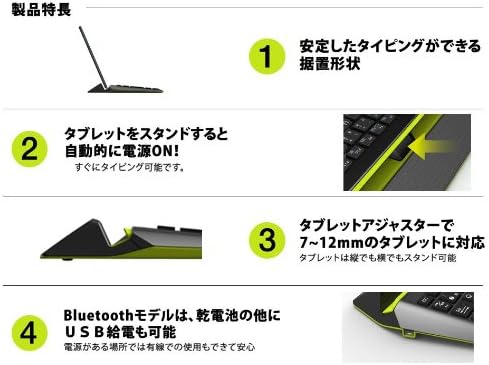
Figure 3: Underside of the keyboard with battery compartment.
- USB Power (Optional):
For continuous power, connect a microB USB cable (included) from the keyboard to a USB AC adapter (sold separately) or a powered USB port.
3.2. Bluetooth Pairing
- Ensure the keyboard's main power switch (located on the side/back) is ON.
- Place your tablet into the keyboard's stand. The keyboard should automatically power on.
- On your tablet, navigate to the Bluetooth settings.
- Enable Bluetooth and search for available devices.
- Select "ELECOM TK-FBP067BK" (or similar name) from the list of found devices.
- Follow any on-screen prompts to complete the pairing process. You may be asked to enter a code on the keyboard.
4. Operating Instructions
4.1. OS Mode Switching
Press the Mode key (usually located near the top left of the keyboard) to switch between Windows and Android operating modes. The keyboard will optimize its functions for the selected OS.
4.2. Using Hotkeys
The keyboard is equipped with 6 hotkeys for quick access to common functions. These typically include:
- Volume Up/Down/Mute
- Media Play/Pause
- Previous/Next Track
Refer to the keycap legends for specific hotkey functions.

Figure 4: User typing on the keyboard with a tablet in the stand.
5. Maintenance
- Cleaning: Use a soft, dry cloth to clean the keyboard surface. For stubborn dirt, a slightly damp cloth can be used, but ensure no liquid enters the keys or internal components.
- Battery Replacement: If using battery power, replace the AA battery when the keyboard's performance degrades or it stops responding.
- Storage: When not in use for extended periods, remove the battery to prevent leakage. Store the keyboard in a cool, dry place.
6. Troubleshooting
| Problem | Solution |
|---|---|
| Keyboard does not power on. |
|
| Cannot connect via Bluetooth. |
|
| Keys are not responding correctly. |
|
7. Specifications
| Feature | Detail |
|---|---|
| Brand | ELECOM |
| Model Number | TK-FBP067BK |
| Compatible Devices | Tablets (Windows 8-8.1, 7 SP1; Android OS 4.1 or later) |
| Connectivity Technology | Bluetooth (GFSK method) |
| Key Type | Pantograph |
| Key Layout | 87 keys (Japanese layout) |
| Key Pitch | 17.5mm |
| Key Stroke | 1.7mm |
| Number of Hotkeys | 6 |
| Color | Black |
| Power Source | 1 x AA battery or Micro-B USB power supply |
| Included Components | USB Cable |
| Product Weight | 0.4 kg |
8. Warranty and Support
For warranty information and technical support, please refer to the warranty card included with your product or visit the official ELECOM website. Keep your purchase receipt as proof of purchase for warranty claims.
ELECOM Official Website: https://www.elecom.co.jp/


