
1. Introduction
Thank you for choosing the Cable Matters 5Gbps Long USB 3.0 Male to Male Cable. This high-quality cable is designed to provide reliable, high-speed data transfer between your USB 3.0 Type A devices. It is ideal for connecting peripherals such as external hard drives, KVM switches, and other USB-enabled devices to your computer or laptop.
Please read this manual carefully to ensure proper setup and optimal performance of your cable.

Figure 1.1: Cable Matters 5Gbps Long USB 3.0 Male to Male Cable.
2. Key Features
- High-Speed Data Transfer: Supports USB 3.0 with data transfer rates up to 5 Gbps, which is 10 times faster than USB 2.0. This ensures efficient and rapid data exchange for large files.
- Universal Compatibility: Connects computers with a USB 3.0 Type A port (backward compatible with USB 2.0) to a wide range of USB peripherals including printers, scanners, keyboards, external hard drives, KVM switches, and more.
- Durable and Flexible Design: Engineered with premium materials, featuring a flexible PVC jacket, molded strain-relief connectors, and grip treads for easy plugging and unplugging.
- Superior Signal Performance: Equipped with gold-plated connectors, bare copper conductors, and foil & braid shielding to enhance cable performance, provide error-free data transmission, and ensure stable, high-quality connections.
- Reliable Connectivity: Ideal for connecting devices like USB hubs, switches, or external drives to a computer or laptop. Note: This cable is not designed for direct computer-to-computer connections.
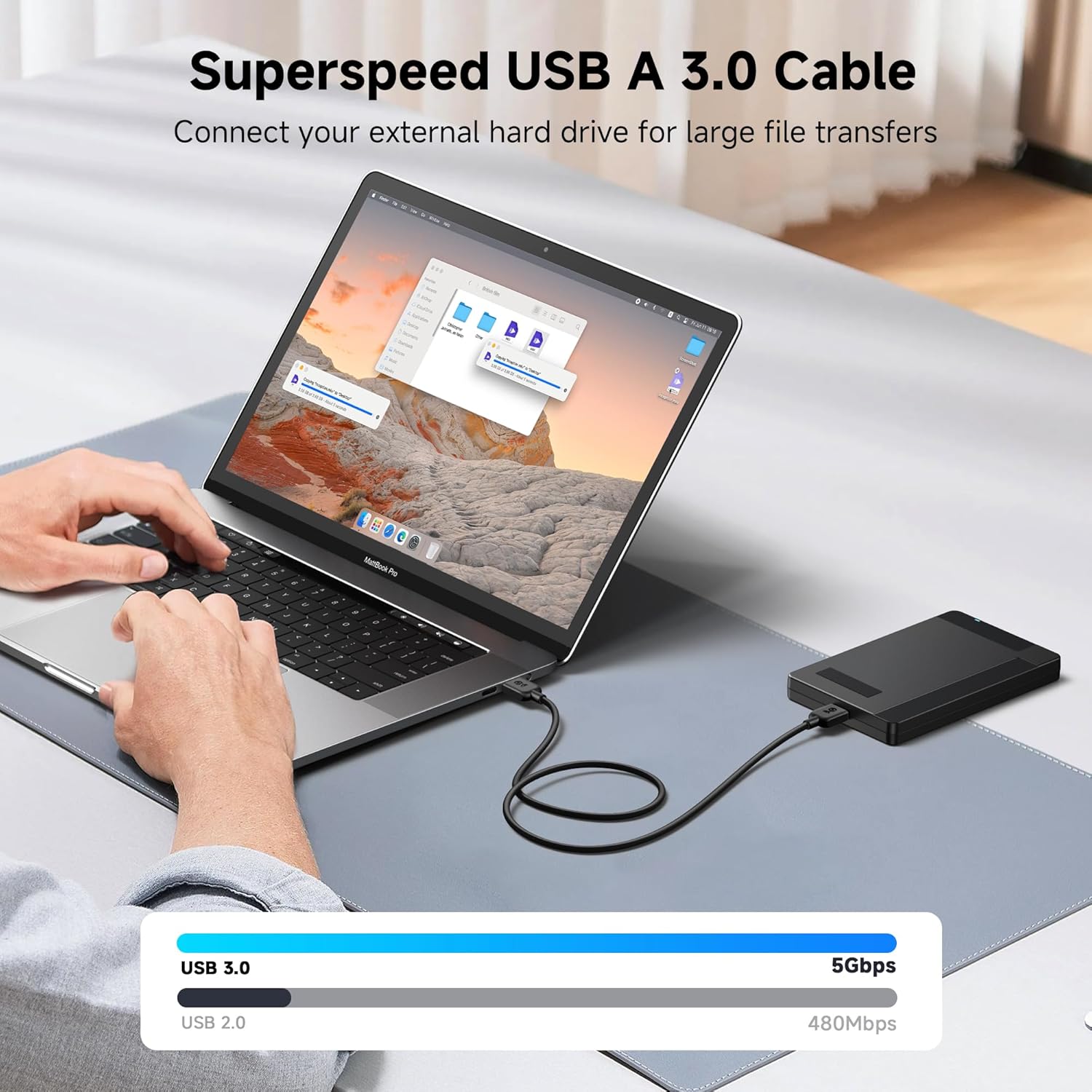
Figure 2.1: High-Speed Data Transfer Capability.

Figure 2.2: Durable Construction Features.
3. Setup and Installation
The Cable Matters USB 3.0 Male to Male cable is designed for simple plug-and-play functionality. No drivers or software installation are typically required.
- Identify Ports: Locate the USB 3.0 Type A ports on your host device (e.g., computer, laptop) and the peripheral device you wish to connect (e.g., external hard drive, KVM switch, USB hub). USB 3.0 ports are often identified by a blue interior color or a 'SS' (SuperSpeed) logo next to the USB symbol.
- Connect First End: Insert one end of the USB 3.0 Male to Male cable into the USB 3.0 Type A port on your host device. Ensure the connector is fully seated.
- Connect Second End: Insert the other end of the USB 3.0 Male to Male cable into the USB 3.0 Type A port on your peripheral device. Ensure the connector is fully seated.
- Verify Connection: Your operating system should automatically detect the connected device. You can verify the connection through your device manager or by attempting to access the peripheral (e.g., opening the external hard drive).
Important Note: This cable is intended for connecting USB peripherals to a host computer. It is not designed to directly connect two computers together for data transfer or networking purposes.

Figure 3.1: Connecting Peripherals with the USB 3.0 Cable.
4. Operation
Once connected, the cable facilitates data communication between your host device and the peripheral. The operation depends on the specific devices connected.
- Data Transfer: For external hard drives or flash drives, you can drag and drop files, copy, or move data between your computer and the storage device at USB 3.0 speeds.
- Peripheral Control: When connecting devices like keyboards, mice, or KVM switches, the cable enables the control signals to pass through, allowing you to operate the peripheral from your computer.
- Power Delivery: The cable can also provide power to bus-powered USB devices, though power delivery capabilities are limited by the USB 3.0 standard and the host port's output.

Figure 4.1: Versatile Applications of the Cable.

Figure 4.2: Cable Use for Video Capture and Streaming.
5. Maintenance
To ensure the longevity and optimal performance of your Cable Matters USB 3.0 cable, follow these simple maintenance guidelines:
- Handle with Care: Avoid excessive bending, twisting, or pulling on the cable, especially near the connectors. Always grasp the connector housing when plugging or unplugging, not the cable itself.
- Keep Clean: If the connectors become dusty or dirty, gently wipe them with a dry, lint-free cloth. Avoid using liquids or abrasive cleaners.
- Proper Storage: When not in use, coil the cable loosely. Avoid tight coiling or kinking, which can damage the internal wires. Store in a cool, dry place away from direct sunlight and extreme temperatures.
- Avoid Overstretching: Do not stretch the cable beyond its natural length or use it in situations where it is under constant tension.
6. Troubleshooting
If you encounter issues with your Cable Matters USB 3.0 cable, consider the following troubleshooting steps:
- No Device Detection:
- Ensure both ends of the cable are fully and securely inserted into their respective ports.
- Try connecting the cable to a different USB port on your computer.
- Test the cable with a different compatible device to rule out an issue with the peripheral.
- Restart your computer and the connected peripheral.
- Slow Data Transfer Speed:
- Verify that both the host device and the peripheral device support USB 3.0. If either device is USB 2.0, the transfer speed will default to USB 2.0 speeds (480 Mbps).
- Ensure you are using a USB 3.0 port on your computer (often blue colored).
- Disconnect other high-bandwidth USB devices from your computer to free up bandwidth.
- Check for any background processes that might be consuming system resources or disk I/O.
- Intermittent Connection:
- Check for any physical damage to the cable or connectors.
- Ensure the cable is not being bent or strained during use.
- Try a different USB port or a different device to isolate the issue.
- Cable Not Powering Device:
- Some devices require more power than a standard USB port can provide. Ensure the device is not bus-powered if it has an option for external power.
- Try connecting to a powered USB hub if your device requires more power.
If these steps do not resolve the issue, please contact Cable Matters customer support for further assistance.
7. Specifications
The following table outlines the key technical specifications for the Cable Matters 5Gbps Long USB 3.0 Male to Male Cable (Model: 200006-BLACK-15).

Figure 7.1: Universal Compatibility Overview.
| Feature | Description |
|---|---|
| Model Number | 200006-BLACK-15 |
| ASIN | B00HSS9LEI |
| Brand | Cable Matters |
| Cable Type | USB 3.0 A-Male to A-Male |
| Data Transfer Rate | Up to 5 Gbps (USB 3.0 SuperSpeed) |
| Backward Compatibility | USB 2.0 (480 Mbps) and USB 1.1 |
| Connector Type | USB Type A 3.0 (Male) on both ends |
| Cable Length | 15 Feet (approximately 4.57 meters) |
| Color | Black |
| Conductor Material | Bare Copper |
| Shielding | Foil & Braid Shielding |
| Connector Plating | Gold-plated |
| Jacket Material | PVC |
| Special Feature | Fast Charging (for compatible devices) |
| Product Dimensions | 6 x 5.4 x 1.1 inches (packaging); 1.6 ounces |
| Manufacturer | Cable Matters |
| Date First Available | January 10, 2014 |
8. Warranty and Support
Cable Matters products are designed for reliability and performance. For information regarding product warranty, returns, or technical support, please refer to the official Cable Matters website or contact their customer service directly.
You can typically find support contact information on the product packaging or by visiting the Cable Matters Store on Amazon or their official company website.