
1. Introduction
This manual provides essential information for the safe and efficient operation of your NEC Display V552-AVT 55-inch LED-LCD TV. Please read these instructions thoroughly before using the product and retain them for future reference. This display is designed for professional and commercial applications, offering high-definition visual performance.
2. Safety Information
Observe the following safety precautions to prevent damage to the display and ensure personal safety:
- Do not block ventilation openings.
- Do not expose the display to rain or moisture.
- Ensure proper grounding for all electrical connections.
- Use only the power cord supplied with the unit or a suitable replacement.
- Refer all servicing to qualified service personnel.
- Avoid placing the display in direct sunlight or near heat sources.
3. Package Contents
Verify that all items are present in the package:
- NEC V552-AVT 55-inch LED-LCD TV
- Stand components
- Power Cord
- Remote Control (if included, not explicitly listed but standard)
- User Manual (this document)
4. Setup
4.1 Unpacking and Placement
- Carefully remove the display from its packaging.
- Place the display on a stable, level surface or prepare for wall mounting. Ensure adequate ventilation around the unit.
4.2 Stand Installation
If using the included stand:
- Attach the stand base to the display using the provided screws.
- Ensure all screws are securely tightened.
4.3 Connecting Power
- Connect the power cord to the AC inlet on the display.
- Plug the other end of the power cord into a grounded electrical outlet.
4.4 Connecting Input Sources
The NEC V552-AVT offers various connectivity options. Select the appropriate cable for your source device.
- HDMI: For high-definition digital video and audio.
- Display Port: For high-resolution digital video.
- DVI-D: For digital video connections.
- VGA: For analog computer video connections.
- S-Video: For standard definition analog video.
- Ethernet (RJ45): For network control and content delivery.
- RS-232: For serial control.
- IR: For infrared remote control.
Refer to the image below for the location of the rear input/output ports.

Image: Rear input/output panel of the NEC V552-AVT, displaying various connectivity options like HDMI, DVI, VGA, Ethernet, and RS-232.
The side of the display also features audio output and speaker terminals.

Image: Side view of the NEC V552-AVT showing audio output and speaker terminals.
5. Operating
5.1 Power On/Off
Press the POWER button on the remote control or the control panel to turn the display on or off.
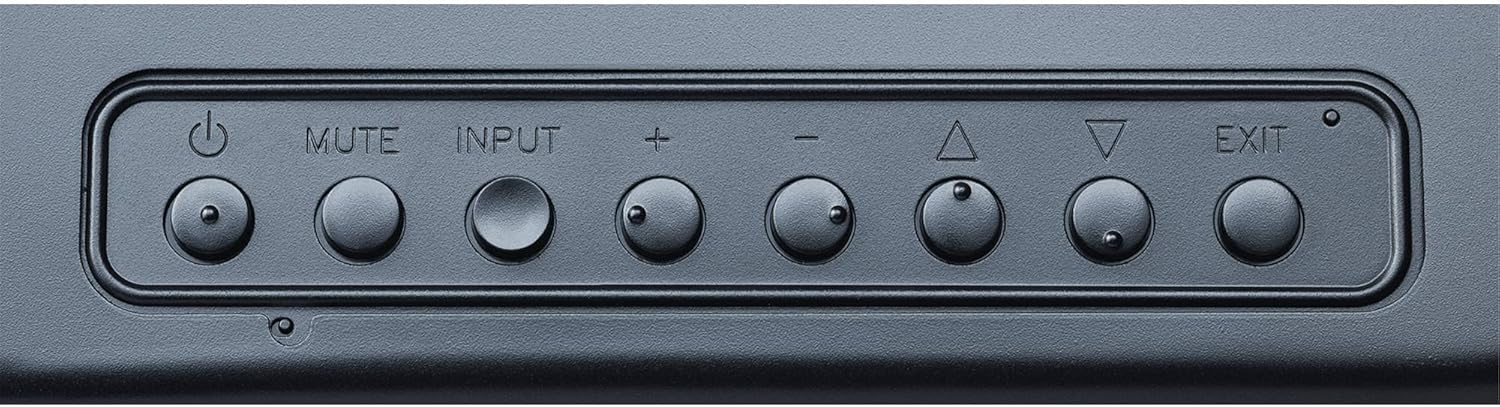
Image: Control panel buttons on the NEC V552-AVT, including power, mute, input, volume, and menu navigation.
5.2 Input Source Selection
Press the INPUT button on the remote control or the control panel to cycle through available input sources (HDMI, DisplayPort, DVI, VGA, etc.). Alternatively, use the On-Screen Display (OSD) menu to select the desired input.
5.3 Menu Navigation (OSD)
Use the navigation buttons (Up, Down, Left, Right) and ENTER button on the remote control or control panel to access and navigate the On-Screen Display (OSD) menu. The OSD allows adjustment of various settings:
- Picture Settings: Adjust brightness, contrast, color temperature, sharpness, and aspect ratio.
- Audio Settings: Control volume, balance, and audio input selection.
- Display Settings: Configure screen position, resolution, and other display-specific options.
- Advanced Settings: Access network settings, power management, and system information.
5.4 Integrated Tuner
The V552-AVT includes an ATSC TV tuner, allowing reception of over-the-air digital television broadcasts. Use the OSD menu to scan for channels and manage TV functions.
6. Maintenance
6.1 Cleaning the Display
- Always power off and unplug the display before cleaning.
- For the screen, use a soft, lint-free cloth lightly dampened with a non-abrasive, ammonia-free screen cleaner. Do not spray cleaner directly onto the screen.
- For the cabinet, use a soft, dry cloth. Avoid harsh chemicals or abrasive materials.
6.2 Storage
If storing the display for an extended period, ensure it is kept in a cool, dry environment, protected from dust and extreme temperatures. Use original packaging if available.
7. Troubleshooting
If you encounter issues with your NEC V552-AVT, refer to the following common problems and solutions:
| Problem | Possible Cause | Solution |
|---|---|---|
| No Power | Power cord disconnected; Power outlet failure | Check power cord connection; Try a different outlet |
| No Picture | Incorrect input source; Video cable disconnected; Source device off | Select correct input; Check video cable connections; Ensure source device is on |
| No Sound | Volume muted or too low; Audio cable disconnected; Incorrect audio output selected on source | Adjust volume; Check audio cable; Verify audio settings on source device |
| Remote Control Not Working | Batteries depleted; Obstruction between remote and display; Incorrect remote mode | Replace batteries; Remove obstructions; Ensure remote is in correct mode for the display |
If the problem persists after attempting these solutions, contact NEC customer support for further assistance.
8. Specifications
Detailed specifications for the NEC V552-AVT 55-inch LED-LCD TV:
| Feature | Specification |
|---|---|
| Model Name | V552-AVT |
| Brand | NEC |
| Screen Size | 55 Inches |
| Display Technology | LED |
| Resolution | 1080p (Full HD) |
| Aspect Ratio | 16:9 |
| Product Dimensions (W x H x D) | 49.2 x 29.8 x 2.5 inches |
| Item Weight | 58 pounds |
| Connectivity Technology | VGA, S-Video, Display Port, HDMI, DVI D, RS-232, Ethernet, RJ45, IR |
| Supported Internet Services | Browser |
| Included Components | Stand, TV |
| Special Feature | Flat Panel Design |
9. Warranty and Support
NEC provides a limited warranty for its products. For specific warranty terms and conditions, please refer to the warranty card included with your product or visit the official NEC Display Solutions website. For technical support, service, or inquiries, please contact NEC customer service directly.
Online Resources: For the latest drivers, software, and additional support documentation, visit the official NEC Display Solutions support page.


