1. Introduction
This manual provides detailed instructions for the safe and effective use of your Canon VIXIA HF-R52 HD Digital Camcorder. Please read this manual thoroughly before operating the camcorder and retain it for future reference.
Key Features:
- 3.28 Megapixel Full HD CMOS Image Sensor: Captures true 1920 x 1080 resolution video with natural color, even in low light.
- 57x Advanced Zoom & SuperRange Optical Image Stabilizer: Provides stable video across a wide zoom range.
- DIGIC DV 4 Image Processor: Ensures exceptional imaging performance and enables simultaneous dual recording.
- 32GB Internal Flash Drive & SD Card Slot: Offers ample storage for up to 12 hours of HD video, expandable with SD memory cards.
- Built-in Wi-Fi: Facilitates easy sharing, live streaming, and remote control via compatible mobile devices.
- 3.0-inch Capacitive Touch Panel LCD: Intuitive interface for easy operation and control.
- Baby Mode: Dedicated features for capturing and organizing a child's growth and development.
2. Setup
2.1. Package Contents
Verify that all items are present in the package:
- Canon VIXIA HF-R52 HD Digital Camcorder
- Battery Pack
- Compact Power Adapter
- USB Cable
- HDMI Cable
- Instruction Manual (this document)
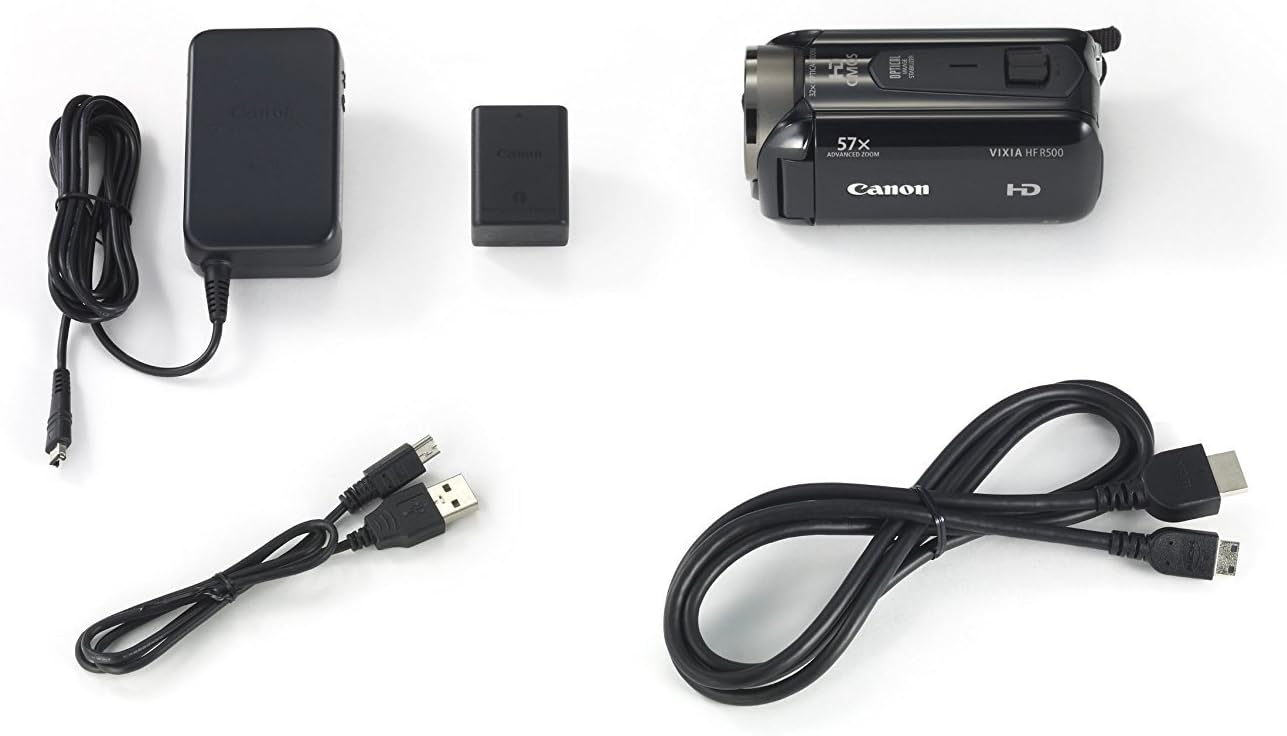
2.2. Battery Installation and Charging
- Open the battery compartment cover.
- Insert the battery pack, ensuring it clicks into place.
- Close the battery compartment cover.
- Connect the compact power adapter to the camcorder and a power outlet to charge the battery. The charging indicator will illuminate.
2.3. Memory Card Insertion
- Open the SD card slot cover.
- Insert an SD memory card with the label facing the front of the camcorder until it clicks.
- Close the SD card slot cover.
2.4. Attaching the Hand Strap and Lens Cap
Securely attach the hand strap for comfortable and safe handling. Ensure the lens cap is attached to protect the lens when not in use.

3. Operating the Camcorder
3.1. Power On/Off
To power on the camcorder, open the LCD panel. To power off, close the LCD panel or press and hold the power button located inside the LCD panel area.
3.2. LCD Touch Panel Usage
The 3.0-inch capacitive touch panel LCD allows for intuitive control. Tap to select menu options, adjust settings, or focus on subjects. The display is clear and responsive.

3.3. Recording Video and Taking Photos
To start recording video, press the REC button. Press it again to stop. To take a still photo, press the PHOTO button.
3.4. Zoom Functionality
Use the zoom lever to zoom in (T) or out (W). The camcorder features a 57x Advanced Zoom for capturing distant subjects and a SuperRange Optical Image Stabilizer to minimize camera shake, even when shooting handheld or while walking.
3.5. Special Recording Modes
- Baby Mode: Activates optimal settings for recording children and automatically saves videos to a dedicated Baby Album. Includes features like Pre-Record and Touch Decoration.
- Audio Scene Select: Offers five modes (Standard, Music, Forest and Birds, Speech, Noise Suppression) to optimize audio recording based on the environment.
- Smart AUTO: Automatically selects optimal settings from 38 shooting situations.
- Cinema-Look Filters: Apply one of seven cinematic styles (e.g., Cinema Standard, Dramatic B&W, Sepia) to your video.
- Video Snapshot: Records short video clips and allows for background music integration.
- 24p Cinema & 30p Progressive Modes: Provides film-like feel or optimized footage for online sharing.
3.6. Wireless Functions
- Built-in Wi-Fi: Connects to home networks or mobile devices via the Canon Movie Uploader app for sharing and live streaming.
- Live Streaming: Stream video to iOS or Android devices, even remotely over the internet, using the CameraAccess plus app.
- Remote Monitoring: Compatible with the optional Camera Pan Table CT-V1 for remote monitoring of a 200-degree area.
4. Maintenance
4.1. Cleaning
- Use a soft, dry cloth to clean the camcorder body.
- For the lens and LCD screen, use a lens cleaning cloth and specialized cleaning fluid if necessary. Avoid harsh chemicals.
4.2. Battery Care
- Charge the battery fully before each use.
- Store batteries in a cool, dry place when not in use.
- Avoid exposing batteries to extreme temperatures.
4.3. Storage
When storing the camcorder for extended periods, remove the battery and memory card. Store the camcorder in a dry, dust-free environment, preferably in its carrying case.
5. Troubleshooting
If you encounter issues with your camcorder, refer to the following common solutions:
- Camcorder does not power on: Ensure the battery is fully charged and correctly inserted.
- Poor video quality in low light: Utilize the 3.28 Megapixel Full HD CMOS Image Sensor and DIGIC DV 4 Image Processor which are designed for improved low-light performance. Consider adding external lighting if available.
- Unresponsive touch screen: Ensure the screen is clean and dry. Apply gentle pressure as capacitive screens respond to touch, not force.
- Audio issues: Check microphone connections and settings in the Audio Scene Select menu.
- Connectivity problems (Wi-Fi/USB): Ensure the camcorder is within range of the Wi-Fi network or that the USB cable is securely connected to a compatible device. Refer to the Canon Movie Uploader or CameraAccess plus app instructions for specific device compatibility.
- Short battery life: Ensure the battery is fully charged. High capacity battery packs are designed for extended use, but continuous recording or heavy Wi-Fi usage will consume power faster.
If problems persist, consult the Canon support website or contact customer service.
6. Specifications
| Feature | Specification |
|---|---|
| Brand | Canon |
| Model Number | 9173B004 |
| Product Dimensions | 4.6 x 2.1 x 2.2 inches |
| Item Weight | 8.3 ounces |
| Photo Sensor Technology | CMOS |
| Video Capture Resolution | 1080p |
| Maximum Focal Length | 89.6 Millimeters |
| Flash Memory Type | SD |
| Video Capture Format | AVCHD; MPEG-4 |
| Supported Audio Format | AAC |
| Screen Size | 3 Inches |
| Connectivity Technology | USB, Wi-Fi |
| Color | Black |
7. Warranty and Support
7.1. Legal Disclaimer
This product is covered under warranty by Canon. For specific warranty terms and conditions, please refer to the warranty card included with your product or visit the official Canon support website.
7.2. Customer Support
For further assistance, technical support, or service inquiries, please visit the Canon Store or the official Canon support website.


