
1. Introduction
This manual provides comprehensive instructions for the Sony Cyber-shot DSC-W810 Digital Camera. It covers essential information for setting up, operating, maintaining, and troubleshooting your camera to ensure optimal performance and longevity. Please read this manual thoroughly before using your camera.
2. Product Overview
Familiarize yourself with the components and controls of your Sony Cyber-shot DSC-W810 camera.
2.1 Camera Components
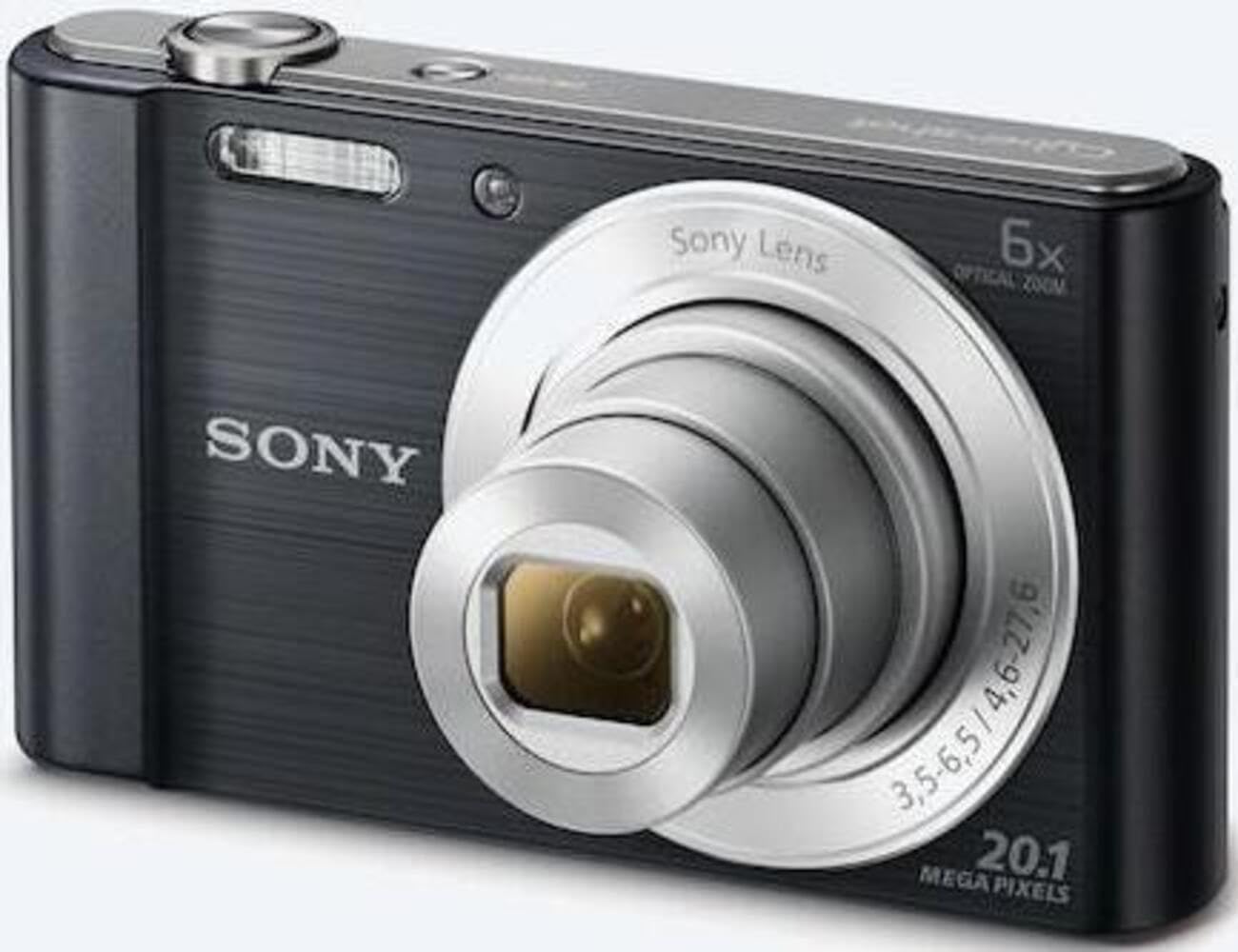
Figure 1: Front view of the camera with the lens retracted. This shows the lens, flash, and shutter button.
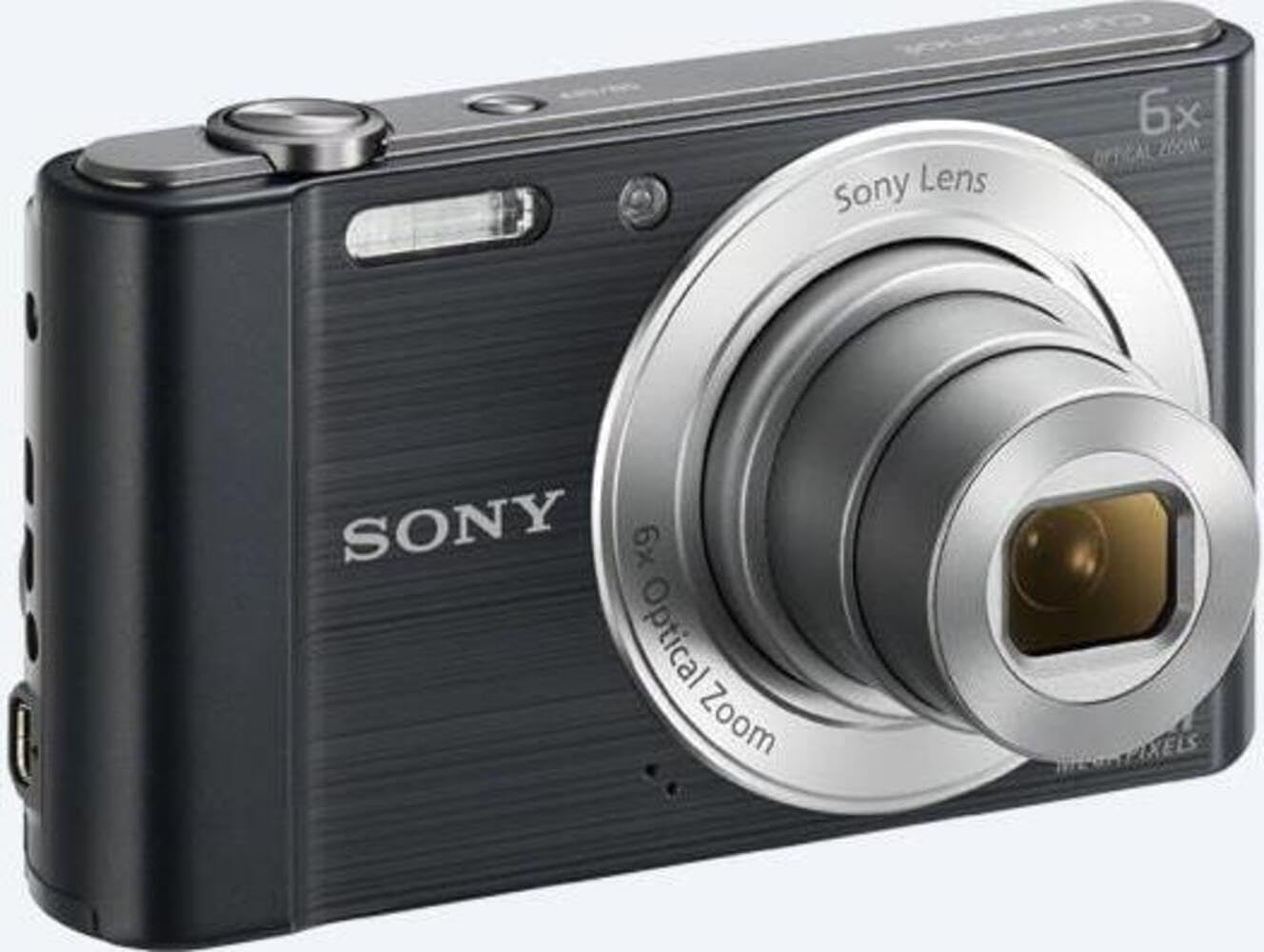
Figure 2: Front view of the camera with the lens extended, ready for shooting. This illustrates the camera's compact design when in use.

Figure 3: Rear view of the camera, highlighting the 2.7-inch LCD screen, navigation buttons, movie record button, and menu button.

Figure 4: Top view of the camera, showing the power button, shutter button, and zoom lever.
2.2 Control Buttons and Functions
- Shutter Button: Press halfway to focus, fully to capture an image.
- Zoom Lever (W/T): Adjusts optical and digital zoom. "W" for wide-angle, "T" for telephoto.
- Power Button: Turns the camera on or off.
- Movie Button: Starts and stops video recording.
- Playback Button: Enters playback mode to view photos and videos.
- Menu Button: Accesses camera settings and options.
- Directional Buttons: Navigate menus and select options. Also used for flash settings, self-timer, and display options.
- Flash: Built-in flash for low-light conditions.
- LCD Screen: 2.7-inch display for framing shots, viewing images, and navigating menus.
3. Setup
Follow these steps to prepare your camera for first use.
3.1 Inserting the Battery
- Open the battery/memory card cover located on the bottom of the camera.
- Insert the battery with the correct orientation, ensuring the terminals align. Push until it clicks into place.
- Close the cover securely.
Note: The camera does not include batteries. Please use compatible Sony NP-BN or NP-BN1 batteries.
3.2 Inserting a Memory Card
The camera supports SDXC or SDHC memory cards.
- Open the battery/memory card cover.
- Insert the memory card into the slot with the correct orientation until it clicks.
- Close the cover securely.
Note: A memory card is not included with the camera. Purchase a compatible SDXC or SDHC card separately.
3.3 Initial Power On and Settings
- Press the Power button to turn on the camera.
- The initial setup screen will appear. Follow the on-screen prompts to set the language, date, and time.
- Ensure the date and time are accurate for proper photo organization.
4. Operating the Camera
Learn how to capture photos and videos with your DSC-W810.
4.1 Taking Photos
- Turn on the camera.
- Frame your shot using the LCD screen.
- Use the zoom lever (W/T) to adjust the 6x optical zoom.
- Press the Shutter button halfway down to focus. The focus frame will turn green when focus is achieved.
- Press the Shutter button fully to take the picture.
4.2 Using Flash Modes
The camera features a built-in flash with various modes. Press the right directional button (flash icon) to cycle through modes:
- Auto Flash: Camera automatically determines if flash is needed.
- Fill-flash: Flash fires for every shot.
- Slow Sync: Flash fires, and shutter speed is slowed to capture background light.
- No Flash: Flash is disabled.
Tip: For low-light environments, the "Party Mode" (accessible via the menu) can optimize settings for clearer images without harsh flash.
4.3 Recording Videos
- Turn on the camera.
- Press the dedicated Movie button to start recording.
- Press the Movie button again to stop recording.
Note: Videos are recorded in 720p resolution in MP4 format.
4.4 Playback Mode
- Press the Playback button to enter playback mode.
- Use the left/right directional buttons to browse through your photos and videos.
- Press the center button to play videos.
- Press the Playback button again to return to shooting mode.
5. Maintenance
Proper care ensures the longevity and performance of your camera.
5.1 Cleaning the Camera
- Camera Body: Wipe with a soft, dry cloth. For stubborn dirt, use a cloth lightly dampened with water.
- Lens: Use a lens brush to remove dust, then gently wipe with a lens cleaning cloth. Avoid touching the lens surface with your fingers.
- LCD Screen: Use a soft, dry cloth specifically designed for LCD screens.
Caution: Do not use organic solvents such as alcohol or thinner to clean the camera.
5.2 Battery Care
- Charge the battery fully before first use.
- Remove the battery if the camera will not be used for an extended period.
- Store batteries in a cool, dry place.
5.3 Storage
When not in use, store the camera in a dry, well-ventilated area, away from direct sunlight, high temperatures, and humidity. Use a camera case for protection during transport.
6. Troubleshooting
Refer to this section for solutions to common issues.
| Problem | Solution |
|---|---|
| Camera does not turn on. |
|
| Images are blurry. |
|
| Flash is too bright or too dim. |
|
| Memory card error. |
|
7. Specifications
Key technical specifications for the Sony Cyber-shot DSC-W810 Digital Camera.
| Feature | Detail |
|---|---|
| Model Name | DSCW810B.CE3 |
| Effective Still Resolution | 20.1 MP |
| Photo Sensor Technology | CCD |
| Optical Zoom | 6x |
| Digital Zoom | 48x |
| Maximum Focal Length | 27.6 mm |
| Minimum Focal Length | 4.6 mm |
| Image Stabilization | Digital, Optical |
| Screen Size | 2.7 Inches LCD |
| Video Resolution | 720p |
| Supported File Formats | JPEG, RAW (Still), MP4 (Video) |
| Flash Memory Type | SDXC or SDHC |
| Connectivity | USB, HDMI |
| Item Weight | 111 Grams |
| Color | Black |
8. Warranty and Support
8.1 Warranty Information
This product comes with a 90-day Limited Hardware Warranty. For full details, please refer to the official warranty document:
View 90-day Limited Hardware Warranty
Note: This is an international version of the camera and may have warranty limitations in certain regions.
8.2 Customer Support
For further assistance, technical support, or service inquiries, please visit the official Sony support website or contact their customer service.