
Aiwa RC-AVL04 XD-DV370 U0033937U
Contents
Aiwa RC-AVL04 XD-DV370 U0033937U OEM Remote Control User Manual
Model: RC-AVL04 XD-DV370 U0033937U
Introduction
This manual provides comprehensive instructions for the proper use and maintenance of your Aiwa RC-AVL04 XD-DV370 U0033937U OEM Remote Control. This remote is designed to operate compatible Aiwa audio/video equipment, offering convenient control over various functions. Please read this manual thoroughly before operating the remote control.
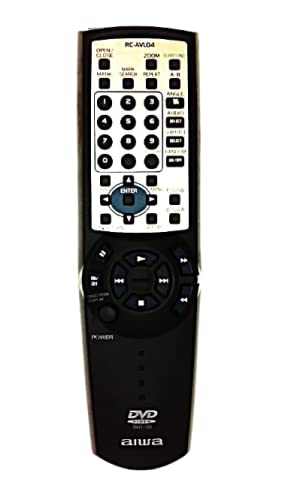
Figure 1: Aiwa RC-AVL04 XD-DV370 U0033937U OEM Remote Control. This image displays the full remote control, showcasing its ergonomic design and button layout, including the numeric keypad, navigation buttons, and playback controls.
Setup
Battery Installation
The remote control requires two AAA batteries (not included) for operation. Follow these steps to install the batteries:
- Locate the battery compartment cover on the back of the remote control.
- Press down on the tab and slide the cover downwards to open the compartment.
- Insert two AAA batteries, ensuring the positive (+) and negative (-) terminals align correctly with the indicators inside the compartment.
- Slide the battery compartment cover back into place until it clicks securely.
Note: Remove batteries if the remote control will not be used for an extended period to prevent leakage and damage.
Operating Instructions
This section details the primary functions of the buttons on your Aiwa remote control.
General Functions
- POWER: Turns the connected Aiwa device on or off.
- Numeric Keypad (0-9): Used for direct track selection, chapter selection, or inputting numerical values.
- ENTER: Confirms selections or inputs.
- Navigation Buttons (Up, Down, Left, Right): Used to navigate menus and selections.
Playback Controls
- PLAY (►): Starts playback.
- PAUSE (‖): Pauses playback. Press again to resume.
- STOP (■): Stops playback.
- FAST FORWARD (►►): Advances playback quickly.
- REWIND (◄◄): Rewinds playback quickly.
- SKIP FORWARD (►►|): Skips to the next track or chapter.
- SKIP BACKWARD (|◄◄): Skips to the beginning of the current track or previous track/chapter.
Specific Function Buttons (Refer to your device's manual for full compatibility)
- OPEN/CLOSE: Opens or closes the disc tray (for compatible DVD/CD players).
- MUTE: Mutes or unmutes the audio output.
- ZOOM: Adjusts the zoom level of the video output.
- MARK: Sets a marker during playback.
- SEARCH: Initiates a search function.
- REPEAT: Repeats the current track, chapter, or disc.
- A-B: Repeats a specific segment between two marked points (A and B).
- MENU: Accesses the main menu of the connected device.
- AUDIO: Cycles through available audio tracks or languages.
- SUBTITLE: Cycles through available subtitle tracks.
- ANGLE: Changes the camera angle (for compatible DVDs).
- DISPLAY: Shows on-screen display information.
- RETURN: Returns to the previous menu or screen.
- CLEAR: Clears an input or selection.
Maintenance
Cleaning the Remote Control
To maintain the remote control's appearance and functionality:
- Wipe the surface with a soft, dry cloth.
- For stubborn dirt, lightly dampen the cloth with water or a mild, non-abrasive cleaner.
- Do not use harsh chemicals, solvents, or abrasive cleaning pads, as these can damage the remote's finish or internal components.
Storage
Store the remote control in a cool, dry place away from direct sunlight, extreme temperatures, and high humidity. Avoid placing heavy objects on the remote.
Troubleshooting
If you experience issues with your remote control, refer to the following common problems and solutions:
- Remote control is not responding:
- Check if the batteries are inserted correctly with the correct polarity.
- Replace old or depleted batteries with new ones.
- Ensure there are no obstructions between the remote control and the device's infrared sensor.
- Make sure you are within the effective operating range and angle of the device.
- Some buttons are not working:
- Clean the remote control surface, especially around the unresponsive buttons, to remove any dirt or debris that might be preventing proper contact.
- Ensure the remote is compatible with the specific function you are trying to use on your Aiwa device.
- Device responds intermittently:
- This could indicate low battery power. Replace the batteries.
- Ensure the remote's infrared emitter is clean and unobstructed.
If the problem persists after trying these solutions, contact customer support or a qualified technician.
Specifications
| Feature | Detail |
|---|---|
| Model Number | RC-AVL04 XD-DV370 U0033937U |
| Brand | Aiwa |
| Connectivity Technology | Infrared |
| Controller Type | Button Control |
| Max Number of Supported Devices | 1 |
| Special Feature | Ergonomic |
| Package Dimensions | 5.98 x 2.01 x 0.75 inches |
| Item Weight | 12 ounces |
| Date First Available | December 22, 2013 |
Warranty and Support
This Aiwa RC-AVL04 XD-DV370 U0033937U OEM Remote Control comes with a 30-day warranty from the date of purchase. This warranty covers defects in materials and workmanship under normal use.
For technical support or warranty claims, please refer to the contact information provided by your retailer or the original manufacturer's support channels. Keep your proof of purchase for warranty validation.
Documents and downloads
Ask a question about this manual
Ask about setup, troubleshooting, compatibility, parts, safety, or missing instructions. Manuals+ will review the question and use this page’s manual context to help answer it.