1. Introduction
The Belkin Miracast Video Adapter F7D7501 enables wireless display mirroring from compatible smartphones, tablets, and other devices to an HDTV. This adapter utilizes Wi-Fi CERTIFIED Miracast technology to stream content, including movies, games, and applications, directly to your television in 1080p resolution. It supports HDMI 2.0 technology, offering increased bandwidth and enhanced audio capabilities.
2. Package Contents
Verify that all items are present in your product package:
- Miracast Video Adapter
- USB Power Cable
- HDMI Extension Cable
- Quick Installation Guide
3. Setup Instructions
Follow these steps to connect your Belkin Miracast Video Adapter to your HDTV:
- Connect the Adapter: Plug the Miracast Video Adapter directly into an available HDMI port on your HDTV. If space is limited, use the provided HDMI Extension Cable.
- Provide Power: Connect the USB Power Cable to the Miracast Video Adapter and then plug the other end into a USB port on your HDTV or a USB wall adapter (not included). The adapter requires power to function.
- Select Input: Turn on your HDTV and select the corresponding HDMI input source to which the adapter is connected.
- NTSC/PAL Switch: The adapter features an NTSC/PAL switch. Ensure it is set to the correct video standard for your region (NTSC for North America, PAL for most of Europe and parts of Asia/Africa). Adjust this switch if you experience display issues.
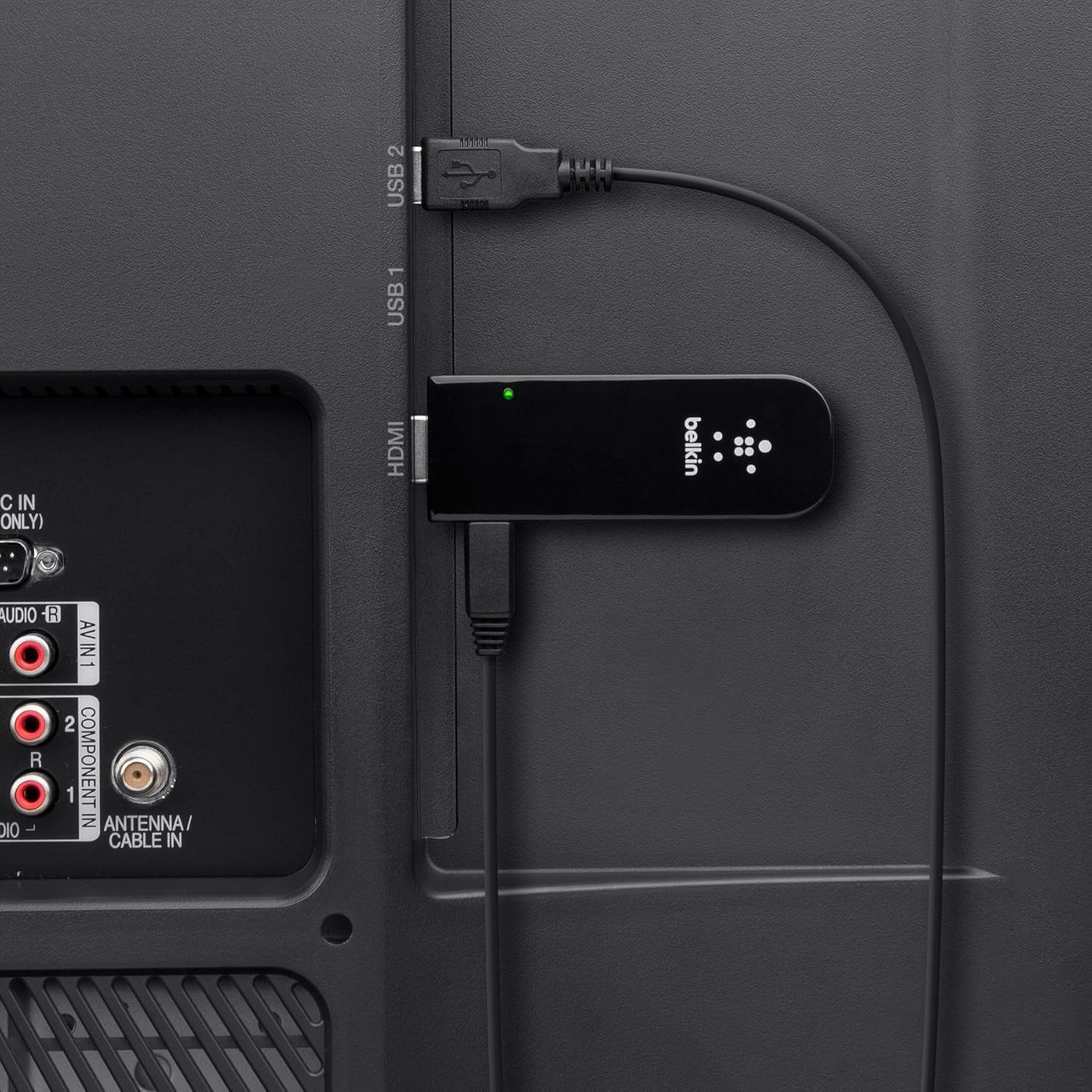
Image: The Belkin Miracast Video Adapter connected to an HDTV's HDMI port and receiving power from a USB port on the TV.

Image: An angled view of the Belkin Miracast Video Adapter, highlighting its HDMI connector and the micro-USB port for power.

Image: A front view of the Belkin Miracast Video Adapter, showing its sleek black design and a small green indicator light, signifying power.

Image: Front and back views of the Belkin Miracast Video Adapter, displaying product labels including the model number F7D7501 and FCC ID.
4. Operating Instructions
Once the adapter is connected and powered, and your HDTV is on the correct input, you can begin mirroring content:
- Enable Miracast on Your Device: On your compatible smartphone, tablet, or laptop, navigate to the display or connection settings. Look for options like "Screen Mirroring," "Cast," "Wireless Display," or "Miracast."
- Select the Adapter: Your device should detect the Belkin Miracast Video Adapter. Select it from the list of available devices to initiate the connection.
- Start Streaming: Once connected, your device's screen will be mirrored on your HDTV. You can now play videos, browse photos, or use applications on the larger screen. The adapter supports 1080p resolution for a clear picture.

Image: A hand holding a smartphone displaying a racing game, illustrating content ready for screen mirroring.

Image: An HDTV displaying the same racing game, demonstrating successful screen mirroring from a smartphone.
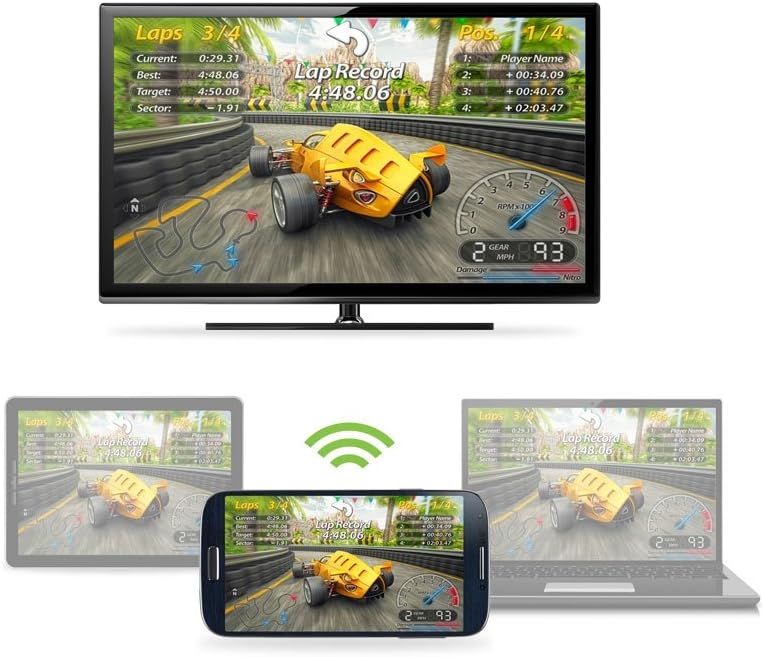
Image: A visual representation of a Miracast adapter facilitating wireless screen mirroring from a smartphone, tablet, and laptop to an HDTV.
Firmware Update Process (General Miracast Adapter Example)
The following video demonstrates a general process for updating the firmware on a Miracast-compatible device. While this video features an iPazzPort Cast adapter, the steps for connecting to Wi-Fi and initiating an update may be similar for other Miracast devices, including the Belkin Miracast Video Adapter.
Video: A demonstration of connecting a Miracast adapter to a Wi-Fi network and performing an online firmware update. This example uses an iPazzPort Cast device.
5. Maintenance
To ensure optimal performance and longevity of your Belkin Miracast Video Adapter:
- Keep the adapter in a dry, dust-free environment.
- Avoid exposing the device to extreme temperatures or direct sunlight.
- Clean the adapter with a soft, dry cloth. Do not use liquid cleaners or aerosols.
- Ensure proper ventilation around the adapter when in use.
6. Troubleshooting
If you encounter issues with your Miracast Video Adapter, consider the following:
No Display or Intermittent Connection:
- Ensure the adapter is securely plugged into the HDTV's HDMI port.
- Verify the USB power cable is connected and receiving power. A green indicator light on the adapter should be on.
- Check that your HDTV is set to the correct HDMI input source.
- Confirm your source device (smartphone, tablet) has Miracast enabled and is attempting to connect to the correct adapter.
- Try restarting both your source device and the HDTV.
- Adjust the NTSC/PAL switch on the adapter to match your region's video standard.
Compatibility Issues:
Please note that the Belkin Miracast Video Adapter may not be compatible with all devices. Known incompatible devices include:
- Google Nexus 7 (Model: 2012, OS: Android 4.3)
- Google Nexus 10 (Model: SLSI/BCM4334, OS: Android 4.2.2 and up)
- HTC One (Model: T-Mobile, OS: Android 4.1.2)
- Samsung Note 2 (Model: N7105)
7. Specifications
| Feature | Detail |
|---|---|
| Brand | Belkin |
| Model Number | F7D7501 |
| Product Dimensions | 1.56 x 5.25 x 8.02 inches |
| Item Weight | 0.01 ounces |
| Color | Black |
| Connectivity Technology | Wireless (Wi-Fi CERTIFIED Miracast) |
| Connector Type | HDMI (Input), USB (Power) |
| Output Resolution | Up to 1080p |
| HDMI Standard | Supports HDMI 2.0 Technology (18 Gbps bandwidth, 4K/Ultra HD compatible, 32 Audio Channels, 60 fps at 4K resolution, dynamic synchronization) |
8. Important Information
Legal Disclaimer:
No returns or exchanges.
9. Warranty and Support
For warranty information and technical support, please refer to the official Belkin website or contact Belkin customer service. Keep your proof of purchase for any warranty claims.


