
1. Introduction
This manual provides detailed instructions for the installation, configuration, and operation of your ASRock H81 PRO BTC Motherboard. Designed for reliable performance, this ATX motherboard supports Intel LGA 1150 processors and DDR3 memory, featuring multiple PCI Express slots suitable for various computing applications, including multi-GPU setups. Please read this manual thoroughly before beginning the installation process to ensure proper setup and to maximize the stability and longevity of your system.
2. Package Contents
Verify that all items listed below are present in your motherboard package. If any item is missing or damaged, contact your retailer.
- ASRock H81 PRO BTC Motherboard
- Quick Installation Guide
- Support CD (Drivers and Utilities)
- I/O Shield
- 2 x SATA Data Cables
3. System Setup
3.1. CPU Installation
The ASRock H81 PRO BTC motherboard uses an LGA 1150 socket. Handle the CPU and socket with extreme care to avoid damaging the pins.
- Locate the CPU socket on the motherboard. Lift the load lever and open the metal load plate.
- Carefully align the CPU with the socket, ensuring the gold triangle on the CPU matches the triangle on the socket. Gently place the CPU into the socket without forcing it.
- Close the load plate and press down the load lever until it locks into place.
- Apply thermal paste to the CPU and install the CPU cooler according to its manufacturer's instructions.
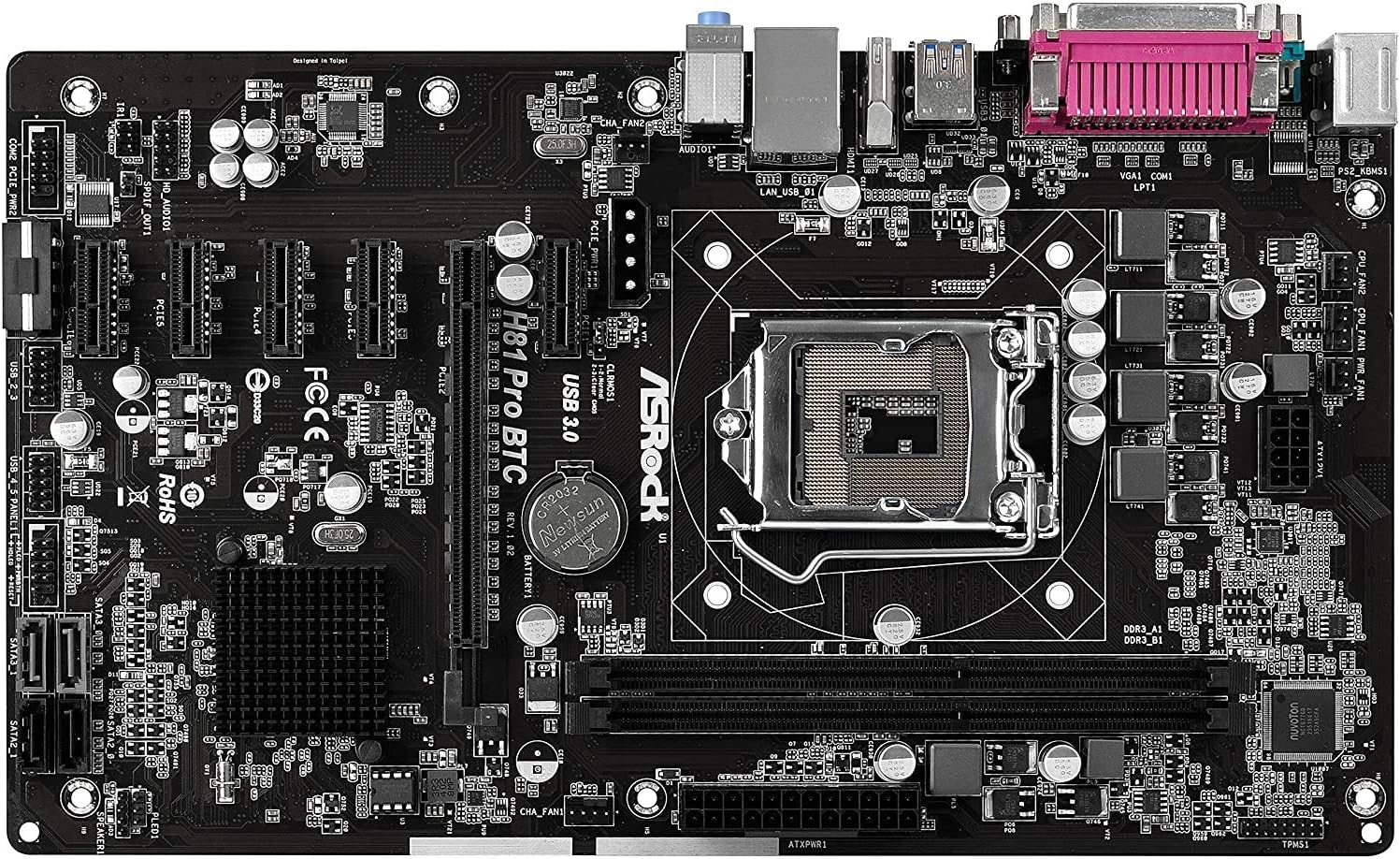
Figure 1: Top-down view of the ASRock H81 PRO BTC Motherboard. This image displays the LGA 1150 CPU socket at the center, flanked by two DDR3 DIMM slots on the right and multiple PCI Express slots below.
3.2. Memory Installation
This motherboard supports DDR3 DIMM modules. Ensure the memory modules are compatible with the motherboard's specifications (DDR3-1600/1333/1066).
- Open the clips at both ends of the DIMM slot.
- Align the notch on the DDR3 memory module with the key in the DIMM slot.
- Insert the memory module firmly into the slot until the clips snap into place. Ensure both clips are fully closed.
3.3. Motherboard Installation into Chassis
Install the motherboard into a compatible ATX chassis.
- Install the I/O shield into the rear opening of your chassis.
- Align the motherboard with the standoffs in the chassis.
- Secure the motherboard with screws, ensuring it is firmly seated.
3.4. Connecting Peripherals and Power
Connect all necessary components and power cables to the motherboard.
- Power Connectors: Connect the 24-pin ATX power connector and the 8-pin EPS power connector from your power supply to the motherboard. For multi-GPU configurations, connect the two additional Molex power connectors for PCIe stability.
- SATA Devices: Connect your storage drives (HDDs/SSDs) to the SATA3 (6Gb/s) or SATA2 (3Gb/s) ports.
- Front Panel Connectors: Connect the chassis's front panel cables (power button, reset button, USB ports, audio jacks, LED indicators) to the corresponding headers on the motherboard. Refer to the motherboard diagram for exact locations.
- USB Devices: Connect USB 2.0 and USB 3.0 devices to the rear I/O ports or internal headers.
- PCI Express Cards: Install graphics cards or other expansion cards into the PCI Express 2.0 x16 slot or the five PCI Express 2.0 x1 slots.
- Display Output: Connect your monitor to the VGA or HDMI port on the rear I/O panel if using integrated graphics, or to your dedicated graphics card.

Figure 2: Angled view of the ASRock H81 PRO BTC Motherboard. This image highlights the various internal connectors such as SATA ports, USB headers, and the arrangement of PCI Express slots.

Figure 3: Side-angled view of the ASRock H81 PRO BTC Motherboard. This perspective shows the main 24-pin ATX power connector, the 8-pin EPS power connector, and the two Molex power connectors designed to provide stable power to multiple PCI Express devices.

Figure 4: Close-up of the ASRock H81 PRO BTC Motherboard's rear I/O panel. This detailed view displays the PS/2 keyboard and mouse ports, a serial port, VGA and HDMI display outputs, two USB 3.0 ports, four USB 2.0 ports, an RJ45 LAN port, and audio input/output jacks.
4. Operating Instructions
4.1. First Boot and BIOS/UEFI Setup
After assembling your system, power it on. Press the Del or F2 key during startup to enter the BIOS/UEFI setup utility. Here you can configure system settings such as boot order, date/time, and advanced hardware parameters.
- Boot Order: Set your preferred boot device (e.g., USB drive for OS installation, SSD/HDD).
- System Information: Verify CPU, memory, and storage device detection.
- Advanced Settings: Adjust settings for integrated peripherals, power management, and CPU features as needed.
- Save and Exit: Save your changes and exit the BIOS/UEFI to proceed with operating system installation.
4.2. Driver Installation
After installing your operating system, install the necessary drivers from the provided support CD or download the latest versions from the ASRock official website. This includes chipset drivers, LAN drivers, audio drivers, and any other specific device drivers.
5. Specifications
| Chipset | Intel H81 |
| CPU Socket | LGA 1150 |
| Compatible Processors | Intel Core i3/i5/i7 (4th and 5th Gen) |
| Memory | 2x DDR3 DIMM Slots, Dual Channel, Non-ECC, Buffered, Max 16GB, DDR3-1600/1333/1066 MHz |
| Expansion Slots | 1x PCI-Express 2.0 x16, 5x PCI-Express 2.0 x1 |
| Storage | 2x SATA3 (6Gb/s) Ports, 2x SATA2 (3Gb/s) Ports |
| LAN | Realtek RTL8111GR Gigabit Ethernet Controller |
| USB Ports | 2x USB 3.0 (rear), 6x USB 2.0 (2 rear, 4 via headers) |
| Rear I/O Ports | 1x PS/2 Keyboard, 1x PS/2 Mouse, 1x VGA, 1x HDMI, 1x Serial Port, 1x RJ45 LAN, Audio I/O Jacks |
| Internal Connectors | 1x Parallel Port Header, 1x Serial Port Header, 2x SLI/Xfire Molex Power Connectors |
| Form Factor | ATX |
| Dimensions | 13.2 x 3 x 10 inches (approx.) |
| Operating System Support | Microsoft Windows 10/8.1/8/7 (32-bit/64-bit) |
6. Troubleshooting
If you encounter issues, refer to the following common troubleshooting steps:
- No Power: Ensure all power cables (24-pin ATX, 8-pin EPS, Molex for PCIe) are securely connected. Check the power supply unit (PSU) and wall outlet.
- No Display: Verify that the monitor is connected to the correct display output (integrated graphics or dedicated GPU). Reseat the graphics card and memory modules.
- System Fails to POST (Power-On Self-Test): Listen for beep codes (if a speaker is connected) which can indicate specific hardware issues. Reseat CPU, memory, and expansion cards. Clear CMOS by removing the CMOS battery for a few minutes or using the clear CMOS jumper.
- Operating System Not Booting: Check boot order in BIOS/UEFI. Ensure the storage drive with the OS is properly connected and detected.
- Peripheral Not Detected: Ensure the device is properly connected to the correct port/slot. Install or update relevant drivers.
For more advanced troubleshooting, consult the ASRock official website or contact their technical support.
7. Maintenance
Regular maintenance helps ensure the longevity and optimal performance of your motherboard.
- Dust Removal: Periodically clean dust from the motherboard and components using compressed air. Ensure the system is powered off and unplugged before cleaning.
- BIOS/UEFI Updates: Check the ASRock website for BIOS/UEFI updates. Updates can improve compatibility, stability, and performance. Follow update instructions carefully.
- Driver Updates: Keep your system drivers updated to ensure compatibility and optimal performance with your operating system and peripherals.
8. Warranty and Support
This ASRock H81 PRO BTC Motherboard is covered by the manufacturer's warranty. For specific warranty terms and conditions, please refer to the warranty card included in your package or visit the official ASRock website.
For technical assistance, driver downloads, or further support, please visit the ASRock official support page:


