
1. Introduction
This manual provides essential information for setting up, operating, maintaining, and troubleshooting your Lenovo ThinkPad L440 20AS002FUS laptop. Please read this guide thoroughly to ensure proper use and to maximize the lifespan of your device.
2. Product Overview
2.1 Key Features
- Intel Core i5-4200M Processor (2.5 GHz)
- 14-inch LED-lit Display (1366x768 resolution)
- 4 GB DDR3L SDRAM
- 500 GB 7200 rpm Hard Drive
- Integrated Intel HD Graphics 4600
- Windows 8 Professional Operating System
- Up to 7.5 hours of battery life
2.2 Package Contents
Verify that all items are present in your package:
- Lenovo ThinkPad L440 Laptop
- AC Adapter
- Power Cord
- 1 Lithium Ion Battery
2.3 Laptop Components
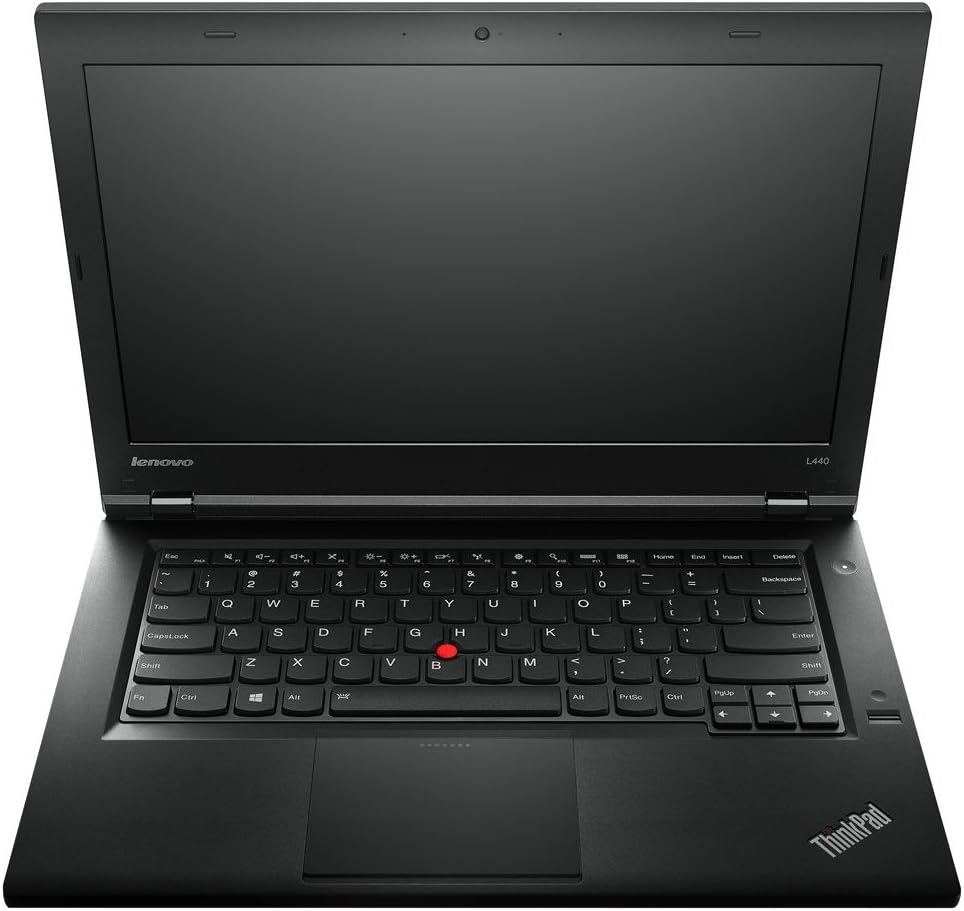
Figure 2.3.1: Top-down view of the Lenovo ThinkPad L440 laptop, showcasing the keyboard, TrackPoint, and touchpad.

Figure 2.3.2: The Lenovo ThinkPad L440 display showing the Windows 8 Start screen, illustrating the user interface.
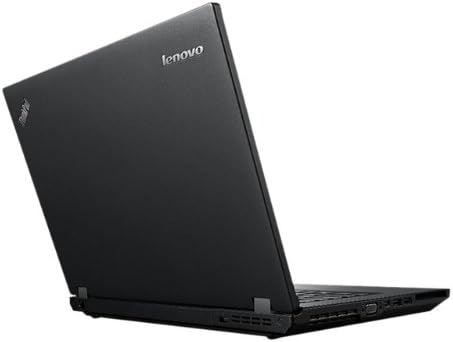
Figure 2.3.3: Rear and side view of the Lenovo ThinkPad L440, highlighting various ports and the robust chassis design.

Figure 2.3.4: Close-up view of the Lenovo ThinkPad L440 keyboard, showing the function keys and their respective icons for quick access to system controls.

Figure 2.3.5: Angled view of the open Lenovo ThinkPad L440, providing a perspective of the screen and keyboard layout.
3. Setup
3.1 Initial Power On
- Connect the AC Adapter: Plug the AC adapter into the power connector on your laptop and then into a wall outlet.
- Charge the Battery: Allow the battery to charge for at least 30 minutes before initial use, or until the battery indicator shows a sufficient charge.
- Power On: Press the power button, typically located on the top right of the keyboard deck, to turn on your laptop.
- Initial Windows Setup: Follow the on-screen instructions to complete the Windows 8 Professional setup, including language, region, and user account creation.
3.2 Connecting Peripherals
The ThinkPad L440 features various ports for connecting external devices:
- USB Ports: Connect USB devices such as mice, keyboards, or external storage drives to the available USB 2.0 (3 ports) and USB 3.0 (1 port) ports.
- External Display: Use the VGA or Mini DisplayPort to connect an external monitor or projector.
- Ethernet: Connect an Ethernet cable to the RJ-45 port for a wired network connection.
- Audio Jack: Plug headphones or external speakers into the combined audio jack.
4. Operating Your Laptop
4.1 Windows 8 Professional Basics
- Start Screen: The primary interface of Windows 8, featuring live tiles for applications and information.
- Desktop: Access the traditional Windows desktop for familiar applications and file management.
- Charms Bar: Swipe from the right edge of the screen (or press Windows key + C) to access Search, Share, Start, Devices, and Settings.
4.2 Keyboard and Input Devices
- Keyboard: The ThinkPad L440 features a full-sized keyboard. Use the Fn key in combination with the F1-F12 keys for special functions like volume control, screen brightness, and wireless toggling.
- TrackPoint: The red pointing stick located in the center of the keyboard allows for precise cursor control. Use it with the three buttons below the spacebar.
- Touchpad: The multi-touch touchpad below the keyboard supports gestures for navigation.
4.3 Optical Drive (DVD-W)
Your laptop is equipped with a DVD-W optical drive. To open the tray, press the eject button located on the drive itself. Insert a disc label-side up and gently push the tray back in until it clicks.
5. Maintenance
5.1 Cleaning Your Laptop
- Screen: Use a soft, lint-free cloth slightly dampened with water or a screen cleaner specifically designed for electronics. Do not spray liquid directly onto the screen.
- Keyboard and Chassis: Use a soft cloth to wipe surfaces. For dust in crevices, use compressed air. Avoid harsh chemicals or abrasive materials.
5.2 Battery Care
- Charging: For optimal battery life, avoid frequently discharging the battery completely. Charge it when the battery level is low.
- Storage: If storing the laptop for an extended period, ensure the battery is charged to approximately 50-60% and store it in a cool, dry place.
- Replacement: Over time, battery capacity will decrease. If you notice a significant reduction in battery life, consider replacing the battery with an official Lenovo part.
6. Troubleshooting
| Problem | Possible Cause | Solution |
|---|---|---|
| Laptop does not power on. | Battery is depleted or AC adapter is not connected properly. | Ensure the AC adapter is securely connected to both the laptop and a working power outlet. Allow the battery to charge for a few minutes before attempting to power on again. |
| No display on screen. | Screen brightness is too low or external display is connected. | Press the Fn + F6 (brightness up) key combination. Disconnect any external monitors. If the issue persists, try restarting the laptop. |
| Webcam is not working. | Webcam drivers are missing or corrupted, or the webcam is disabled. | Check Device Manager for webcam drivers and update them if necessary. Ensure the webcam is not physically covered or disabled via a function key (if applicable) or software settings. Refer to Lenovo's support website for specific driver downloads. |
| Laptop is running slow. | Too many applications running, insufficient free disk space, or malware. | Close unnecessary applications. Free up disk space by deleting temporary files or uninstalling unused programs. Run a reputable antivirus scan. |
7. Specifications
| Model Name | ThinkPad L440 |
| Item Model Number | 20AS002FUS |
| Processor | Intel Core i5-4200M (2.5 GHz) |
| RAM | 4 GB DDR3L SDRAM (1333 MHz) |
| Hard Drive | 500 GB Serial ATA-600 (7200 RPM) |
| Graphics | Intel HD Graphics 4600 (Integrated) |
| Display | 14-inch LED-lit (1366 x 768 pixels) |
| Operating System | Windows 8 Professional |
| Optical Drive | DVD-W |
| Wireless Connectivity | 802.11bgn |
| USB Ports | 3 x USB 2.0, 1 x USB 3.0 |
| Battery Life | Up to 7.5 Hours (Lithium Ion) |
| Dimensions (LxWxH) | 12 x 6 x 12 inches |
| Weight | 1 pound |
| Color | Black |
8. Warranty and Support
For detailed warranty information, please refer to the warranty card included with your product or visit the official Lenovo support website. Lenovo provides various support resources, including driver downloads, FAQs, and contact information for technical assistance.
Online Support: www.lenovo.com/support
It is recommended to register your product on the Lenovo website to receive updates and support notifications.