
This manual provides detailed instructions for the assembly, operation, maintenance, and troubleshooting of your Lenovo Horizon Multi-mode Table HT600. Please read this manual thoroughly before using the product to ensure proper setup and functionality.
1. Product Overview
The Lenovo Horizon Multi-mode Table HT600 is designed to complement and enhance the use of compatible Lenovo Horizon All-in-One PCs. It allows for various modes of interaction with your Horizon PC, transforming it into a large-format tablet or a traditional desktop setup.
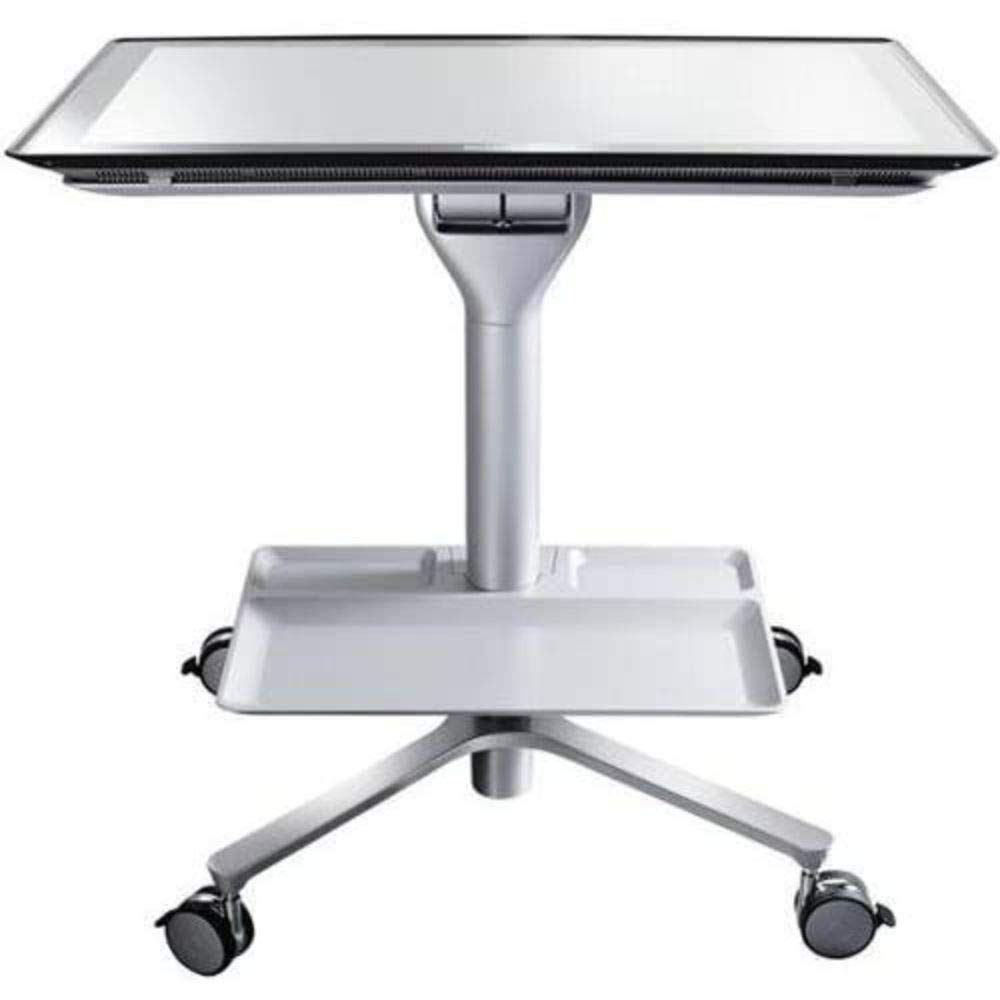
Figure 1: Lenovo Horizon Multi-mode Table HT600. This image shows the table in its assembled form, ready to support a Lenovo Horizon All-in-One PC.
2. Setup and Assembly
Assembly is required for the Lenovo Horizon Multi-mode Table HT600. Please follow these steps carefully.
2.1 Unpacking
Carefully remove all components from the packaging. Verify that all parts are present:
- Tabletop section
- Legs (typically 4)
- Mounting hardware (screws, washers, Allen wrench if needed)
- Instruction sheet (this manual)
2.2 Assembly Instructions
- Place the tabletop section upside down on a soft, clean surface to prevent scratches.
- Attach each leg to the designated mounting points on the underside of the tabletop using the provided screws and hardware. Ensure screws are tightened securely but do not overtighten.
- Once all legs are attached, carefully turn the table upright.
- Ensure the table is stable before placing any equipment on it.
Note: If you encounter any difficulties during assembly, refer to the troubleshooting section or contact Lenovo support.
3. Operating the Multi-mode Table
The HT600 table is designed to be used with compatible Lenovo Horizon All-in-One PCs. Its multi-mode functionality allows for flexible interaction.
3.1 Placing the Lenovo Horizon PC
- Carefully place your Lenovo Horizon All-in-One PC onto the center of the table.
- Ensure the PC is securely seated and stable on the table surface.
3.2 Multi-mode Functionality
The table supports various orientations for your Horizon PC, allowing it to function as a large horizontal tabletop device or an upright display. Refer to your Lenovo Horizon PC's manual for specific instructions on how to utilize its multi-mode features in conjunction with this table.
4. Maintenance
Proper maintenance ensures the longevity and appearance of your Lenovo Horizon Multi-mode Table HT600.
4.1 Cleaning
- Use a soft, damp cloth to wipe down the table surfaces.
- Avoid abrasive cleaners, solvents, or harsh chemicals, as these can damage the finish.
- For stubborn stains, a mild soap solution can be used, followed by wiping with a clean, damp cloth.
4.2 Storage
When not in use, store the table in a dry, cool environment away from direct sunlight and extreme temperatures.
5. Troubleshooting
This section addresses common issues you might encounter with your Lenovo Horizon Multi-mode Table HT600.
| Problem | Possible Cause | Solution |
|---|---|---|
| Table is unstable or wobbly. | Loose leg connections; uneven floor surface. | Check and tighten all leg screws. Move the table to a level surface. |
| Lenovo Horizon PC does not fit on the table. | Incompatible PC model. | This table is specifically designed for certain Lenovo Horizon All-in-One PC models (e.g., original Horizon). It may not be compatible with newer models like the Horizon 2 or other Lenovo AIO PCs. Verify your PC model's compatibility with the HT600 table. |
| Scratches on table surface. | Abrasive cleaning materials; sharp objects. | Use only soft cloths for cleaning. Avoid placing sharp objects directly on the surface. |
If the issue persists, please contact Lenovo customer support for further assistance.
6. Specifications
| Feature | Detail |
|---|---|
| Brand | Lenovo |
| Model | HT600 |
| UPC | 887770827385 |
| Item Weight | 32 Pounds (approximately 14.5 kg) |
| Assembly Required | Yes |
| Style | Modern |
7. Warranty and Support
For warranty information, technical support, or to purchase replacement parts, please visit the official Lenovo support website or contact their customer service directly. Keep your purchase receipt as proof of purchase for warranty claims.
Lenovo Official Support: https://support.lenovo.com