
1. Introduction
The Lenovo ThinkPad OneLink Pro Dock (4X10E52935) is designed to expand the connectivity options of compatible ThinkPad notebooks. Utilizing OneLink technology, this dock provides data transfer, video output, and power delivery through a single cable connection to your notebook. It allows for the connection of multiple peripherals, external displays, and network access, enhancing productivity in various environments.
2. Package Contents
Verify that all items are present in your package. If any item is missing or damaged, contact your retailer or Lenovo support.

Image 2.1: ThinkPad OneLink Pro Dock with included accessories.
- Lenovo ThinkPad OneLink Pro Dock
- AC Power Adapter (90W)
- OneLink Cable
- DVI-I to VGA Adapter
3. Product Overview
The OneLink Pro Dock features various ports for connecting external devices and displays. Familiarize yourself with the port layout for proper setup.
3.1 Front Panel

Image 3.1: Front panel of the ThinkPad OneLink Pro Dock.
- 2x USB 3.0 Ports: One port supports Always-On Mobile Device Charging.
- Stereo / Mic Combo Audio Port: For connecting headphones or a headset.
3.2 Rear Panel

Image 3.2: Rear panel of the ThinkPad OneLink Pro Dock with various connectivity options.
- 2x USB 2.0 Ports: For connecting standard USB devices.
- 2x USB 3.0 Ports: For high-speed data transfer devices.
- DisplayPort: Supports a maximum resolution of 2560x1600.
- DVI-I Port: Supports a maximum resolution of 1920x1200. A DVI to VGA adapter is included for VGA monitor compatibility.
- Gigabit Ethernet (10/1000): For wired network connection.
- OneLink Connector: Connects to the ThinkPad notebook.
- Power Input: For connecting the AC power adapter.
4. Setup Instructions
Follow these steps to set up your ThinkPad OneLink Pro Dock:
- Connect Power: Plug the 90W AC power adapter into the power input port on the rear of the dock, then connect the adapter to a power outlet.
- Connect Peripherals: Connect your external monitor(s) to the DisplayPort and/or DVI-I port on the rear of the dock. Use the DVI to VGA adapter if connecting a VGA monitor. Connect your keyboard, mouse, and other USB devices to the available USB ports (USB 2.0 or USB 3.0) on the front and rear panels.
- Connect Network (Optional): If a wired network connection is desired, connect an Ethernet cable from your network router or switch to the Gigabit Ethernet port on the rear of the dock.
- Connect to Notebook: Connect the OneLink cable from the dock to the OneLink port on your compatible ThinkPad notebook.
- Power On: Power on your ThinkPad notebook. The dock should be automatically recognized, and external displays should activate. The OneLink technology provides driver-free video and data transfer.
5. Operating Instructions
5.1 Dual Display Output
The dock supports dual video output without compression, allowing for extended desktop or mirrored display configurations. Connect one monitor to the DisplayPort and another to the DVI-I port. Adjust display settings within your operating system.
5.2 Always-On Mobile Device Charging
The designated USB 3.0 port on the front panel provides power for charging mobile devices even when the notebook is turned off or disconnected, provided the dock remains connected to AC power.
5.3 Audio Connectivity
Use the stereo/mic combo audio port on the front panel for connecting headphones, speakers, or a headset. Audio output will be routed through the dock when connected.
6. Maintenance
To ensure optimal performance and longevity of your ThinkPad OneLink Pro Dock, follow these maintenance guidelines:
- Cleaning: Use a soft, dry cloth to clean the exterior of the dock. Avoid using liquid cleaners or abrasive materials.
- Ventilation: Ensure the dock is placed in a well-ventilated area to prevent overheating. Do not block any ventilation openings.
- Cable Management: Keep cables organized and free from kinks or excessive bending to prevent damage.
- Environmental Conditions: Operate the dock within recommended temperature and humidity ranges as specified in the product's technical documentation.
7. Troubleshooting
If you encounter issues with your ThinkPad OneLink Pro Dock, refer to the following common problems and solutions:
- No Display Output:
- Ensure the dock is powered on and the OneLink cable is securely connected to both the dock and the notebook.
- Verify that external monitors are powered on and set to the correct input source.
- Check display cables for secure connections and damage. Consider using high-quality DisplayPort cables.
- Update your ThinkPad's graphics drivers and BIOS to the latest versions from the Lenovo support website.
- Flickering Monitor:
- This can sometimes be resolved by using higher-quality DisplayPort or DVI cables.
- Ensure your ThinkPad's graphics drivers and BIOS are up to date.
- Try reducing the resolution or refresh rate of the external display.
- No Network Connection:
- Confirm the Ethernet cable is securely connected to both the dock and your network.
- Check network settings on your ThinkPad.
- Restart your network router/switch and the ThinkPad.
- USB Devices Not Recognized:
- Ensure the dock is powered and connected to the notebook.
- Try connecting the USB device to a different port on the dock or directly to the notebook to isolate the issue.
- Update your ThinkPad's USB drivers.
- Power Error Messages:
- Ensure you are using the original 90W AC power adapter provided with the dock. Using an underpowered adapter may cause issues.
For further assistance, refer to the Lenovo support website or contact Lenovo technical support.
8. Specifications
Detailed technical specifications for the ThinkPad OneLink Pro Dock (4X10E52935):
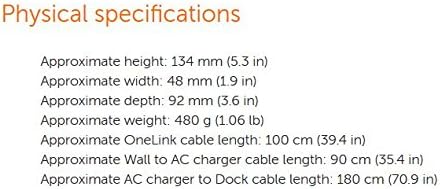
Image 8.1: Physical dimensions and cable lengths.
| Feature | Specification |
|---|---|
| Model Number | 4X10E52935 |
| Brand | Lenovo |
| Color | Black |
| Hardware Interface | Ethernet, USB, USB 2.0, USB 3.0, VGA (via adapter) |
| Total USB Ports | 6 (4x USB 3.0, 2x USB 2.0) |
| Video Output | 1x DisplayPort (Max 2560x1600), 1x DVI-I (Max 1920x1200) |
| Ethernet | Gigabit (10/100/1000) |
| Audio | Stereo / Mic Combo Port |
| Power Input | 90 Watts |
| Dimensions (H x W x D) | Approx. 134 mm (5.3 in) x 48 mm (1.9 in) x 92 mm (3.6 in) |
| Weight | Approx. 480 g (1.06 lb) |
| OneLink Cable Length | Approx. 100 cm (39.4 in) |
| Compatible Devices | Lenovo B50-70, B50-80, E431, E440, E450, E455, E460, E465, E531, E540, E550, E550c, E555, E560, E565, S1 Yoga, S431, S440, S531, S540 ThinkPad Yoga (S Series), S1, 12, S3, 14, S5, 15, X1 Carbon (2nd Gen), (3rd Gen) |
9. Warranty and Support
Warranty information for the Lenovo ThinkPad OneLink Pro Dock is typically provided with the product at the time of purchase or can be found on the official Lenovo support website. For technical assistance, driver downloads, or further troubleshooting, please visit support.lenovo.com and search for your product model (4X10E52935).


