
Introduction
Welcome to the user manual for your Logitech HD Pro Webcam C920. This guide provides detailed instructions on how to set up, operate, maintain, and troubleshoot your webcam to ensure optimal performance. The C920 Webcam delivers incredibly sharp and detailed Full HD video with a Full HD glass lens, 78° field of view, and HD auto lighting correction, plus dual microphones for crystal-clear stereo sound.
Safety Information
Please read all safety instructions carefully before using your webcam. Keep this manual for future reference.
- Do not expose the webcam to water or excessive moisture.
- Avoid placing the webcam near heat sources or in direct sunlight.
- Do not attempt to open or repair the webcam yourself. Refer all servicing to qualified personnel.
- Use only the provided USB cable to connect the webcam to your computer.
- Keep the lens clean using a soft, dry cloth.
Package Contents
Verify that all items are present in your package:
- Logitech HD Pro Webcam C920
- User Documentation (this manual)
Setup Guide
1. Hardware Installation
The Logitech C920 features a versatile clip that allows it to be securely mounted on various devices.
- For Laptops/LCD Monitors: Open the clip and place the webcam on top of your screen, ensuring the front lip rests securely on the top edge and the adjustable clip arm rests against the back of the screen.
- For Desktops/Flat Surfaces: Fold the clip completely closed to form a flat base. Place the webcam on a stable, flat surface.
- Tripod Mounting: The C920 also includes a standard tripod thread on the bottom of its clip for mounting on a tripod (not included).
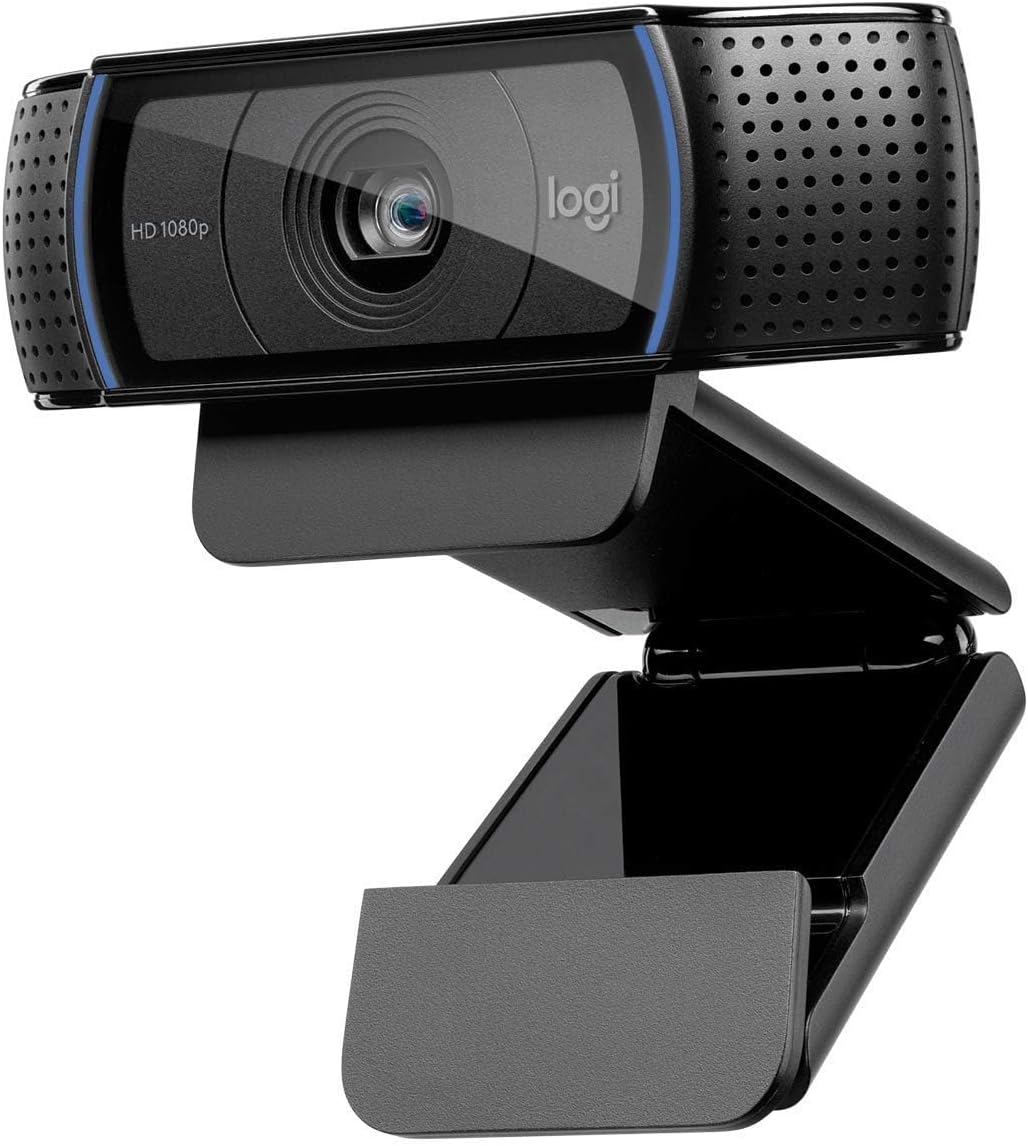
Image: Front view of the Logitech HD Pro Webcam C920, showing the lens, HD 1080p label, and Logitech logo. The webcam is mounted on its adjustable clip, ready for placement on a monitor or flat surface.

Image: Side view of the Logitech HD Pro Webcam C920, illustrating the flexible mounting clip in an extended position, suitable for gripping the top edge of a monitor or laptop screen. The attached USB cable is visible.
2. Software Installation
The Logitech C920 is a plug-and-play device for most modern operating systems. Drivers are typically installed automatically upon connection.
- Connect the USB cable from the webcam to an available USB port on your computer.
- Your operating system (Windows or macOS) should automatically detect and install the necessary drivers. This may take a few moments.
- For advanced settings and features, you may download the Logitech G HUB software or Logitech Capture software from the official Logitech support website.
System Requirements:
- Windows 7, 8, 10 or later
- macOS 10.10 or later
- Chrome OS
- USB 2.0 port
- Internet connection for optional software download
Operating Your Webcam
Connecting the Webcam
Once the webcam is physically connected and drivers are installed, it will be recognized by your computer as a video and audio input device.
Using with Applications
The C920 is compatible with most popular video conferencing and streaming applications.
- Video Calls: Open your preferred video calling application (e.g., Zoom, Skype, Microsoft Teams, Google Meet). In the application's settings, select "Logitech C920" as your camera and microphone.
- Recording: Use your computer's built-in camera application (e.g., Camera app on Windows, Photo Booth on macOS) or third-party recording software to capture video and audio.
- Streaming: For live streaming platforms, configure your streaming software (e.g., OBS Studio, Streamlabs OBS) to use the C920 as your video and audio source.
Adjusting Settings
Many applications allow you to adjust webcam settings directly. For more comprehensive control, use the Logitech G HUB or Logitech Capture software.
- Resolution: Select your desired video resolution (up to 1080p Full HD).
- Field of View: The C920 has a 78° field of view, suitable for individual or small group calls.
- Autofocus: The webcam features automatic autofocus. Ensure good lighting for optimal performance.
- Lighting Correction: HD auto lighting correction adjusts to dim lighting conditions.
- Microphone: The C920 has dual microphones for stereo sound. Adjust microphone levels in your computer's sound settings or application settings.
Care and Maintenance
Proper care will extend the life of your webcam.
- Cleaning the Lens: Gently wipe the lens with a soft, lint-free cloth. Do not use abrasive cleaners or solvents.
- Cleaning the Body: Use a slightly damp cloth to clean the webcam's body. Ensure no moisture enters the device.
- Storage: When not in use, store the webcam in a cool, dry place, away from direct sunlight and extreme temperatures.
- Cable Care: Avoid bending or kinking the USB cable excessively.
Troubleshooting
If you encounter issues with your Logitech C920, refer to the following common problems and solutions:
| Issue | Solution |
|---|---|
| Webcam not detected by computer. |
|
| No video or black screen in application. |
|
| Poor video quality (blurry, dark, grainy). |
|
| No audio or poor audio quality. |
|
Technical Specifications
| Feature | Specification |
|---|---|
| Model Number | 960-001055 |
| Video Capture Resolution | Full HD 1080p (up to 1920 x 1080 pixels) at 30 frames per second |
| Photo Resolution | 15 Megapixels (software enhanced) |
| Lens | Full HD glass lens |
| Field of View | 78° diagonal |
| Focus Type | Autofocus |
| Built-in Microphones | Dual stereo microphones with automatic noise reduction |
| Lighting Correction | Automatic HD light correction (RightLight™ 2) |
| Connectivity | USB 2.0 (USB 3.0 ready) |
| Cable Length | 1.5 m (5 ft) |
| Dimensions (H x W x D) | 2.79 x 24.64 x 16.51 cm (with clip) |
| Weight | 136.08 g |
| Compatible Operating Systems | Windows 7 or later, macOS 10.10 or later, Chrome OS |
Warranty Information
Logitech products are manufactured to the highest quality standards. This product is covered by a limited hardware warranty from the date of purchase. For specific warranty terms and conditions applicable to your region, please refer to the official Logitech website or the warranty card included with your product. Keep your proof of purchase for warranty claims.
Customer Support
For further assistance, technical support, or to download the latest software and drivers, please visit the official Logitech support website:
You can also find FAQs and community forums on the support site.


