
1. Introduction
The Tronsmart T1000 Mirror2TV is a wireless display HDMI dongle designed to cast content from your mobile devices or computers to an HDTV or projector. It supports multiple standards including Miracast, DLNA, and AirPlay, making it compatible with Android phones/tablets, Apple iOS iPhones/iPads, Windows PCs/Notebooks, and Mac devices. This manual provides instructions for setup, operation, and troubleshooting to ensure optimal use of your device.
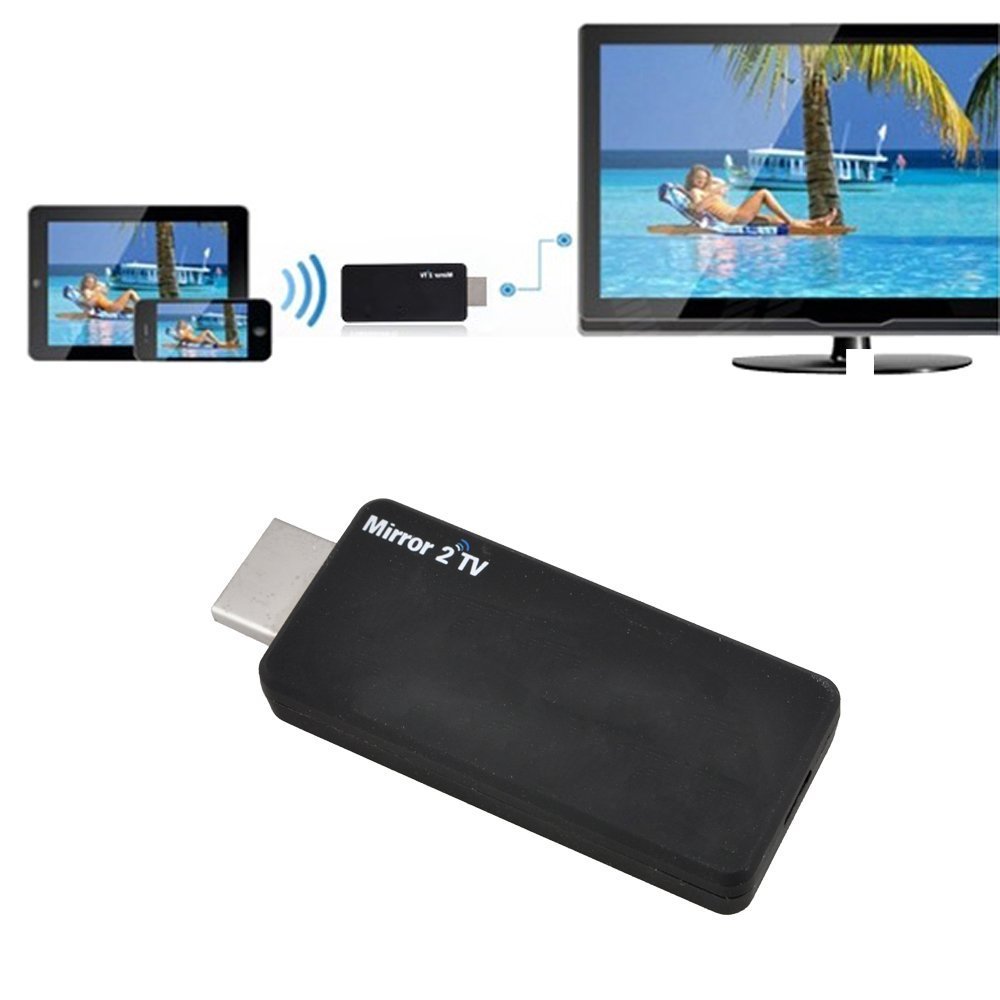
Image 1.1: The Tronsmart T1000 dongle facilitating a wireless presentation in a meeting room environment, demonstrating its capability to display content from a laptop onto a larger screen.
2. Package Contents
Please verify that all items are present in your package:
- Tronsmart T1000 Mirror2TV Wireless Display HDMI Dongle
- USB Power Cable with Wi-Fi Dongle
- User Manual

Image 2.1: The Tronsmart T1000 package contents laid out, showing the main dongle unit, the USB power and Wi-Fi extension cable, and the printed user manual.
3. Setup
3.1 Physical Connection
- Connect the Dongle: Plug the Tronsmart T1000 dongle directly into an available HDMI port on your HDTV or projector.
- Provide Power: Connect the USB power cable to the dongle's micro USB port and then to a USB power source (e.g., a USB port on your TV or a USB power adapter). Ensure the dongle receives stable power.
- Select Input: Switch your TV's input source to the HDMI port where the dongle is connected. You should see the Tronsmart T1000 startup screen.

Image 3.1: The Tronsmart T1000 dongle connected to its USB power cable, ready for installation.

Image 3.2: A detailed view of the HDMI output connector on the Tronsmart T1000 dongle.

Image 3.3: A detailed view of the micro USB power input port on the Tronsmart T1000 dongle.

Image 3.4: Connection diagram illustrating the steps to plug the dongle into an HDMI port, connect the USB power cable, and switch the TV input source.
3.2 Software Setup (EZCast App)
To configure and use the Tronsmart T1000, you will need to download the EZCast application on your transmitting device.
- Download the App: Visit the official EZCast download page or scan the QR code displayed on your TV screen after connecting the dongle.
- For Windows/Mac: www.iezvu.com/download/appdownload.htm
- For iOS (iPad/iPhone): Search for "EZCast" in the Apple App Store.
- For Android: Search for "EZCast" in the Google Play Store.
- Install and Launch: Install the EZCast app on your device and launch it.
- Connect to Dongle's Wi-Fi: On your device, connect to the Wi-Fi network broadcast by the Tronsmart T1000 dongle (SSID and password will be displayed on your TV screen).
- Configure Settings: Within the EZCast app, you can configure settings such as Wi-Fi network connection for internet access, resolution, and default mirroring mode (EZCast or Miracast).

Image 3.5: A visual guide for downloading the EZCast application across various platforms including Windows, Mac, iOS, and Android, with QR codes and direct links.
4. Operating Instructions
The Tronsmart T1000 supports various wireless display protocols:
- Miracast: For Android devices and Windows PCs. Allows screen mirroring. Ensure your Android device supports Miracast.
- DLNA: For streaming media content from compatible devices.
- AirPlay: For Apple iOS devices (iPhone/iPad) and Mac. Supports mirroring and media streaming.
4.1 Screen Mirroring
To mirror your device's screen to the TV:
- Ensure your device is connected to the Tronsmart T1000's Wi-Fi network or configured through the EZCast app to use your home Wi-Fi.
- For Android/Windows (Miracast): Activate the Miracast function on your device (often found in display settings as 'Wireless Display', 'Cast', or 'Screen Mirroring') and select the Tronsmart T1000.
- For iOS/Mac (AirPlay): Open Control Center (iOS) or the menu bar (Mac), select 'Screen Mirroring' or 'AirPlay', and choose the Tronsmart T1000.
- The TV will display your device's screen. You can also use the TV as a second independent screen.
4.2 Content Casting
The EZCast app allows you to cast various types of content:
- Local Media: Play and cast local videos, music, photos, and documents (MS Office) directly from your device through the EZCast app.
- Web Browsing: For optimal streaming of online videos, use the web browser function within the EZCast application. This method is recommended to prevent buffering and ensure smooth playback compared to general screen mirroring of a web browser.
- Games: You can cast games, though some lag may be experienced, especially with fast-paced titles.
5. Maintenance
To ensure the longevity and optimal performance of your Tronsmart T1000 dongle:
- Keep the device clean and free from dust. Use a soft, dry cloth for cleaning.
- Avoid exposing the device to extreme temperatures, direct sunlight, or high humidity.
- Do not attempt to disassemble or repair the device yourself. Refer to qualified service personnel if issues arise.
- Ensure proper ventilation around the dongle when in use, especially if it's behind a TV.
6. Troubleshooting
If you encounter issues with your Tronsmart T1000, refer to the following common solutions:
- No Display on TV:
- Ensure the dongle is securely plugged into the HDMI port.
- Verify the USB power cable is connected and receiving power.
- Confirm your TV input is set to the correct HDMI source.
- Cannot Connect to Dongle's Wi-Fi:
- Restart the dongle by unplugging and re-plugging its power.
- Ensure your device's Wi-Fi is enabled and scanning for networks.
- Check the Wi-Fi password displayed on the TV screen.
- Choppy or Lagging Video/Audio:
- Ensure your transmitting device is close to the dongle to minimize signal interference.
- If streaming online content, use the web browser within the EZCast app for better performance.
- Check your home Wi-Fi network's stability and speed if the dongle is connected to it.
- For Windows 8.1, try using the "low" setting for display quality if available in the EZCast app.
- Update the dongle's firmware through the EZCast app if an update is available.
- Android Miracast Not Working:
- Verify that your specific Android device model supports Miracast functionality.
- Some Android devices may require specific settings or apps to enable Miracast.
- EZCast App Issues (Crashes, Display Problems):
- Ensure you have the latest version of the EZCast app installed.
- Restart your transmitting device.
- If persistent, try reinstalling the EZCast app.
- Confusing Instructions:
- The EZCast app often provides clearer, step-by-step guidance than printed manuals. Refer to the app's instructions.
7. Specifications
| Feature | Specification |
|---|---|
| Model Number | T1000 |
| Product Dimensions | 6 x 2.7 x 1.3 inches |
| Item Weight | 0.8 ounces |
| Connectivity Technology | HDMI, Wi-Fi |
| Connector Type | HDMI |
| Special Feature | Wireless Display |
| Supported Internet Services | Facebook, Hulu Plus, Netflix, iTunes (via casting/mirroring) |
| Controller Type | App Control |
| Compatible Devices | Television |
8. Warranty and Support
For warranty information and technical support, please contact Tronsmart directly. Refer to the official Tronsmart website or the contact information provided with your product packaging for the most up-to-date support details.
