
Plugable USB-WIFINT
Plugable USB 2.0 Wireless N 802.11n 150 Mbps Nano WiFi Network Adapter User Manual
Model: USB-WIFINT
Introduction
The Plugable USB 2.0 Wireless N 802.11n 150 Mbps Nano WiFi Network Adapter (Model: USB-WIFINT) provides compact and reliable wireless network connectivity for your computer. Designed for ease of use, this adapter is ideal for upgrading older systems or replacing internal wireless cards, offering 2.4GHz Wi-Fi 4 (802.11n) connectivity up to 150Mbps.

Image: The Plugable USB 2.0 Wireless N Nano WiFi Network Adapter, a small black USB device with "plugable" and "wifi N" logos.
Setup
Installation
The Plugable USB-WIFINT adapter is designed for straightforward installation. Follow the instructions below based on your operating system.
Windows Operating Systems
- Windows 11, Windows 10, and Windows 8.x: The adapter is designed for driverless plug-and-play operation. If your computer has another active network connection (e.g., Ethernet), the necessary drivers will automatically install upon insertion.
- Windows 7: Driver downloads are available for Windows 7. Please visit the Plugable support website for the latest drivers if automatic installation does not occur.
- Note: This adapter utilizes the Realtek RTL8188EUS chipset. It is not compatible with Windows RT or Windows 11 ARM versions.
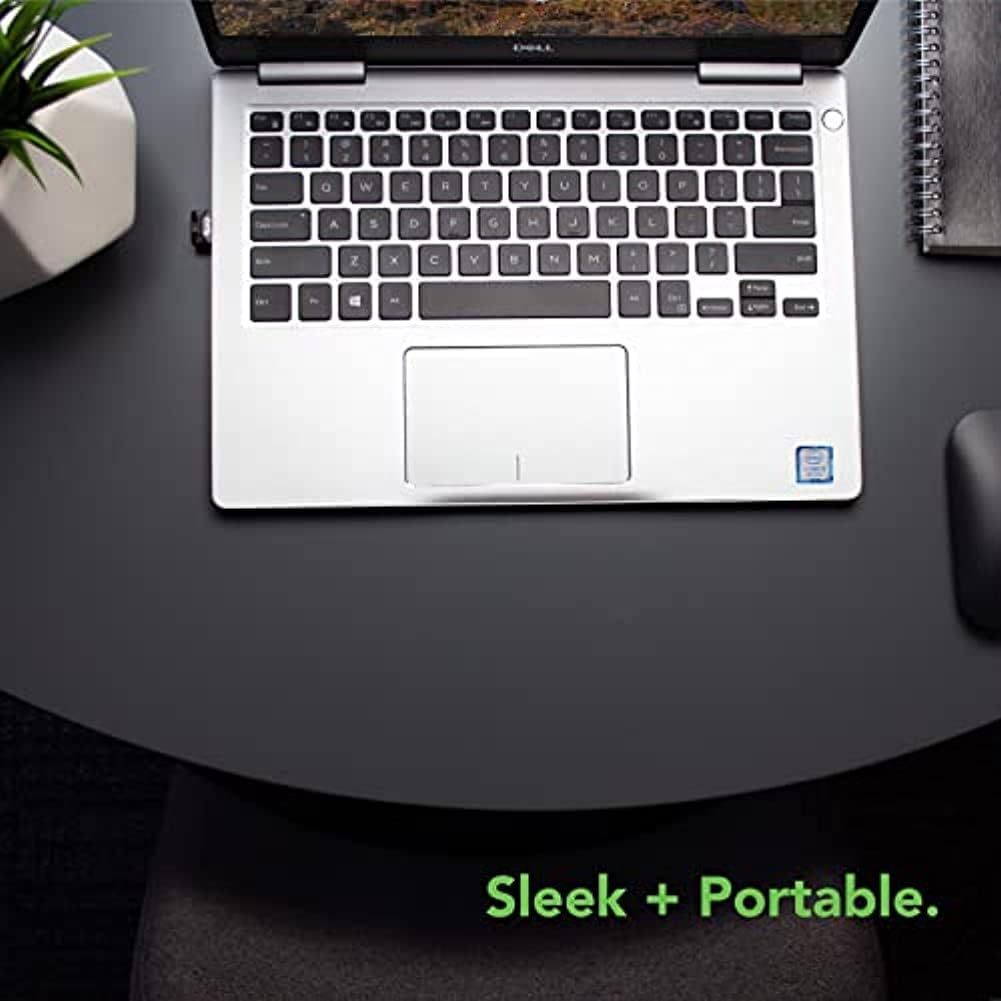
Image: The compact Plugable Nano WiFi Adapter seamlessly plugged into the USB port on the side of a silver laptop, demonstrating its small footprint.
Linux Operating Systems
For many modern Linux distributions, including Linux Mint, the adapter is typically plug-and-play and will be recognized automatically. If you encounter issues, consult your distribution's documentation or the Plugable support website for potential driver information.
Operating Instructions
Connecting to a Wireless Network
Once the adapter is installed and recognized by your operating system, you can connect to available wireless networks:
- Ensure the adapter is securely plugged into an available USB port.
- Locate the Wi-Fi icon in your system tray (Windows) or network settings (Linux).
- Click on the Wi-Fi icon to view a list of available wireless networks.
- Select your desired network from the list.
- If prompted, enter the network security key (password) and click "Connect".
- Your computer should now be connected to the wireless network.
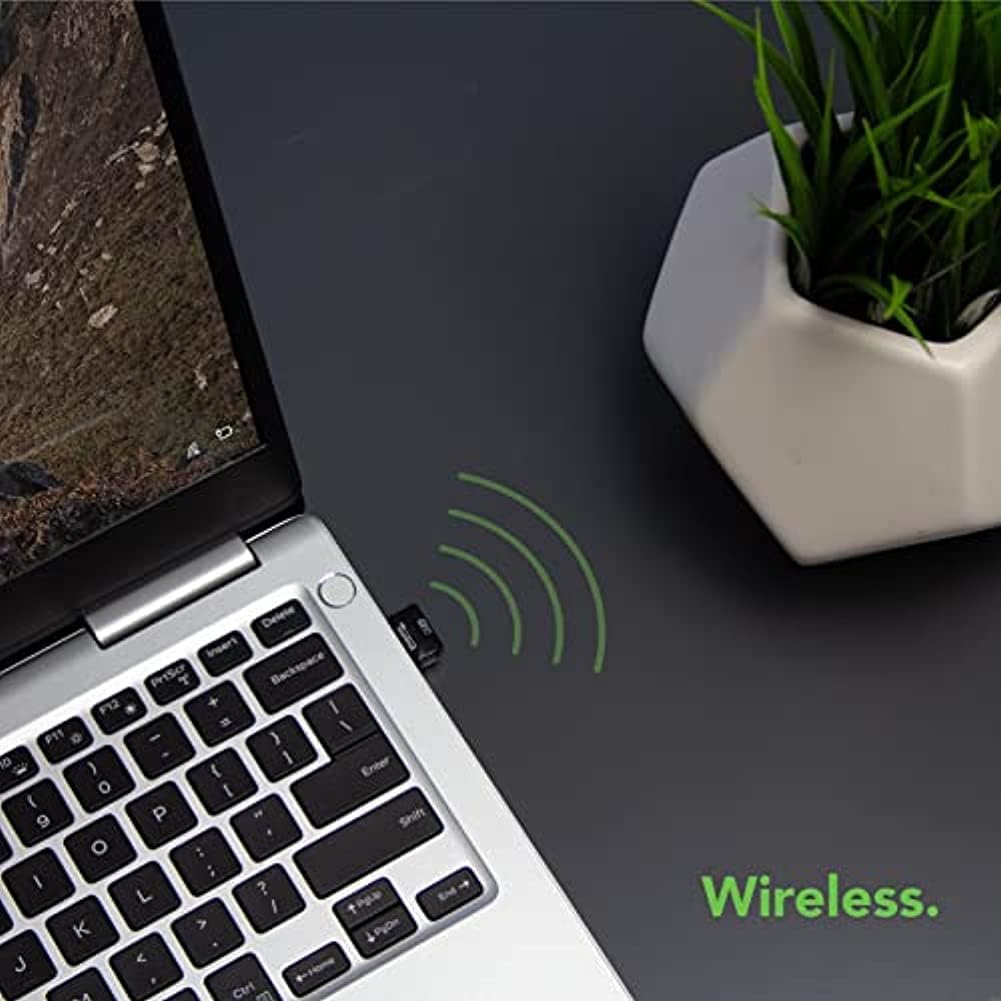
Image: The Plugable Nano WiFi Adapter connected to a laptop, visually represented with green wireless signal waves indicating active connectivity.
Ad-hoc Mode (Limitations)
The adapter supports Ad-hoc mode for direct device-to-device connections. However, please note that Windows 11, Windows 10, and Windows 8.x operating systems do not support creating a mobile hotspot (Ad-hoc network) using wireless adapters.
Maintenance
Driver Updates
While the adapter is designed for automatic driver installation on most modern Windows systems, it is good practice to periodically check for updated drivers, especially if you experience connectivity issues or upgrade your operating system. Visit the official Plugable support website for the latest driver releases and support information.
Troubleshooting
Common Issues and Solutions
- Adapter Not Detected:
- Ensure the adapter is fully inserted into a functioning USB port.
- Try plugging the adapter into a different USB port on your computer.
- Restart your computer.
- Slow Speeds or Intermittent Connection:
- Check the distance to your wireless router; closer proximity generally improves signal strength.
- Ensure there are no major obstructions (e.g., thick walls, metal objects) between the adapter and the router.
- Verify that your router's 2.4GHz band is not overly congested.
- Update the adapter's drivers from the Plugable support website if available.
- Driver Installation Issues (Windows 7):
- Manually download and install the correct drivers for Windows 7 from the Plugable support website.
- Ensure you have administrative privileges on your computer during installation.
- No Internet Access After Connecting to Wi-Fi:
- Verify that your router has an active internet connection.
- Restart your router and modem.
- Check your computer's network settings to ensure IP address and DNS are configured correctly (usually automatic).
- Not Working with Windows 11 ARM Version:
- This adapter is not compatible with Windows 11 ARM-based systems.
Specifications
| Feature | Detail |
|---|---|
| Model Number | USB-WIFINT |
| Wireless Type | 802.11n, 802.11bgn (Wi-Fi 4) |
| Frequency Band | 2.4 GHz |
| Data Transfer Rate | Up to 150 Mbps |
| Hardware Interface | USB 2.0 (backward compatible with USB 1.1) |
| Chipset | Realtek RTL8188EUS |
| Operating System Compatibility | Windows 11, 10, 8.x, 7, Vista, XP; Linux |
| Dimensions (LxWxH) | 0.75 x 0.56 x 0.31 inches (19.05 x 14.22 x 7.87 mm) |
| Weight | 0.035 ounces (1 gram) |
| UPC | 819927010258 |
Warranty and Support
Plugable stands behind its products with a commitment to quality and customer satisfaction.
- Warranty: This product is backed by a 2-year warranty.
- Technical Support: Plugable provides North America-based technical support. For assistance, please visit the official Plugable support website or contact their customer service.

Image: Plugable's commitment to quality, compatibility, and support, including a 2-year warranty.
For further information, drivers, or support, please visit the Plugable Official Store on Amazon or their dedicated support portal.
Ask a question about this manual
Ask about setup, troubleshooting, compatibility, parts, safety, or missing instructions. Manuals+ will review the question and use this page’s manual context to help answer it.