
Introduction
The ASUS MB168B+ is a 15.6-inch portable USB-powered monitor designed for enhanced productivity and mobility. This monitor features a Full HD (1920x1080) display and connects to your computer via a single USB 3.0 cable for both power and video signal. Its slim and lightweight design, combined with the included ASUS Smart Case, makes it an ideal companion for professionals on the go.
Package Contents
Please check the contents of your package. If any item is damaged or missing, contact your retailer.
- ASUS MB168B+ Portable USB Monitor
- USB 3.0 Cable
- ASUS Smart Case (Protective sleeve and stand)
- Quick Start Guide (Not included in this digital manual)
Setup
1. Connecting the Monitor
- Locate the USB 3.0 port on the side of your ASUS MB168B+ monitor.
- Connect one end of the provided USB 3.0 cable to the monitor's USB 3.0 port.
- Connect the other end of the USB 3.0 cable to an available USB 3.0 port on your computer. Ensure it is a USB 3.0 port (often blue internally) for optimal performance and power delivery.
The monitor draws power and receives video signals through this single USB connection.
Image: The ASUS MB168B+ monitor connected to a laptop, illustrating a typical dual-screen setup.
2. Driver Installation
The ASUS MB168B+ requires specific drivers to function correctly. These drivers are typically provided on a CD with the product or can be downloaded from the official ASUS support website.
- For Windows Users: Insert the driver CD (if provided) and follow the on-screen instructions, or download the latest drivers from the ASUS Support website. It is crucial to install these drivers before the monitor will display an image. Ensure your computer's USB controller drivers are also up-to-date, especially for Windows 7, to prevent compatibility issues.
- For macOS Users: Download the appropriate DisplayLink drivers from the DisplayLink website or ASUS support. Note that some display features, such as brightness control, may require initial adjustment on a Windows PC and will be retained when switching back to macOS.
After driver installation, restart your computer if prompted. The monitor should then be detected and display your desktop.
Operating the Monitor
Powering On/Off
The monitor powers on automatically when connected to a powered USB 3.0 port on your computer and the necessary drivers are installed. It will power off when disconnected or when the computer enters a sleep/shutdown state.
Display Settings
Adjust display settings such as resolution, orientation, and brightness through your computer's operating system display settings. The native resolution of the MB168B+ is 1920x1080.
- Brightness Adjustment: Use the physical buttons on the monitor (if available) or the DisplayLink software utility to adjust brightness. For macOS users, initial brightness adjustment might need to be performed on a Windows PC, as direct control might be limited.
- Orientation: The monitor supports auto-rotation. When used with the ASUS Smart Case, the display can automatically switch between landscape and portrait modes based on its physical orientation.
Using the ASUS Smart Case
The included ASUS Smart Case serves a dual purpose: protecting the monitor during transport and acting as a versatile stand.
- Protection: Enclose the monitor within the case to shield it from scratches and minor impacts.
- Stand Functionality: Fold the Smart Case into a triangular shape to prop up the monitor in either landscape or portrait orientation. This allows for comfortable viewing angles during use.
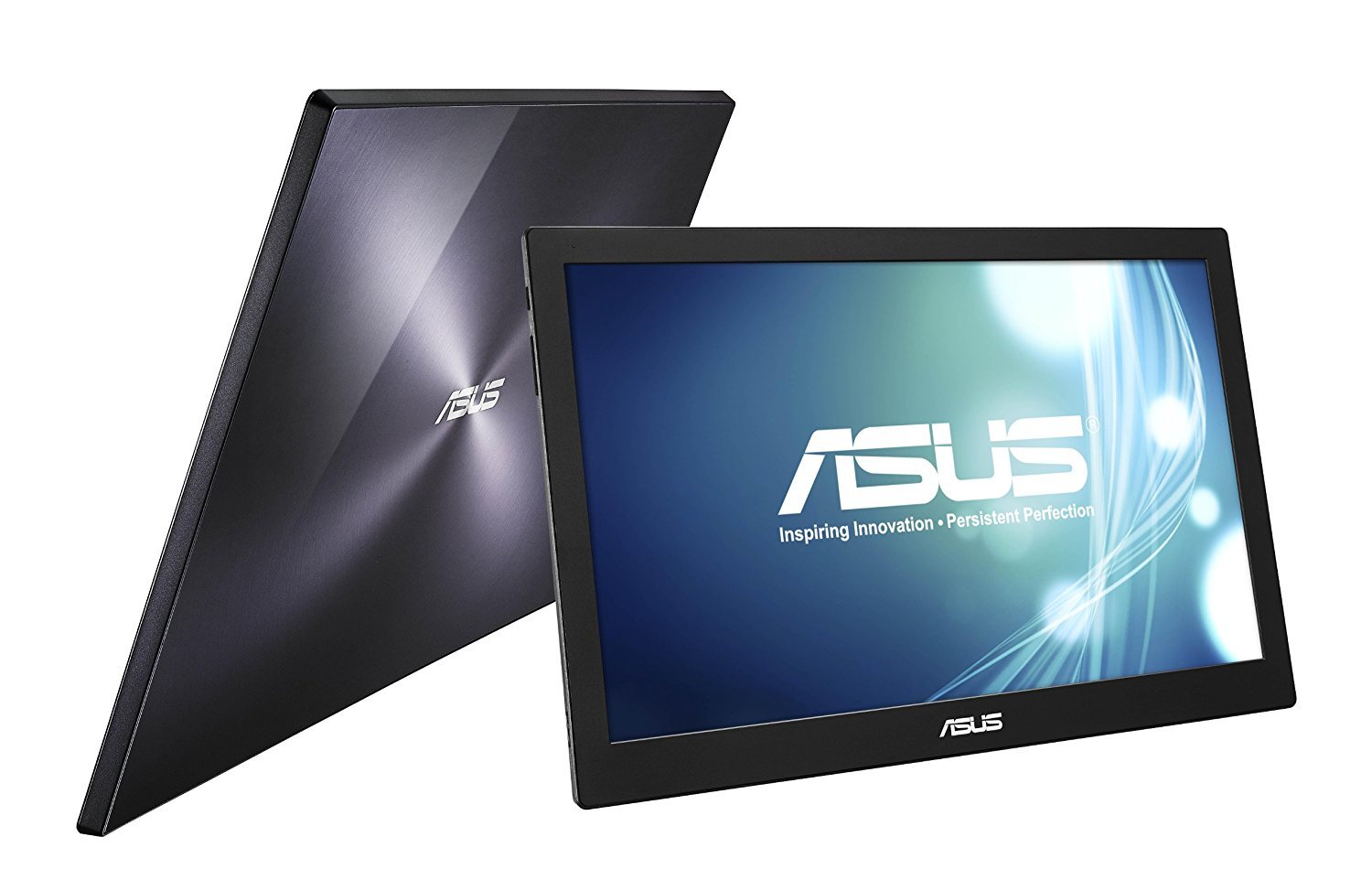
Image: The ASUS MB168B+ monitor positioned in its Smart Case, demonstrating its use as a stand.
Maintenance
Cleaning the Monitor
- Always power off and disconnect the monitor before cleaning.
- Use a soft, lint-free cloth slightly dampened with water or a non-abrasive, ammonia-free screen cleaner.
- Do not spray cleaning solution directly onto the screen. Apply it to the cloth first.
- Avoid using harsh chemicals, abrasive pads, or solvents, as these can damage the screen and casing.
Storage
When not in use, store the ASUS MB168B+ monitor in its Smart Case to protect the screen from dust, scratches, and minor impacts. Store in a cool, dry place away from direct sunlight and extreme temperatures.
Troubleshooting
- Monitor Not Detected / No Display:
- Ensure the USB 3.0 cable is securely connected to both the monitor and a functioning USB 3.0 port on your computer.
- Verify that the necessary drivers are correctly installed. Reinstall drivers if unsure.
- Try connecting to a different USB 3.0 port on your computer.
- Restart your computer after driver installation.
- Flickering Display / Frequent Disconnections:
- Check the USB 3.0 cable for damage. A faulty cable can cause intermittent connections.
- Ensure the USB 3.0 port on your computer provides sufficient power. Some older or less powerful USB 3.0 ports may struggle to power the monitor reliably.
- Avoid bumping or moving the monitor or cable during operation, as the connection can be sensitive.
- Try a different, high-quality USB 3.0 cable if issues persist.
- Brightness Adjustment Not Working (macOS):
- As noted, direct brightness control may be limited on macOS. Connect the monitor to a Windows PC to adjust brightness to your desired level. The setting should be retained when reconnected to your Mac.
- Ensure you have the latest DisplayLink drivers installed for macOS.
- Image Quality Issues (Blurry, Incorrect Resolution):
- Ensure your computer's display settings are configured to the monitor's native resolution of 1920x1080.
- Update your graphics card drivers.
Specifications
| Feature | Specification |
|---|---|
| Model | MB168B+ |
| Screen Size | 15.6 Inches |
| Panel Type | LED-Lit |
| Native Resolution | 1920x1080 (Full HD) |
| Max Screen Resolution | 1080 Pixels |
| Aspect Ratio | 1.78:1 |
| Screen Surface | Glossy |
| Connectivity | USB 3.0 (Power & Data) |
| Item Weight | 1.76 pounds (approx. 0.8 kg) |
| Product Dimensions (LxWxH) | 9.3 x 14.9 x 0.3 inches (approx. 23.6 x 37.8 x 0.76 cm) |
| Color | Silver+Black |
| Special Features | Auto-rotating display, ASUS Smart Case (stand/protective sleeve) |
Warranty and Support
For warranty information, technical support, or service inquiries, please refer to the warranty card included with your product or visit the official ASUS Support website. You will find contact details, FAQs, and driver downloads specific to your region and product model.