
1. Introduction
This manual provides essential instructions for the proper setup, operation, and maintenance of your AmazonBasics 10-Port USB 3.0 Hub. Please read this manual thoroughly before using the product to ensure optimal performance and safety. Keep this manual for future reference.
2. Safety Instructions
- Do not expose the device to moisture, extreme temperatures, or direct sunlight.
- Do not attempt to disassemble or modify the device. This may void the warranty and pose a safety risk.
- Use only the provided power adapter. Using an incompatible power adapter may damage the device or connected peripherals.
- Keep the device away from children.
- Ensure proper ventilation around the hub during operation.
3. Package Contents
Verify that all items listed below are present in your package:
- AmazonBasics 10-Port USB 3.0 Hub
- Power Adapter (DC 15V)
- USB 3.0 Data Cable
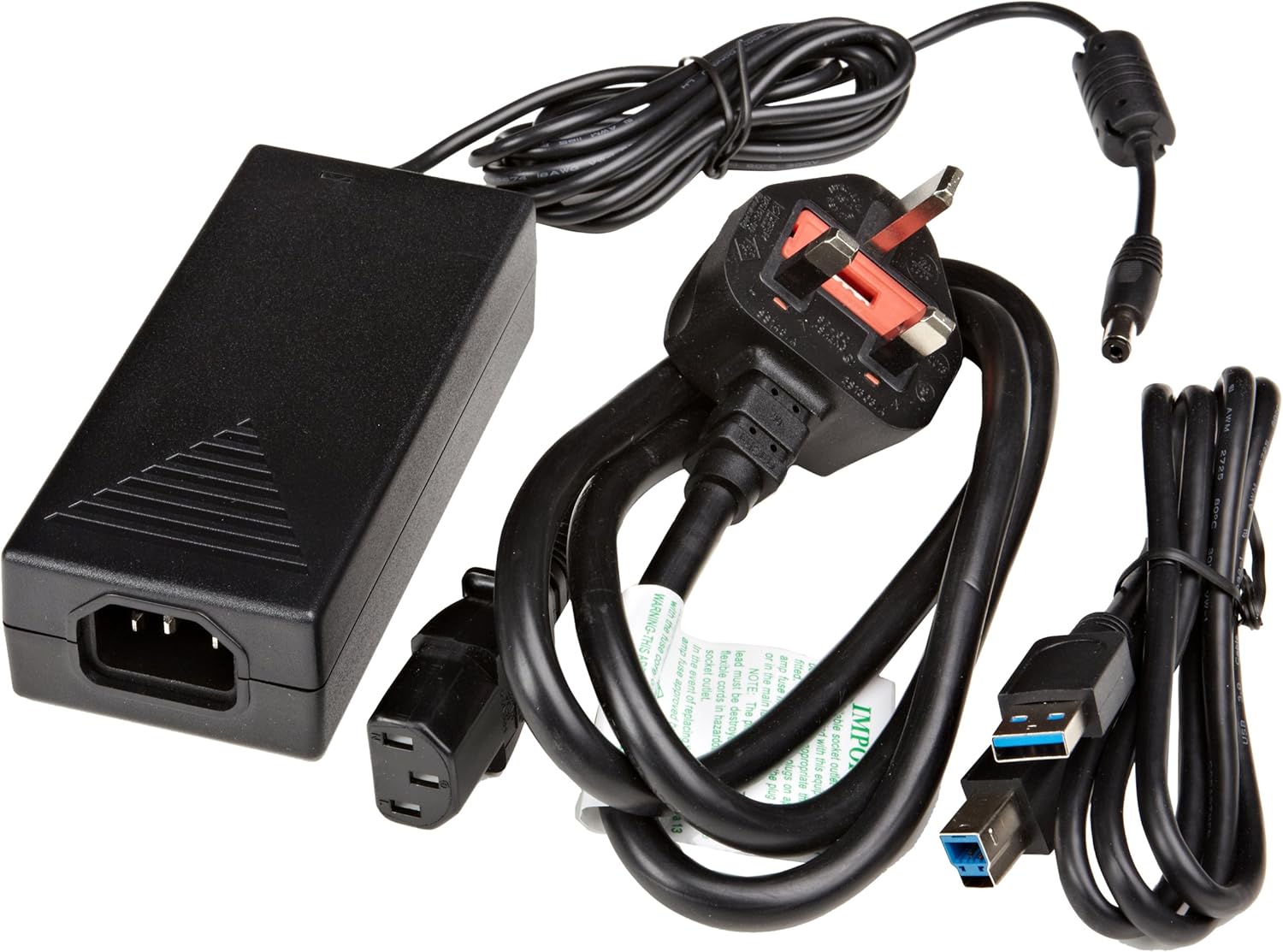
Figure 3.1: The image displays the AmazonBasics 10-Port USB 3.0 Hub, its power adapter, and a USB 3.0 data cable, which are the typical contents found in the product packaging.
4. Product Overview
The AmazonBasics 10-Port USB 3.0 Hub expands your computer's connectivity, offering ten USB 3.0 ports for various peripherals. It supports high-speed data transfer and is backward compatible with USB 2.0 devices.
4.1 Front and Side View

Figure 4.1: This image shows the front and left side of the USB hub. On the front, three USB 3.0 ports are visible, two of which are labeled 'Fast'. The left side features the upstream USB 3.0 port for connecting to a computer and the DC 15V power input.
4.2 Top and Rear View

Figure 4.2: This image provides a top-down view of the USB hub, highlighting five additional USB 3.0 ports located on the rear panel. An 'ON/OFF' switch is also visible on the side, allowing users to power the hub on or off.
4.3 Bottom View

Figure 4.3: The bottom view of the hub shows four rubber feet for stability and a product label containing regulatory information and the model number.
5. Setup Guide
Follow these steps to set up your USB 3.0 hub:
- Connect the Power Adapter: Plug the provided power adapter into the DC 15V input port on the side of the USB hub. Then, plug the power adapter into a standard electrical outlet.
- Connect to Computer: Use the supplied USB 3.0 data cable to connect the upstream USB 3.0 port on the hub (located on the side) to an available USB 3.0 port on your computer.
- Power On: If the hub has an ON/OFF switch (refer to Figure 4.2), ensure it is in the 'ON' position.
- Connect Peripherals: You can now connect your USB devices (e.g., external hard drives, keyboards, mice, flash drives) to any of the ten available USB 3.0 ports on the hub.
The hub supports automatic switching between self-power and bus-power mode. For optimal performance with multiple high-power devices, ensure the power adapter is connected.
6. Operation
Once connected, the AmazonBasics 10-Port USB 3.0 Hub operates automatically. Your computer should recognize connected devices without requiring additional drivers for most operating systems.
- USB 3.0 Speed: The hub supports SuperSpeed (5 Gbps), High Speed (480 Mbps), Full Speed (12 Mbps), and Low Speed (1.5 Mbps) data transfer rates, depending on the connected device and your computer's USB port capabilities.
- Device Compatibility: The hub is compatible with both USB 3.0 and USB 2.0 specifications, allowing you to connect a wide range of USB devices.
- Power Management: The hub intelligently manages power distribution to connected devices. For devices requiring more power, ensure the external power adapter is connected.
7. Troubleshooting
If you encounter issues with your USB hub, refer to the following common problems and solutions:
| Problem | Possible Solution |
|---|---|
| Devices are not recognized. |
|
| Slow data transfer speeds. |
|
| Hub is not powering on. |
|
| Intermittent device connection. |
|
8. Specifications
- Model Number: HU37A0V1-UK
- Ports: 10 x USB 3.0
- Data Transfer Rate: Up to 5 Gbps (USB 3.0 SuperSpeed)
- Backward Compatibility: USB 2.0, USB 1.1
- Power Input: DC 15V (via included power adapter)
- Dimensions (LxWxH): Approximately 5.71 x 2.96 x 1.06 inches (14.5 x 7.5 x 2.7 cm)
- Weight: Approximately 1.29 pounds (0.58 kg)
- Operating System Compatibility: Windows, macOS, Linux (driver-free for most systems)
9. Care and Maintenance
- Clean the hub with a soft, dry cloth. Do not use liquid cleaners or aerosols.
- Avoid blocking ventilation openings.
- Store the hub in a cool, dry place when not in use.
10. Recycling Information
Dispose of this product according to local regulations. Do not dispose of it with general household waste. For more information on recycling electronic waste, contact your local authorities or the retailer where you purchased the product.
11. Warranty and Support
For warranty information or technical support, please refer to the AmazonBasics support page or contact Amazon customer service directly. Details can typically be found on the Amazon website under the 'Help' or 'Customer Service' sections.