
1. Introduction and Overview
The Gigaset Window Sensor is an integral component of your smart home security system, designed to enhance the safety of your living space. This sensor accurately detects whether a window is tilted or fully opened, providing immediate alerts to your smartphone via push notifications. It seamlessly integrates with your existing Gigaset smart home system, offering reliable monitoring and peace of mind.
This manual provides detailed instructions for the installation, operation, maintenance, and troubleshooting of your Gigaset Window Sensor.

Image: Front view of the Gigaset Window Sensor, a compact white device with 'Gigaset elements' branding.
2. Package Contents
Please verify that all the following items are included in your package:
- Gigaset Window Sensor
- 1 x CR123A Lithium Battery (3 Volt)
- 2 x Adhesive Strips
- Quick Start Guide
- Holder
- Safety Brochure
3. Setup and Installation
To set up your Gigaset Window Sensor, follow these steps:
- Prerequisites: Ensure you have a Gigaset base station already installed and configured with the Gigaset Smart Home app on your smartphone. The window sensor requires a Gigaset base station for full functionality, including push notifications.
- Battery Insertion: Open the sensor casing and insert the provided CR123A lithium battery, ensuring correct polarity.
- Pairing with Base Station: Open the Gigaset Smart Home app on your smartphone. Follow the in-app instructions to add a new device. The app will guide you through the pairing process for the window sensor.
- Mounting Location: Choose a suitable location on your window frame. The sensor is designed to be mounted on the window frame itself, allowing it to detect both open and tilted states.
- Attachment: Use the two provided adhesive strips to securely attach the sensor to the window frame. Ensure the sensor is positioned correctly to allow for accurate detection of window states. No drilling is required.
- Testing: After attachment, test the sensor by opening and tilting the window. Verify that you receive the appropriate notifications on your smartphone via the Gigaset Smart Home app.

Image: The Gigaset Window Sensor mounted on a white window frame next to a window handle, demonstrating its discreet placement.
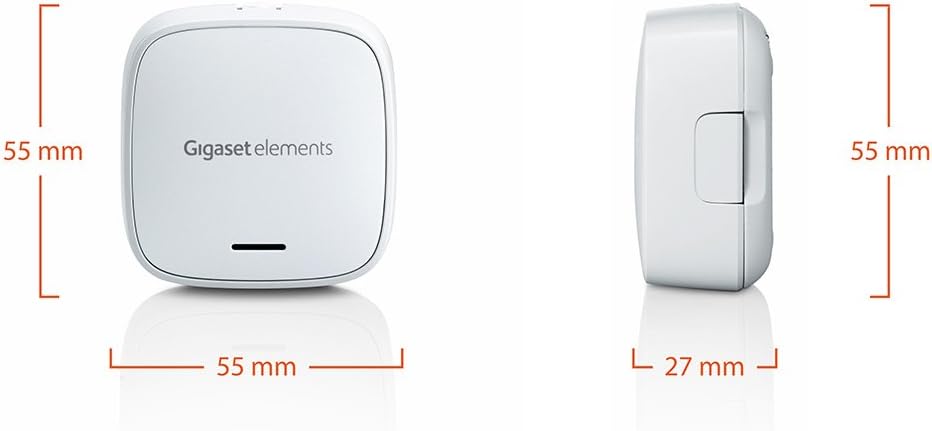
Image: The Gigaset Window Sensor shown with its back panel, highlighting the area where adhesive strips are applied for installation.
4. Operating Instructions
Once the Gigaset Window Sensor is successfully installed and paired with your Gigaset base station, it will begin monitoring your window's status.
- Detection: The sensor continuously monitors the window it is attached to. It is capable of distinguishing between a window that is fully opened and one that is tilted.
- Notifications: Upon detecting a change in the window's status (opened or tilted), the sensor sends a signal to your Gigaset base station. The base station then transmits this information to your smartphone via the Gigaset Smart Home app, sending an immediate push notification.
- App Integration: Through the Gigaset Smart Home app, you can view the current status of all your connected window sensors, customize notification settings, and integrate the sensor into various security scenarios or routines within your smart home system.
5. Maintenance
The Gigaset Window Sensor is designed for low maintenance. Follow these guidelines to ensure optimal performance:
- Battery Replacement: The sensor is powered by a CR123A lithium battery. The Gigaset Smart Home app will notify you when the battery level is low. To replace the battery, carefully open the sensor casing, remove the old battery, and insert a new CR123A (3 Volt) battery, observing the correct polarity.
- Cleaning: To clean the sensor, use a soft, dry cloth. Do not use abrasive cleaners, solvents, or harsh chemicals, as these can damage the device.
- Firmware Updates: Periodically check the Gigaset Smart Home app for any available firmware updates for your sensor. Keeping the firmware updated ensures the best performance and security.
6. Troubleshooting
If you encounter issues with your Gigaset Window Sensor, refer to the following common problems and solutions:
- Sensor Not Connecting/Offline:
- Ensure the Gigaset base station is powered on and connected to the internet.
- Check the sensor's battery level in the Gigaset Smart Home app. Replace the battery if it is low.
- Try re-pairing the sensor with the base station through the Gigaset Smart Home app.
- Ensure the sensor is within range of the Gigaset base station.
- No Notifications Received:
- Verify that push notifications are enabled for the Gigaset Smart Home app in your smartphone's settings.
- Ensure your smartphone has an active internet connection.
- Check the notification settings for the specific sensor within the Gigaset Smart Home app.
- False Alarms or Inaccurate Detection:
- Ensure the sensor is securely attached to the window frame and has not shifted.
- Verify that there are no obstructions interfering with the sensor's operation.
- Check the alignment of the sensor components if applicable, ensuring they are correctly positioned for detecting both open and tilted states.
If these steps do not resolve the issue, please contact Gigaset customer support.
7. Specifications
| Model Number | S30851-H2514-R101 |
| Product Dimensions (L x W x H) | 5.5 x 2.7 x 5.5 cm |
| Weight | 10 g |
| Battery Type | 1 x CR123A Lithium Battery (3 Volt) |
| Material | Acrylonitrile Butadiene Styrene (ABS) |
| Color | White |
| Compatibility | Gigaset Smart Home System, Smartphone |
| Certifications | CE 0682 |
Image: Diagram illustrating the dimensions of the Gigaset Window Sensor, showing its length, width, and height measurements.
8. Warranty Information
For detailed information regarding the warranty coverage for your Gigaset Window Sensor, please refer to the safety brochure included in your product package. You can also find comprehensive warranty terms and conditions on the official Gigaset website.
9. Support
Should you require further assistance, technical support, or wish to access additional resources such as the full user manual or FAQs, please visit the official Gigaset support website. You may also contact Gigaset customer service directly for personalized assistance.
Gigaset Support Website: www.gigaset.com