
1. Introduction
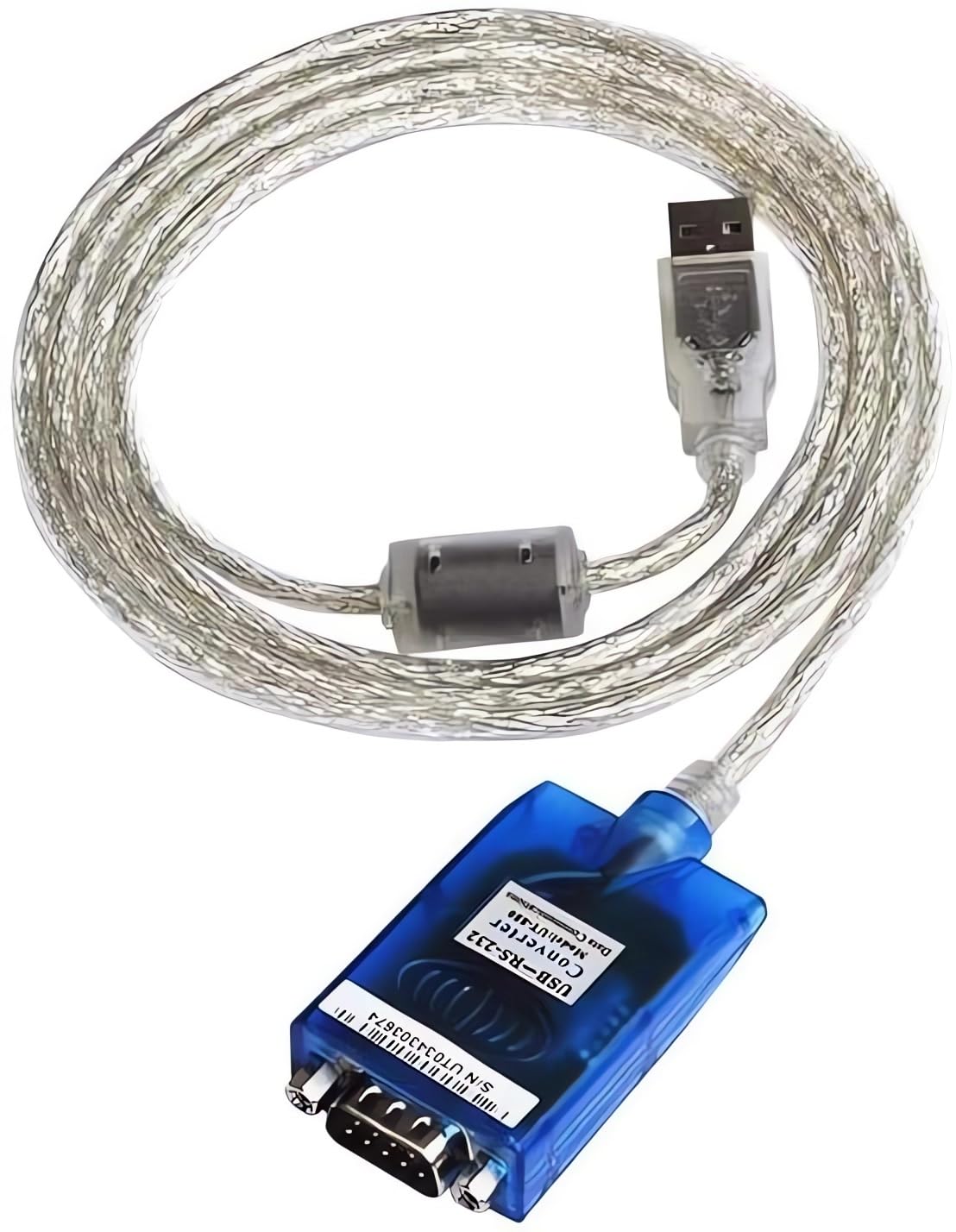
The UOTEK UT-880 is a universal USB to RS-232 interface protocol converter designed to facilitate data transmission between modern PCs and industrial equipment still utilizing RS-232 interfaces. This converter eliminates the need for an external power supply, drawing power directly from the USB port. It is compatible with both USB and RS-232 standards, featuring internal zero-delay automatic receiving and transmitting functions, and a unique I/O circuit for automatic data flow direction control. Its plug-and-play design ensures compatibility with various communication software and hardware.
2. Product Features
- USB 2.0 Standard: Compliant with USB V 2.0 specifications.
- RS-232 Compatibility: Converts USB signals to RS-232 signals.
- No External Power Required: Powered directly via the USB port.
- Automatic Data Flow Control: Features internal zero-delay auto receiving and transmitting functions.
- Wide Baud Rate Support: Supports baud rates from 300 to 460,800bps with auto-detection.
- ESD Protection: Equipped with ±15KV ESD protection for enhanced durability.
- LED Indicators: Power, Transmit (TXD), and Receive (RXD) LED indicators for communication status monitoring.
- Operating System Support: Compatible with Windows 2000/2003/2008/2012/XP/Vista/7/8/8.1/10/11/CE, Mac, and Linux.
- Cable Length: 1.5m (approximately 59 inches).
- Gold-Plated Pins: For corrosion resistance and secure connections.
3. Package Contents
- 1 x UOTEK UT-880 USB to RS-232 Serial Converter Cable
Note: Additional accessories such as driver CDs or specific manuals may vary by region or purchase.
4. Setup & Installation
4.1. Driver Installation
The UOTEK UT-880 is designed for plug-and-play operation on most modern operating systems, including Windows 8, 10, and 11, often requiring no additional driver installation. For older operating systems (e.g., Windows 2000/XP/Vista) or specific Linux/Mac distributions, drivers may be required. Please refer to the manufacturer's website or the included documentation for driver downloads and installation instructions if automatic installation does not occur.
4.2. Hardware Connection
- Connect the USB-A male connector of the UT-880 converter to an available USB port on your computer (PC or laptop).
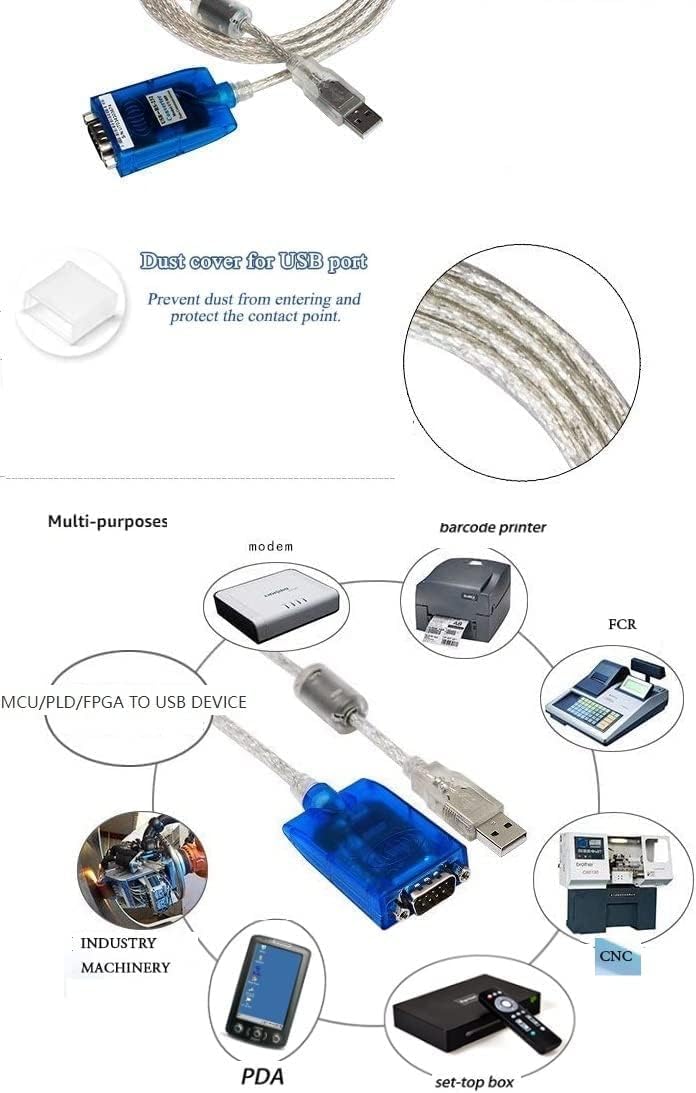
- Connect the DB9 male connector of the UT-880 converter to the RS-232 serial port of your peripheral device (e.g., modem, barcode printer, industrial machinery, PDA, CNC machine, set-top box).
- Ensure all connections are secure. The converter is self-powered via the USB port.

5. Operating Instructions
5.1. LED Indicators
The UT-880 converter features three LED indicators to provide visual feedback on its operational status:
- Power Light (Red): Indicates that the converter is receiving power from the USB port. A steady red light confirms power supply.
- TXD (Green): Flashes when data is being transmitted from the computer through the converter to the RS-232 device.
- RXD (Yellow): Flashes when data is being received by the converter from the RS-232 device and sent to the computer.
Monitoring these LEDs can help confirm proper data flow and diagnose connectivity issues.
5.2. Data Flow Control
The UT-880 incorporates an internal zero-delay automatic receiving and transmitting function. This unique I/O circuit automatically controls the data flow direction, ensuring seamless communication without manual intervention. This feature makes the converter compatible with all communication software and interface hardware.
5.3. Pinout Diagram
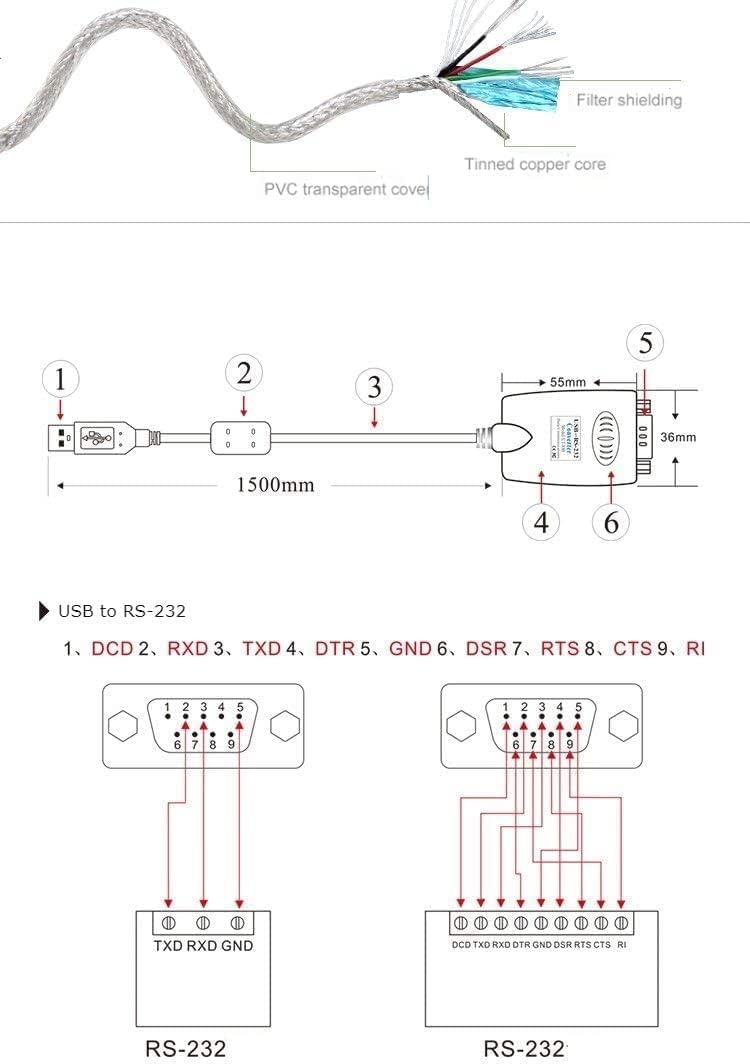
The RS-232 DB9 connector pinout is as follows:
| Pin | Signal |
|---|---|
| 1 | DCD (Data Carrier Detect) |
| 2 | RXD (Receive Data) |
| 3 | TXD (Transmit Data) |
| 4 | DTR (Data Terminal Ready) |
| 5 | GND (Signal Ground) |
| 6 | DSR (Data Set Ready) |
| 7 | RTS (Request To Send) |
| 8 | CTS (Clear To Send) |
| 9 | RI (Ring Indicator) |

6. Specifications
- Model: UT-880
- Interface: USB 2.0 to RS-232
- Connector Type: USB-A Male, DB9 Male
- Baud Rate: 300-460,800bps (auto-detect)
- Working Mode: Asynchronous, point-to-point
- Direction Control: Automatic data flow control
- Port Protection: ±15KV ESD protection
- Transmission Media: Twisted-pair or shielded cable
- Cable Length: 1.5m
- Operating Temperature: -25°C to 70°C (-13°F to 158°F)
- Relative Humidity: 5% to 95%
- Power Supply: USB bus-powered (no external power needed)
- Compatible Devices: PC, Modems, Barcode Printers, PDAs, CNC Machines, etc.


7. Troubleshooting
- No Power Light: Ensure the USB connector is fully inserted into a working USB port on your computer. Try a different USB port or computer.
- No Data Transmission/Reception (TXD/RXD LEDs not flashing):
- Verify that the DB9 connector is securely attached to the RS-232 device.
- Check the communication settings (baud rate, data bits, parity, stop bits) in your software to ensure they match the RS-232 device.
- Confirm that the correct drivers are installed for your operating system, especially if not using Windows 8/10/11.
- Test with another RS-232 device or computer if possible to isolate the issue.
- Intermittent Connection: Ensure the cable is not bent or damaged. The magnetic filter helps prevent interference, but strong electromagnetic fields can still affect performance.
8. Maintenance
To ensure the longevity and optimal performance of your UOTEK UT-880 converter:
- Keep the device clean and free from dust and moisture.
- Avoid exposing the converter to extreme temperatures or direct sunlight.
- Do not attempt to disassemble or modify the device, as this will void any warranty.
- Handle the connectors gently to prevent damage to the pins.
9. Official Product Videos
USB to RS-232 Converter
This video provides a general overview of the USB to RS-232 converter, demonstrating its physical appearance and basic connectivity.
USB to RS-232 Converter ver2.0
A detailed look at the version 2.0 of the USB to RS-232 converter, showcasing its design and features.
USB 2.0 RS-232 Serial Adapter w/ LED Indicators
This video demonstrates the functionality of LED indicators on a USB to RS-232 serial adapter, useful for understanding data flow.
Gearmo USB to Serial Adapters with LED Activity Monitoring
An overview of USB to serial adapters, focusing on the utility of LED activity monitoring for troubleshooting and status checks.
10. Warranty and Support
For warranty information and technical support, please refer to the documentation included with your product or visit the official UOTEK website. Contact details for customer service are typically provided in the product packaging or on the manufacturer's support pages.


