
1. Introduction
This manual provides instructions for the NETGEAR JGS524E-200NAS 24-Port Gigabit Rackmount Smart Managed Plus Switch. This device is designed to provide reliable and high-performance network connectivity for small to medium-sized businesses or advanced home networks. It supports both desktop and rackmount installations.
Key features include:
- 24 Gigabit Ethernet ports for high-speed connections.
- Smart Managed Plus software for basic network configuration, security, and monitoring.
- Support for desktop or rackmount placement, with included mounting hardware.
- Energy-efficient design compliant with IEEE802.3az.
- Silent operation, suitable for noise-sensitive environments.
- Network monitoring, traffic prioritization (QoS), and VLAN support.
- Up to 2000 Mbps dedicated, non-blocking bandwidth per port.
- Auto 'denial-of-service' (DoS) prevention.
- Cable test functionality for troubleshooting connection issues.
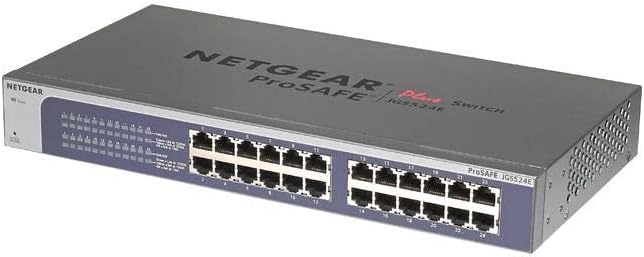
Image 1.1: Angled view of the NETGEAR JGS524E-200NAS switch, showing the front panel with 24 Ethernet ports and LED indicators.
2. Package Contents
Verify that your package contains the following items:
- NETGEAR JGS524E-200NAS 24-Port Gigabit Smart Managed Plus Switch
- Power cord
- Rackmount kit (including brackets and screws)
- Rubber feet for desktop installation
- Installation guide or resource CD/card
3. Physical Features
3.1 Front Panel

Image 3.1: Front panel of the JGS524E-200NAS switch.
The front panel of the JGS524E-200NAS switch features 24 Gigabit Ethernet ports (RJ45) for connecting network devices. Each port has corresponding LED indicators to display link status and activity. The left side of the panel includes system status LEDs.
- Power LED: Indicates power status.
- Link/Activity LEDs (per port):
- Green: 1000 Mbps link. Blinking indicates activity.
- Amber: 10/100 Mbps link. Blinking indicates activity.
- Off: No link.
3.2 Rear Panel

Image 3.2: Rear panel of the JGS524E-200NAS switch.
The rear panel contains the AC power inlet for connecting the power cord and a Kensington lock slot for physical security.
3.3 Dimensions
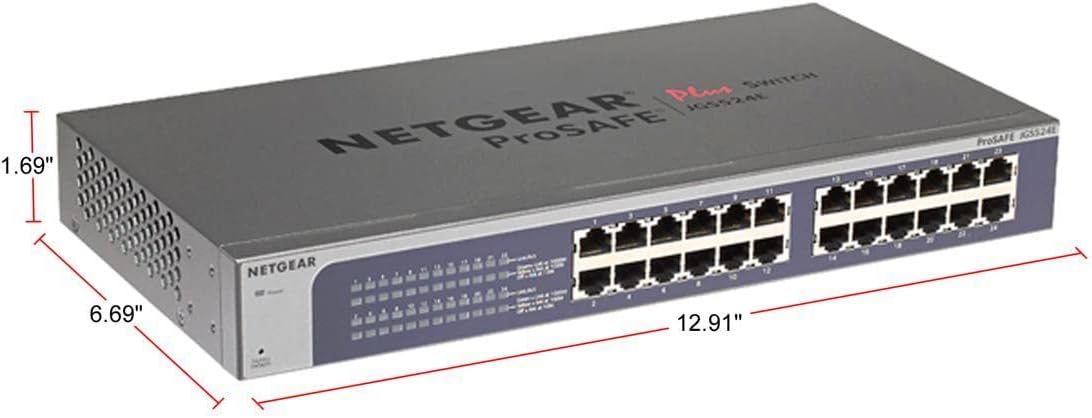
Image 3.3: Physical dimensions of the JGS524E-200NAS switch.
The switch measures approximately 18.07 inches (length) x 9.09 inches (width) x 3.15 inches (height) and weighs 5.01 pounds.
4. Setup
4.1 Desktop Installation
For desktop placement, attach the included rubber feet to the bottom of the switch. Place the switch on a flat, stable surface, ensuring adequate ventilation around the unit.
4.2 Rackmount Installation
To install the switch in a standard 19-inch equipment rack:
- Attach the rackmount brackets to the sides of the switch using the provided screws.
- Secure the switch into the rack using appropriate rack screws (not always included with the switch, but standard for racks).
- Ensure proper airflow and cable management within the rack.
4.3 Power Connection
Connect the provided AC power cord to the power inlet on the rear panel of the switch and then to a standard electrical outlet. The Power LED on the front panel will illuminate when the switch receives power.
4.4 Network Connections
Connect your network devices (computers, servers, other switches, routers) to the RJ45 ports on the front panel using standard Ethernet cables. The Link/Activity LEDs for each connected port will indicate a successful connection and data activity.
5. Operation
5.1 Initial Access to Management Interface
The NETGEAR JGS524E-200NAS is a Smart Managed Plus Switch, meaning it offers a web-based management interface for configuration. To access it:
- Ensure your computer is connected to the switch.
- The switch typically obtains an IP address from a DHCP server on your network. If no DHCP server is present, it will use a default static IP address (refer to the quick start guide or NETGEAR documentation for the specific default IP).
- Open a web browser and enter the switch's IP address.
- Log in using the default username and password (commonly 'admin' and 'password', but verify with official documentation).
It is recommended to change the default password immediately after initial login for security purposes.
5.2 Key Features Configuration
Through the web management interface, you can configure various network features:
- VLAN (Virtual Local Area Network): Segment your network traffic for improved security and performance. The switch supports VLANs for traffic isolation.
- QoS (Quality of Service): Prioritize certain types of network traffic (e.g., voice or video) to ensure consistent performance.
- Network Monitoring: View port statistics, traffic flow, and device status to monitor network health and performance.
- Link Aggregation (LAG): Combine multiple ports to increase bandwidth and provide redundancy for connections to other switches or servers.
- Port Mirroring: Copy traffic from one port to another for network analysis and troubleshooting.
Detailed instructions for configuring these features are available within the switch's web interface help sections or the comprehensive user manual downloadable from the NETGEAR support website.
6. Maintenance
6.1 Firmware Updates
Periodically check the NETGEAR support website for firmware updates. Firmware updates can provide new features, performance improvements, and security patches. Follow the instructions provided with the firmware download carefully to avoid damaging the device.
6.2 Cleaning
To clean the switch, power it off and disconnect it from the power source. Use a soft, dry cloth to wipe the exterior. Do not use liquid or aerosol cleaners, as they may damage the device.
6.3 Environmental Considerations
Ensure the switch is operated within its specified temperature and humidity ranges. Maintain adequate ventilation around the unit to prevent overheating, especially in rackmount installations.
7. Troubleshooting
7.1 No Power
- Verify the power cord is securely connected to the switch and a working electrical outlet.
- Check if the power outlet is functional by plugging in another device.
- Ensure the Power LED on the front panel is illuminated.
7.2 No Link Light on a Port
- Ensure the Ethernet cable is securely connected to both the switch port and the connected device.
- Verify the connected device is powered on and functioning correctly.
- Try a different Ethernet cable.
- Try connecting to a different port on the switch.
- Use the switch's cable test feature (accessible via the web interface) to diagnose cable issues.
7.3 Cannot Access Web Management Interface
- Confirm your computer is on the same network segment as the switch.
- Verify the switch's IP address. If it's set to DHCP, check your router's DHCP client list. If static, ensure your computer's IP settings are compatible.
- Clear your browser's cache or try a different browser.
- Temporarily disable any firewall software on your computer.
- If all else fails, consider performing a factory reset (refer to the full user manual for instructions, as this will erase all configurations).
8. Specifications
| Model Number | JGS524E-200NAS |
| Number of Ports | 24 Gigabit Ethernet (RJ45) |
| Data Transfer Rate | 1000 Megabits Per Second (Gigabit) |
| Dimensions (LxWxH) | 18.07 x 9.09 x 3.15 inches |
| Item Weight | 5.01 pounds |
| Interface Type | RJ45 |
| Wireless Type | N/A (Wired Switch) |
| Operating System Compatibility | Windows (for management utility, web interface is OS independent) |
| Energy Efficiency | IEEE802.3az compliant |
| Manufacturer | NETGEAR |
| UPC | 653671157933, 606449098952, 606449098938 |
9. Warranty and Support
9.1 Limited Hardware Warranty
The NETGEAR JGS524E-200NAS switch comes with a Lifetime Limited Hardware Warranty. This warranty covers defects in materials and workmanship under normal use. For specific terms and conditions, please refer to the official NETGEAR warranty policy available on their website.
9.2 Technical Support
NETGEAR provides comprehensive technical support for this product, including:
- Next Business Day Replacement: For eligible warranty claims.
- 24/7 Chat Support: Access to NETGEAR experts for assistance.
- Online Resources: Visit the official NETGEAR support website for FAQs, troubleshooting guides, firmware downloads, and the full user manual.
For the most up-to-date support information and contact methods, please visit the official NETGEAR website: www.netgear.com/support/