
Introduction
The StarTech.com SDOCKU33HB is a USB 3.0 SATA Hard Drive Docking Station designed for quick and easy access to 2.5-inch or 3.5-inch SATA solid-state drives (SSDs) and hard disk drives (HDDs). It features a built-in USB Fast Charge hub and supports UASP (USB Attached SCSI Protocol) for enhanced performance with SATA 6Gbps drives. This manual provides instructions for setup, operation, and maintenance of your docking station.
Product Overview
Familiarize yourself with the components and features of your docking station.
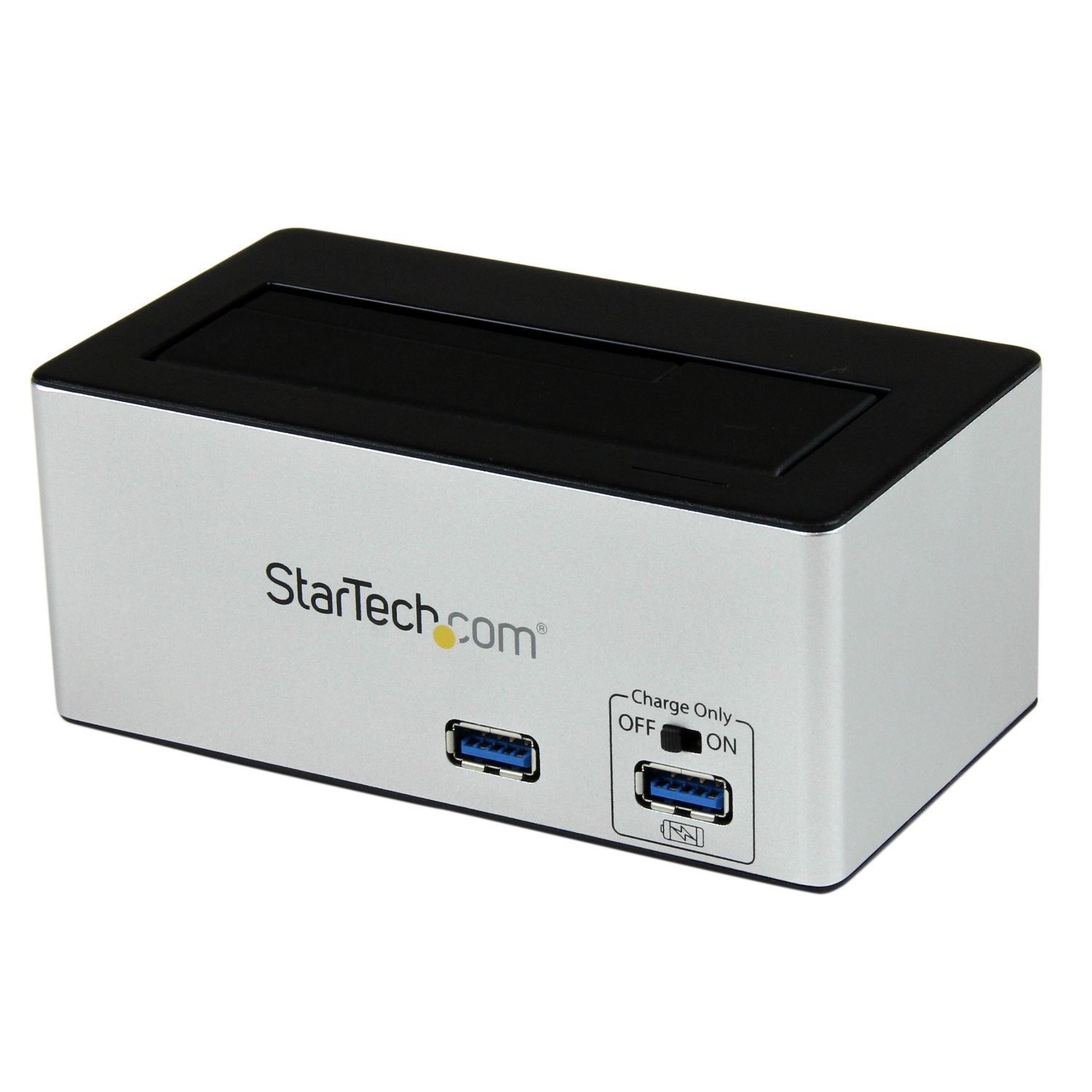
Image: The StarTech.com SDOCKU33HB docking station, showing the top-loading drive bay and front panel.
Front Panel Features
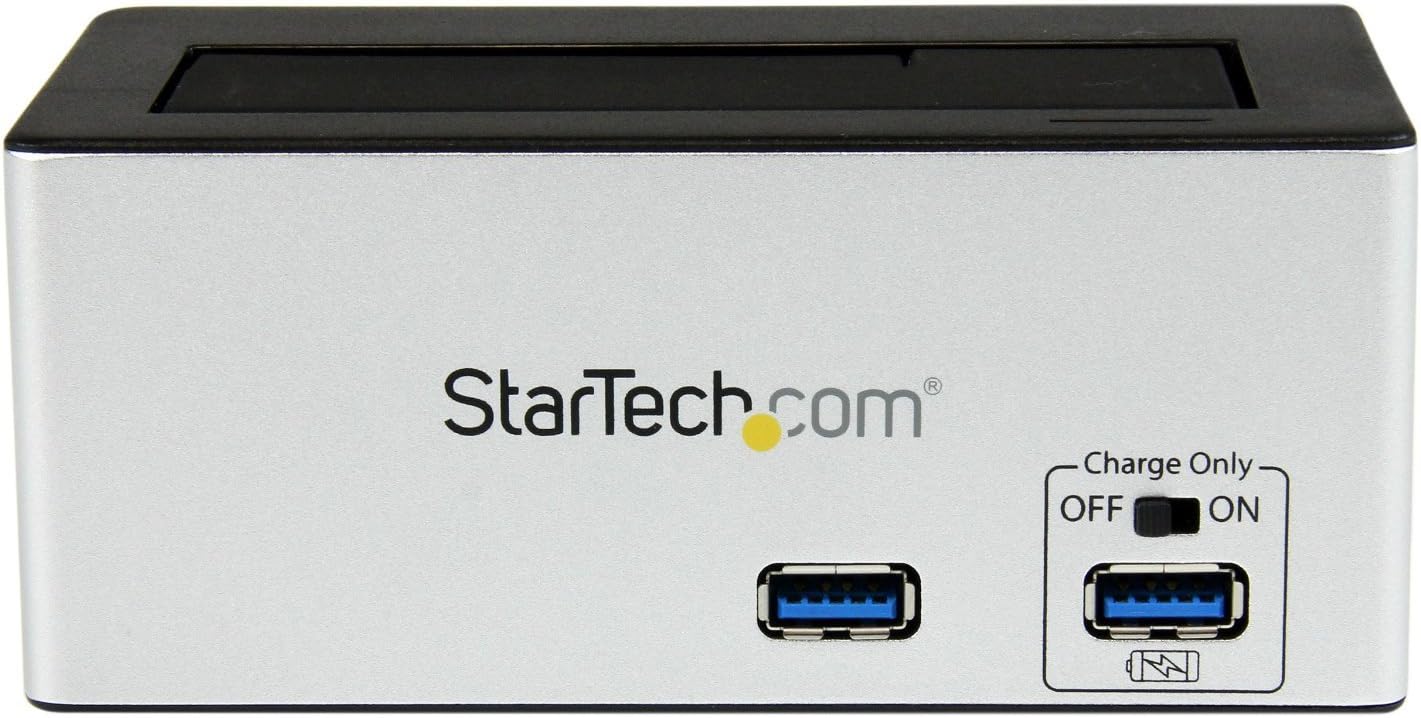
Image: Front view of the docking station, highlighting the USB 3.0 data port and the USB Fast Charge port with its ON/OFF switch.
- USB 3.0 Data Port: Connects to your computer for data transfer.
- USB Fast Charge Port: Provides accelerated charging for mobile devices. Features an ON/OFF switch for activation.
Rear Panel Features

Image: Rear view of the docking station, showing the power switch, DC-IN port, USB 3.0 host connection, and the OFF/Sleep switch.
- Power Switch: Turns the docking station ON or OFF.
- DC-IN Port: Connects to the included power adapter.
- USB 3.0 Host Port: Connects the docking station to your computer's USB 3.0 port.
- OFF/Sleep Switch: Controls the sleep mode functionality of the docking station.
Package Contents
Verify that all components are present in your package.
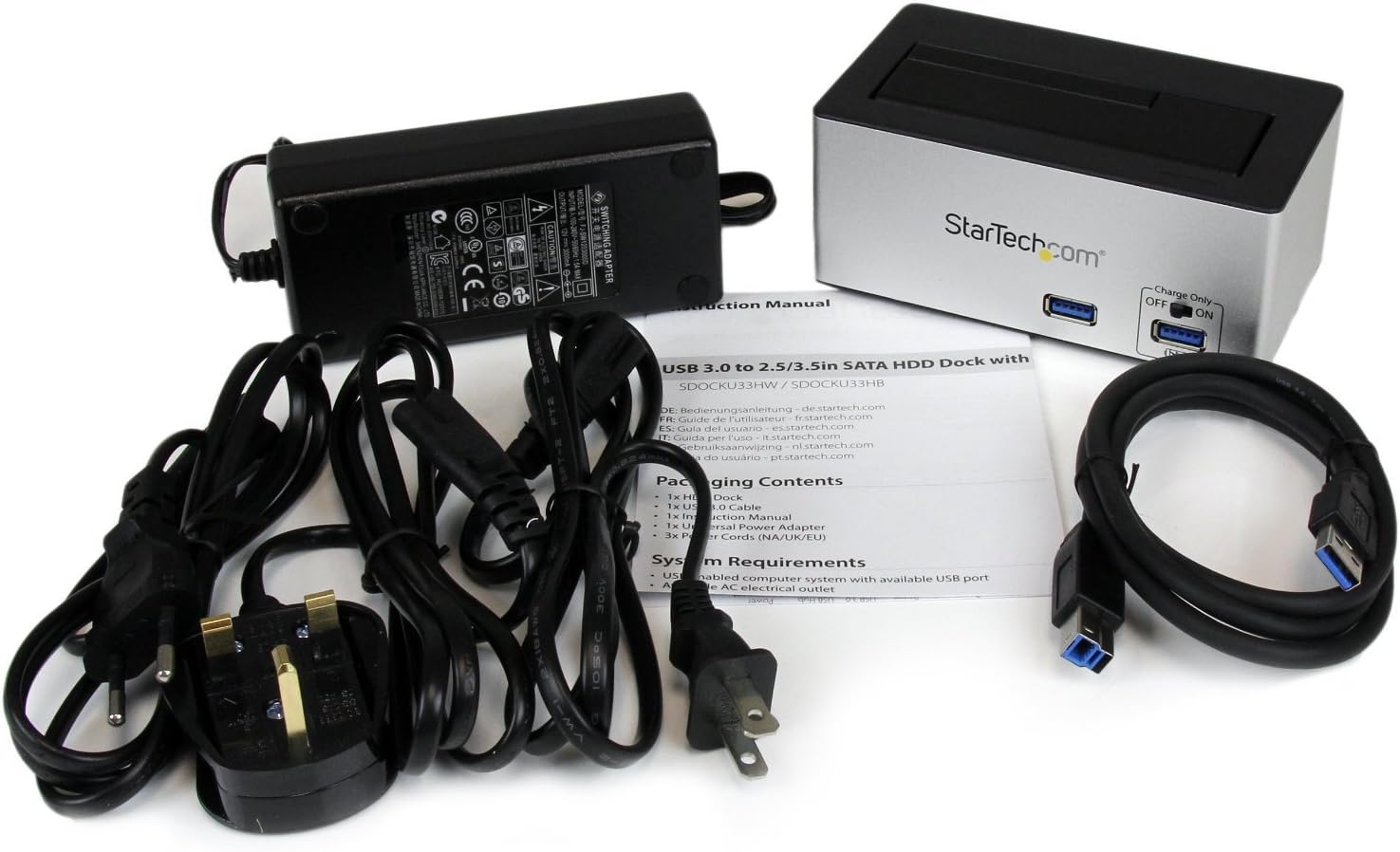
Image: The complete package contents, including the docking station, power adapter, USB 3.0 cable, and instruction manual.
- 1x USB 3.0 SATA Hard Drive Docking Station (SDOCKU33HB)
- 1x Universal Power Adapter
- 1x USB 3.0 Cable
- 1x Instruction Manual
System Requirements
Ensure your system meets the following requirements for optimal performance.
- Computer with an available USB 3.0 port (USB 2.0/1.1 backward compatible)
- 2.5-inch or 3.5-inch SATA I/II/III SSD/HDD
- Available AC power outlet
- Operating System: Windows XP/Vista/7/8/10/11, macOS 10.x and later, Linux
Setup Instructions
- Connect Power: Connect the universal power adapter to the DC-IN port on the rear of the docking station, then plug the adapter into an AC power outlet.
- Connect to Computer: Connect one end of the included USB 3.0 cable to the USB 3.0 Host Port on the rear of the docking station, and the other end to an available USB 3.0 port on your computer.
- Insert Drive: Gently slide your 2.5-inch or 3.5-inch SATA SSD/HDD into the top-loading drive bay until it is securely seated. Ensure the drive's SATA connector aligns with the docking station's connector.
- Power On: Flip the Power Switch on the rear of the docking station to the 'ON' position. The power LED (if present) should illuminate.
- Driver Installation: Your operating system should automatically detect and install the necessary drivers. No manual driver installation is typically required.
- Access Drive: Once detected, the drive will appear as a removable storage device in your operating system's file explorer or disk management utility. You may need to initialize and format new drives before use.
Operating Instructions
Using the Hard Drive Dock
- Data Transfer: Once the drive is recognized by your computer, you can drag and drop files to and from the drive as you would with any other storage device.
- Hot-Swapping: The docking station supports hot-swapping. To safely remove a drive, ensure all data transfer operations are complete, then use your operating system's "Safely Remove Hardware" or "Eject" function before pulling the drive out of the bay.
- UASP Support: For systems supporting UASP, the docking station will leverage this protocol to achieve faster data transfer speeds, especially with SATA 6Gbps drives.
Using the USB Fast Charge Port
- Activate Fast Charge: Flip the "Charge Only" switch on the front panel to the 'ON' position.
- Connect Device: Connect your mobile device (e.g., smartphone, tablet) to the USB Fast Charge port using its charging cable.
- Charging: The port will provide enhanced power output for faster charging compared to standard USB ports.
Sleep Mode Functionality
- The "OFF/Sleep" switch on the rear panel controls the docking station's sleep mode behavior. Consult the full product manual for detailed information on sleep mode settings and compatibility.
Maintenance
- Cleaning: Use a soft, dry cloth to clean the exterior of the docking station. Do not use liquid cleaners or solvents.
- Storage: When not in use, store the docking station in a cool, dry place away from direct sunlight and extreme temperatures.
- Drive Handling: Always handle hard drives with care. Avoid dropping or subjecting them to physical shock.
Troubleshooting
- Issue: Drive not detected by computer.
- Ensure the docking station is powered on and the power adapter is securely connected.
- Verify the USB 3.0 cable is firmly connected to both the docking station and your computer.
- Try a different USB port on your computer.
- Ensure the SATA drive is correctly seated in the docking bay.
- Check your computer's Disk Management (Windows) or Disk Utility (macOS) to see if the drive is recognized but uninitialized or unformatted. New drives require initialization and formatting.
- Test with a different SATA drive to rule out a drive issue.
- Issue: Slow data transfer speeds.
- Ensure you are connected to a USB 3.0 port on your computer. USB 2.0 ports will result in slower speeds.
- Verify your operating system and drivers support UASP for optimal performance with SATA 6Gbps drives.
- The performance of the drive itself can affect transfer speeds.
- Issue: Fast Charge port not working.
- Ensure the "Charge Only" switch on the front panel is in the 'ON' position.
- Verify the docking station is powered on.
- Try a different charging cable or device to confirm the issue is not with the device or cable.
Specifications
| Feature | Specification |
|---|---|
| Model | SDOCKU33HB |
| Interface | USB 3.0 (backward compatible with USB 2.0/1.1) |
| Compatible Drive Types | 2.5" and 3.5" SATA I/II/III HDDs/SSDs |
| Data Transfer Rate | Up to 5 Gbps (USB 3.0) |
| UASP Support | Yes |
| Fast Charge Port | Yes |
| Dimensions (L x W x H) | 3.6" x 3.6" x 6.8" (9.14cm x 9.14cm x 17.27cm) |
| Weight | 1.4 lbs (0.64 kg) |
| Color | Black |
| Power Supply | Universal AC Adapter (Input: 100-240V AC, Output: 12V DC) |
Warranty and Technical Support
This StarTech.com product is backed by a 2-year warranty.
For the most up-to-date information on warranty, technical support, and product documentation, please visit the official StarTech.com website or the product page:
You can also find additional resources and contact information for technical assistance on the StarTech.com website.

