1. Introduction
The Pantech Verizon MHS291L Jetpack 4G LTE Mobile Hotspot is a global-ready wireless device designed to provide high-speed internet access. It allows users to connect to the internet, corporate intranets, and email while traveling, offering connectivity in over 200 countries. This device supports up to 10 Wi-Fi devices on 4G and up to 5 Wi-Fi devices on 3G connections, utilizing both 2.4GHz and 5GHz bands for optimal performance.
2. Package Contents
Ensure all the following items are present in your product package:
- Verizon Jetpack 4G LTE Mobile Hotspot (MHS291L)
- Pantech BTR291B 3.8V Li-ion Battery
- Wall Charger/USB Cable
- Quick Start Guide (for initial setup)
Note: A SIM card is not included with the device but will be supplied by Verizon when service is activated.
3. Device Overview
The MHS291L Jetpack features a compact design with a 1.32" OLED screen for displaying device status and information. It includes physical buttons for navigation and interaction.


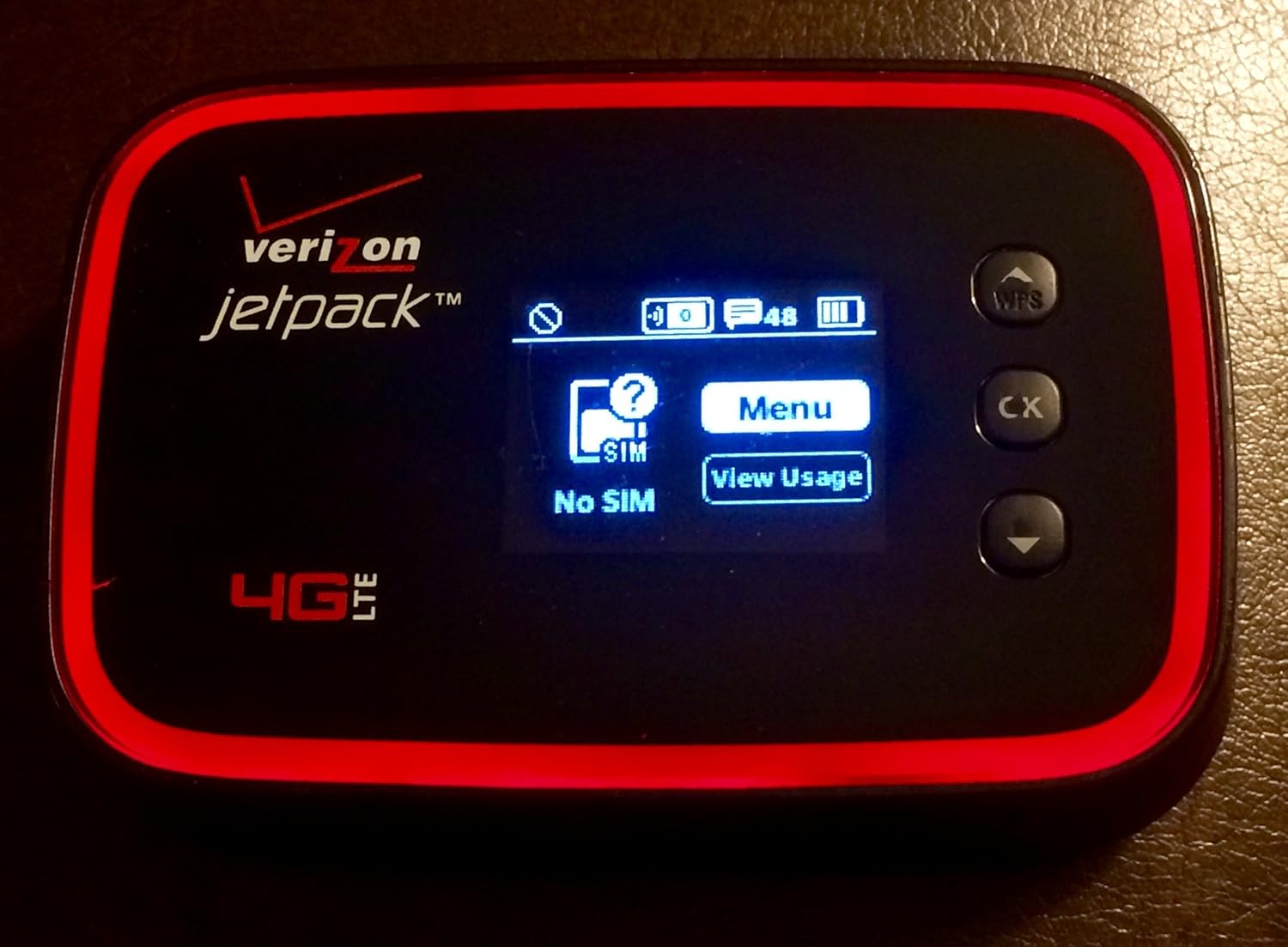
4. Setup
4.1. Inserting the Battery and SIM Card
- Remove the battery cover from the back of the Jetpack.
- Insert the Pantech BTR291B 3.8V Li-ion Battery into its compartment.
- If you have obtained a SIM card from Verizon, carefully insert it into the designated SIM card slot.
- Replace the battery cover.
4.2. Charging the Device
Connect the provided USB cable to the Jetpack and the wall charger. Plug the wall charger into a power outlet. The device's OLED screen will indicate charging status.
4.3. Powering On and Initial Connection
- Press and hold the Power button until the device powers on and the Verizon logo appears on the screen.
- Once powered on, the OLED screen will display network status.
- On your Wi-Fi enabled device (laptop, tablet, smartphone), search for available Wi-Fi networks.
- Select the network name (SSID) displayed on the back of your Jetpack (e.g., Verizon-291LVW-B1E2).
- Enter the Wi-Fi Key (password) also found on the back label of your Jetpack (e.g., dc21d932).
4.4. Accessing the Admin Website
For advanced settings and management, you can access the Jetpack's admin website:
- Ensure your device is connected to the Jetpack's Wi-Fi network.
- Open a web browser and navigate to http://my.vipwifi.com/u/us01sha1uw2900207442 or http://192.168.1.1.
- Sign in using the default Admin password. This password is typically the same as your primary network's Wi-Fi Key initially.
5. Operating the Jetpack
5.1. Connecting Wi-Fi Devices
The Jetpack allows you to connect multiple Wi-Fi enabled devices simultaneously. It supports up to 10 devices on a 4G connection and up to 5 devices on a 3G connection. Follow the initial connection steps (Section 4.3) for each device you wish to connect.
5.2. Dual-Band Wi-Fi Support
The device supports Wi-Fi on both the 2.4GHz and 5GHz bands. The 2.4GHz band is suitable for general internet browsing and email, while the 5GHz band offers higher speeds for activities like streaming HD movies and other media.
5.3. Checking Device Status
The 1.32" OLED screen provides real-time information about your Jetpack, including:
- Signal strength
- Battery level
- Connected devices count
- Data usage (can be viewed via the device menu or admin website)
- Network type (4G LTE, 3G)
6. Maintenance
6.1. Battery Care
The Jetpack MHS291L offers up to 15 hours of battery life for full-day productivity. To maximize battery lifespan:
- Avoid extreme temperatures.
- Charge the device regularly, but avoid constantly keeping it at 100% charge if not in use for extended periods.
- Use only the provided charger and cable.
6.2. Cleaning
Gently wipe the device with a soft, dry cloth. Avoid using harsh chemicals or abrasive materials.
7. Troubleshooting
7.1. No Internet Connection
- Check Signal Strength: Ensure the device displays adequate signal bars on its OLED screen.
- Verify SIM Card: Confirm the SIM card is correctly inserted and activated with Verizon service.
- Restart Device: Power off the Jetpack, wait a few seconds, and then power it back on.
- Check Data Plan: Ensure your data plan is active and has available data.
7.2. Unable to Connect to Wi-Fi
- Correct SSID/Password: Double-check that you are entering the correct Wi-Fi network name (SSID) and password as found on the device's back label.
- Device Limit: Ensure you are not exceeding the maximum number of connected devices (10 on 4G, 5 on 3G).
- Restart Connected Device: Restart the device you are trying to connect.
7.3. Slow Speeds
- Signal Strength: Move to an area with better cellular signal.
- Connected Devices: Disconnect unnecessary devices to free up bandwidth.
- Network Congestion: Performance may vary based on network traffic in your area.
8. Specifications
| Feature | Description |
|---|---|
| Model Number | MHS291L |
| Dimensions | 2.3 x 5.8 x 4.1 inches |
| Weight | 10.7 ounces (0.67 Pounds) |
| Battery | 1 Lithium Ion battery (Pantech BTR291B 3.8V Li-ion) |
| Battery Life | Up to 15 hours |
| Display | 1.32" OLED Screen |
| Wireless Technologies | 4G LTE, 3G, Wi-Fi |
| Wi-Fi Bands | Dual-Band (2.4GHz, 5GHz) |
| Max Connected Devices | 10 (4G), 5 (3G) |
| Connectivity | Wi-Fi |
| Special Features | WPS |
| Number of Ports | 1 (USB for charging) |
| Control Method | Physical Buttons |
| Color | Black with red trim |
| Manufacturer | Pantech |
| First Available | October 30, 2013 |
9. Warranty and Support
For information regarding product warranty, technical support, or service activation, please refer to the documentation provided by Verizon Wireless or visit their official support website. Specific warranty terms and conditions may vary.


