
1. Product Overview
The COMTEC HDR-201G is a high-performance drive recorder designed and manufactured in Japan, offering continuous recording with advanced GPS and G-sensor capabilities. This device ensures reliable incident recording and provides accurate location and speed data, making it an essential tool for vehicle safety and documentation.
It is engineered to withstand demanding conditions, building on the legacy of previous COMTEC models. The HDR-201G integrates seamlessly into your vehicle, providing clear video evidence and peace of mind.
2. Key Features
- GPS with GLONASS & Michibiki Support: Equipped with a GPS module compatible with GLONASS and Michibiki satellite systems for rapid and precise acquisition of speed and location data. Date and time information are automatically corrected via GPS, eliminating manual adjustments.
- G-Sensor (Impact Recording): Automatically detects impacts and records the event as separate shock recording data. This feature prevents critical incident footage from being overwritten by continuous recording.
- 2.5-inch LCD Display: Allows for immediate on-device playback of recorded footage. The display also shows live recording, simplifying camera angle adjustments during installation.
- Dashboard Mounting Support: The built-in G-sensor automatically detects the device's orientation (up/down) and inverts the LCD display accordingly, enabling flexible installation on either the front windshield (behind the rearview mirror) or the dashboard.
- Noise Countermeasures: Designed with noise reduction technology to minimize interference with other in-car electronics, such as digital terrestrial TV reception and car navigation GPS signals.
- Recording Failure Prevention: Performs a microSDHC card check upon startup to prevent recording failures due to card damage or errors.
- Made in Japan: The HDR-201G is designed, developed, and assembled in COMTEC's Japanese factories, ensuring high quality and reliability.
- Additional Functions: 11-level impact sensitivity adjustment (including OFF), audio recording, date and time stamping, backup function (saves recorded video even if power is cut), LED traffic signal compatibility, and calendar/clock display.
3. Setup and Installation
Before installation, ensure your vehicle's ignition is off. Choose a mounting location that does not obstruct your view or interfere with airbags.
3.1 Package Contents
Verify that all items are present in the package:
- Main Unit (x1)
- Mounting Bracket (x1)
- Double-sided Tape for Bracket Fixing (x1)
- Hex Wrench for Bracket Angle Adjustment (x1)
- Cigarette Lighter Plug Cord (x1)
- microSDHC Card (4GB) (x1)
- Cord Clamp (x3)
- Instruction Manual (with Warranty) (x1)

3.2 Mounting the Drive Recorder
The HDR-201G supports two main mounting types: behind the rearview mirror on the front windshield or on the dashboard. The device's G-sensor automatically adjusts the display orientation.
- Clean the Mounting Surface: Use the provided degreasing cleaner or an alcohol wipe to thoroughly clean the chosen mounting area on your windshield or dashboard. Ensure the surface is dry and free of dust.
- Attach Double-sided Tape: Apply the double-sided tape to the mounting bracket.
- Secure the Bracket: Firmly press the mounting bracket with the attached tape onto the cleaned surface. Hold for at least 30 seconds to ensure strong adhesion. Note: Once attached, repositioning the double-sided tape is difficult, so choose your location carefully.
- Attach the Main Unit: Slide the main unit onto the mounting bracket until it clicks into place.
- Adjust Camera Angle: With the device powered on and displaying live footage, use the provided hex wrench to adjust the camera angle for optimal recording coverage. The LCD display will automatically invert if mounted upside down.


3.3 Power Connection
Connect the provided cigarette lighter plug cord to your vehicle's cigarette lighter socket. Route the cable neatly using the included cord clamps to avoid interference with driving controls.

3.4 Inserting the microSDHC Card
Insert the provided 4GB microSDHC card into the designated slot on the device. Ensure it is inserted correctly until it clicks into place.

4. Operating Instructions
4.1 Powering On/Off and Recording Modes
The device automatically starts continuous recording when the vehicle's ignition is turned on. It supports three recording modes:
- Continuous Recording: Records video from the moment the power is turned ON until it is turned OFF. Older data is overwritten when the storage limit is reached.
- G-Sensor (Impact) Recording: When an impact is detected by the 3-axis acceleration sensor, the device automatically saves the footage as separate impact recording data, preventing it from being overwritten.
- Manual Recording: Press the designated button to manually initiate a recording, saving specific events as needed.

4.2 Viewing Recorded Footage
You can view recorded videos directly on the device's LCD screen or on a PC/TV.
- On-Device Playback:
- Turn on the power to start recording.
- Press the MENU button to access the menu.
- Navigate to the playback option and select the desired video to review.
- PC/TV Playback:
- Remove the microSDHC card from the device.
- Insert the microSDHC card into a computer's card reader.
- Use the dedicated viewer software (copied to the card during formatting) or a standard media player to view the files.
- Alternatively, connect the device to a TV using an optional AV cable to view footage on a larger screen.

4.3 GPS Functionality
The integrated GPS module provides accurate speed and location data, which is recorded along with the video. It also automatically synchronizes the device's date and time, eliminating the need for manual adjustments.

5. Maintenance
5.1 Cleaning the Device
Wipe the device's exterior with a soft, dry cloth. For stubborn dirt, lightly dampen the cloth with water. Do not use abrasive cleaners or solvents, as they may damage the device.
5.2 microSDHC Card Management
Regularly format the microSDHC card (e.g., once a month) to maintain optimal recording performance and prevent data corruption. This can typically be done through the device's menu settings. Back up any important footage to a computer before formatting.
6. Troubleshooting
If you encounter issues with your HDR-201G, refer to the following common problems and solutions:
- Device does not power on:
- Check if the cigarette lighter plug cord is securely connected to both the device and the vehicle's power socket.
- Ensure the vehicle's ignition is on.
- Verify that the vehicle's power socket is functioning correctly.
- No recording or recording errors:
- Ensure the microSDHC card is inserted correctly.
- Format the microSDHC card using the device's menu.
- If errors persist, try using a different, compatible microSDHC card.
- Poor video quality:
- Clean the camera lens.
- Ensure the windshield area in front of the camera is clean and free of obstructions.
- Check the recording resolution settings in the device menu.
- GPS signal not acquired:
- Ensure the device has a clear view of the sky. Avoid mounting locations that are heavily shielded.
- Wait a few minutes for the device to acquire a signal, especially after initial setup or moving to a new location.
- Interference with other electronics:
- The device has noise countermeasures. If interference occurs, try repositioning the device or its power cable slightly away from other electronic devices or antennas.
For issues not covered here, please refer to the detailed troubleshooting section in the full instruction manual or contact customer support.
7. Specifications
| Feature | Description |
|---|---|
| Recording Method | Continuous Recording / 3-axis Acceleration Sensor (G-Sensor) / Manual Recording via Switch |
| Power Supply | 12V / 24V (via cigarette lighter plug cord) |
| Mounting Position | Behind Rearview Mirror (Front Glass) / Dashboard |
| Camera Pixels | Approx. 1 Million Pixels CMOS Camera |
| Camera Angle | Diagonal 170° (Horizontal 105° / Vertical 80°) |
| Recording Video Size | HD (1280 × 720) / SD (640 × 360) |
| LCD Screen Size | 2.5 inch TFT |
| LCD Resolution | 320 × 240 |
| Recording Media | microSDHC Card (4GB included) |
| Recording Time | 30-360 minutes (with included 4GB microSDHC card) |
| Frame Rate | 30/15/10/5 fps |
| Video Confirmation Method | Device LCD / PC / TV |
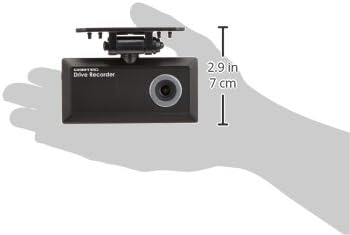
| Main Unit Size (W × H × D) | 102 mm × 50 mm × 20 mm |
| Weight | 107 g |
| Country of Origin | Japan |
8. Warranty and Support
The COMTEC HDR-201G comes with a manufacturer's warranty. Please refer to the warranty card included in your package for specific terms and conditions, including the warranty period and coverage details.
For technical support, product inquiries, or service requests, please contact COMTEC customer service. Contact information can typically be found in the instruction manual or on the official COMTEC website.
9. Product Videos
9.1 Small Drive Recorder by Newvision JP
This video provides a general overview of a small drive recorder, showcasing its compact design and basic features. While not specific to the HDR-201G, it illustrates the form factor and typical usage of such devices.
9.2 Avylet A1 Product Display and Function Explanation
This video demonstrates the features and functions of the Avylet A1 dash cam. It covers aspects like recording quality, G-sensor operation, parking surveillance, and app connectivity, which are common to many modern drive recorders including the HDR-201G.