
X-Rite DTP32R
X-Rite DTP32R Auto Scan Densitometer User Manual
Model: DTP32R
1. Introduction
This manual provides instructions for the setup, operation, and maintenance of the X-Rite DTP32R Auto Scan Densitometer. The DTP32R is an automatic strip reading instrument designed for the calibration and linearization of color output devices such as ink jet, thermal transfer, and dye sublimation color printers. It employs a sophisticated pattern recognition technique to extract data from measured strips, with data extraction defined by the user.
2. Package Contents
Verify that all items are present in the package:
- X-Rite DTP32R Auto Scan Densitometer
- X-Rite DTP32R Calibration Strip
- X-Rite DTP32R CD Manual (digital version)
- X-Rite Universal Power Supply (110/220V 50/60Hz compatible)
- X-Rite DTP32R Interface Cable
- X-Rite DTPseries Software
3. Setup
3.1 Power Connection
Connect the provided X-Rite Universal Power Supply to the DTP32R densitometer and then to a suitable power outlet. The power supply is designed to work with 110V or 220V, 50/60Hz electrical systems globally.
3.2 Interface Cable Connection
Connect the X-Rite DTP32R Interface Cable from the densitometer to your computer. Ensure a secure connection at both ends.
3.3 Software Installation
Install the X-Rite DTPseries Software from the provided CD manual onto your computer. Follow the on-screen instructions for installation. This software is essential for defining data extraction and managing measurements.
4. Operation
4.1 Powering On and Self-Test
Press the power button to turn on the DTP32R. The device will perform a self-test. A "Self Test = PASS" message indicates the unit is functioning correctly.
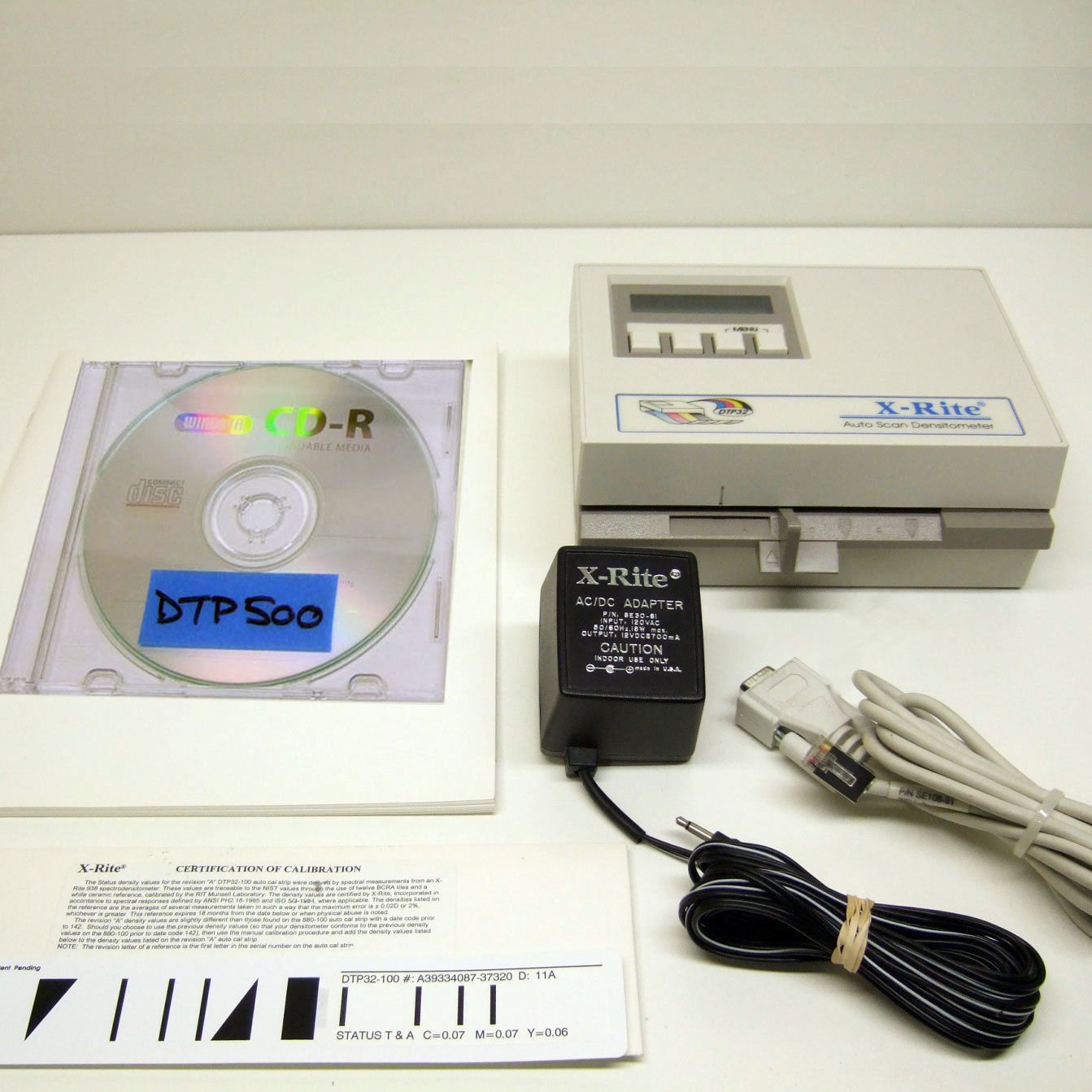
Figure 1: DTP32R display indicating a successful self-test.
4.2 Calibration
Before use, calibrate the densitometer using the provided X-Rite DTP32R Calibration Strip. Follow the software prompts for the calibration procedure. A "CALIBRATION OK!" message confirms successful calibration.

Figure 2: DTP32R display confirming successful calibration with density readings.
4.3 Measuring a Strip
- Ensure the densitometer is calibrated.
- Place the color output strip into the designated slot on the DTP32R.
- Initiate the scan process through the X-Rite DTPseries Software.
- The densitometer will automatically scan the strip and transmit data to the software.
- Review the extracted data within the software for analysis and color device linearization.
5. Maintenance
5.1 Cleaning
Regularly clean the exterior of the DTP32R with a soft, dry cloth. Avoid using abrasive cleaners or solvents. Ensure the strip reading area is free from dust and debris to maintain accurate measurements.
5.2 Calibration Strip Care
Keep the X-Rite DTP32R Calibration Strip clean and free from scratches or damage. Store it in a protective sleeve when not in use to ensure consistent calibration results.
5.3 Software Updates
Periodically check the X-Rite website for updates to the DTPseries Software to ensure optimal performance and compatibility with current operating systems and color output devices.
6. Troubleshooting
| Problem | Possible Cause | Solution |
|---|---|---|
| Device does not power on. | Power cable not connected; Power outlet issue. | Ensure power cable is securely connected. Test power outlet with another device. |
| "Self Test = FAIL" message. | Internal error; Hardware malfunction. | Power cycle the device. If the issue persists, contact X-Rite support. |
| Calibration fails. | Dirty calibration strip; Incorrect strip placement. | Clean the calibration strip. Ensure it is correctly inserted. Repeat calibration. |
| Software does not detect device. | Interface cable issue; Driver not installed. | Check interface cable connection. Reinstall DTPseries Software and drivers. |
7. Specifications
- Model: X-Rite DTP32R
- Type: Auto Scan Densitometer
- Optics: Status T
- Power Supply: Universal 110/220V, 50/60Hz
- Application: Calibration and linearization of color output devices (ink jet, thermal transfer, dye sublimation printers)
- Connectivity: Interface Cable (specific type not detailed, assume standard serial/USB as per era)
8. Warranty and Support
For warranty information and technical support, please refer to the documentation included with your purchase or visit the official X-Rite website. Keep your purchase receipt for warranty claims.
X-Rite Official Website: www.xrite.com
Ask a question about this manual
Ask about setup, troubleshooting, compatibility, parts, safety, or missing instructions. Manuals+ will review the question and use this page’s manual context to help answer it.