
Introduction
Thank you for choosing the AULA Befire LED Backlit Gaming Keyboard. This manual provides essential information for setting up, operating, and maintaining your keyboard. Please read it thoroughly to ensure proper usage and to maximize your gaming and typing experience.
The AULA Befire keyboard is designed for comfort and performance, featuring a durable plastic construction, responsive keys, and vibrant LED backlighting.
Setup
- Unpack the Keyboard: Carefully remove the keyboard from its packaging.
- Connect to Computer: Plug the USB connector of the keyboard into an available USB port on your computer. The keyboard is plug-and-play and should be recognized automatically by most operating systems.
- Positioning: Place the keyboard on a stable, flat surface. Adjust the support frame on the underside of the keyboard for your preferred typing angle.

Operating Instructions
LED Backlight Control
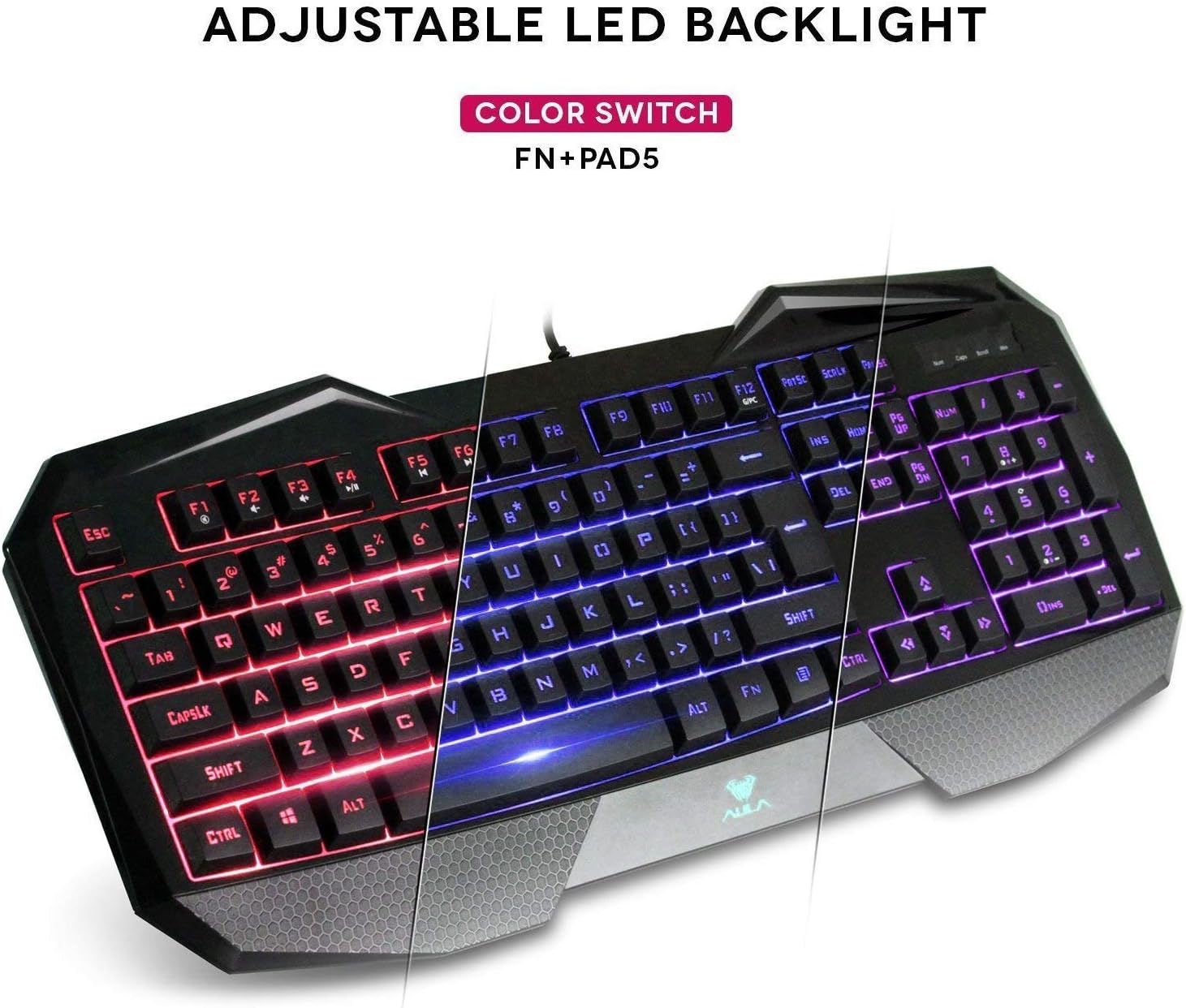
The AULA Befire keyboard features a special three-color LED backlight system (blue, red, and pink) with four adjustable brightness levels. This allows for comfortable usage in various lighting conditions and adds to the aesthetic appeal.

- Changing Colors: To switch between the blue, red, and pink backlight colors, press and hold the Fn key, then press the '5' key on the numeric keypad (Fn+Pad5).
- Adjusting Brightness: The backlight has four gear (levels) to adjust its intensity. Use the dedicated brightness control keys (refer to keyboard layout for exact keys, often Fn + Page Up/Page Down or similar) to cycle through the brightness levels or turn the backlight off.
Windows Key Lock
For an uninterrupted gaming experience, the keyboard features a lock/unlock function for the Windows key. This prevents accidental presses that could minimize your game.
- Activating/Deactivating: Press the dedicated Windows Lock key (often located near the right-top bezel or combined with an Fn function) to toggle the Windows key functionality.
- Indicator: A dedicated LED indicator on the right-top bezel will illuminate when the Windows key is locked.
Multimedia and Shortcut Keys
The keyboard incorporates a series of shortcut function keys that work in conjunction with the Fn key. These keys provide quick access to multimedia controls and other common functions.

Maintenance
- Cleaning: Use a soft, dry cloth to clean the keyboard surface. For deeper cleaning, a can of compressed air can be used to remove dust and debris from between the keys. Avoid using harsh chemicals or abrasive materials.
- Overheating Prevention: If the keyboard becomes less responsive due to prolonged use or high temperatures, disconnect it from the computer and allow it to cool down in a well-ventilated area before reconnecting.
- Keycap Removal: The keycaps are designed to be removable for cleaning or customization. Use a keycap puller (if provided) or gently pry them off from the edges. Be careful not to damage the key switches.
Troubleshooting
- Keyboard Not Responding:
- Ensure the USB cable is securely plugged into both the keyboard and the computer.
- Try plugging the keyboard into a different USB port.
- Restart your computer.
- Test the keyboard on another computer to determine if the issue is with the keyboard or the computer.
- Backlight Not Working:
- Check if the backlight is simply turned off or set to the lowest brightness level. Use the brightness control keys (e.g., Fn + Page Up) to increase brightness.
- Ensure the keyboard is properly connected to the computer.
- Keys Not Registering or Sticking:
- Clean around and under the affected keys to remove any debris.
- If the issue persists, refer to the 'Overheating Prevention' section under Maintenance.
Specifications
| Brand | AULA |
| Model | Befire |
| Hardware Platform | PC |
| Item Weight | 2 pounds |
| Connectivity Technology | USB |
| Keyboard Description | Gaming |
| Recommended Uses | Gaming |
| Special Feature | Non-slip |
| Backlighting Colors | Blue, Red, Pink (RGB support mentioned in specs, but product description specifies 3 colors) |
| Style | LED Backlit Gaming Keyboard |
| Material | Plastic |
| Dimensions (L x W x H) | 458.5 mm x 190 mm x 30 mm |

Warranty and Support
For warranty information and customer support, please refer to the documentation provided with your purchase or contact the retailer/manufacturer directly. Keep your proof of purchase for any warranty claims.


