
1. Product Overview
The Western Digital RE WD4001FYYG is a high-performance 3.5-inch Enterprise SAS Hard Drive with a 4TB (4000GB) capacity. Designed for demanding enterprise environments, it features a 32MB cache, 7200 RPM rotational speed, and a SAS 6 Gb/s interface, ensuring reliable 24x7 operation with a 1.4 million hours MTBF (Mean Time Between Failures).
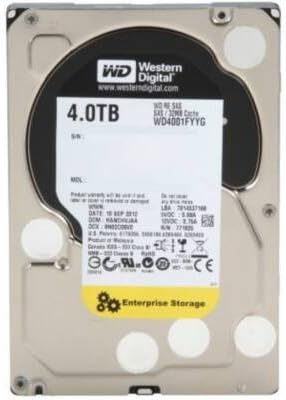
Figure 1: Western Digital RE WD4001FYYG 4TB Enterprise SAS Hard Drive (Top View)
Product Summary Video
Video 1: A brief overview of the product's features and design.
2. Specifications
| Feature | Detail |
|---|---|
| Manufacturer | Western Digital |
| Model Number | WD4001FYYG |
| Digital Storage Capacity | 4000 GB (4 TB) |
| Connectivity Technology | SAS (Serial Attached SCSI) |
| Hard Disk Form Factor | 3.5 Inches |
| Hard Disk Description | Mechanical Hard Disk |
| Hard Disk Rotational Speed | 7200 RPM |
| Cache | 32 MB |
| Interface Speed | 6.0 Gb/s |
| MTBF (Mean Time Between Failures) | 1.4 million hours |
| Compatible Devices | Server, Workstation |
| Installation Type | Internal Hard Drive |
| Special Feature | Portable (referring to its physical size for integration) |
3. Setup and Installation
This section outlines the general steps for installing the Western Digital RE WD4001FYYG hard drive into a compatible system. Ensure your system is powered off and disconnected from the power source before beginning installation.
3.1 Physical Installation
- Prepare your PC Case: Open your computer case to access the internal drive bays. Most PC cases include dedicated bays for 3.5-inch hard drives.
- Mount the Hard Drive: Secure the WD4001FYYG hard drive into an available 3.5-inch drive bay using the appropriate screws or tool-less mounting mechanisms provided with your PC case. Ensure the drive is firmly seated to prevent vibration.
- Connect Data Cable: Connect one end of a SAS data cable (not typically included with the drive, often supplied with the motherboard or power supply) to the SAS port on the hard drive. Connect the other end of the SAS data cable to an available SAS port on your motherboard or SAS controller card.
- Connect Power Cable: Connect a power cable from your power supply unit (PSU) to the power connector on the hard drive. Ensure a secure connection for stable power delivery.
- Close PC Case: Once all connections are secure and the drive is mounted, close your PC case.
3.2 Initializing and Formatting the Drive
After physical installation, the hard drive needs to be initialized and formatted by your operating system before it can be used for storage.
- Power On System: Reconnect your computer to the power source and power it on.
- Access Disk Management:
- Windows: Right-click on the Start button, select "Disk Management".
- Linux: Use disk utility tools like GParted or
fdisk/mkfscommands. - macOS: Open "Disk Utility" from Applications/Utilities.
- Initialize Disk: The new hard drive should appear as "Unallocated Space". You may be prompted to initialize the disk (e.g., MBR or GPT partition style). Choose the appropriate option for your system.
- Create New Volume: Create a new simple volume (partition) on the initialized disk. Follow the on-screen prompts to assign a drive letter and format the volume with a suitable file system (e.g., NTFS for Windows, ext4 for Linux, APFS/HFS+ for macOS).
- Ready for Use: Once formatted, the drive will appear in your file explorer and is ready for data storage.
4. Operating the Hard Drive
The Western Digital RE WD4001FYYG is optimized for reliable storage of large files and data in enterprise environments. Its SAS 6 Gb/s interface provides efficient data transfer speeds for its class.
- Primary Use: This hard drive is ideal for storing large volumes of data such as video files, photo archives, documents, and other non-time-critical applications.
- Performance: While offering substantial capacity and good transfer speeds for a mechanical drive, it is generally not recommended as a primary drive for operating systems or applications requiring extremely fast load times, such as modern video games. For such uses, Solid State Drives (SSDs) are typically preferred due to their superior speed.
- Reliability: Designed for 24x7 operation, this drive maintains consistent read and write speeds, making it suitable for continuous data access and storage.
5. Maintenance
Proper maintenance ensures the longevity and optimal performance of your hard drive.
- Regular Backups: Always maintain regular backups of critical data stored on the drive. While highly reliable, no storage device is immune to failure.
- Monitor Drive Health: Utilize disk monitoring software (e.g., S.M.A.R.T. tools) to periodically check the health status of your hard drive. This can help identify potential issues before they lead to data loss.
- Ensure Proper Ventilation: Ensure your PC case has adequate airflow to prevent the drive from overheating, which can degrade performance and lifespan.
- Avoid Physical Shocks: Mechanical hard drives are sensitive to physical shocks. Handle your system with care and avoid moving it while the drive is operating.
6. Troubleshooting
If you encounter issues with your Western Digital RE WD4001FYYG hard drive, consider the following troubleshooting steps:
- Drive Not Detected:
- Verify that both the SAS data cable and power cable are securely connected to the drive and the motherboard/PSU.
- Check your system's BIOS/UEFI settings to ensure the SAS controller is enabled and detecting the drive.
- Ensure the drive has been initialized and formatted via Disk Management (Windows) or equivalent utilities (Linux/macOS).
- Slow Performance:
- Check for excessive fragmentation (if using an older file system that benefits from defragmentation).
- Ensure your SAS controller drivers are up to date.
- Monitor drive health for any signs of impending failure using S.M.A.R.T. tools.
- Unusual Noises:
- Clicking, grinding, or repetitive noises can indicate a mechanical failure. Immediately back up any accessible data and consider replacing the drive.
7. Warranty and Support
For detailed warranty information and technical support, please refer to the official Western Digital website or contact their customer service. Keep your proof of purchase and the drive's serial number handy when seeking support.
Visit the Western Digital Store for more products and information.