
1. Introduction
The Brother DCP-J132W is a compact and versatile multifunction inkjet printer designed for home and small office use. It offers printing, scanning, and copying functionalities, along with wireless connectivity for convenient use from various devices. This manual provides essential information to help you get the most out of your printer.
2. Safety Information
Please read these safety instructions carefully before using the printer to prevent injury and damage to the machine.
- Always place the printer on a flat, stable surface.
- Do not block or cover the ventilation slots.
- Use only the power cord supplied with the printer.
- Do not expose the printer to water or excessive humidity.
- Keep ink cartridges out of reach of children.
- Unplug the printer from the power outlet before cleaning or performing maintenance.
3. What's in the Box
Verify that all components are present in the packaging:
- Brother DCP-J132W Multifunction Printer
- Ink Cartridges (Starter Set)
- Power Cord
- Installation CD-ROM
- Quick Setup Guide
Note: A USB cable is not typically included and may need to be purchased separately if you prefer a wired connection.
4. Setup
4.1 Unpacking and Initial Placement
- Remove the printer from its packaging and remove all protective tapes and packing materials.
- Place the printer on a stable, level surface near a power outlet.
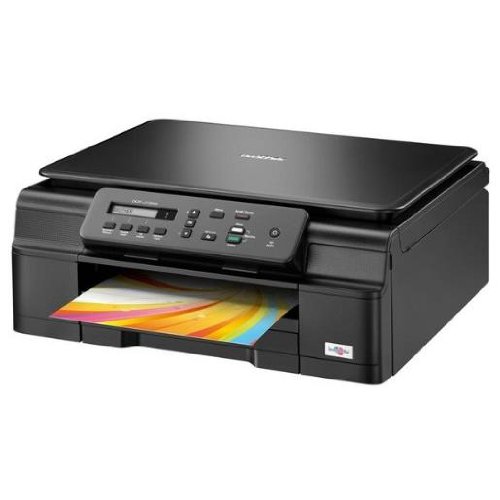
Figure 4.1: Front view of the Brother DCP-J132W printer, showing the paper output tray with a colorful document.
4.2 Installing Ink Cartridges
- Open the ink cartridge cover located on the front of the printer.
- Unpack each ink cartridge (Black, Cyan, Magenta, Yellow).
- Insert each cartridge into its corresponding slot, pressing down until it clicks into place.
- Close the ink cartridge cover. The printer will initiate an ink charging process.
4.3 Loading Paper
- Pull out the paper tray completely from the printer.
- Adjust the paper guides to fit the paper size you are loading (e.g., A4).
- Load paper into the tray, print side down. Do not overfill.
- Gently push the paper tray back into the printer until it locks.
4.4 Connecting Power
- Connect the power cord to the printer's power input.
- Plug the other end of the power cord into a wall outlet.
- Press the power button to turn on the printer.
4.5 Software Installation and Network Connection
Install the printer drivers and software from the included CD-ROM or download the latest versions from the official Brother support website. Follow the on-screen instructions for installation.
- Wireless Setup: During software installation, select the wireless connection option and follow the prompts to connect your printer to your Wi-Fi network. You may need your network SSID and password.
- USB Connection: If using a USB cable (not included), connect it to the printer and your computer when prompted by the installation software.

Figure 4.2: Angled view of the Brother DCP-J132W printer, highlighting its compact design and control panel.
5. Operating the Printer
5.1 Printing Documents
- Open the document or image you wish to print on your computer or mobile device.
- Select "Print" from the application's menu.
- Choose "Brother DCP-J132W" as your printer.
- Adjust print settings (e.g., paper size, color/grayscale, number of copies) as needed.
- Click "Print".
5.2 Scanning Documents
- Place the document face down on the scanner glass, aligning it with the guide marks.
- Close the scanner lid.
- On your computer, open the Brother ControlCenter software or a scanning application.
- Select "Scan" and choose your desired scan settings (e.g., resolution, color mode, destination).
- Click "Scan" to begin the process.
5.3 Copying Documents
- Place the document face down on the scanner glass.
- On the printer's control panel, press the "Copy" button.
- Use the arrow keys to select the number of copies or other settings (e.g., quality).
- Press "Start" (Color or Black & White) to begin copying.
6. Maintenance
6.1 Replacing Ink Cartridges
When an ink cartridge is low or empty, a message will appear on the printer's display or your computer. Use genuine Brother LC121 or LC123 series ink cartridges for optimal performance.
- Open the ink cartridge cover.
- Press the release lever for the empty cartridge and remove it.
- Unpack a new cartridge and insert it firmly into the correct slot until it clicks.
- Close the ink cartridge cover.
6.2 Cleaning the Print Head
If print quality declines (e.g., missing lines, streaking), perform a print head cleaning from the printer's control panel or through the printer driver software on your computer. Refer to the on-screen instructions for the cleaning procedure.
6.3 Cleaning the Scanner Glass
To ensure clear scans and copies, regularly clean the scanner glass with a soft, lint-free cloth moistened with a non-abrasive glass cleaner. Avoid spraying cleaner directly onto the glass.
7. Troubleshooting
This section addresses common issues you might encounter with your Brother DCP-J132W printer.
- Printer Not Turning On:
- Ensure the power cord is securely connected to both the printer and a working electrical outlet.
- Try plugging another device into the outlet to confirm it has power.
- Paper Jams:
- Carefully open all covers and remove any jammed paper following the instructions on the printer's display or in the full user guide.
- Ensure paper is loaded correctly and not overfilled in the paper tray.
- Poor Print Quality:
- Check ink levels and replace any low or empty cartridges.
- Perform a print head cleaning and alignment from the printer's maintenance menu.
- Ensure you are using appropriate paper for your print settings.
- Wireless Connection Issues:
- Verify that the printer is within range of your Wi-Fi router.
- Restart your router, computer, and printer.
- Re-run the wireless setup utility from the printer's control panel or the Brother software.
- Ensure your Wi-Fi password is entered correctly.
For more detailed troubleshooting, refer to the comprehensive user manual available on the Brother support website.
8. Specifications
| Feature | Detail |
|---|---|
| Brand | Brother |
| Model Name | DCPJ132W |
| Connectivity Technology | Wi-Fi, USB |
| Printer Output | Color |
| Max Print Speed (Color) | 27 Pages per minute |
| Max Print Speed (Black & White) | 27 Pages per minute |
| Max Print Resolution (Color) | 1200 x 1200 dpi |
| Max Print Resolution (Black & White) | 1200 x 1200 dpi |
| Product Dimensions (DxWxH) | 16.1P x 41l x 16.1H cm |
| Max Supported Paper Size | A4 |
| Printing Media Support | Plain paper, Glossy photo paper, Transparencies |
| Scanner Type | Flatbed |
| Scanner Resolution | 2400 dpi |
| Duplex Printing | Automatic |
| Compatible Cartridges | LC121BK/C/M/Y & LC123BK/C/M/Y |
| Max Input Sheet Capacity | 250 |
9. Warranty and Support
9.1 Warranty Information
The Brother DCP-J132W typically comes with a manufacturer's warranty. Please refer to the warranty card included with your product or visit the official Brother website for specific terms and conditions applicable in your region. The availability of spare parts in the EU is guaranteed for 1 year.
9.2 Customer Support
For technical assistance, driver downloads, or further information, please visit the official Brother support website. You can find FAQs, troubleshooting guides, and contact information for customer service.
Brother Support Website: www.brother.eu/support