
1. Introduction
The ATEN VC080 is an HDMI EDID Emulator designed to resolve common display compatibility issues that can arise in HDMI setups. EDID (Extended Display Identification Data) contains crucial information about a display's capabilities, such as supported resolutions, refresh rates, and audio formats. When a source device (e.g., a computer, Blu-ray player) cannot properly read this data from a display, it may result in incorrect video output, no signal, or other display problems.
The VC080 acts as an intermediary, storing and emulating EDID information to ensure a consistent and reliable signal path between the source and the display. This device is particularly useful in complex installations, long cable runs, or when using multiple display devices where EDID communication can be disrupted.
2. Product Overview
The ATEN VC080 is a compact and robust device, designed for seamless integration into existing HDMI systems. It features standard HDMI input and output ports for easy connection.
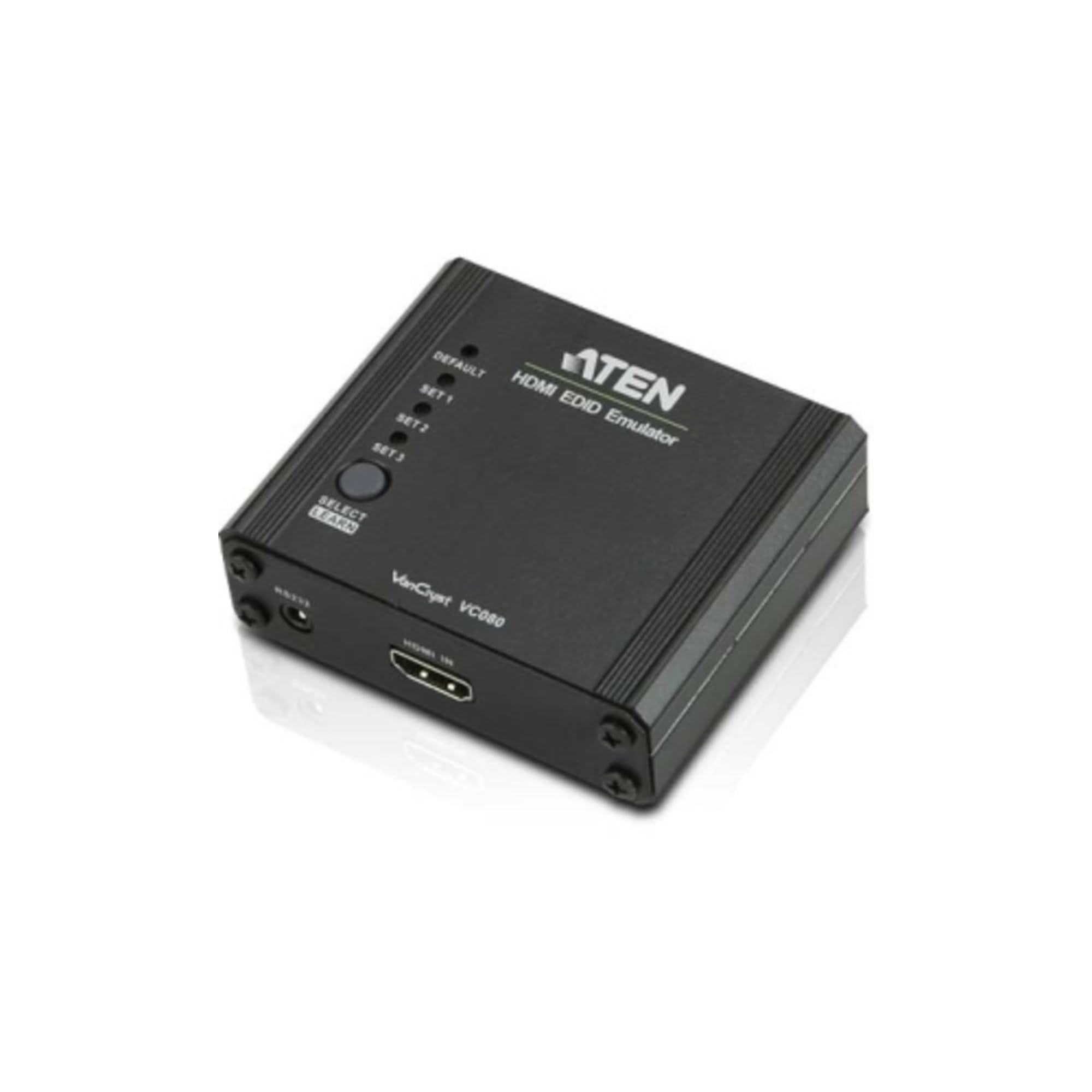
Figure 1: Front view of the ATEN VC080 HDMI EDID Emulator, showing its compact design and HDMI ports.
2.1 Package Contents
- 1x ATEN VC080 HDMI EDID Emulator
- 1x User Manual (this document)
- Note: Additional accessories such as HDMI cables or power adapters may be sold separately.
2.2 Hardware Description
The VC080 typically includes the following components:
- HDMI Input Port: Connects to the HDMI source device (e.g., PC, media player).
- HDMI Output Port: Connects to the HDMI display device (e.g., monitor, TV, projector).
- Power Input (if applicable): For connecting an external power adapter (usually 5V DC), though many EDID emulators can draw power from the HDMI source.
- LED Indicators (if applicable): May include power status, EDID status, or signal detection indicators.
Note: Specific port configurations and indicators may vary slightly. Refer to the physical device for exact details.
3. Setup and Installation
Follow these steps to install and set up your ATEN VC080 HDMI EDID Emulator:
- Power Off Devices: Ensure all HDMI source devices (e.g., computer, game console) and display devices (e.g., monitor, TV) are powered off before making any connections.
- Connect Source: Connect an HDMI cable from your source device's HDMI output to the HDMI Input port on the ATEN VC080.
- Connect Display: Connect another HDMI cable from the HDMI Output port on the ATEN VC080 to your display device's HDMI input.
- Power On (if required): If your VC080 requires external power, connect the appropriate power adapter to the device and then plug it into a power outlet. Many EDID emulators are bus-powered via HDMI and may not require an external power supply.
- Power On Devices: Power on your display device first, then power on your source device. This sequence helps ensure proper EDID detection.
- Verify Connection: Check your display for the correct video and audio output.
Important: Always ensure secure connections to prevent signal loss or intermittent issues.
4. Operation
The ATEN VC080 HDMI EDID Emulator is designed for plug-and-play operation. Once connected, it automatically manages the EDID communication between your source and display devices.
4.1 EDID Emulation
The VC080 typically operates in one of two modes:
- Default EDID: The emulator provides a standard, pre-programmed EDID to the source device. This default EDID usually supports common resolutions (e.g., 1080p, 720p) and audio formats, ensuring basic compatibility.
- EDID Learning/Copying (if feature exists): Some EDID emulators allow you to copy the EDID from a connected display. If your VC080 has this feature (e.g., via a button or switch), you would typically connect it directly to the desired display, activate the learning function, and then insert it into your system. This ensures the source receives the exact EDID of your preferred display. (Based on the minimal product info, this specific feature is not confirmed for VC080, assume default emulation for simplicity).
The primary function of the VC080 is to maintain a constant EDID signal to the source device, preventing issues that occur when a display is disconnected, powered off, or when switching between displays. This helps to avoid resolution changes, desktop rearrangement, or signal loss.
5. Maintenance
The ATEN VC080 HDMI EDID Emulator requires minimal maintenance to ensure optimal performance and longevity.
- Cleaning: Use a soft, dry cloth to clean the exterior of the device. Avoid using liquid cleaners or abrasive materials, as these can damage the casing or internal components.
- Environment: Keep the device in a cool, dry place, away from direct sunlight, excessive heat, moisture, and dust.
- Connections: Periodically check all HDMI cable connections to ensure they are secure and free from damage.
- Storage: If storing the device for an extended period, disconnect all cables and store it in its original packaging or a protective container.
Do not attempt to open the device casing, as this will void the warranty and may cause damage.
6. Troubleshooting
If you encounter issues with your ATEN VC080, refer to the following troubleshooting tips:
| Problem | Possible Cause | Solution |
|---|---|---|
| No video or audio output. |
|
|
| Incorrect resolution or display settings. |
|
|
| Intermittent signal loss. |
|
|
If the problem persists after trying these solutions, please contact ATEN customer support for further assistance.
7. Specifications
| Feature | Detail |
|---|---|
| Model Number | VC080 |
| Brand | ATEN |
| Interface Type | HDMI |
| Material | Plastic |
| Product Dimensions (L x W x H) | 3.11 x 2.82 x 1 inches |
| Item Weight | 5.3 ounces |
| Manufacturer | ATEN TECHNOLOGIES |
| Date First Available | October 9, 2013 |
| UPC / GTIN | 672792004193 |
8. Warranty and Support
ATEN is committed to providing high-quality products and excellent customer service. Your ATEN VC080 HDMI EDID Emulator is covered by a manufacturer's warranty. Please refer to the official ATEN website or your purchase documentation for specific warranty terms and conditions.
8.1 Technical Support
For technical assistance, troubleshooting, or product inquiries, please contact ATEN's customer support. They offer:
- Free technical support.
- Localized repair centers for RMA service.
- Extended warranty service and variable value-added service packages.

Figure 2: Overview of ATEN's customer support services, including repair, warranty, and technical assistance.
You can find contact information for your regional ATEN support center on the official ATEN website: www.aten.com


