
1. Product Overview
The ROCCAT KAVE XTD 5.1 Digital is a premium gaming headset designed to deliver an immersive audio experience with true 5.1 surround sound. It features a robust build, comfortable earcups, a noise-cancelling microphone, and an external USB remote with an integrated sound card for versatile control and connectivity. This headset is engineered for high-fidelity audio and clear communication during gaming sessions.
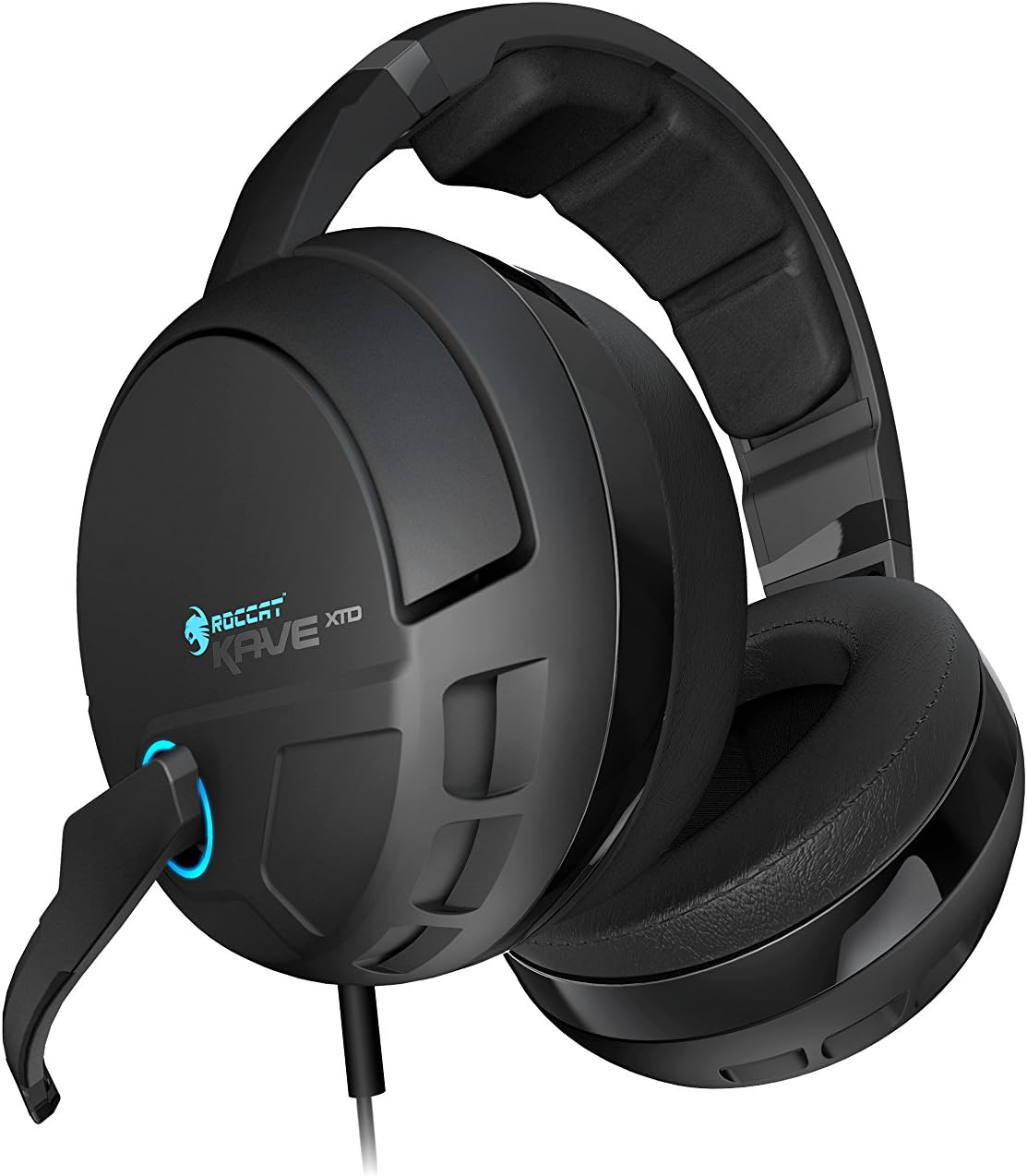
Figure 1: Front view of the ROCCAT KAVE XTD 5.1 Digital Headset, highlighting the earcups and the blue LED accent on the microphone connection.
2. Features
- True 5.1 Surround Sound: Equipped with three high-quality drivers per earcup, designed to match the natural form of your ears for precise positional audio.
- Removable Microphone: Features noise-cancelling technology and a mute-LED indicator, ensuring clear voice transmission and privacy control.
- USB Connection with External Sound Card: Includes an external multichannel sound card integrated into the remote, offering volume control and a convenient speaker/headset selector.
- Robust Design: Built for durability with a 3.5-meter tangle-free cable and an ergonomic headband cushion for extended comfort.
- Versatile Compatibility: Compatible with Windows PC, Laptops, Desktops, and Smartphones via Bluetooth SMART LINK for mobile calls during gaming.
3. Package Contents
Verify that all items are present in the package:
- ROCCAT KAVE XTD 5.1 Digital Headset
- Detachable Microphone
- External USB Remote & Sound Card (integrated into cable)
- Quick Installation Guide (if included)
4. Setup
4.1 Hardware Connection
- Connect the Headset: Plug the USB connector of the ROCCAT KAVE XTD 5.1 Digital Headset into an available USB port on your PC or laptop.
- Attach the Microphone: Insert the detachable microphone into the designated port on the left earcup until it clicks securely into place.

Figure 2: Side view of the headset showing the attached, flexible microphone arm.
4.2 Software Installation
For optimal performance and access to all features, it is highly recommended to install the latest drivers and software from the official ROCCAT website.
- Download Drivers: Visit the official ROCCAT support website and navigate to the product page for the KAVE XTD 5.1 Digital. Download the latest available drivers and software for your operating system.
- Install Software: Run the downloaded installer and follow the on-screen instructions. A system restart may be required after installation.
4.3 Initial Configuration (Windows)
After driver installation, ensure your headset is set as the default audio device:
- Right-click the speaker icon in your system tray.
- Select "Sound settings" or "Playback devices."
- Locate "ROCCAT KAVE XTD 5.1 Digital" and set it as the default playback and recording device.
- Within the ROCCAT software, ensure 5.1 surround sound is enabled and adjust settings as desired (refer to Section 5.4).
5. Operating Instructions
5.1 Audio Control Unit (Remote)
The inline remote provides comprehensive control over your audio experience:
- Master Volume Knob: Rotate to adjust overall volume. Press to mute/unmute audio.
- Channel Button: Allows individual adjustment of front, rear, center, and subwoofer channels for precise 5.1 balancing.
- Movie Mode Button: Optimizes audio for movie playback, enhancing vocal clarity.
- Speaker Button: Toggles audio output between the headset and connected external speakers (if configured via the remote's output jacks).
- Microphone Mute Button: Mutes/unmutes the microphone. An LED on the remote and the microphone tip indicates the mute status.
- Bluetooth Button: Initiates Bluetooth pairing for smartphone connectivity (see Section 5.3).
5.2 Microphone Usage
The detachable microphone features noise-cancelling technology for clear communication.
- Positioning: Adjust the flexible microphone arm so the microphone is positioned near your mouth for optimal voice pickup.
- Mute Indicator: A blue LED on the microphone tip illuminates when the microphone is muted, providing a visual cue of its status.
5.3 Bluetooth SMART LINK Connectivity
The headset can connect to your smartphone via Bluetooth for taking calls without interrupting your gaming session.
- Enable Bluetooth: Ensure Bluetooth is enabled on your smartphone.
- Pairing Mode: Press and hold the Bluetooth button on the headset's control unit until the indicator light flashes, indicating pairing mode.
- Connect: On your smartphone, search for available Bluetooth devices and select "ROCCAT KAVE XTD" (or similar). Confirm pairing if prompted.
- Answering Calls: When a call comes in, press the Bluetooth button on the control unit to answer. The headset will automatically mute game audio during the call. Press again to end the call.
5.4 Software Settings and Customization
The ROCCAT software provides extensive options for customizing your audio experience. Launch the ROCCAT Swarm software (or equivalent driver software) from your desktop or system tray.
- Main Control: Adjust master volume, individual channel volumes (front, rear, center/subwoofer, Bluetooth), and switch between 5.1 surround and stereo modes. The "Mix Stereo to 5.1 channels" option can enhance stereo content by utilizing all speakers.
- Advanced Control:
- Dynamic Bass: Enable and adjust "Virtual Bass level" and "Virtual Bass Threshold" to enhance bass response and activate vibration feedback.
- Brilliant Audio: Improves the quality of compressed music and enhances mid-to-high frequencies.
- Incoming Voice Clarity: Optimizes the reception of vocal streams.
- Equalizer: Activate the equalizer to fine-tune audio frequencies. Use preset profiles or create custom ones to match your preferences for gaming, music, or movies.
- Microphone Settings: Adjust microphone volume, sampling rate, and apply effects like Xear Magic Voice.
- Profiles: Create and save multiple audio profiles for different applications or games.
6. Maintenance
- Cleaning: Use a soft, dry cloth to clean the headset and control unit. Avoid abrasive cleaners or solvents.
- Storage: Store the headset in a cool, dry place away from direct sunlight and extreme temperatures. Avoid tangling the cable.
- Microphone Care: When not in use, you may detach the microphone or position it upwards to prevent damage.
7. Troubleshooting
| Problem | Possible Solution |
|---|---|
| No sound from headset. |
|
| Microphone not working. |
|
| Sound quality is poor or flat. |
|
| Bluetooth connection issues. |
|
8. Specifications
| Feature | Detail |
|---|---|
| Model Name | ROC-14-160 |
| Connectivity Technology | Wired (USB) |
| Wireless Communication | Bluetooth (for smartphone calls) |
| Audio Driver Type | Dynamic Driver |
| Audio Driver Size | 50 Millimeters |
| Earpiece Shape | Over Ear |
| Cable Feature | Tangle Free (3.5 meters) |
| Control Type | Volume Control, Microphone Mute, Channel Control, Speaker/Headset Toggle |
| Compatible Devices | Laptops, Desktops, Smartphones, Music Production Equipment |
| Item Weight | 0.86 Pounds (approx. 390g) |
| Product Dimensions (LxWxH) | 13.4 x 5.3 x 10 inches |
9. Warranty Information
ROCCAT products typically come with a manufacturer's warranty. For detailed information regarding the warranty period, coverage, and terms and conditions for your ROCCAT KAVE XTD 5.1 Digital Headset, please refer to the warranty card included with your product or visit the official ROCCAT website's support section. Keep your proof of purchase for warranty claims.
10. Support
For further assistance, technical support, or to access additional resources such as FAQs and updated drivers, please visit the official ROCCAT support website:
You may also refer to the official user guides available online:


