Introduction
This manual provides comprehensive instructions for the setup, operation, maintenance, and troubleshooting of your Datalogic QuickScan QD2430 2D Black Handheld Bar Code Reader. Please read this manual carefully before using the device to ensure proper functionality and to prevent damage.
The Datalogic QuickScan QD2430 is designed for fast and reliable scanning of 1D and 2D barcodes, offering omnidirectional reading capabilities and Datalogic's patented "Green Spot" technology for good-read feedback.
Package Contents
Verify that all items are present in the package:
- Datalogic QuickScan QD2430 Bar Code Reader
- USB Cable
- Stand (if included with your model)
- Quick Start Guide (this manual serves as the full guide)

Figure 1: Datalogic QuickScan QD2430 Bar Code Reader with its stand and connecting cables (USB and Ethernet-like connector).
Setup
1. Connecting the Scanner
- Ensure your computer or host system is powered off.
- Connect the USB cable to the port at the base of the QuickScan QD2430 reader.
- Connect the other end of the USB cable to an available USB port on your computer or host system.
- If using the stand, place the scanner securely into the stand.
- Power on your computer or host system. The scanner will typically be recognized automatically as a Human Interface Device (HID) keyboard or a virtual COM port, depending on its default configuration.

Figure 2: Front view of the Datalogic QuickScan QD2430 barcode reader securely placed in its adjustable stand.
2. Driver Installation (if necessary)
For most operating systems, the QD2430 will function as a plug-and-play device. If the scanner is not recognized, you may need to install specific drivers. Refer to the Datalogic support website for the latest drivers and configuration utilities.
3. Initial Configuration
The QD2430 can be configured by scanning programming barcodes found in the full Datalogic programming manual (available on the Datalogic website). Common configurations include:
- Keyboard Wedge (HID) mode: Data is sent as keyboard input.
- Virtual COM Port mode: Data is sent to a serial port emulation.
- Symbology enablement/disablement.
- Prefix/Suffix addition to scanned data.
Operating Instructions
1. Scanning Barcodes
The QuickScan QD2430 supports both handheld and presentation scanning modes.
Handheld Mode:
- Hold the scanner comfortably in your hand.
- Point the scanning window towards the barcode.
- Press and hold the trigger button (blue button). An aiming cross will appear.
- Center the aiming cross over the barcode. The QD2430 features omnidirectional reading, allowing scanning from any angle.
- Once successfully scanned, the "Green Spot" will project onto the barcode, and an audible beep will sound (if enabled).

Figure 3: Close-up view of the Datalogic QuickScan QD2430 handheld scanner, showing its scanning window and the prominent blue trigger button.
Presentation Mode (with stand):
- Place the scanner in its stand.
- Present the barcode in front of the scanner's window. The scanner will automatically detect the barcode and perform the scan.
- The "Green Spot" and audible beep will confirm a successful read.
2. Green Spot Technology
Datalogic's patented "Green Spot" technology provides visual good-read feedback directly on the barcode, which is particularly useful in noisy environments or when audible feedback is undesirable.
3. Image Capture and Document Scanning
The QD2430 is capable of capturing images and scanning documents. This functionality typically requires specific software applications and configuration. Refer to the Datalogic programming manual for detailed instructions on enabling and utilizing image capture features.
Maintenance
1. Cleaning the Scanner
To ensure optimal performance, keep the scanning window clean. Use a soft, lint-free cloth lightly dampened with water or a mild, non-abrasive cleaner. Do not use harsh chemicals or abrasive materials, as they can damage the scanning window.
2. Storage
Store the scanner in a cool, dry place away from direct sunlight and extreme temperatures. The maximum recommended storage temperature is 300 Kelvin (approximately 27°C / 80°F).
3. Cable Management
Avoid bending or twisting the USB cable excessively. Ensure the cable is not pinched or placed under heavy objects to prevent damage.
Troubleshooting
| Problem | Possible Cause | Solution |
|---|---|---|
| Scanner not powering on. | USB cable not properly connected or faulty USB port. | Ensure USB cable is securely connected to both scanner and host. Try a different USB port or computer. |
| Scanner not reading barcodes. | Barcode damaged, symbology disabled, or scanner not configured correctly. | Check barcode for damage. Ensure the required symbology is enabled (refer to programming manual). Verify scanner is in the correct operating mode (e.g., HID keyboard). Clean scanning window. |
| No "Green Spot" or audible beep after scan. | Feedback settings disabled. | Refer to the programming manual to enable "Green Spot" and audible good-read feedback. |
| Scanned data appears incorrectly. | Incorrect keyboard layout or data formatting settings. | Ensure the scanner's keyboard layout matches your system's keyboard layout. Check for any prefix/suffix settings that might be altering the data. |
Specifications
| Feature | Detail |
|---|---|
| Model | QD2430-BKK1S |
| Dimensions (L x W x H) | 1.61 x 3.58 x 6.42 inches (4.09 x 9.09 x 16.31 cm) |
| Weight | 5.1 ounces (144.6 grams) |
| Connectivity | Wired, USB Cable |
| Power Source | DC (via USB) |
| Scanning Capability | 1D and 2D Barcodes, Omnidirectional reading |
| Feedback | Datalogic patented "Green Spot" technology, Audible Beeper |
| Environmental Sealing | IP51 (Water and Particulate Sealing Rating) |
| Maximum Storage Temperature | 300 Kelvin (approx. 27°C / 80°F) |
| Compatible Devices | General purpose computers, POS systems (Note: "iPhone" listed in source data may refer to compatibility with specific POS apps or systems, not direct iPhone connection for scanning.) |
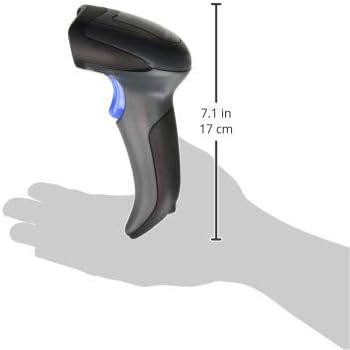
Figure 4: The Datalogic QuickScan QD2430 handheld scanner demonstrating its ergonomic size when held in a user's hand.
Warranty and Support
Datalogic products are covered by a standard manufacturer's warranty. For specific warranty terms and conditions, please refer to the warranty card included with your product or visit the official Datalogic website.
For technical support, driver downloads, and additional programming manuals, please visit the Datalogic support portal:
- Datalogic Official Website: www.datalogic.com
- Support Section: Look for "Support" or "Downloads" on the website.
When contacting support, please have your product model (QD2430-BKK1S) and serial number ready.


