
Introduction
This manual provides essential information for the proper installation, operation, and maintenance of your VIMAR 20550N Color Monitor. Please read these instructions carefully before use and retain them for future reference. This monitor is designed for use within a compatible video intercom system.
Setup
Unboxing
Carefully remove the VIMAR 20550N Color Monitor from its packaging. Inspect the unit for any signs of damage that may have occurred during transit. If damage is found, do not proceed with installation and contact your supplier.
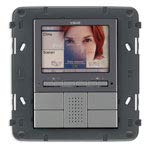
This image shows the VIMAR 20550N Color Monitor, still sealed in its protective plastic, resting inside its brown cardboard packaging. The monitor features a dark gray casing with a screen at the top and several control buttons below, including those for brightness, volume, door release, and camera view. The VIMAR logo is visible above the screen.
Mounting
Refer to the separate installation guide provided with your product for detailed instructions on mounting the monitor to the wall or desired surface. Ensure that all necessary wiring (power, video, audio, and control signals) is accessible at the chosen installation point.
Connections
Connect the power supply, video input, and audio cables to the designated ports on the back of the monitor. Ensure all connections are secure and correctly polarized before applying power to the device. Incorrect wiring can cause damage to the unit or system.
Operating Instructions
Power On/Off
The monitor typically powers on automatically when connected to a power source and may activate upon an incoming call from the outdoor unit. There is no dedicated power button for daily operation.
Basic Functions
- Brightness Adjustment: Use the + and - buttons located next to the sun icon to increase or decrease the screen brightness.
- Volume Adjustment: Use the + and - buttons located next to the speaker icon to adjust the audio volume for calls.
- Door Release: Press the key icon button to activate the electric door lock and allow entry.
- View Camera: Press the camera icon button to manually view the outdoor camera feed without an incoming call.
- Intercom Function: If your system supports internal communication, use the designated button (often a microphone or phone icon) to initiate or answer an intercom call with other indoor units within the same system.
Maintenance
Cleaning
Clean the monitor screen and casing with a soft, dry, anti-static cloth. Do not use abrasive cleaners, solvents, or aerosol sprays, as these can damage the surface or internal components.
Environmental Conditions
Ensure the monitor is operated within the specified temperature and humidity ranges as outlined in the full technical specifications. Avoid exposing the unit to direct sunlight, excessive heat, or moisture.
Avoid Liquids
Prevent liquids from entering the monitor's vents or ports. In case of accidental liquid exposure, immediately disconnect power and contact a qualified technician.
Troubleshooting
- No Power:
- Check the power connection to the monitor and ensure the power outlet is functional.
- Verify that the system's main power supply is active.
- No Image on Screen:
- Confirm all video cables are securely connected between the monitor and the outdoor unit/system.
- Check the outdoor unit camera for proper operation.
- Adjust brightness settings on the monitor.
- No Audio or Poor Audio Quality:
- Check audio cable connections.
- Adjust the volume using the monitor's controls.
- Ensure the outdoor unit's microphone and speaker are clear of obstructions.
- Door Release Not Working:
- Verify the wiring to the electric door lock mechanism.
- Ensure the outdoor unit is functioning correctly and receiving the door release signal.
Specifications
- Brand: VIMAR
- Model: 20550.N
- ASIN: B00F8OQS68
- First Available Date: March 21, 2014
Note: For complete technical specifications, including power requirements, dimensions, and environmental ratings, please refer to the product packaging or VIMAR's official documentation.
Warranty and Support
Warranty Information
For detailed warranty information regarding your VIMAR 20550N Color Monitor, please refer to the warranty card or documentation provided with your purchase. Warranty terms and conditions may vary by region and retailer.
Technical Support
If you encounter issues not covered in this manual or require further assistance, please contact VIMAR technical support. Contact details can typically be found on the official VIMAR website (www.vimar.com) or in your product packaging.
