
Logitech Z150
Logitech Z150 Stereo PC Speakers Instruction Manual
Model: Z150 (P/N: 980-000816)
Brand: Logitech
1. Introduction
The Logitech Z150 Stereo PC Speakers are designed to deliver clear acoustic stereo sound for your computer, smartphone, tablet, or MP3 player. With 3 watts RMS power (6 watts peak), these compact speakers feature 5cm drivers, integrated controls for power and volume, a 3.5mm audio input for versatile connectivity, and a convenient headphone jack for private listening.

Figure 1: Front view of the Logitech Z150 Stereo PC Speakers, showcasing their compact design.
2. What's in the Box
Please check the package contents to ensure all items are present:
- Two Logitech Z150 Speakers
- Power Adapter (UK plug)
- User Documentation
3. Setup Guide
Follow these steps to set up your Logitech Z150 speakers:
- Unpack the Speakers: Carefully remove all components from the packaging.
- Connect the Speakers: The two speakers are connected by a fixed cable. Position them on your desk or desired surface.
- Connect the Power Adapter: Plug the power adapter into the power input port on the back of the main speaker (the one with controls). Then, plug the power adapter into a wall outlet.

Figure 2: The power adapter with a UK plug.
- Connect to Audio Source: Plug the 3.5mm audio jack from the speaker cable into the headphone jack or audio output port of your computer, smartphone, tablet, or MP3 player.

Figure 3: The 3.5mm audio jack for connecting to your device.

Figure 4: Rear view of the speakers showing the audio input and power ports.
- Power On: Turn the volume knob on the front of the main speaker clockwise to power on the speakers. A green indicator light will illuminate.
4. Operating Instructions
Once set up, operating your Z150 speakers is straightforward:
- Power On/Off and Volume Control: The large knob on the front of the right speaker controls both power and volume. Turn it clockwise to power on and increase volume, and counter-clockwise to decrease volume and power off.
- Audio Input: The speakers automatically play audio from the device connected via the 3.5mm audio jack. Ensure your audio source device's volume is also turned up.
- Headphone Jack: For private listening, plug your headphones into the 3.5mm headphone jack located on the front of the main speaker. This will mute the speakers and redirect audio to your headphones.
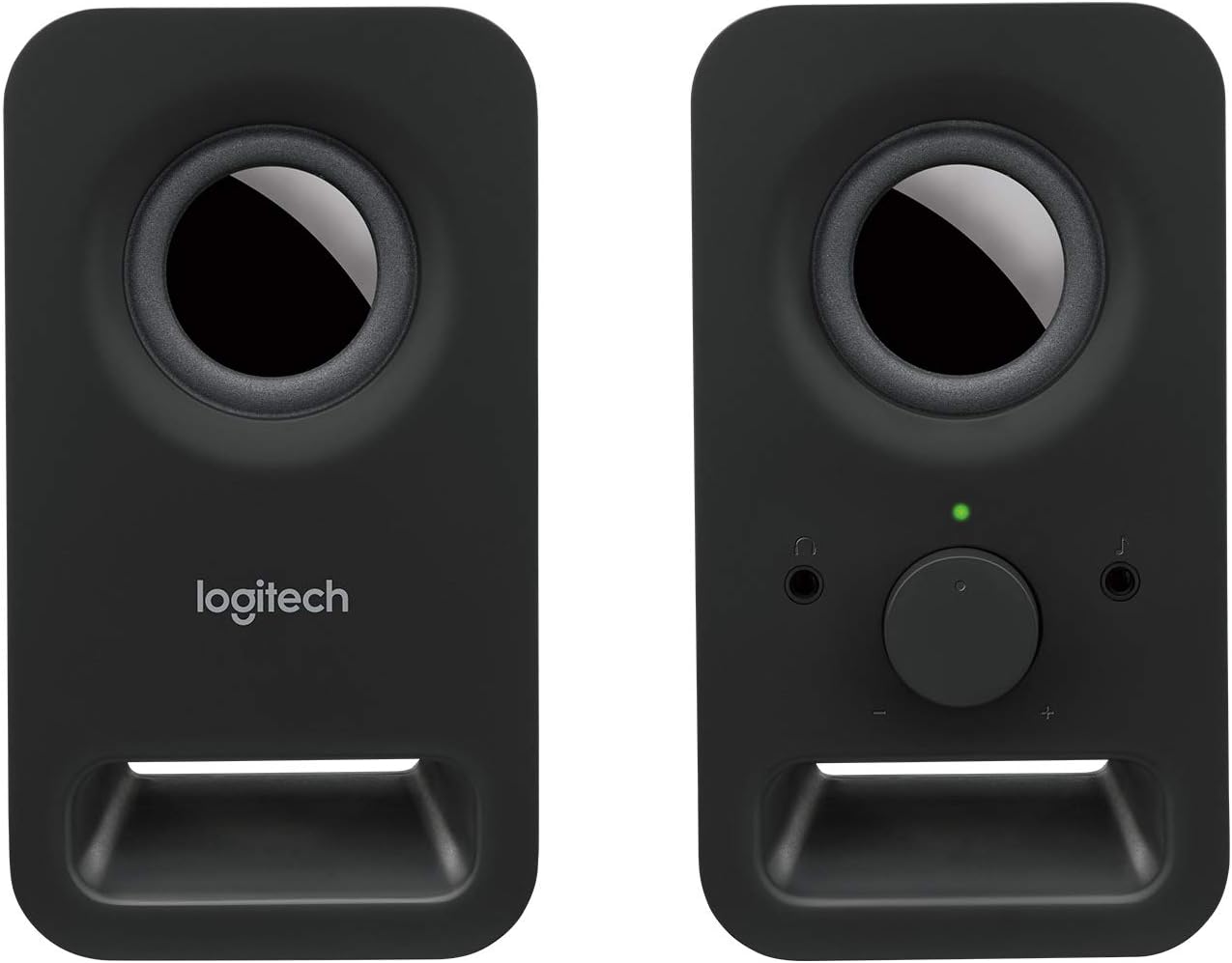
Figure 5: Front view of the main speaker, highlighting the volume control and headphone jack.
5. Maintenance
To ensure the longevity and optimal performance of your Logitech Z150 speakers, follow these simple maintenance guidelines:
- Cleaning: Use a soft, dry, lint-free cloth to clean the speaker surfaces. Do not use abrasive cleaners, waxes, or solvents.
- Avoid Liquids: Do not expose the speakers to water or other liquids. If liquid spills on the speakers, immediately disconnect them from power and allow them to dry completely before reconnecting.
- Placement: Place the speakers on a stable, flat surface. Avoid placing them in direct sunlight, near heat sources, or in excessively humid environments.
- Storage: When not in use for extended periods, store the speakers in a cool, dry place.
6. Troubleshooting
If you encounter issues with your Logitech Z150 speakers, refer to the following common problems and solutions:
| Problem | Possible Cause | Solution |
|---|---|---|
| No sound from speakers | Speakers are not powered on. | Turn the volume knob clockwise to power on the speakers. Check if the green indicator light is on. |
| Volume is too low or muted. | Increase the volume using the knob on the speaker and on your audio source device. | |
| Audio cable is not properly connected. | Ensure the 3.5mm audio jack is fully inserted into both the speaker and your audio source device. | |
| Headphones are plugged in. | Unplug headphones from the speaker's headphone jack. | |
| Sound is distorted or unclear | Volume is too high. | Reduce the volume on both the speakers and your audio source device. |
| Audio source quality is poor. | Try playing audio from a different source or file to determine if the issue is with the source. | |
| Only one speaker is working | Loose connection between speakers. | Ensure the fixed cable connecting the two speakers is not damaged. |
| Audio source output issue. | Test with another audio source or check your device's audio settings for balance. |
7. Specifications
| Feature | Detail |
|---|---|
| Model Name | Z150 |
| Item Model Number | 980-000816 |
| Speaker Type | Multimedia |
| Audio Output Mode | Stereo (2.0 Channel) |
| Maximum Speaker Output Power | 6 Watts Peak / 3 Watts RMS |
| Speaker Size | 5 Centimeters (drivers) |
| Connectivity Technology | AUX (3.5mm audio input) |
| Control Method | Rotary Knob (Power/Volume) |
| Special Features | Plug and Play, Volume Control, Headphone Jack |
| Compatible Devices | Desktop computer, MP3 player, Mac, Smartphone, Tablet |
| Product Dimensions (D x W x H) | 7.6 x 8.5 x 15.2 cm |
| Item Weight | 583 Grams |
| Color | Black (Night) |
| Included Components | Two speakers, Power adapter (UK plug), User documentation |
| Power Source | AC Power Adapter |
| Mounting Type | Tabletop Mount |
8. Warranty and Support
Your Logitech Z150 speakers come with a Limited Warranty. For specific details regarding the warranty period and terms, please refer to the user documentation included in the box or visit the official Logitech support website.
For technical support, troubleshooting beyond this manual, or warranty claims, please visit the Logitech support website at support.logi.com. You may need your product model number (980-000816) when contacting support.
Please note that return policies may vary based on your point of purchase. For purchases made on Amazon, a 30-day return period typically applies if you change your mind, and specific assistance is available for defective or damaged products.
Related documentsZ150


Ask a question about this manual
Ask about setup, troubleshooting, compatibility, parts, safety, or missing instructions. Manuals+ will review the question and use this page’s manual context to help answer it.