Introduction
This manual provides essential instructions for setting up, operating, and maintaining your Alcatel 392G Big Easy Flip Phone. Designed for simplicity, this Tracfone device features large, easy-to-read keys and a clear display, making communication straightforward.
Key features include a 2 MP camera, Bluetooth connectivity, FM radio, and mobile web access. Please read this manual thoroughly to ensure proper use and to maximize the functionality of your phone.
Setup
1. Unboxing and Included Items
Upon opening the package, verify that the following items are included:
- Alcatel 392G Big Easy Flip Phone
- Battery
- Charger
- Activation Card
- Service Guide
2. Battery Installation
Carefully remove the back cover of the phone. Align the battery contacts with the terminals inside the battery compartment and gently press the battery into place. Ensure it is securely seated. Replace the back cover.
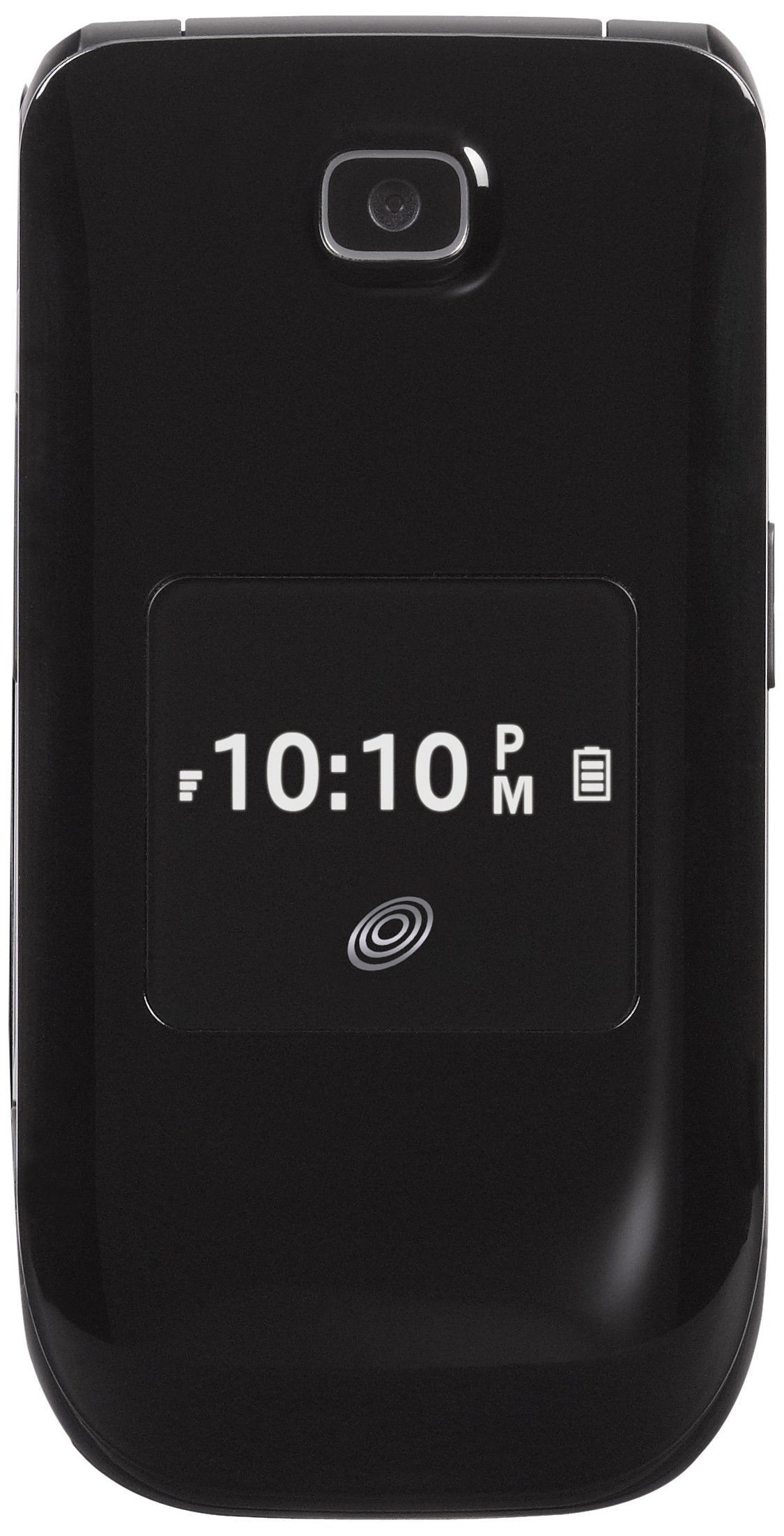
Image: The Alcatel 392G Big Easy Flip Phone in an open position, showing the main display, keypad, and navigation buttons. The screen displays "Home", "10 Minutes", "60 Service Days", "11:19 AM", "May 20 Mon", "Menu", and "Web".
3. Charging the Phone
Before first use, fully charge the phone's battery. Connect the charger to the charging port on the phone and plug it into a power outlet. The charging indicator will show the charging status. A full charge typically takes approximately 3 hours.
4. Phone Activation
To activate your Tracfone service, follow the instructions provided on the Activation Card included in your package. This typically involves calling Tracfone customer service or visiting their website.
5. MicroSD Card Installation (Optional)
The phone supports a microSD card up to 32GB (not included) for additional storage. Locate the microSD card slot, usually near the battery compartment, and insert the card gently until it clicks into place.
Operating the Phone
1. Power On/Off
- To power on: Press and hold the End/Power key until the screen lights up.
- To power off: Press and hold the End/Power key, then confirm power off on the screen.
2. Making and Answering Calls
- To make a call: Enter the phone number using the keypad and press the Send key.
- To answer a call: Open the flip or press the Send key when the phone rings.
- To end a call: Close the flip or press the End/Power key.
3. Text and Picture Messaging
Navigate to the Messaging menu to compose and send text (SMS) or picture (MMS) messages. The large lighted keys facilitate easy typing.
4. Camera Functionality
The phone is equipped with a 2 MP camera. Access the camera from the main menu to take photos. Images can be stored on the phone's internal memory or an installed microSD card.
5. Bluetooth Connectivity
To pair with a Bluetooth device (e.g., headset, car kit):
- Go to Menu > Settings > Bluetooth.
- Turn Bluetooth On.
- Select Search for new device and choose your device from the list.
- Enter the passkey if prompted.
6. FM Radio and MP3 Player
- FM Radio: Access the FM Radio application from the menu. A wired headset (not included) may be required to act as an antenna.
- MP3 Player: The phone includes an MP3 player. Music files can be stored on a microSD card. A USB cable (not included) is required to transfer music from a computer.
7. Phonebook
Store up to 1,000 entries in the phonebook. Navigate to the Contacts or Phonebook menu to add, edit, or delete entries.
8. Accessibility Features
The Alcatel 392G is Hearing Aid Compatible (HAC) with a rating of M3/T4, designed to reduce interference with hearing aids.
Maintenance
1. Cleaning Your Phone
Use a soft, lint-free cloth to clean the phone's screen and body. Avoid using harsh chemicals or abrasive materials, which can damage the surface.
2. Battery Care
- Avoid exposing the battery to extreme temperatures.
- Do not puncture or disassemble the battery.
- If the phone will not be used for an extended period, store it with a partial charge.

Image: A side profile view of the Alcatel 392G Big Easy Flip Phone, highlighting its compact, folded design and the textured surface for better grip.
Troubleshooting
Common Issues and Solutions
- Phone not turning on:
Ensure the battery is correctly installed and fully charged. Try removing and reinserting the battery, then attempt to power on again.
- Poor call quality or low volume:
Check the volume settings during a call. Ensure you are in an area with good network coverage. If issues persist, contact Tracfone customer service.
- Battery not charging:
Verify that the charger is properly connected to both the phone and the power outlet. Try using a different outlet. Ensure you are using the correct battery type for the phone; some users have reported receiving incorrect batteries initially.
- Cannot send/receive messages:
Check your service plan and network coverage. Ensure message center settings are correct (these are usually configured automatically by the carrier).
- Phone freezes or becomes unresponsive:
Remove the battery, wait a few seconds, and then reinsert it and power on the phone. This performs a soft reset.
For further assistance with service-related issues, please contact Tracfone customer support. For hardware malfunctions, refer to the warranty information.
Specifications
| Model Name | Big Easy Flip (392G) |
| Brand | Alcatel |
| Form Factor | Flip Phone |
| Dimensions (L x W x H) | 4.09 x 2.05 x 0.68 inches |
| Item Weight | 3.67 ounces |
| Display | 2.4 Inches TFT LCD |
| Camera | 2 MP |
| Memory Storage Capacity | Supports microSD up to 32 GB |
| Wireless Technologies | Bluetooth 2.1, Cellular (2G), Wi-Fi |
| Operating System | Other (Feature Phone OS) |
| Battery Type | 1 Lithium Ion battery (required) |
| Talk Time | Up to 3 hours (228 minutes) |
| Standby Time | Up to 10 days (264 minutes with data) |
| Special Features | MP3 Player, FM Radio, Large Lighted Keys, External Caller ID, HAC (M3/T4) |
| Wireless Carrier | Tracfone |
Warranty Information
Your Alcatel 392G Big Easy Flip Phone is covered by a limited manufacturer's warranty. Please refer to the Service Guide included in your product package for specific terms, conditions, and duration of the warranty. Keep your proof of purchase for warranty claims.
Support
For technical support, service inquiries, or additional tutorials, please contact Tracfone customer service or visit their official website.
- Tracfone Customer Service: Refer to your Service Guide or the Tracfone website for contact details.
- Online Resources: Visit the Tracfone website for FAQs, troubleshooting guides, and video tutorials specific to your device.


