1. Introduction
This manual provides essential information for the safe and efficient use of your Samsung BD-F5700 Wi-Fi Blu-Ray Player. Please read these instructions thoroughly before operating the device and retain them for future reference.
2. Setup
2.1 Unboxing and Component Check
Carefully remove all components from the packaging. Ensure the following items are present:
- Samsung BD-F5700 Blu-Ray Player
- Remote Control (with 2 AAA batteries included)
- Power Cable
- HDMI Cable
- User Manual (this document)
2.2 Connecting the Player
- Placement: Place the Blu-Ray player on a stable, flat surface with adequate ventilation. Avoid placing it near heat sources or in direct sunlight.
- HDMI Connection: Connect one end of the HDMI cable to the HDMI OUT port on the rear of the Blu-Ray player and the other end to an available HDMI IN port on your television.
- Power Connection: Connect the power cable to the POWER input on the rear of the Blu-Ray player, then plug the other end into a wall outlet.
- Network Connection (Optional): This player features built-in Wi-Fi. For a wired connection, connect an Ethernet cable from your router to the LAN port on the rear of the player.
2.3 Initial Power-On and Wi-Fi Setup
- Turn on your television and select the correct HDMI input source.
- Press the POWER button on the Blu-Ray player or its remote control.
- Follow the on-screen instructions for initial setup, including language selection and network configuration.
- For Wi-Fi setup, select your wireless network from the list, enter the password, and confirm the connection.
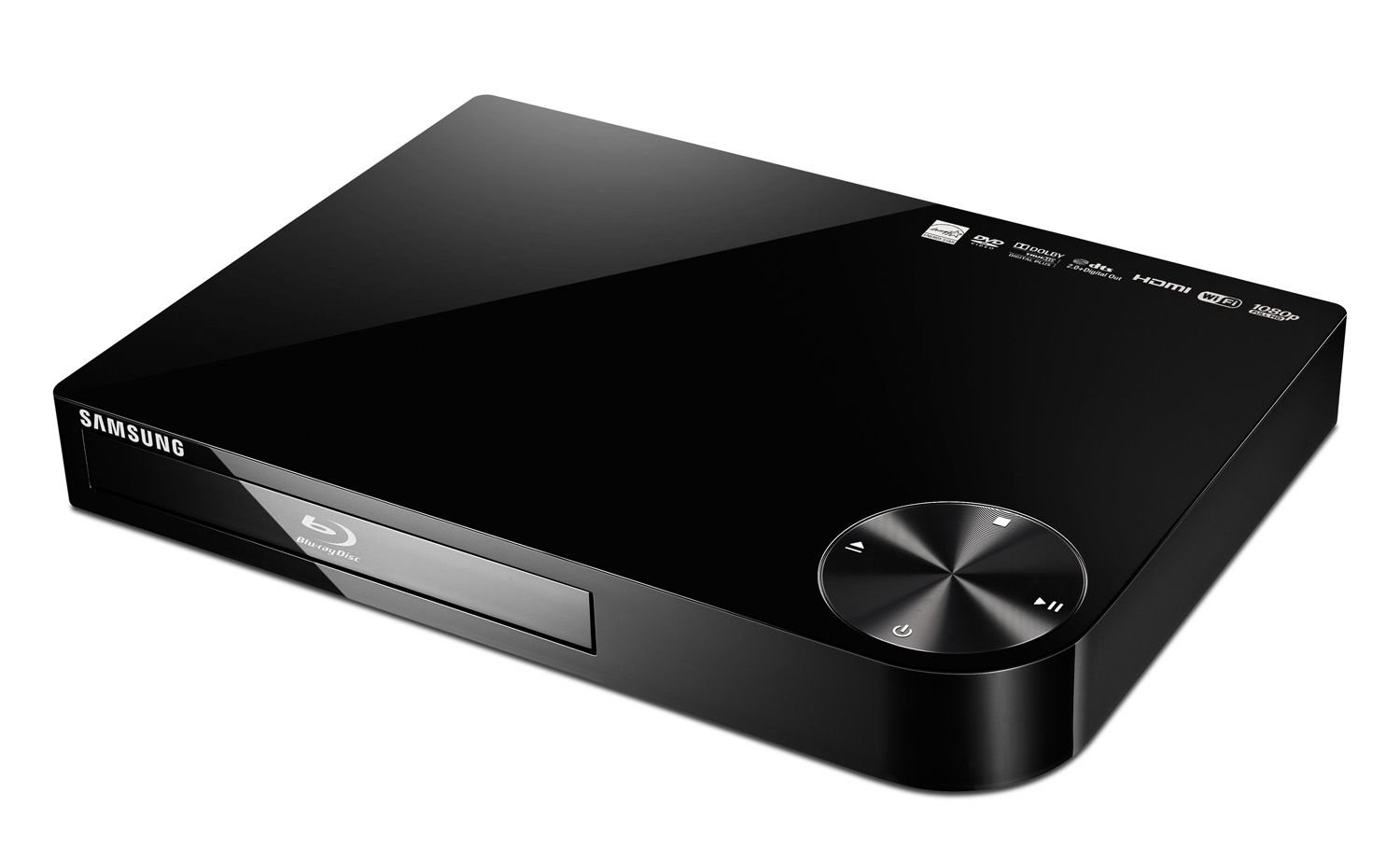
Figure 1: Front view of the Samsung BD-F5700 Blu-Ray Player. This image shows the sleek black design of the player, with the disc tray and control buttons visible on the front panel.
3. Operating Instructions
3.1 Disc Playback
- Press the EJECT button (triangle with line) on the player or remote to open the disc tray.
- Place a Blu-Ray disc or DVD onto the disc tray with the label side facing up.
- Press the EJECT button again to close the tray. The player will automatically begin reading the disc.
- Use the remote control's navigation buttons (Up, Down, Left, Right, OK) to select menu options and the PLAY/PAUSE, STOP, FAST FORWARD, and REWIND buttons for playback control.
3.2 Using Smart Hub (Wi-Fi Features)
Your BD-F5700 player includes Wi-Fi connectivity, allowing access to Samsung's Smart Hub for various applications.
- Ensure the player is connected to your home Wi-Fi network (refer to Section 2.3).
- Press the SMART HUB button on your remote control.
- Navigate through the available applications such as Netflix, YouTube, Facebook, Pandora, Vudu, and more.
- Select an application and follow its on-screen prompts to log in or access content.
3.3 AllShare Feature
The AllShare feature allows you to wirelessly share content from compatible devices (e.g., smartphones, tablets) to your TV via the Blu-Ray player.
- Ensure both your mobile device and the Blu-Ray player are connected to the same Wi-Fi network.
- On your mobile device, open the AllShare (or Smart View/Screen Mirroring) application.
- Select your Samsung BD-F5700 player from the list of available devices.
- You can now stream photos, videos, and music from your mobile device to your television.
4. Maintenance
4.1 Cleaning the Player
- Always unplug the player before cleaning.
- Use a soft, dry cloth to wipe the exterior of the player. Do not use liquid cleaners or aerosol sprays.
- For the disc tray, use a soft, lint-free cloth. Avoid touching the lens inside the disc tray.
4.2 Disc Care
- Handle discs by their edges to avoid fingerprints.
- Clean discs with a soft, lint-free cloth, wiping from the center outwards.
- Store discs in their cases to prevent scratches and dust accumulation.
5. Troubleshooting
| Problem | Possible Cause | Solution |
|---|---|---|
| No power | Power cable disconnected or outlet issue. | Check power cable connections. Try a different power outlet. |
| No picture/sound | Incorrect HDMI input selected on TV or faulty HDMI cable. | Select the correct HDMI input on your TV. Try a different HDMI cable. |
| Disc does not play | Disc is dirty, scratched, or incompatible format. | Clean the disc. Try a different disc. Ensure it's a compatible Blu-Ray or DVD. |
| Wi-Fi connection issues | Incorrect password, weak signal, or router issue. | Re-enter Wi-Fi password. Move player closer to router. Restart router. |
| Player is noisy | Normal disc spinning noise or player placed on an uneven surface. | Ensure player is on a stable, level surface. Some disc noise is normal during loading/playback. |
6. Specifications
- Model: BD-F5700
- Brand: Samsung
- Connectivity: Wi-Fi, HDMI
- Supported Media: Blu-Ray Disc, DVD
- Resolution: 1920x1080 (Full HD 1080p)
- Audio Output Mode: Stereo
- Special Features: Multi-Format Playback, All Share, Smart Hub (Netflix, YouTube, etc.)
- Dimensions: 7.6 x 10.6 x 1.5 inches
- Weight: 2.2 pounds
- Batteries: 2 AAA batteries (for remote control, included)
7. Warranty and Support
For warranty information, please refer to the warranty card included with your product or visit the official Samsung support website. For technical assistance, product registration, or service inquiries, please contact Samsung Customer Service.
Samsung Customer Service: www.samsung.com/us/support/