
1. Introduction
Thank you for choosing the Rii K12+ Mini Wireless Keyboard. This ultra-slim 2.4GHz wireless keyboard with a large touchpad is designed for versatile use across various platforms, including MacBooks, iPads, tablets, PCs, laptops, Smart TVs, Raspberry Pi, Mac OS, Linux, HTPC, Google Android smart TV Boxes, XBMC, and Windows 2000/XP/Vista.
Its compact design and robust features make it an ideal companion for controlling your media and computing devices from a distance. This manual provides detailed instructions to help you set up, operate, and maintain your new keyboard.
Key Features:
- Ultra-slim design with a maximum thickness of only 13mm.
- 2.4GHz wireless connectivity with a 12-meter (40-feet) range.
- Integrated QWERTY keyboard and multi-finger touchpad (3.8-inch) with 360-degree flip design.
- X-style quiet keys for comfortable typing.
- High-strength aviation aluminum back cover for durability and elegant metallic luster.
- Built-in rechargeable Li-ion battery with auto-sleep function for power saving.
2. Package Contents
Please check the box for the following items:
- 1 x Rii K12+ Mini Wireless Keyboard
- 1 x USB Receiver
- 1 x USB Charging Cable
- 1 x User Manual

Image: Contents of the Rii K12+ Mini Wireless Keyboard package, including the keyboard, USB receiver, charging cable, and user manual.
3. Product Overview
Familiarize yourself with the layout and components of your Rii K12+ keyboard.

Image: Top view of the Rii K12+ Mini Wireless Keyboard, showcasing the full QWERTY layout and integrated touchpad on the right side.
Key Components:
- QWERTY Keyboard: Standard keyboard layout for typing.
- Touchpad: Large multi-finger touchpad for mouse control.
- Function (Fn) Key: Used in combination with other keys to access special functions (e.g., media controls, backlight).
- LED Indicators: Lights indicating charging status, Caps Lock, and RF signal.
- Power On/Off Switch: Located on the side of the keyboard.
- USB Charging Port: For recharging the internal battery.
- USB Receiver Storage: Compartment on the underside for storing the wireless USB dongle.

Image: Side and bottom views of the Rii K12+ Mini Wireless Keyboard, highlighting its slim profile, USB charging port, power switch, USB receiver storage, and non-slip mats, along with approximate dimensions.

Image: Close-up of the Rii K12+ Mini Wireless Keyboard's touchpad area, illustrating multi-finger gestures for mouse control and detailing the LED indicators for charging, Caps Lock, and RF status.
4. Setup Guide
Follow these steps for initial setup:
- Charge the Keyboard: Before first use, fully charge the keyboard using the provided USB charging cable. Connect the mini USB end to the keyboard's charging port and the standard USB end to a USB power source (e.g., computer USB port, USB wall adapter). The charging indicator LED will light up during charging and turn off when fully charged.
- Locate the USB Receiver: The 2.4GHz USB receiver is stored in a compartment on the underside of the keyboard. Gently slide open the cover to retrieve it.
- Connect the USB Receiver: Plug the USB receiver into an available USB port on your device (PC, Smart TV, Android TV Box, etc.). Your device should automatically detect and install the necessary drivers.
- Turn On the Keyboard: Slide the Power On/Off switch on the side of the keyboard to the 'ON' position. The RF indicator LED should blink, indicating it's searching for the receiver, and then become solid when connected.
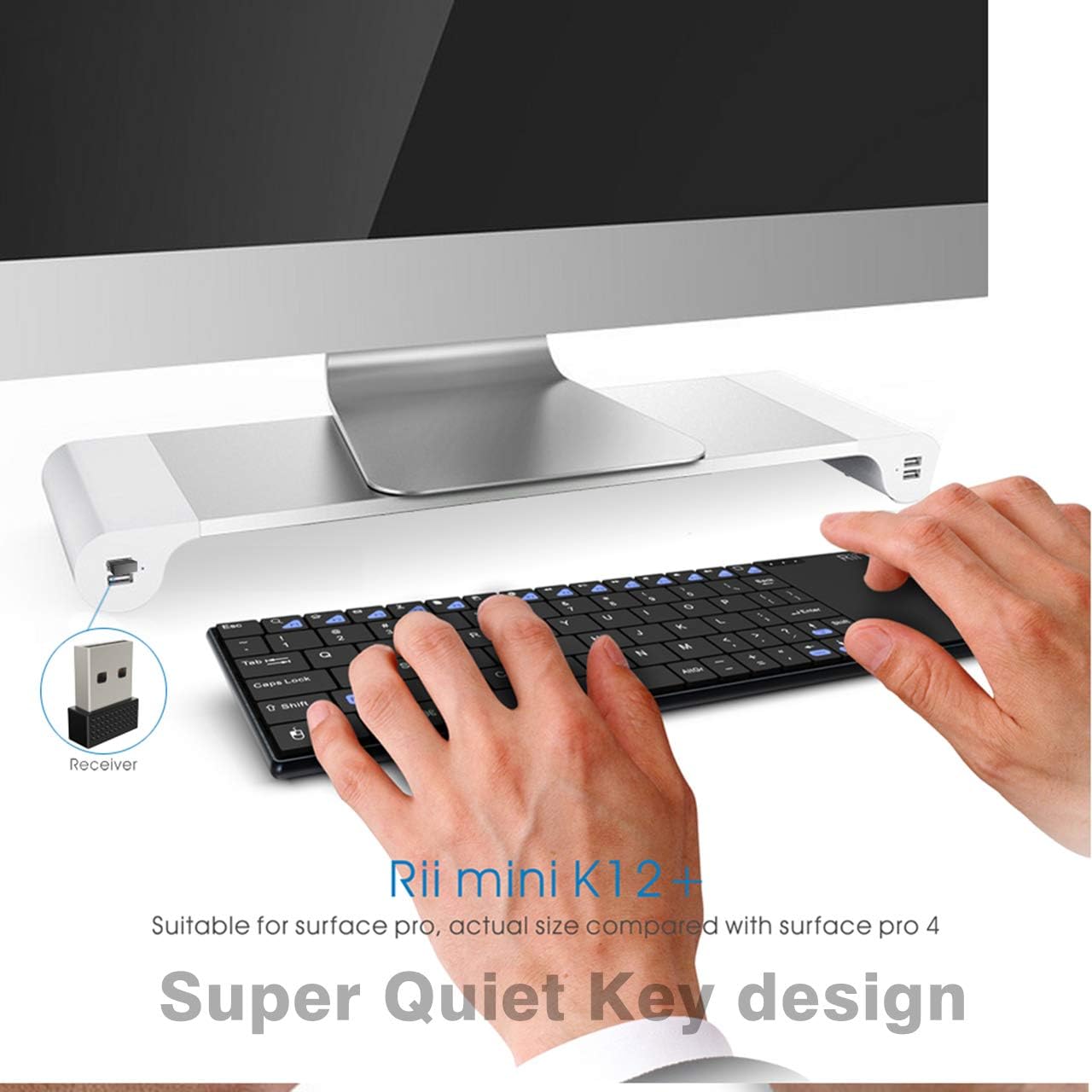
Image: The Rii K12+ Mini Wireless Keyboard positioned next to a computer monitor, with its USB receiver clearly visible and plugged into a USB port, demonstrating the wireless connection setup.
5. Operating Instructions
Basic Keyboard Usage:
The keyboard functions like a standard QWERTY keyboard. Simply type as you would on a full-sized keyboard. The X-style keys are designed for quiet operation.
Touchpad Gestures:
The integrated touchpad supports multi-finger gestures:
- Single Finger Tap: Left-click.
- Two Finger Tap: Right-click.
- Single Finger Drag: Move the cursor.
- Two Finger Scroll: Scroll up/down or left/right (application dependent).
Dedicated left and right mouse click buttons are also available below the touchpad for convenience.
Function Keys (Fn):
Press and hold the Fn key, then press the desired function key (marked in blue) to activate its secondary function. These include media controls (play/pause, volume up/down, mute, next/previous track), search, and home functions.
Backlight Control (Optional):
If your model supports backlight, press Fn + Spacebar (with bulb icon) to toggle the backlight on/off. This feature is particularly useful in low-light environments.
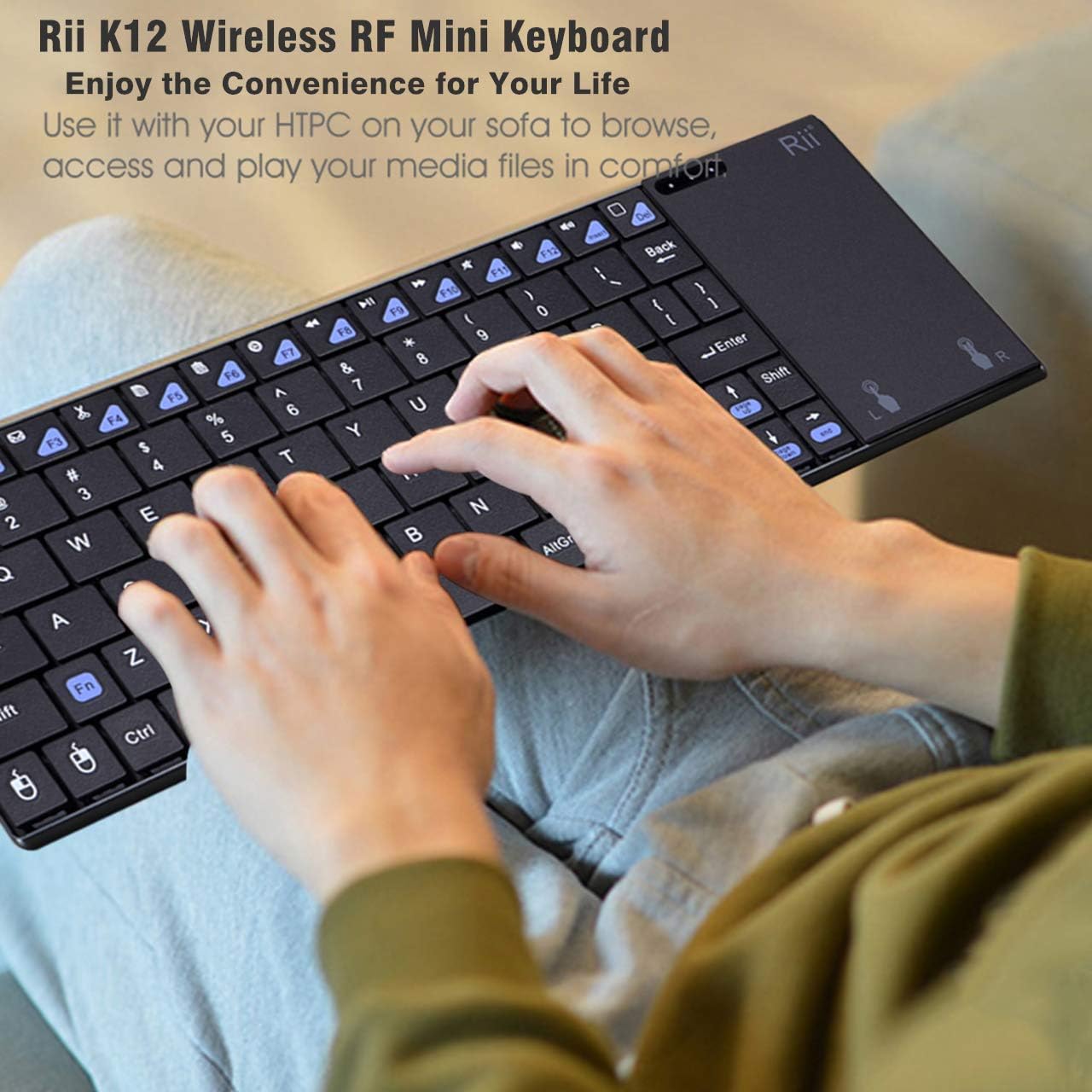
Image: A person comfortably using the Rii K12+ Mini Wireless Keyboard on their lap, demonstrating its portability and suitability for home theater PC (HTPC) use.
Compatibility:
The Rii K12+ is designed for broad compatibility. It works with most devices that support standard USB keyboards. This includes:
- PCs and Laptops (Windows, Mac OS, Linux)
- Smart TVs
- Android TV Boxes
- Gaming Consoles (PS3, Xbox 360, etc.)
- Raspberry Pi
- Tablets (with USB OTG support)

Image: A visual representation of the Rii K12+ Mini Wireless Keyboard's broad compatibility, showing icons for Smart TV, Android TV Box, PC Devices, PS3/Xbox360, HTPC, Windows, Mac OS, and Linux, all connected via 2.4GHz wireless.
6. Charging the Keyboard
The Rii K12+ keyboard features a built-in rechargeable Li-ion battery. To charge the keyboard:
- Connect the small end of the provided USB charging cable to the charging port on the side of the keyboard.
- Connect the standard USB end of the cable to a powered USB port (e.g., on your computer, a USB wall adapter, or a power bank).
- The charging indicator LED will illuminate. Once the keyboard is fully charged, the LED will turn off.
The keyboard features an auto-sleep function to conserve battery life. It will enter sleep mode after a period of inactivity. To wake it up, simply click any key.
7. Maintenance and Care
To ensure the longevity and optimal performance of your Rii K12+ keyboard, follow these maintenance guidelines:
- Cleaning: Use a soft, dry cloth to clean the keyboard surface. For stubborn dirt, slightly dampen the cloth with water or a mild, non-abrasive cleaner. Avoid excessive moisture.
- Storage: When not in use for extended periods, turn off the keyboard using the power switch and store the USB receiver in its designated compartment. Store in a cool, dry place away from direct sunlight and extreme temperatures.
- Avoid Liquids: Do not expose the keyboard to liquids. Spills can cause permanent damage.
- Handle with Care: While durable, avoid dropping the keyboard or subjecting it to strong impacts, as this can damage internal components or warp the casing.
8. Troubleshooting
If you encounter issues with your Rii K12+ keyboard, please refer to the following common problems and solutions:
Keyboard is unresponsive:
- Ensure the keyboard is turned ON.
- Check the battery level. Recharge the keyboard if the battery is low.
- Verify the USB receiver is securely plugged into your device's USB port.
- Try plugging the USB receiver into a different USB port on your device.
- Move the keyboard closer to the USB receiver to ensure it's within the 12-meter (40-feet) wireless range. Obstacles or other wireless devices may interfere with the signal.
- Restart your device (PC, Smart TV, etc.).
Touchpad is not working correctly:
- Ensure your fingers are clean and dry when using the touchpad.
- Check if the touchpad is enabled in your device's settings (if applicable).
- Restart the keyboard by turning it off and then on again.
Keyboard is rocking on a flat surface:
- This may indicate a slight warp in the keyboard's base. While it may not affect functionality when held or used on soft surfaces, if it significantly impacts usability on flat surfaces, contact customer support for assistance.
9. Specifications
| Feature | Specification |
|---|---|
| Brand | Rii |
| Model Number | RT-MWK12+ |
| Connectivity Technology | 2.4GHz RF Wireless, USB |
| Operating System Compatibility | Android, Linux, Mac OS, Vista, Windows |
| Item Weight | 11.1 ounces (approx. 315g) |
| Product Dimensions (LxWxH) | 10 x 3.8 x 0.8 inches (approx. 25.4 x 9.65 x 2.03 cm) |
| Color | Black |
| Power Source | Battery Powered (1 Lithium Ion battery included) |
| Number of Keys | 73 |
| Material | Stainless Steel, Aluminum |
10. Warranty and Support
Rii products are built with quality and reliability in mind. Your Rii K12+ Mini Wireless Keyboard comes with a 12-month warranty from the date of purchase, covering manufacturing defects.
For technical support, troubleshooting assistance, or warranty claims, please contact Rii Customer Service through the retailer where you purchased the product or visit the official Rii website for contact information.
Please retain your proof of purchase for warranty validation.