
1. Introduction
This manual provides detailed instructions for the proper use and maintenance of your LAUNCH X431 Creader VII+ V2.0 Car Code Reader. This diagnostic tool is designed to assist in identifying and resolving issues across various vehicle systems, offering comprehensive diagnostic capabilities and essential reset functions. Please read this manual thoroughly before operating the device.

Image 1.1: The LAUNCH X431 Creader VII+ V2.0 device with its packaging and included accessories.
2. Key Features
The LAUNCH X431 Creader VII+ V2.0 offers a range of diagnostic and maintenance functionalities:
- Four System Diagnostics: Capable of testing Engine, Transmission, Anti-lock Braking System (ABS), and Supplemental Restraint System (SRS/Airbag) to read and clear diagnostic trouble codes (DTCs), display data streams, and retrieve vehicle information.
- Three Reset Functions: Includes Oil Service Reset, Throttle Relearn (Adaptation), and Steering Angle Sensor (SAS) Reset for common maintenance tasks.
- Full OBDII Functions: Supports all 10 OBDII test modes, including I/M readiness, O2 sensor tests, live PCM data stream (graphical format), freeze frame data, EVAP system tests, and DTC lookup.
- Live Data Graphing: Provides real-time data display in graphical format for intuitive analysis of vehicle performance.
- Data Recording and Playback: Allows for storage and review of dynamic data streams.
- Broad Vehicle Coverage: Compatible with most OBDII & CAN compliant vehicles manufactured from 1996 (US-based), 2002 (EU-based), and 2005 (Asian-based) or newer. Note: ABS/SRS/Transmission system testing supports cars from 2006 and newer.
- Multi-language Support: Operates in English, Spanish, French, German, Italian, Russian, Japanese, Portuguese, Polish, and Chinese.
- Lifetime Free Updates: Ensures the device remains current with the latest vehicle data and software enhancements.
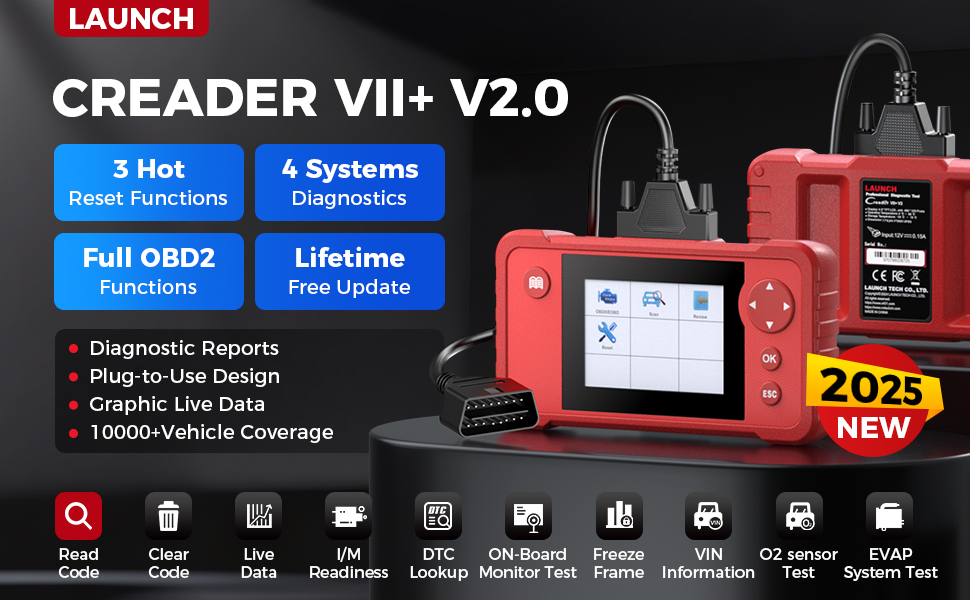
Image 2.1: An overview highlighting the key features of the LAUNCH Creader VII+ V2.0, such as reset functions, system diagnostics, and update policy.
3. Setup and First Use
Follow these steps to set up and begin using your LAUNCH X431 Creader VII+ V2.0:
- Unpack the Device: Carefully remove the Creader VII+ V2.0 unit, OBDII cable, USB cable, TF card, TF card reader, and user manual from the packaging.
- Insert TF Card: Ensure the TF card is correctly inserted into the device's TF card slot.
- Power On: The device powers on automatically when connected to a vehicle's OBDII port or a computer via USB.
- Language Selection: Upon first power-on, you may be prompted to select your preferred language. Navigate using the directional buttons and confirm with the 'OK' button.

Image 3.1: Visual guide demonstrating the simple plug-and-play setup process for the diagnostic tool.
4. Operating Instructions
4.1 Connecting to a Vehicle
- Locate the vehicle's 16-pin OBDII Data Link Connector (DLC), usually found under the dashboard on the driver's side.
- Plug the OBDII cable from the Creader VII+ V2.0 into the vehicle's DLC.
- Turn the vehicle's ignition to the 'ON' position (engine off). The device will power on automatically.
4.2 Performing Diagnostics
From the main menu, select 'Diagnose' to access the diagnostic functions:
- System Selection: Choose the system you wish to diagnose (Engine, Transmission, ABS, SRS).
- Read Codes: Displays current, pending, and permanent diagnostic trouble codes.
- Clear Codes: Erases DTCs from the vehicle's computer. Ensure the underlying issue is resolved before clearing codes.
- Live Data Stream: View real-time operational parameters of the selected system. Data can be displayed numerically or graphically.
- Freeze Frame Data: Captures a snapshot of vehicle conditions at the moment a fault code was set.
- I/M Readiness: Checks the status of emission-related monitors.
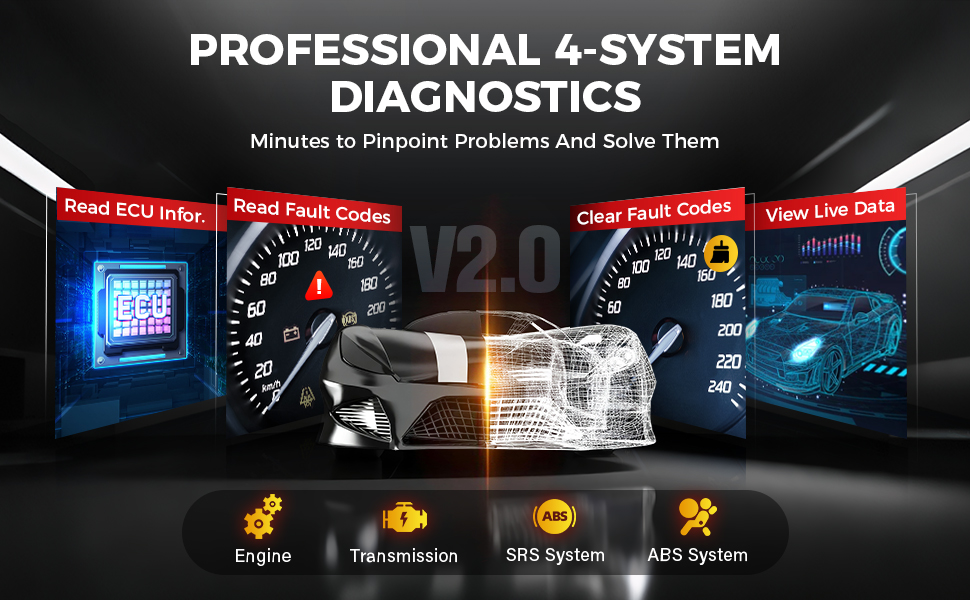
Image 4.1: Depiction of the diagnostic process for the four main vehicle systems.
4.3 Performing Reset Functions
From the main menu, select 'Reset' to access the service functions:
- Oil Reset: Resets the oil service light after an oil change.
- Throttle Adaptation: Relearns the throttle body's position after cleaning or replacement.
- SAS Reset: Calibrates the Steering Angle Sensor after steering system repairs or alignment.
Note: Availability and specific procedures for reset functions may vary by vehicle make, model, and year. Always refer to the vehicle's service manual for specific instructions.
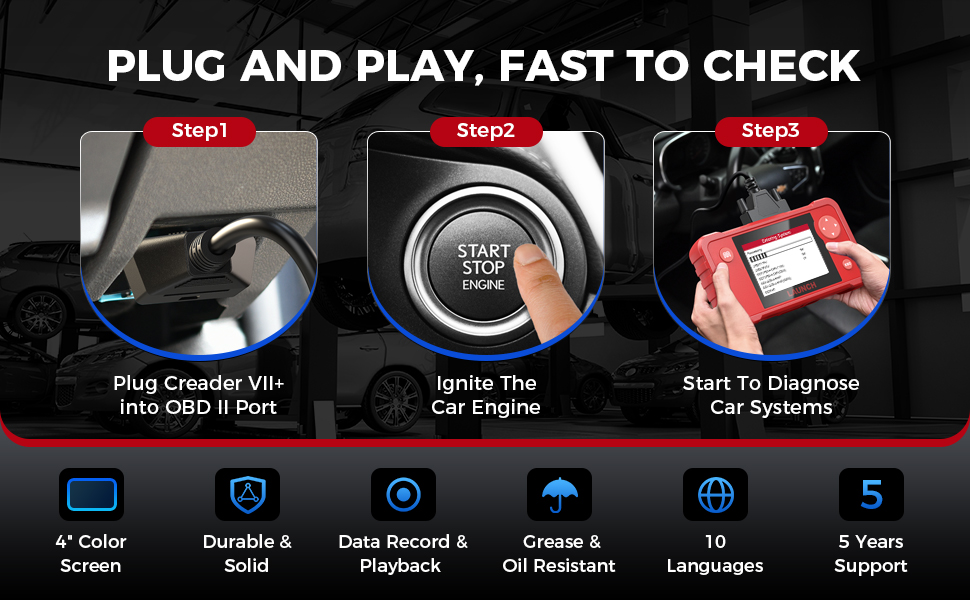
Image 4.2: Visual representation of the three primary reset functions available on the device.
5. Maintenance and Updates
5.1 Device Care
- Keep the device clean and free from dust and moisture.
- Avoid dropping the device or subjecting it to strong impacts.
- Store the device in its protective case when not in use.
5.2 Software Updates
The LAUNCH X431 Creader VII+ V2.0 offers lifetime free software updates to ensure compatibility with new vehicle models and improved functionalities. Follow these steps to update your device:
- Visit the official LAUNCH download website (en.cnlaunch.com/download/).
- Download and install the 'DIY Integration Upgrade Tool' on your computer.
- Power on the Creader VII+ V2.0 and navigate to 'Help' -> 'Tool Information' to retrieve the device's Serial Number and Register Code.
- Remove the TF card from the device and insert it into the TF card reader, then connect the reader to your computer.
- Launch the installed upgrade tool. You will need to register an account if it's your first time. Enter the Serial Number and Register Code when prompted.
- Select the desired software updates and click 'Download' to begin the update process to the TF card.
- Once the download is complete, safely eject the TF card from your computer and reinsert it into the Creader VII+ V2.0.
- Power on the device. It will prompt you to perform the system upgrade. Confirm to proceed.

Image 5.1: Step-by-step instructions for updating the device software.
6. Troubleshooting
- Device does not power on: Ensure the OBDII cable is securely connected to the vehicle's DLC and the ignition is in the 'ON' position. If using USB, ensure the USB cable is connected to a powered port.
- Communication error with vehicle: Verify the vehicle is OBDII compliant. Check for loose connections. Ensure the vehicle's battery has sufficient charge. Try diagnosing a different vehicle if possible to rule out device issues.
- Update process fails or is difficult: Ensure a stable internet connection. Double-check the Serial Number and Register Code. If using a TF card reader, ensure it is functioning correctly. Some users have reported issues with RAR file formats for update software; consider using a tool like 7-Zip for extraction.
- Incorrect or no data displayed: Confirm the correct vehicle system is selected for diagnosis. Ensure the vehicle's ignition is on.
- Reset function not working: Verify that the specific reset function is supported for your vehicle's make, model, and year. Follow the on-screen prompts carefully.
7. Specifications
| Feature | Specification |
|---|---|
| Brand | LAUNCH |
| Model | Creader VII+ V2.0 |
| Product Dimensions | 7.68"L x 4.17"W x 1.26"H |
| Item Weight | 1.32 pounds |
| Operating System | Windows (for update software) |
| Voltage | 12 Volts |
| Display | 4-inch Color Screen |
| Memory | 16GB TF Card |
| Connectivity | OBDII, USB |
| Supported Languages | English, Spanish, French, German, Italian, Russian, Japanese, Portuguese, Polish, Chinese |
| Vehicle Coverage | 1996 US-based, 2002 EU-based, 2005 Asian-based or newer OBD II & CAN vehicles (ABS/SRS/Transmission from 2006+) |
8. Warranty and Support
Your LAUNCH X431 Creader VII+ V2.0 comes with a 5-year warranty against quality problems. For technical assistance, warranty claims, or any operational questions, please contact LAUNCH customer service. Details for contacting support are typically found in the included Quick Start Guide or on the official LAUNCH website.
Included in the Box:
- LAUNCH Creader VII+ V2.0 Unit
- Main Test Cable (OBDII Cable)
- User Manual
- TF Card
- TF Card Reader
- USB Cable
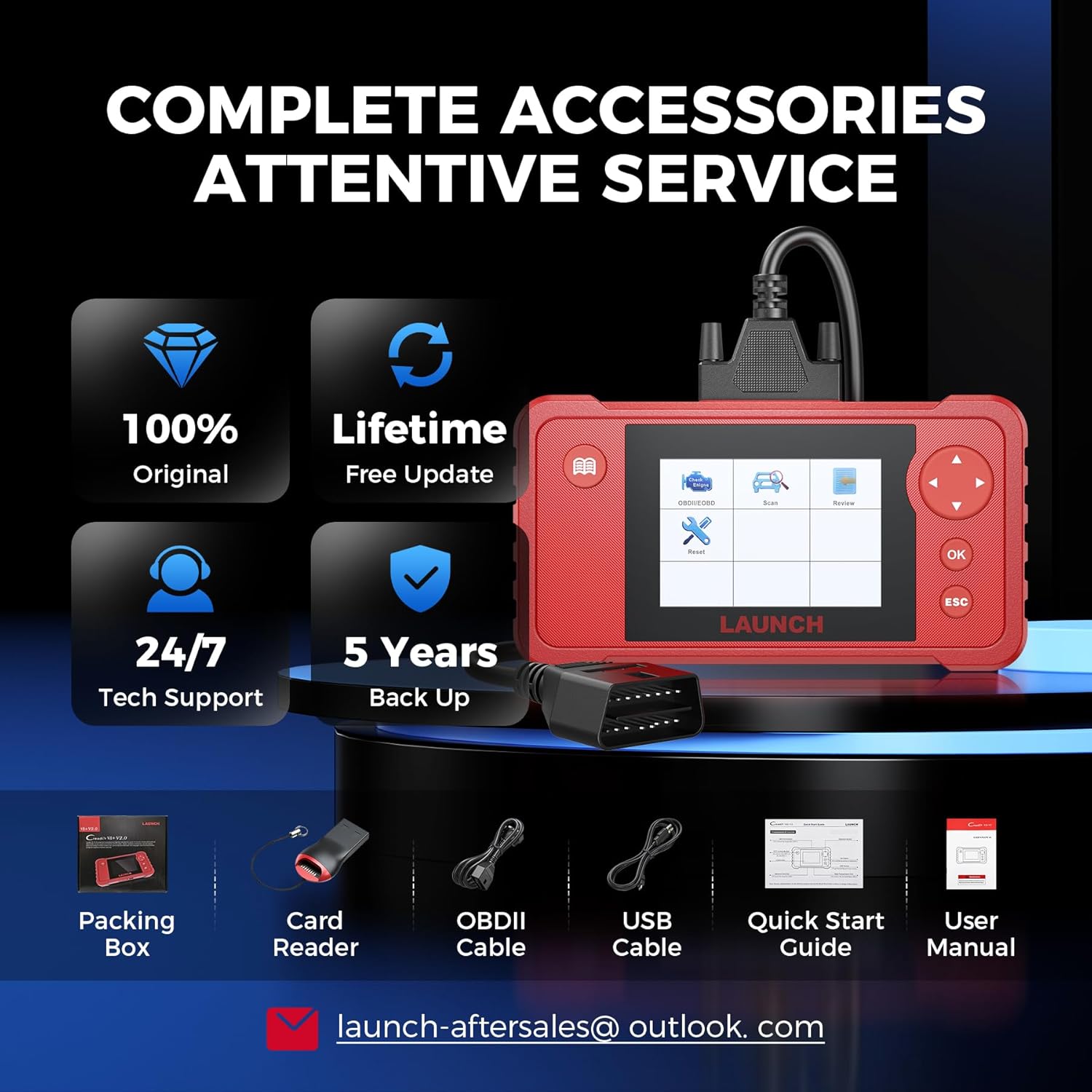
Image 8.1: Contents of the product package.
Note: No official product videos with 'creator_type: Seller' were found in the provided data to embed in this manual.