1. Product Overview
The Wacom Intuos Pen and Touch Small Tablet (Model CTH480) is a versatile input device designed for digital art, photo editing, and general computer interaction. It replaces a traditional mouse, offering a more natural and intuitive way to create and navigate on your computer. This tablet features a pressure-sensitive pen and multi-touch capabilities, allowing for precise control and gesture-based interaction.

Figure 1: Wacom Intuos Pen and Touch Small Tablet with its pressure-sensitive pen.
Key Features:
- Pressure-Sensitive Pen: The battery-free pen offers varying line thickness and opacity based on pressure, enhancing drawing and writing accuracy.
- Multi-Touch Gestures: Navigate, scroll, and zoom using intuitive finger gestures directly on the tablet surface.
- Customizable ExpressKeys: Four programmable buttons allow quick access to frequently used shortcuts.
- Compact Design: Measuring 8.3 by 7.0 inches, it is suitable for limited desktop spaces and can be configured for both left and right-handed users.
- Software Compatibility: Works with various creative and office software on Mac and PC.
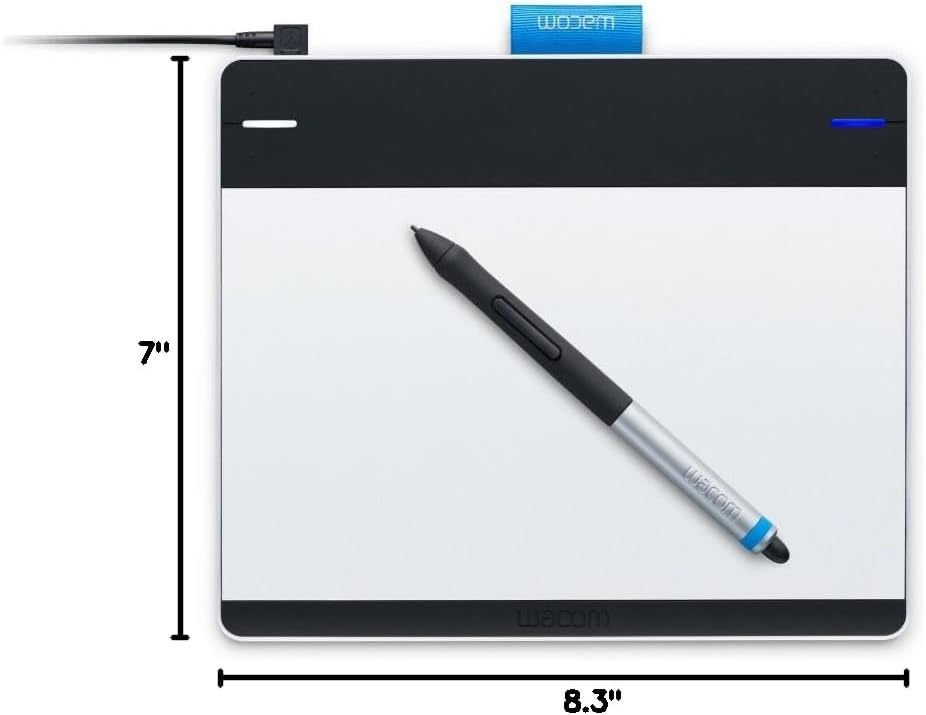
Figure 2: Dimensions of the Wacom Intuos Pen and Touch Small Tablet.
2. Setup Guide
Follow these steps to set up your Wacom Intuos Pen and Touch Small Tablet:
- Connect the Tablet: Connect the tablet to your computer (Mac or PC) using the provided USB cable. The tablet is powered via this connection.
- Install Drivers: Insert the installation disc (if provided) or download the latest drivers from the official Wacom website. Follow the on-screen instructions to complete the driver installation. Note: Some users have reported driver compatibility issues with newer operating systems for this older model. Check Wacom's support website for the most up-to-date information.
- Restart Your Computer: After driver installation, restart your computer to ensure all changes take effect.
- Configure Preferences: Open the Wacom Tablet Properties application (usually found in your system settings or applications folder). Here, you can customize:
- Handedness: Set the tablet for left or right-handed use.
- Pen Settings: Adjust pressure sensitivity, pen button functions, and eraser behavior.
- Touch Settings: Enable or disable touch input and customize multi-touch gestures.
- ExpressKeys: Assign specific shortcuts or commands to the four customizable ExpressKeys.
- Optional Wireless Kit: If you purchased the Wacom Wireless Accessory Kit (sold separately), refer to its instructions for installation and pairing. This kit allows for cord-free operation.
3. Operating Instructions
Using the Pen:
The Wacom pen functions like a mouse but offers greater precision and pressure sensitivity. Hold the pen naturally and move it across the tablet surface. The cursor on your screen will follow the pen's movement. Pressing harder with the pen will result in thicker or darker lines in drawing applications, or activate specific functions depending on software settings.
Video 1: Demonstration of using the Wacom Intuos tablet and pen for writing on a computer screen.
Using Multi-Touch:
The tablet's surface supports multi-touch gestures, similar to a laptop trackpad or smartphone. You can use your fingers to navigate, scroll, and zoom, and perform other actions. Refer to the Wacom Tablet Properties for a list of supported gestures and customization options. To temporarily disable touch input, use the physical switch located on the side of the tablet.
ExpressKeys:
The four ExpressKeys located on the tablet can be programmed to perform various functions, such as undo, copy, paste, or launching applications. Customize these in the Wacom Tablet Properties to streamline your workflow.
Video 2: Close-up view of the Wacom Intuos tablet and pen, highlighting its design and functionality.
4. Maintenance
- Cleaning: Use a soft, damp cloth to clean the tablet surface. Avoid harsh chemicals or abrasive materials. The aluminum surface is designed to be resistant to oils, requiring minimal cleaning.
- Pen Nib Replacement: The pen nibs are subject to wear over time. The tablet typically includes spare nibs stored in a compartment on the back of the tablet. To replace, gently pull out the old nib with the included nib remover tool (or tweezers) and insert a new one.
- Storage: When not in use, store the tablet in a protective sleeve or bag to prevent scratches. Turning off the tablet (if using a wireless kit) or disconnecting it can help conserve power and prevent potential glitches.
5. Troubleshooting
- Tablet Not Responding:
- Ensure the USB cable is securely connected to both the tablet and your computer.
- Verify that the Wacom drivers are correctly installed and up to date for your operating system.
- Restart your computer.
- If using the wireless kit, ensure it is charged and properly paired.
- Pen Not Working / No Pressure Sensitivity:
- Check if the pen nib is properly seated or needs replacement.
- Ensure the Wacom Tablet Properties are configured correctly for pen input.
- Test the pen on a different application to rule out software-specific issues.
- Touch Gestures Not Working:
- Check the physical switch on the side of the tablet to ensure touch input is enabled.
- Verify touch settings in the Wacom Tablet Properties.
- Driver Compatibility (Important Note for Older Models):
As an older version, the Wacom Intuos Pen and Touch Small Tablet (CTH480) may encounter driver compatibility challenges with newer operating systems. Wacom's official support may no longer provide drivers for the latest OS versions. Before purchasing or if experiencing issues, it is recommended to check Wacom's official support website for driver availability and compatibility with your specific operating system.
6. Product Specifications
| Brand | Wacom |
| Model Number | CTH480 |
| Connectivity Technology | Wired (USB), Wireless (with optional kit) |
| Pressure Sensitivity | 1024 Levels |
| Active Area (Approx.) | 6.0 x 3.7 inches (based on typical active area for small tablets) |
| Product Dimensions (LxWxH) | 8.3 x 7.0 x 0.4 inches |
| Item Weight | 10.9 ounces |
| Operating System Compatibility | Mac OS, Windows (compatibility may vary with newer OS versions) |
| Color | Black |
7. Warranty and Support
For warranty information and technical support, please refer to the official Wacom website or contact Wacom customer service directly. As this is an older model, support resources and driver availability may be limited for the latest operating systems.
Disclaimer: The seller is not responsible for the item after purchase is made. Please ensure the product meets your requirements and is compatible with your system upon receipt.