
1. Product Overview
The EEEKit Ultra Compact 3-Button USB Mouse is designed for portability and ease of use, making it ideal for laptops, travel, and users with smaller hands. Its compact size and retractable cable ensure convenience without compromising functionality.
- Ultra Compact Design: This mini mouse measures 3 x 1.57 x 0.98 inches, fitting easily into tight spaces. It is lightweight and pocket-sized, perfect for everyday use or travel.
- 3 Buttons: Features a Left Button, Right Button, and a Scroll Wheel for flexible and smooth, precise tracking and easy text selection.
- Retractable Cable: Equipped with a convenient fully retractable USB cable, eliminating tangles and making storage simple. The cable extends approximately 31.4 inches when fully extended.
- Easy to Use: This plug-and-play mouse requires no charging or driver installation. It is compatible with Windows 2000, XP, Vista, 7/8/10/11, and Mac OS X.

Image 1.1: The EEEKit Ultra Compact 3-Button USB Mouse in Black.
2. Setup Instructions
Setting up your EEEKit Ultra Compact USB Mouse is a simple plug-and-play process.
- Unpack the Mouse: Carefully remove the mouse from its packaging.
- Extend the USB Cable: Gently pull both ends of the retractable USB cable simultaneously until it reaches the desired length. Avoid pulling only one side to prevent tangling or damage to the retraction mechanism. The cable extends up to approximately 31.4 inches (80 cm).
- Connect to Your Device: Insert the USB-A connector into an available USB port on your computer (laptop or desktop).
- Automatic Driver Installation: Your operating system (Windows or Mac OS X) will automatically detect the mouse and install the necessary drivers. This process usually takes a few seconds.
- Begin Use: Once the drivers are installed, the mouse is ready for immediate use. No additional software or batteries are required.
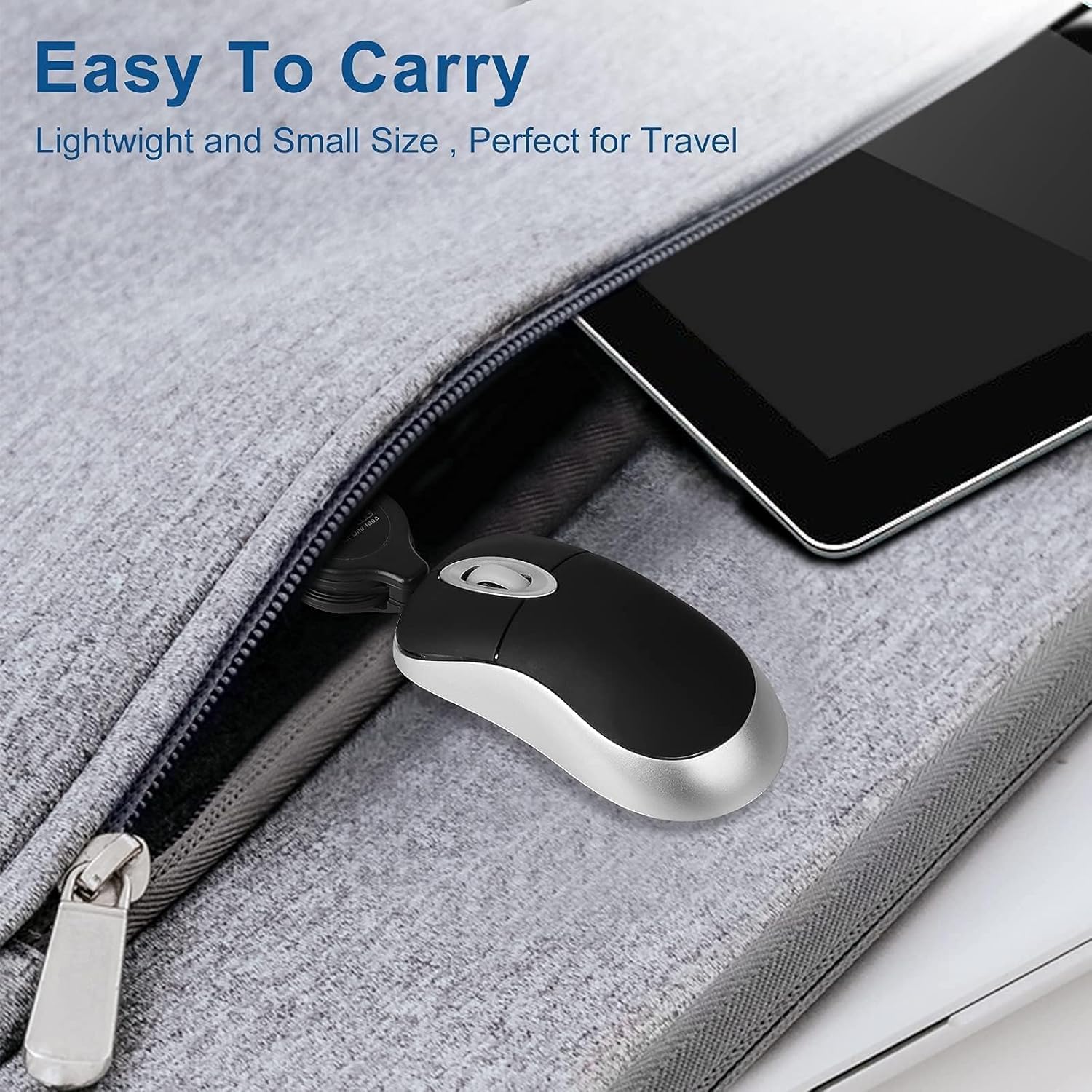
Image 2.1: Demonstrating the retractable USB cable. Pull from both ends to extend.

Image 2.2: The USB connector for simple plug-and-play setup.
3. Operating Instructions
The EEEKit Ultra Compact USB Mouse features a standard 3-button layout for intuitive navigation.
- Left Button: Used for primary clicks, selecting items, opening files, and activating functions.
- Right Button: Used for secondary clicks, typically opening context menus with additional options.
- Scroll Wheel: Roll the wheel up or down to scroll through documents, web pages, or other content. The scroll wheel can also be pressed down for a middle-click function, which often opens links in new tabs or activates specific application features.

Image 3.1: The compact mouse in use with a laptop, demonstrating its ergonomic fit.

Image 3.2: Close-up view highlighting the left, right, and scroll wheel buttons.
4. Maintenance
To ensure the longevity and optimal performance of your EEEKit Ultra Compact USB Mouse, follow these simple maintenance guidelines:
- Cleaning: Use a soft, lint-free cloth slightly dampened with water or a mild cleaning solution to wipe the surface of the mouse. Avoid harsh chemicals or abrasive materials.
- Cable Care: When retracting the cable, ensure it is not twisted or kinked. Pull both ends gently to retract it fully. Do not force the cable.
- Storage: Store the mouse in a clean, dry place away from extreme temperatures and direct sunlight. The compact size and retractable cable make it easy to store in a laptop bag or small compartment.
- Avoid Drops: Protect the mouse from drops and impacts, which can damage internal components.

Image 4.1: The mouse's compact size allows for easy storage in a laptop bag.
5. Troubleshooting
If you encounter any issues with your EEEKit Ultra Compact USB Mouse, refer to the following troubleshooting tips:
- Mouse Not Responding:
- Ensure the USB connector is securely plugged into a working USB port on your computer.
- Try plugging the mouse into a different USB port.
- Restart your computer.
- Test the mouse on another computer to determine if the issue is with the mouse or your computer's USB ports.
- Erratic Cursor Movement:
- Ensure the optical sensor on the bottom of the mouse is clean and free from dust or debris.
- Use the mouse on a clean, flat, non-reflective surface or a mouse pad.
- Cable Retraction Issues:
- If the cable does not retract smoothly, gently pull both ends of the cable out a short distance and then release them simultaneously. Repeat this a few times.
- Avoid pulling only one side of the cable, as this can cause the internal mechanism to jam.
6. Specifications
| Feature | Detail |
|---|---|
| Product Dimensions | 3 x 1.57 x 0.1 inches |
| Item Weight | 2.08 ounces |
| Connectivity Technology | USB |
| Movement Detection Technology | Optical |
| Special Feature | Compact |
| Cable Length (fully extended) | Approximately 31.4 inches (80 cm) |
| Compatibility | Windows 2000, XP, Vista, 7/8/10/11 and Mac OS X |

Image 6.1: Detailed product dimensions of the EEEKit Ultra Compact USB Mouse.
7. Product Videos
Mini Mouse Operation
Video 7.1: This video demonstrates the basic operation of a mini mouse, including extending and retracting the cable and plugging it into a computer.
Mini Optical Travel Mouse
Video 7.2: A demonstration of the mini optical travel mouse, highlighting its compact design and retractable cable for portability.
Honest Review: Mini Retractable Cable USB Optical Mouse
Video 7.3: An honest review showcasing the features and benefits of the EEEKit Mini Retractable Cable USB Optical Mouse, including its compact size and ease of use.
8. Warranty and Support
EEEKit products are designed for reliability and performance. For any warranty claims, technical support, or inquiries regarding your EEEKit Ultra Compact 3-Button USB Mouse, please contact EEEKit customer service through the retailer where the product was purchased or visit the official EEEKit website for support information.
Please retain your proof of purchase for warranty purposes.