
ESX VN710-MB-A2
Contents
ESX VN710-MB-A2 Car Radio Navigation System User Manual
Model: VN710-MB-A2
1. Introduction
This manual provides comprehensive instructions for the installation, operation, and maintenance of your ESX VN710-MB-A2 2-DIN car radio and navigation system. The VN710-MB-A2 is designed to integrate seamlessly into compatible Mercedes-Benz vehicles, offering advanced navigation, multimedia playback, and communication features.
Compatibility:
- Mercedes-Benz A-Class (W169, 10/2004 – 4/2012)
- Mercedes-Benz B-Class (T245, 2005–2011)
- Mercedes-Benz Sprinter (W906, 2006 onwards)
- Mercedes-Benz Viano/Vito (Type 639, 2003–2014)
- Mercedes-Benz V-Class (Type 447)
2. Setup and Installation
Professional installation is highly recommended for the ESX VN710-MB-A2 to ensure proper functionality and vehicle integration. Incorrect installation can lead to damage to the unit or the vehicle's electrical system.
2.1 Initial Power-On
- After installation, ensure all connections are secure.
- Turn on your vehicle's ignition. The unit should power on automatically.
- Follow any on-screen prompts for initial setup, such as language selection and time zone.
2.2 Navigation Software Activation
The iGo-Primo 3D navigation software comes pre-installed on an 8 GB SD card. To ensure you have the latest maps, activate your map guarantee within 30 days of first use.
- Visit www.naviextras.com.
- Register your device and follow the instructions to download any available map updates.
3. Operating Instructions
The ESX VN710-MB-A2 features an intuitive 7-inch LCD touchscreen interface. Navigate through functions by tapping the corresponding icons.
3.1 User Interface Overview
The system's interface is designed for easy access to all functions. Below are examples of the main application screens:
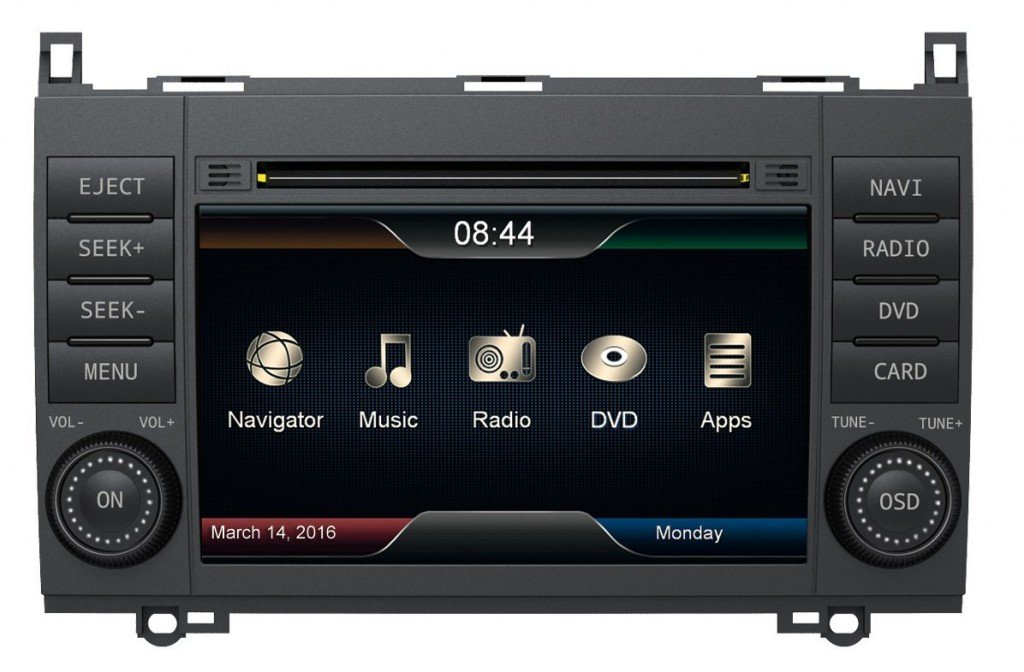
Figure 1: Various user interface screens of the ESX VN710-MB-A2, showing application menus, Bluetooth dialer, audio player, navigation, and equalizer settings.
Main Application Screens:
- Applications Menu (Top Left in Figure 1): Access functions like iPod, TV/DAB+, Movie, Bluetooth, Files, Internet, Audio, and Options.
- Main Menu (Middle Left in Figure 1): Provides quick access to Navigator, Music, Radio, DVD, and Apps.
3.2 Navigation System
The unit features iGo-Primo 3D navigation with TMC (Traffic Message Channel) for real-time traffic information. The system includes maps for 46 countries, including Turkey, with Points of Interest (POI), 3D building views, and TTS (Text-to-Speech) voice output.
- Tap the Navigator icon from the main menu to launch the navigation software.
- Use the touchscreen to enter destinations, search for POIs, and customize route preferences.
- The navigation screen (Bottom Left in Figure 1) displays map views, distance, and turn-by-turn directions.
3.3 Bluetooth Hands-Free and Audio Streaming
Connect your mobile phone via Bluetooth for hands-free calling and A2DP audio streaming.
- Tap the Bluetooth icon from the Applications menu.
- Pair your phone by searching for the device and entering the PIN if prompted.
- The Bluetooth screen (Top Right in Figure 1) allows you to access the keypad, contacts, call history, and connected devices.
- Stream audio from your phone directly to the car's speakers.
3.4 Media Playback
The VN710-MB-A2 supports a wide range of media formats and sources.
- DVD Player: Supports DVD, DVD-R/RW, DVD+R/RW, VCD, CD, CD-R/RW, MP3 discs. Insert discs into the designated slot.
- USB Port & MicroSD Card Slot: Connect USB drives or insert MicroSD cards for playback of MP3/WMA/MPEG4/MPEG1/2/WMV/AVI/DivX files.
- The Audio Player screen (Middle Right in Figure 1) displays album art, track information, and playback controls.
3.5 Radio
Enjoy AM/FM radio with RDS (Radio Data System) functionality.
- Tap the Radio icon from the main menu.
- Tune to your desired stations manually or use the auto-scan feature.
- RDS provides station information and traffic announcements where available.
3.6 Audio Settings
Customize your audio experience with the integrated DSP sound processor and 9-band equalizer.
- Access audio settings via the Audio icon in the Applications menu or a dedicated EQ button if available.
- The Equalizer screen (Bottom Right in Figure 1) allows adjustment of frequency bands from 62Hz to 16kHz.
- Select from preset equalizer modes (Classical, Jazz, Pop, Speech, Rock, Default) or create custom settings.
- The system supports 5.1 surround sound and offers preamplifier outputs for subwoofer/center.
3.7 Customization
Personalize your unit's appearance and settings.
- Change the background image and start logo.
- Select from multiple design themes (skins) for the user interface.
- Adjust volume levels individually for different applications.
4. Maintenance
To ensure the longevity and optimal performance of your ESX VN710-MB-A2, follow these maintenance guidelines:
- Screen Cleaning: Use a soft, lint-free cloth specifically designed for electronics to clean the touchscreen. Do not use abrasive cleaners or solvents.
- Software Updates: Periodically check www.naviextras.com for navigation map updates and the ESX official website for any system software updates.
- Disc Care: Handle DVDs and CDs by their edges to avoid fingerprints and scratches. Store discs in their cases when not in use.
5. Troubleshooting
If you encounter issues with your ESX VN710-MB-A2, refer to the following common troubleshooting steps:
- No Power: Check all power connections and the vehicle's fuse box. Ensure the ignition is on.
- No Sound: Verify volume settings, check speaker connections, and ensure the mute function is not active.
- Navigation Issues: Ensure the SD card with navigation software is properly inserted. Check for map updates on www.naviextras.com.
- Bluetooth Connection Problems: Ensure Bluetooth is enabled on both the unit and your mobile device. Try unpairing and re-pairing the devices.
- Unit Unresponsive: If the touchscreen is unresponsive, try resetting the unit. Consult your installer or the ESX support for the location of the reset button, if available.
For persistent issues, contact your authorized ESX dealer or technical support.
6. Specifications
| Brand | ESX |
| Model Number | VN710-MB-A2 (02017VN710MBA2) |
| Screen Size | 7 inches |
| Display Resolution | 800 x 480 pixels |
| Operating System | Microsoft Windows CE 6 (i10-operating system) |
| CPU | 600 MHz |
| Internal Storage | 4 GB iNand Flash |
| RAM | 256 MB DDR1-RAM, 256 MB NAND Flash RAM |
| Audio Amplifier | 4 x 50 Watts Max |
| Preamplifier Outputs | 4V (Subwoofer/Center, 2x Front/2x Rear optional with VNA-HLC4-MB) |
| Sound Processor | DSP with 9-band equalizer and 5.1 surround sound |
| Navigation Software | iGo-Primo 3D with TMC, 8 GB SD card, 46 countries (incl. Turkey) |
| Media Playback | DVD, CD, MP3, WMA, MPEG4, MPEG1/2, WMV, AVI, DivX |
| Radio Tuner | AM/FM with RDS (Europe, North America, Asia support) |
| Connectivity | Bluetooth (Hands-free, A2DP), MicroSD card slot, USB port |
| Human Interface Input | Touchscreen |
| Item Weight | 4 kg (8.82 Pounds) |
| UPC | 635927103994 |
7. Warranty and Support
For information regarding warranty coverage, terms, and conditions, please refer to the documentation provided at the time of purchase or contact your authorized ESX dealer. Technical support can be obtained through your dealer or by visiting the official ESX website.
Ask a question about this manual
Ask about setup, troubleshooting, compatibility, parts, safety, or missing instructions. Manuals+ will review the question and use this page’s manual context to help answer it.