
1. Introduction
This manual provides essential information for the safe and efficient operation of your TCL L32E3005/G 32-inch LED HD-Ready Television. Please read this manual thoroughly before using the television and retain it for future reference. It covers setup, operation, maintenance, and troubleshooting to ensure you get the best experience from your device.
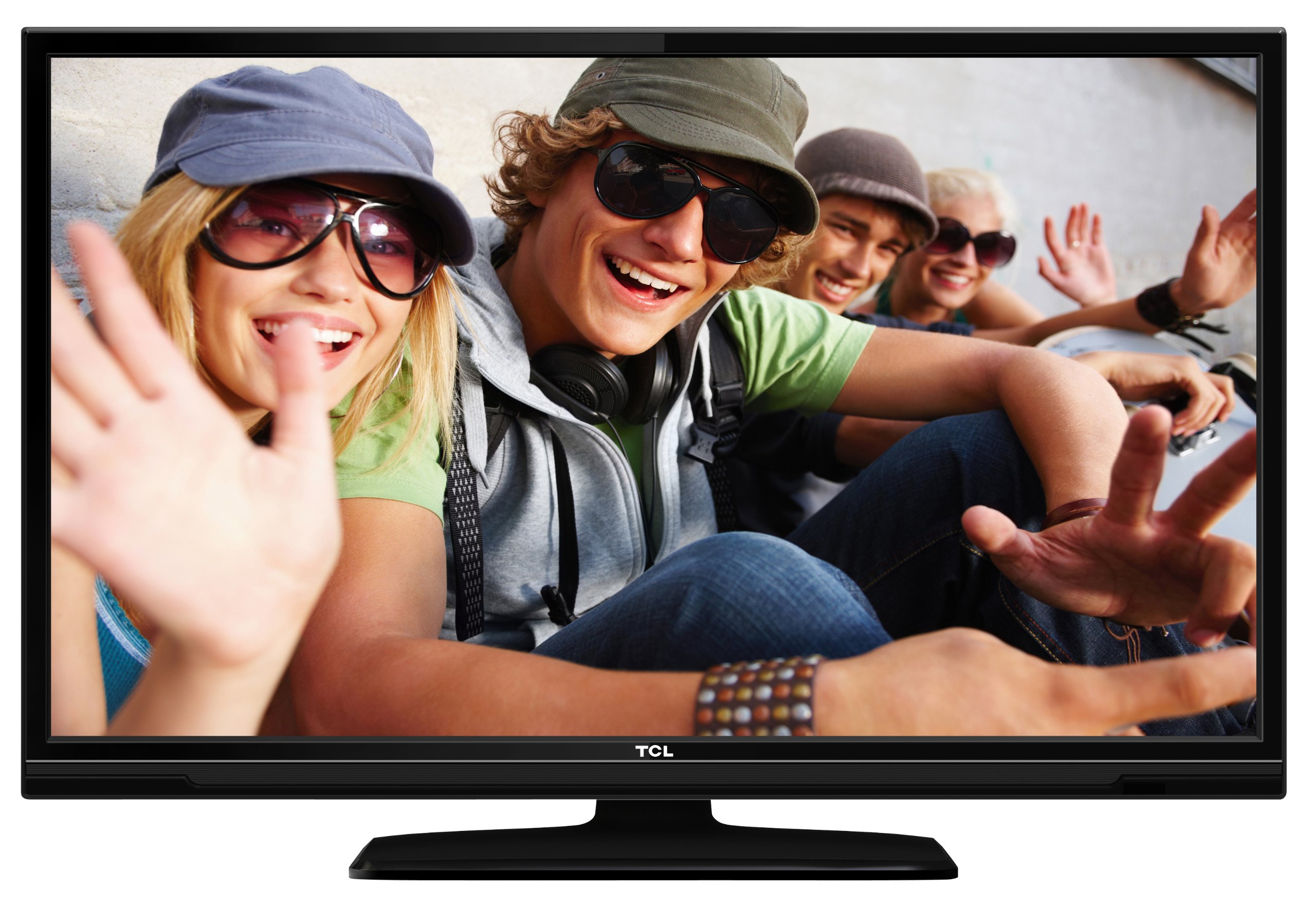
This image shows the TCL L32E3005/G television from a slight angle, highlighting its slim black bezel and the stand. The screen displays a colorful image of people, demonstrating its visual capabilities.
2. Safety Information
Always observe the following safety precautions to prevent electric shock, fire, or damage to the television:
- Do not expose the television to rain or moisture.
- Do not open the cabinet; refer all servicing to qualified personnel.
- Ensure proper ventilation around the television.
- Avoid placing the television near heat sources or in direct sunlight.
- Use only the power adapter supplied with the television.
- Keep batteries out of reach of children.
3. Package Contents
Verify that all items are present in the package:
- TCL L32E3005/G LED-backlight Television
- Power Adapter
- Stand Base
- Remote Control (requires 2 AAA batteries, included)
- User Manual (this document)
4. Setup
4.1 Unpacking
Carefully remove the television and all accessories from the packaging. Retain the packaging materials for future transport or storage.
4.2 Stand Installation (Table Mounting)
To install the stand base:
- Place the television face down on a soft, flat surface to prevent screen damage.
- Align the stand base with the mounting holes on the bottom of the television.
- Secure the stand base using the provided screws. Ensure it is firmly attached.
- Carefully lift the television and place it on a stable, level surface suitable for table mounting.
4.3 Connecting Devices
Connect your external devices to the television using the appropriate ports:
- HDMI: For high-definition video and audio from devices like Blu-ray players, game consoles, or set-top boxes. Your TV has 2 HDMI ports.
- USB: For connecting USB storage devices to play media files. Your TV has 1 USB 2.0 port.
- Antenna/Cable (DVB-C/-S2/-T): Connect an antenna or cable for digital terrestrial (DVB-T), cable (DVB-C), or satellite (DVB-S2) broadcasts.
- VGA: For connecting a computer.
- CI+: For conditional access modules (CAM) to decrypt encrypted channels.
4.4 Power Connection
After all connections are made, plug the power adapter into the television's power input, then plug the power adapter into a wall outlet.
5. Operating
5.1 Power On/Off
Press the POWER button on the remote control or on the television to turn the TV on or off.
5.2 Initial Setup
The first time you turn on the television, an initial setup wizard will guide you through basic settings such as language, country, and channel scanning.
5.3 Channel Tuning
After connecting your antenna or cable, perform an automatic channel scan through the TV's menu to find available DVB-C, DVB-S2, or DVB-T channels.
5.4 Electronic Program Guide (EPG)
Access the Electronic Program Guide (EPG) to view program schedules and information for digital channels. This feature helps you plan your viewing.
5.5 Input Selection
Use the SOURCE or INPUT button on your remote control to switch between connected devices (e.g., HDMI 1, HDMI 2, USB, DVB-T).
5.6 USB Media Playback
Insert a USB storage device into the USB port. The TV will typically prompt you to access the media browser, allowing you to play photos, music, or videos stored on the device.
5.7 Hotel Mode
This television includes a Hotel Mode feature, which allows for customization of settings suitable for hotel environments, such as limiting volume, setting a default channel, or disabling certain functions. Consult the advanced settings menu for Hotel Mode configuration.
6. Maintenance
6.1 Cleaning the Screen
Gently wipe the screen with a soft, lint-free cloth. For stubborn marks, slightly dampen the cloth with water or a specialized screen cleaner. Do not spray liquid directly onto the screen.
6.2 Cleaning the Cabinet
Use a soft, dry cloth to wipe the television cabinet. Avoid using abrasive cleaners or solvents.
6.3 Remote Control Batteries
Replace the remote control batteries (2x AAA) when the remote's range decreases or it stops responding. Ensure correct polarity when inserting new batteries.
7. Troubleshooting
If you encounter issues with your television, refer to the following common problems and solutions:
- No Power: Check if the power adapter is securely connected to both the TV and the wall outlet. Ensure the outlet is functional.
- No Picture, But Sound: Verify the input source is correctly selected. Check cable connections to external devices.
- No Sound, But Picture: Check the volume level and mute status. Ensure audio cables are correctly connected for external devices.
- Poor Picture Quality: Check antenna/cable connections. If using an external device, try a different HDMI cable or port. Adjust picture settings in the TV menu.
- Remote Control Not Working: Ensure there are no obstructions between the remote and the TV. Replace batteries if necessary.
If the problem persists, contact customer support.
8. Specifications
| Model | L32E3005/G |
| Screen Size | 80 cm (32 inch) |
| Display Technology | LED |
| Resolution | 720p (1366 x 768 Pixels) |
| Refresh Rate | 50 Hz |
| Tuner Technology | DVB-C, DVB-S2, DVB-T |
| Connectivity | 2x HDMI, 1x USB 2.0, VGA, CI+ |
| Audio Output | 8 Watt (2.0 Channel) |
| Special Features | Electronic Program Guide (EPG), Hotel Mode |
| Dimensions (W x H x D) | 74 x 49.4 x 18.9 cm (with stand) |
| Weight | 7.22 kg |
| Power Source | Adapter |
| Remote Batteries | 2x AAA (included) |
9. Warranty and Support
For warranty information and technical support, please refer to the warranty card included with your product or visit the official TCL website. Keep your purchase receipt as proof of purchase for warranty claims.


