
Introduction
The Western Digital My Passport Ultra is a portable external hard drive designed for reliable data storage and backup. It offers high-speed data transfer via USB 3.0 and includes software for automatic local and cloud backups, along with password protection and hardware encryption for data security. This manual provides essential information for setting up, operating, and maintaining your device.

Image: The Western Digital My Passport Ultra 1TB portable external hard drive, showcasing its compact design.
Setup
What's in the Box
- Portable hard drive
- USB cable
- WD SmartWare Pro software (pre-loaded on drive)
- Quick Install Guide
Connecting the Drive
The My Passport Ultra is USB-powered, requiring no separate power supply. Simply connect it to your computer using the provided USB cable.
- Locate an available USB port on your computer. For optimal performance, use a USB 3.0 port.
- Connect the smaller end of the USB cable to the USB port on the My Passport Ultra drive.
- Connect the larger end of the USB cable to an available USB port on your computer.
- The drive will automatically power on and be detected by your operating system.
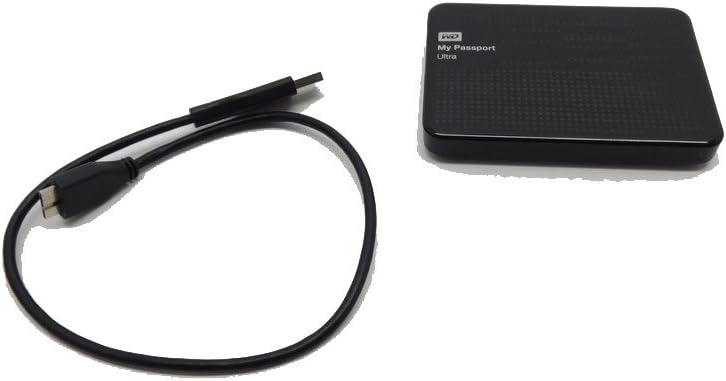
Image: The My Passport Ultra drive connected to a USB cable, ready for connection to a computer.

Image: A close-up side view of the My Passport Ultra, highlighting the USB 3.0 port for connection.
Initial Software Installation
The WD SmartWare Pro software is pre-loaded on your drive. Follow the on-screen prompts when you first connect the drive to install the software and begin using its features.
Operating the Drive
Automatic and Cloud Backup with WD SmartWare Pro
The included WD SmartWare Pro software enables automatic and continuous backup of your files. You can choose to back up your data directly to the My Passport Ultra drive or to the cloud using your Dropbox account.
- Local Backup: Configure the software to automatically back up selected files and folders to your My Passport Ultra drive. This process runs quietly in the background, backing up files whenever they are added or changed.
- Cloud Backup: Integrate with Dropbox to extend your backup strategy to the cloud, providing an off-site copy of your important data.
Password Protection and Hardware Encryption
Utilize the WD Security utility to protect your data from unauthorized access. This feature allows you to set a password and enable hardware encryption for your drive.
- Launch the WD Security utility from the installed software.
- Follow the instructions to create a strong password for your drive.
- Enable hardware encryption to secure your files at a deeper level.
WD Drive Utilities
The WD Drive Utilities provide additional tools for managing your My Passport Ultra, including:
- Drive registration
- Setting a drive sleep timer
- Running diagnostic tests
Data Transfer
The drive supports USB 3.0 for fast data transfers, significantly reducing transfer times compared to USB 2.0. It is also backward compatible with USB 2.0 ports.
Maintenance
General Care
- Keep the drive in a clean, dry environment, away from extreme temperatures and direct sunlight.
- Avoid dropping or subjecting the drive to physical shocks, as this can damage the internal components.
- Do not block the ventilation holes (if any) to ensure proper airflow.
- Regularly check for software updates for WD SmartWare Pro and WD Drive Utilities to ensure optimal performance and security.
Safe Removal
Always safely eject the drive from your computer before disconnecting the USB cable to prevent data corruption. This can typically be done through the operating system's 'Safely Remove Hardware' option.
Troubleshooting
Drive Not Detected
- Ensure the USB cable is securely connected to both the drive and the computer.
- Try connecting the drive to a different USB port on your computer.
- Test with a different USB cable if available.
- Restart your computer and try connecting the drive again.
- Check your computer's Disk Management (Windows) or Disk Utility (Mac) to see if the drive is recognized but not assigned a drive letter or needs formatting.
Slow Transfer Speeds
- Ensure you are connected to a USB 3.0 port on your computer for maximum speed. USB 2.0 ports will result in slower speeds.
- Close any unnecessary applications running in the background that might be consuming system resources.
- Verify that your computer's USB drivers are up to date.
Password Issues
- Double-check your password for typos, including case sensitivity.
- If you have forgotten your password, refer to the WD Security software documentation for recovery options. Note that incorrect password attempts may lead to data loss if not handled carefully.
Specifications
| Model Name | My Passport Ultra |
| Model Number | WDBZFP0010BBK-NESN |
| Digital Storage Capacity | 1024 GB (1 TB) |
| Hard Disk Interface | USB 3.0 |
| Connectivity Technology | Wired |
| Brand | Western Digital |
| Special Feature | Password Protection and Hardware Encryption |
| Hard Disk Form Factor | 2.5 Inches |
| Hard Disk Description | Portable |
| Compatible Devices | Laptop (PC; Mac - requires reformatting for Mac OS X) |
| Installation Type | External Hard Drive |
| Color | Black |
| Item Weight | 5.44 ounces |
| Read Speed | 625 Megabytes Per Second |
| Data Transfer Rate | 5000 Megabits Per Second |

Image: The back of the My Passport Ultra drive, displaying model number, serial number, and certification marks.
Warranty Information
The Western Digital My Passport Ultra comes with a 3-year limited warranty. For detailed terms and conditions, please refer to the warranty documentation included with your product or visit the official Western Digital support website.
Support
For further assistance, technical support, or to download the latest software and drivers, please visit the official Western Digital support website:
Website: support.wdc.com
You can also find FAQs and community forums on the support site to help resolve common issues.