1. Introduction
This manual provides essential information for setting up, operating, maintaining, and troubleshooting your HP LaserJet Pro M1218nfs Multi-Function Monochrome Laser Printer. Please read these instructions carefully to ensure optimal performance and longevity of your device.
2. Product Overview
The HP LaserJet Pro M1218nfs is a versatile multi-function device designed for efficient monochrome printing, copying, scanning, and faxing. It features built-in wireless connectivity, allowing for flexible placement and mobile printing capabilities.
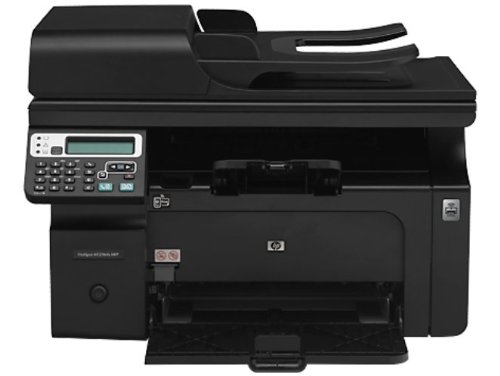
Figure 2.1: Front view of the HP LaserJet Pro M1218nfs Multi-Function Monochrome Laser Printer.
Key Features:
- Multi-Functionality: Print, copy, scan, and fax from a single device.
- Wireless Connectivity: Built-in wireless hotspot for convenient printing from various devices.
- Mobile Printing: Print directly from mobile devices.
- HP Smart Install: Simplifies initial setup and driver installation.
- Automatic Document Feeder (ADF): 35-page ADF for efficient multi-page scanning and copying.
- Monochrome Laser Printing: Delivers crisp, professional black and white documents.
3. Included Components
Verify that all items listed below are present in the product packaging:
- HP LaserJet Pro M1218nfs Multi-Function Monochrome Laser Printer
- Power cord(s)
- Phone cord(s)
- 150-sheet input tray
- Output tray
- Introductory HP LaserJet toner cartridge (~700 pages)
- CD(s) with software and documentation
- Installation Guide
- Support flyer
- Errata sheet
- Discovery Sheet
- Ferrite with flyer
- Warranty Guide (where applicable)
- USB cable
- Readiris PRO text recognition software
4. Setup
4.1 Unpacking and Placement
- Carefully remove the printer from its packaging.
- Remove all packing materials, tapes, and protective films from the printer.
- Place the printer on a stable, flat surface with adequate ventilation.
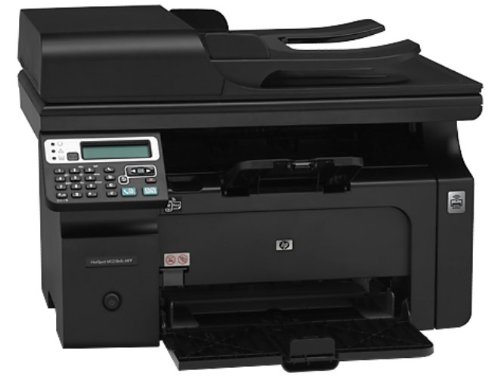
Figure 4.1: Front view of the printer with the input tray open, ready for paper loading.
4.2 Connecting the Printer
- Power Connection: Connect the power cord to the printer and then to a grounded electrical outlet.
- USB Connection (Optional): For a direct connection, use the provided USB cable to connect the printer to your computer.
- Network Connection (Optional): For wired network access, connect an Ethernet cable from the printer's RJ-45 port to your network router or switch.
- Fax Connection (Optional): Connect the phone cord to the RJ-11 fax port on the printer and to your telephone wall jack.
4.3 Software Installation
The HP LaserJet Pro M1218nfs supports HP Smart Install, which simplifies driver installation. Insert the provided CD into your computer's optical drive and follow the on-screen instructions. Alternatively, download the latest drivers from the official HP support website.
System Requirements:
- Microsoft Windows XP (32-bit and 64-bit): Pentium 233MHz, 512MB RAM, 350 MB free disk space, Internet Explorer 7.0.
- Microsoft Windows Vista (Starter Edition, 32-bit, and 64-bit): 1GHz or faster 32-bit (x86) or 64-bit (x64) processor, 1 GB (32-bit) or 2 GB (64-bit) RAM, 920MB free disk space, Internet Explorer 7.0.
- Microsoft Windows 7 (32-bit and 64-bit): 1GHz or faster 32-bit (x86) or 64-bit (x64) processor, 1GB (32-bit) or 2GB (64-bit) RAM, 920MB free disk space, Internet Explorer 8.0.
- Mac OS X v10.4, v10.5, v10.6, and higher: 256MB RAM, 150MB free disk space.
5. Operating the Printer
5.1 Loading Paper
- Open the input tray.
- Adjust the paper guides to the correct paper size (e.g., A4).
- Load up to 150 sheets of plain paper, envelopes, or card stock into the input tray.
- Ensure the paper is flat and fits snugly against the guides.
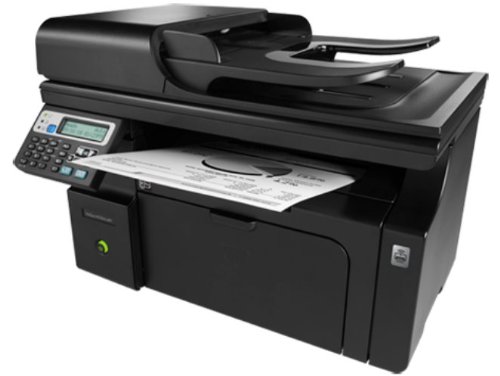
Figure 5.1: Angled view of the printer showing paper exiting into the output tray.
5.2 Printing Documents
From your computer, open the document you wish to print. Select 'Print' from the application's menu, choose the HP LaserJet Pro M1218nfs as your printer, and adjust settings as needed (e.g., number of copies, paper size). Click 'Print'. The printer supports monochrome printing at up to 18 pages per minute (ppm) with a resolution of 600 x 600 dpi.
5.3 Copying Documents
- Place the document face-down on the scanner glass or face-up in the Automatic Document Feeder (ADF).
- On the printer control panel, select the 'Copy' function.
- Adjust settings such as number of copies or darkness.
- Press the 'Start Copy' button. The printer can copy at up to 7.4 ppm with a resolution of 600 x 600 dpi.
5.4 Scanning Documents
- Place the document on the flatbed scanner glass or in the ADF.
- From your computer, open the scanning software (e.g., HP Scan or Readiris PRO).
- Select the HP LaserJet Pro M1218nfs as the scanner.
- Choose scan settings (e.g., resolution, color mode, destination folder).
- Click 'Scan'.
5.5 Faxing Documents
- Load the document into the ADF or place it on the scanner glass.
- On the printer control panel, select the 'Fax' function.
- Enter the recipient's fax number using the keypad.
- Press the 'Start Fax' button. The printer supports fax speeds up to 33.6kbps.
5.6 Wireless Connectivity
The HP LaserJet Pro M1218nfs features a built-in wireless hotspot (802.11bgn) that allows you to connect mobile devices and PCs directly to the printer for printing. Refer to the printer's network configuration settings on the control panel to set up and manage the wireless hotspot. This enables printing from smartphones and other compatible devices without needing an existing network infrastructure.
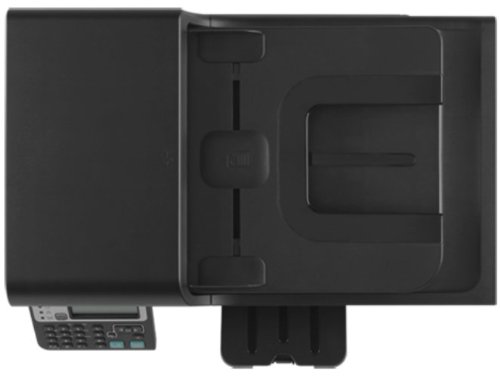
Figure 5.2: Top view of the printer, showing the ADF and control panel.
6. Maintenance
6.1 Replacing the Toner Cartridge
When print quality degrades or the toner low indicator appears, it is time to replace the toner cartridge. The compatible cartridge for this model is HP CE285A.
- Open the front access door of the printer.
- Carefully remove the old toner cartridge.
- Unpack the new HP CE285A toner cartridge and gently shake it to distribute the toner.
- Insert the new cartridge into the printer until it clicks into place.
- Close the front access door.
6.2 Cleaning the Printer
- Exterior: Wipe the exterior surfaces with a soft, lint-free cloth dampened with water. Avoid abrasive cleaners.
- Scanner Glass: Clean the scanner glass with a soft cloth and a non-abrasive glass cleaner.
- ADF Rollers: Periodically clean the ADF rollers to prevent paper jams and ensure proper feeding. Refer to the printer's on-screen menu or software for specific instructions on cleaning ADF rollers.
7. Troubleshooting
7.1 Common Issues and Solutions
- Printer Not Responding:
- Check power connections.
- Verify USB or network cable connections.
- Ensure the printer is online and not in an error state.
- Restart the printer and your computer.
- Paper Jams:
- Open all access doors and carefully remove any jammed paper.
- Ensure paper is loaded correctly and not overfilled.
- Poor Print Quality:
- Check toner cartridge level and replace if low.
- Ensure correct paper type is selected in print settings.
- Perform a print quality diagnostic from the printer's control panel or software.
- Wireless Connectivity Issues:
- Verify the wireless hotspot is enabled on the printer.
- Ensure your device is connected to the printer's wireless network.
- Check for any interference from other wireless devices.
7.2 Further Assistance
If you encounter issues not covered in this manual, please refer to the HP support website or contact HP customer service for further assistance.
8. Specifications
| Feature | Specification |
|---|---|
| Model Number | M1218nfs (Laser-1218) |
| Functions | Print, Copy, Scan, Fax |
| Printing Technology | Monochrome Laser |
| Print Speed (Monochrome) | Up to 18 ppm |
| Print Resolution (Max) | 600 x 600 dpi (Effective 1200 x 1200 dpi) |
| First Page Out (Black) | As fast as 8.5 seconds |
| Copy Speed (Monochrome) | Up to 7.4 ppm |
| Copy Resolution (Max) | 600 x 600 dpi |
| Scanner Type | Flatbed, ADF |
| ADF Capacity | 35 sheets |
| Fax Speed | Up to 33.6 kbps |
| Connectivity | Hi-Speed USB 2.0, RJ-11 Fax, RJ-45 Network, Wi-Fi (802.11bgn) |
| Input Tray Capacity | 150 sheets |
| Media Types Supported | Paper (plain), Envelopes, Card stock |
| Media Sizes Supported | A4, A5, B5, C5, DL, Postcard |
| Compatible Cartridge | HP CE285A Black LaserJet Toner Cartridge |
| RAM Size | 64 MB |
| Operating Systems | Windows 7, Windows Vista, Windows XP, Mac OS X v10.4 and higher |
| Product Dimensions (LxWxH) | 26.5 x 43.5 x 30.6 cm |
| Item Weight | 8.3 kg |
9. Warranty and Support
9.1 Product Warranty
This HP LaserJet Pro M1218nfs Multi-Function Monochrome Laser Printer comes with a 1 Year Warranty from the date of purchase. Please retain your proof of purchase for warranty claims. For detailed terms and conditions, refer to the Warranty Guide included in your product packaging or visit the official HP website.
9.2 Customer Support
For technical support, driver downloads, or additional product information, please visit the official HP support website: www.hp.com/support.