1. Introduction
This manual provides essential information for the proper installation, operation, and maintenance of your Acer G206HQL bd 19.5-inch LED computer monitor. Please read this manual thoroughly before using the product to ensure optimal performance and safety. The Acer G206HQL bd is designed to deliver a clear visual experience for various computing tasks.
2. Package Contents
Verify that all items listed below are present in your product package. If any items are missing or damaged, please contact your retailer.
- Acer G206HQL bd 19.5-inch LED Monitor
- Monitor Stand (Base and Neck)
- Power Cord
- VGA Cable
- DVI Cable
- User Manual (this document)
- Driver CD (may be included for older models)
3. Setup Instructions
3.1 Assembling the Monitor Stand
- Carefully remove the monitor and stand components from the packaging.
- Attach the stand neck to the monitor panel. Ensure it clicks securely into place or is fastened with screws if provided.
- Attach the stand base to the stand neck. Tighten the screw at the bottom of the base to secure it.
- Place the assembled monitor on a stable, flat surface.
Note: This monitor is not VESA mountable. Do not attempt to attach it to a wall mount or articulating arm.
3.2 Connecting Cables
Ensure your computer and monitor are powered off before making any connections.
- Connect the Video Cable:
- For VGA connection: Connect one end of the VGA cable to the VGA port on your computer and the other end to the VGA input port on the monitor. Tighten the screws on the VGA connector.
- For DVI connection: Connect one end of the DVI cable to the DVI port on your computer and the other end to the DVI-in port on the monitor. Tighten the screws on the DVI connector.
- Connect the Power Cable: Plug the power cord into the monitor's power input, then plug the other end into a grounded electrical outlet.

Figure 1: Front view of the Acer G206HQL bd monitor with the Acer logo displayed on screen.

Figure 2: Angled view of the Acer G206HQL bd monitor, showing the slim bezel and X-shaped stand.
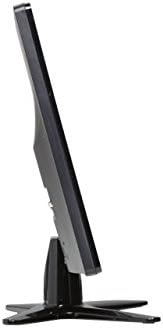
Figure 3: Side profile view of the Acer G206HQL bd monitor, highlighting its slim design.
3.3 Initial Power On
- Power on your computer.
- Press the power button on the monitor (usually located on the bottom right bezel). The power indicator light should illuminate.
- The monitor should automatically detect the input signal. If not, you may need to manually select the input source using the OSD menu.
4. Operating Instructions
4.1 On-Screen Display (OSD) Menu
The OSD menu allows you to adjust various monitor settings. The control buttons are typically located on the bottom right side of the monitor bezel.
- Press the Menu button to open the OSD menu.
- Use the Up/Down or Left/Right arrow buttons to navigate through menu options.
- Press the Select or Enter button to confirm a selection or enter a sub-menu.
- Press the Exit button to close the OSD menu or go back to the previous menu level.
4.2 Common OSD Settings
- Brightness: Adjusts the overall luminance of the screen.
- Contrast: Adjusts the difference between light and dark areas of the image.
- Input Source: Manually select between VGA and DVI inputs.
- Color Settings: Adjust color temperature, gamma, and individual RGB levels.
- Image Auto Adjust: (VGA only) Automatically optimizes the image position, phase, and clock.
- OSD Settings: Adjust OSD language, position, and timeout.
5. Maintenance
5.1 Cleaning the Monitor
- Always power off the monitor and unplug the power cord before cleaning.
- Use a soft, lint-free cloth lightly dampened with water or a mild, non-abrasive screen cleaner.
- Wipe the screen gently. Avoid applying excessive pressure.
- Do not use alcohol, ammonia-based cleaners, or abrasive materials, as these can damage the screen surface.
- For the monitor casing, use a soft, dry cloth.
5.2 Storage
When storing the monitor, ensure it is kept in a cool, dry place, away from direct sunlight and extreme temperatures. Use the original packaging if available to protect it from dust and physical damage.
6. Troubleshooting
| Problem | Possible Cause | Solution |
|---|---|---|
| No image on screen |
|
|
| Image is blurry or distorted |
|
|
| Colors are incorrect |
|
|
7. Specifications

Figure 4: Dimensions of the Acer G206HQL bd monitor, showing width, height, and depth.
| Feature | Specification |
|---|---|
| Model Name | G206HQL bd |
| Display Size | 19.5 Inches (diagonal) |
| Panel Technology | Twisted Nematic Film (TN Film) |
| Resolution | 1600 x 900 |
| Aspect Ratio | 16:9 |
| Response Time | 5ms |
| Brightness | 200 cd/m² (Nit) |
| Viewing Angles | 170° Horizontal, 160° Vertical |
| Input Ports | 1x VGA, 1x DVI-D (with HDCP) |
| Power Consumption (Operating) | 16.20 W (Typical 14 W) |
| Power Consumption (Standby) | 450 mW |
| Input Voltage | 110 V AC, 220 V AC |
| Dimensions (with stand) | 18.3" (W) x 13.14" (H) x 6.57" (D) |
| Dimensions (without stand) | 18.3" (W) x 11.06" (H) x 1.25" (D) |
| Weight | 4.4 pounds |
| VESA Mount Compatible | No |
8. Warranty and Support
For warranty information, please refer to the documentation included with your product or visit the official Acer support website. Warranty periods may vary by region and retailer.
For technical support, driver downloads, or service inquiries, please visit the Acer support website or contact their customer service department.
- Manufacturer: Acer
- Product Link: Amazon Product Page
- Acer Store: Visit the Acer Store on Amazon


