
eSynic zKB063
eSynic Upgraded Backlit Wireless Bluetooth 2.4GHz Keyboard with Touchpad User Manual
Model: zKB063
Introduction
Thank you for purchasing the eSynic Upgraded Backlit Wireless Bluetooth 2.4GHz Keyboard with Touchpad. This compact and versatile device combines a full QWERTY keyboard with a multi-finger touchpad, offering seamless control for various smart devices. Designed for convenience and portability, it features a built-in rechargeable battery and adjustable LED backlighting for use in diverse environments. This manual provides detailed instructions for setup, operation, maintenance, and troubleshooting to ensure optimal performance and longevity of your device.
What's in the Box
- 1 x eSynic Mini Keyboard
- 1 x Wireless Receiver (USB Dongle)
- 1 x USB Charging Cable
- 1 x User Manual
- 1 x Male to Female USB Extension Cable
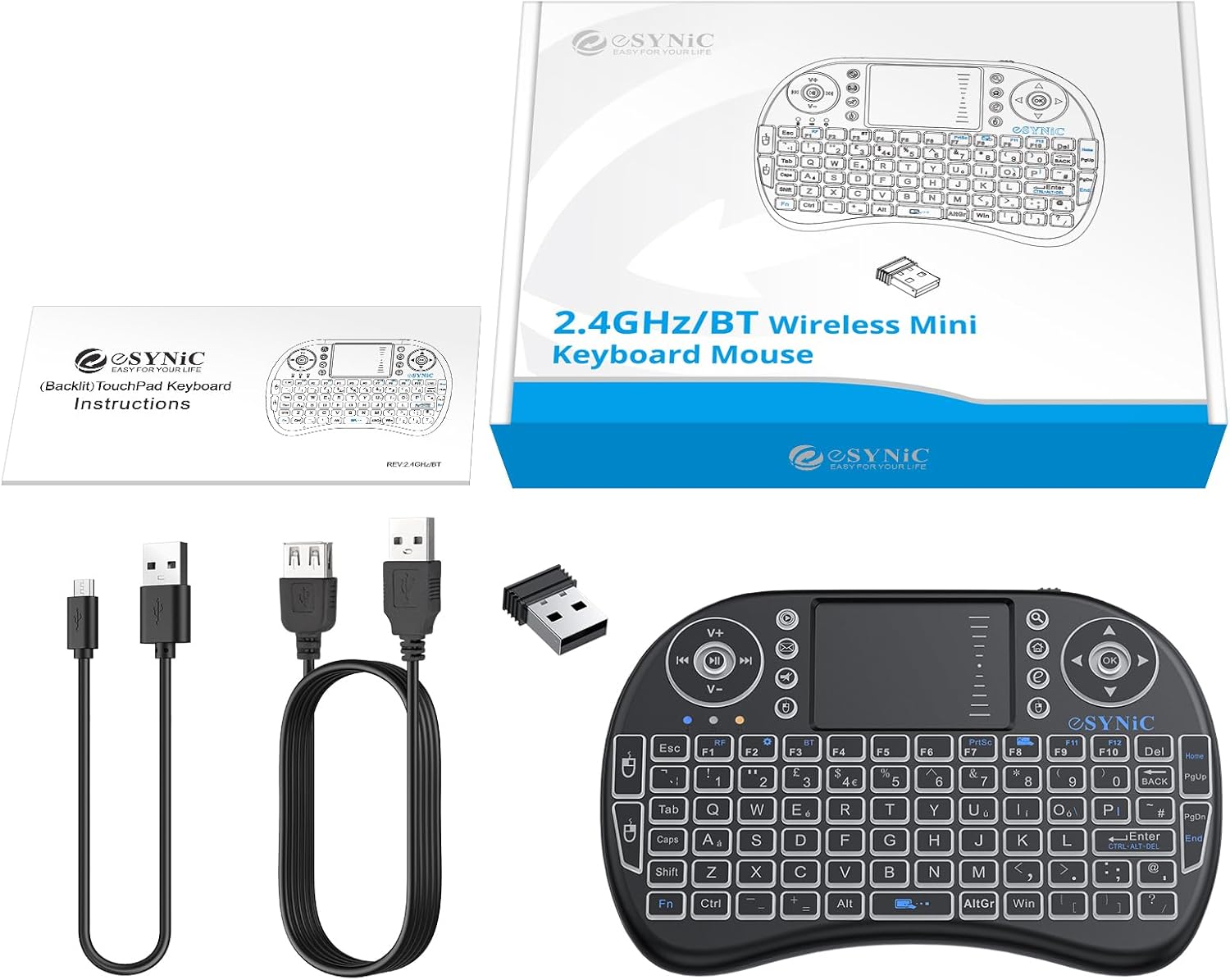
Image: Contents of the eSynic Mini Keyboard package. It includes the mini keyboard, a USB wireless receiver, a USB charging cable, and the user manual.
Product Overview
The eSynic Mini Keyboard is designed for intuitive control with its integrated QWERTY keyboard and multi-touch touchpad. Below are the key features and components:
- QWERTY Keyboard: Full English QWERTY layout with 92 keys for efficient typing.
- Touchpad: Sensitive multi-finger touchpad with adjustable DPI functions for precise cursor control, supporting gestures like clicking and scrolling.
- Backlight: Three-color LED backlight (Red, Green, Blue) for visibility in low-light conditions, activated by "FN" + F2.
- Multimedia Keys: Dedicated keys for media control (Play/Pause, Volume Up/Down, Mute, Next/Previous Track) and quick access to Web, Email, Mouse Left/Right, and Home functions.
- Ergonomic Design: Compact and lightweight, designed for comfortable handheld use.

Image: The eSynic Mini Keyboard with its blue LED backlight active, shown alongside its product packaging. This image highlights the compact design and the illuminated keys.
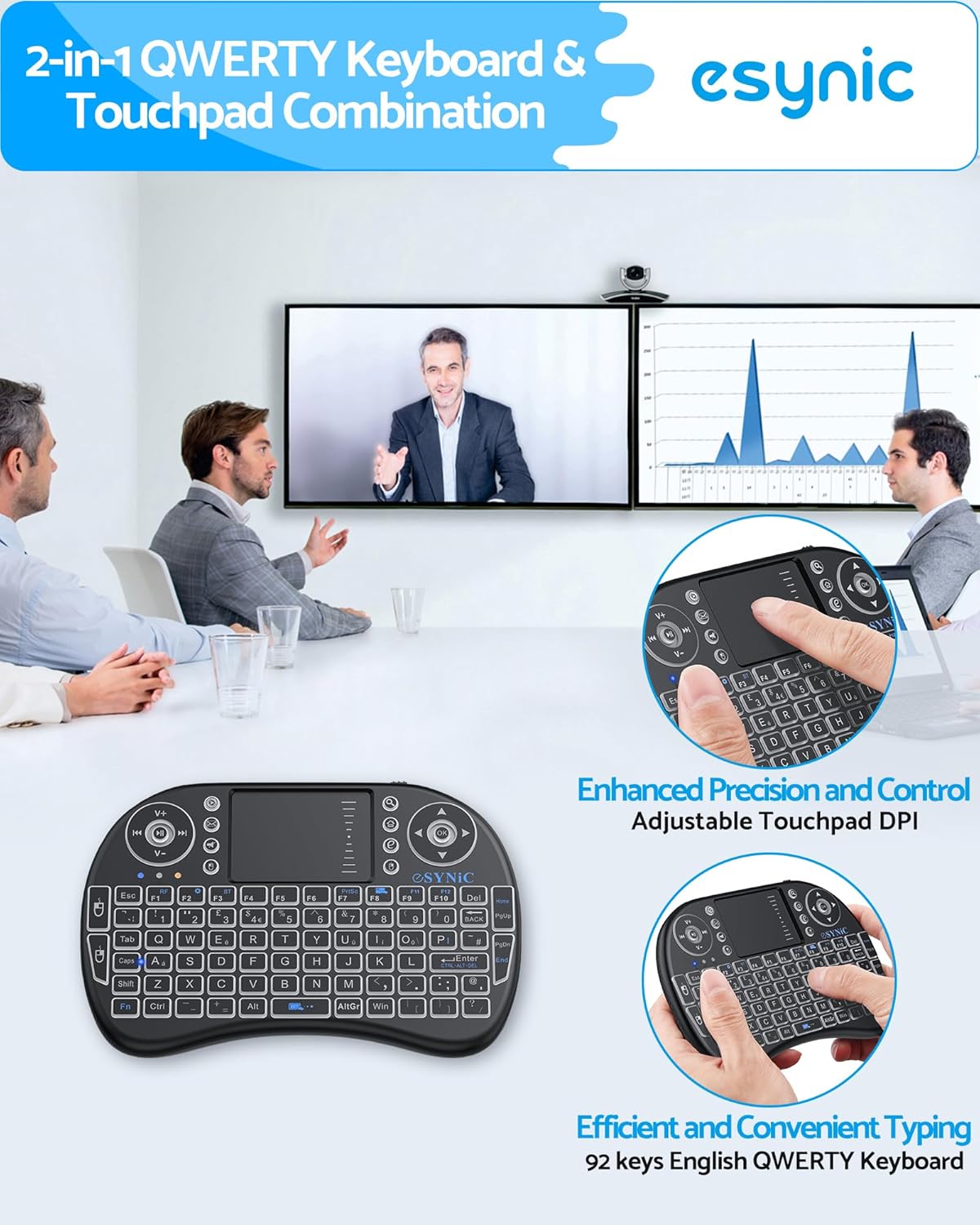
Image: A detailed view of the eSynic Mini Keyboard, emphasizing its QWERTY keyboard layout and the integrated touchpad. This image illustrates the key arrangement and the touchpad's surface.
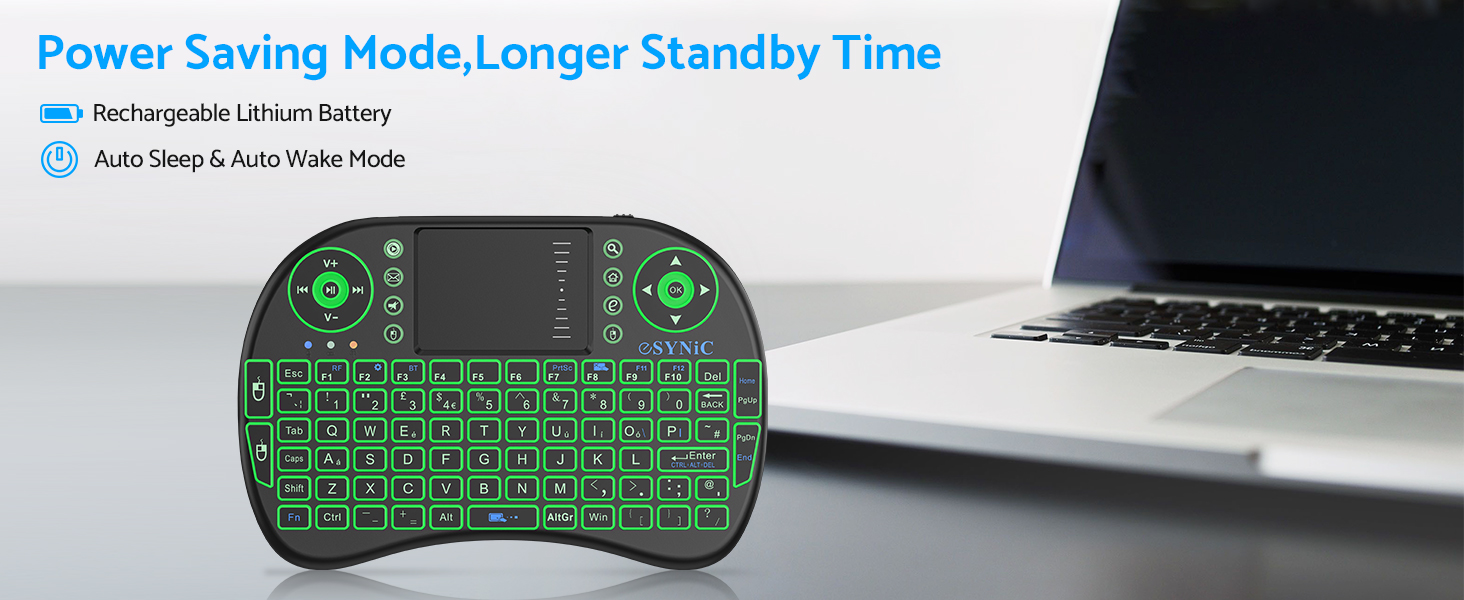
Image: The eSynic Mini Keyboard shown in a professional setting, highlighting its compact and lightweight design. The image emphasizes its portability and ease of use in various environments.
Setup Instructions
Your eSynic Mini Keyboard supports both 2.4GHz wireless connection via a USB receiver and Bluetooth connectivity. Follow the steps below to set up your device.
2.4GHz Wireless Connection (Recommended for most devices)
- Charge the Keyboard: Before first use, ensure the keyboard is fully charged. Connect the provided USB charging cable to the keyboard's charging port and the other end to a USB power source (e.g., computer USB port, USB wall adapter). The charging indicator light will illuminate.
- Locate the USB Receiver: The mini USB receiver is typically stored in a compartment within the keyboard itself for safe keeping. Carefully remove it.
- Connect the Receiver: Insert the USB receiver into an available USB port on your device (Smart TV, PC, Android TV Box, etc.). For optimal signal, use the included USB extension cable if the USB port is in a confined space or far from the keyboard.
- Turn On the Keyboard: Slide the power switch on the keyboard to the "ON" position.
- Automatic Connection: The keyboard should automatically connect to your device within a few seconds. No drivers are usually required for most operating systems (Windows, Android, Linux).
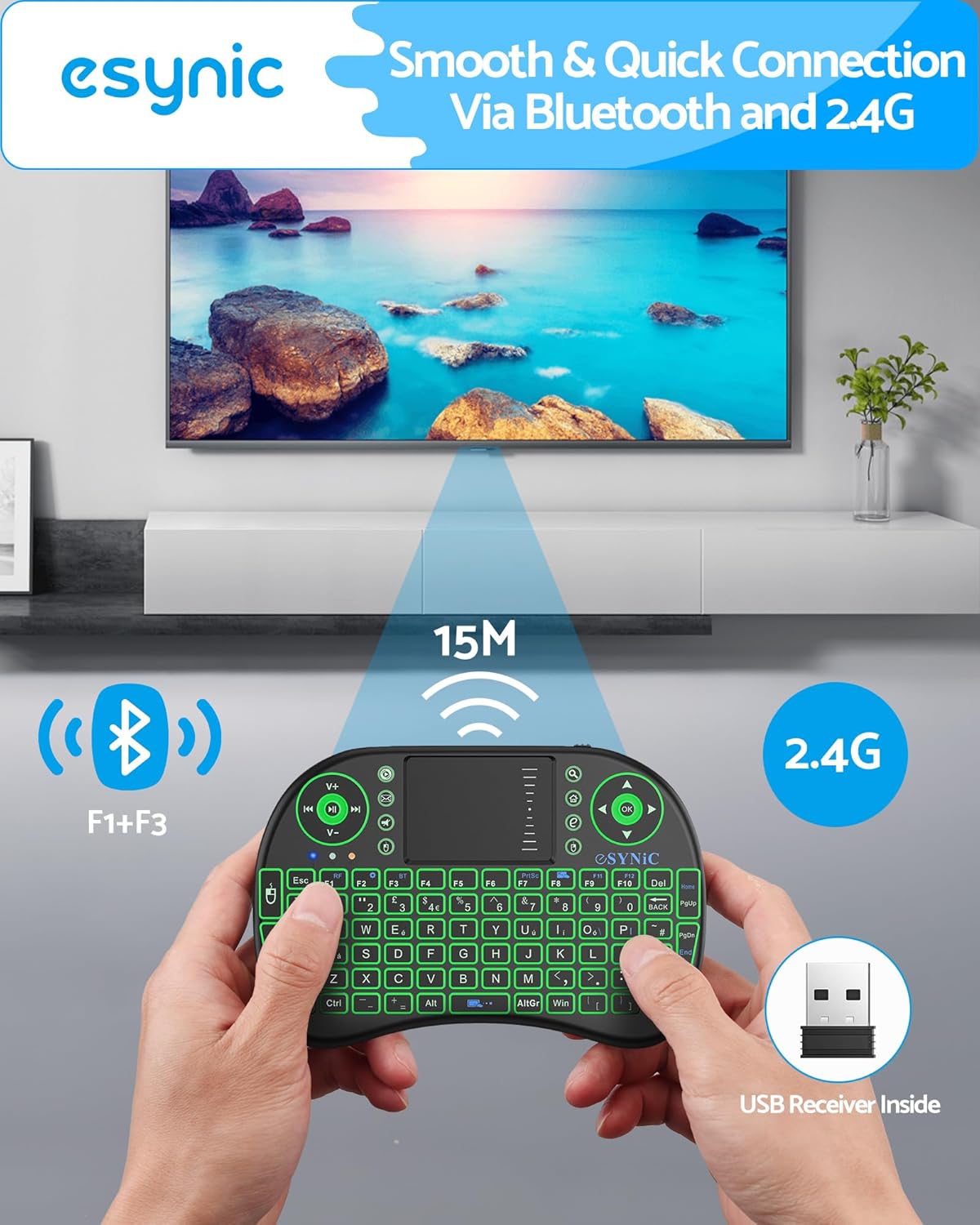
Image: A visual guide demonstrating the connection of the eSynic Mini Keyboard's USB receiver to a television setup. It shows the USB receiver plugged into a TV's USB port, with an optional extension cable for better signal reception.
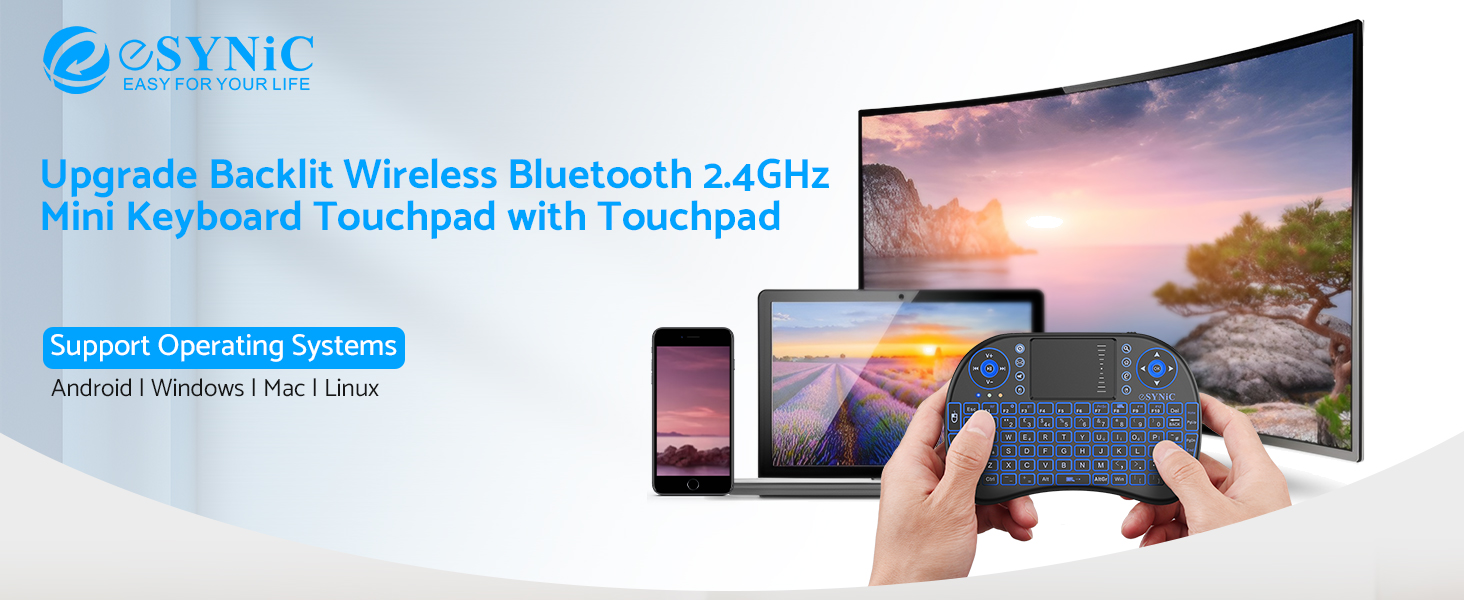
Image: A family using the eSynic Mini Keyboard with a television, illustrating its seamless cord-free connectivity via both Bluetooth and 2.4GHz. The image highlights the ease of setup and use in a home entertainment environment.
Bluetooth Connection (For Bluetooth-enabled devices)
This keyboard supports Bluetooth connectivity. To switch to Bluetooth mode:
- Turn On Bluetooth: Ensure Bluetooth is enabled on your device (e.g., smartphone, tablet, laptop).
- Activate Pairing Mode: Press the "Fn" key and the "F1" key simultaneously on the keyboard. The Bluetooth indicator light on the keyboard will start blinking, indicating it's in pairing mode.
- Search for Devices: On your device, search for available Bluetooth devices. You should see "eSynic Keyboard" or a similar name appear in the list.
- Pair the Devices: Select the keyboard from the list. Your device may prompt you to enter a pairing code shown on the screen. Type this code on the eSynic keyboard and press Enter.
- Connection Confirmation: Once successfully paired, the Bluetooth indicator light on the keyboard will stop blinking and remain solid, or turn off, depending on the model.

Image: The eSynic Mini Keyboard displayed with icons representing its broad compatibility across different operating systems (Windows, Android, iOS, Mac) and device types (TV, PC, Pad, Laptop). This image highlights the versatility of the keyboard.
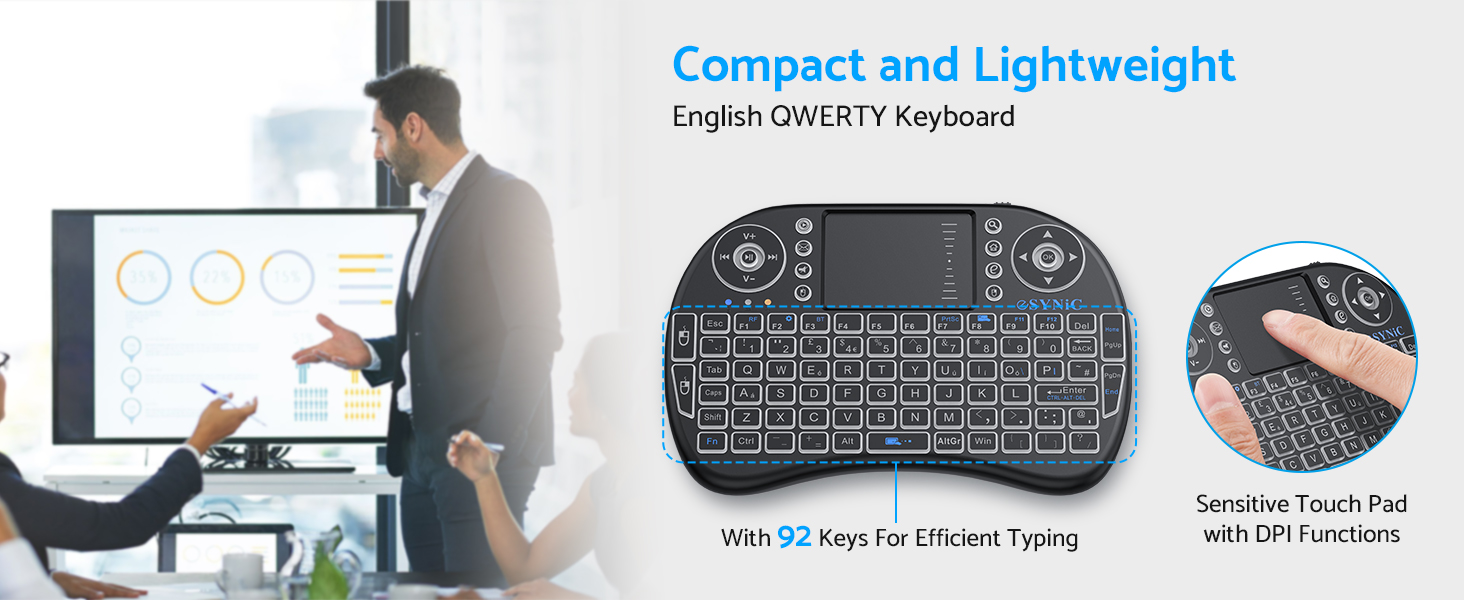
Image: A visual representation of the eSynic Mini Keyboard's broad compatibility, showing it connected to a monitor displaying various operating system logos (Windows, Android, iOS, Mac) and device types (TV, PC, Pad, Laptop). The image also shows the USB receiver and an extension cable.
Operating Instructions
Keyboard Functions
The keyboard features a standard QWERTY layout. Most keys function as expected. For special characters or functions, use the "Fn" key in combination with other keys.
- Function Keys (F1-F12): Accessed by pressing the "Fn" key simultaneously with the desired F-key.
- Caps Lock: Press the "Caps" key to toggle uppercase letters. An indicator light will show when Caps Lock is active.
- Shift Key: Press and hold "Shift" for temporary uppercase letters or to access secondary characters on keys.
Touchpad Functions
The integrated touchpad supports multi-finger gestures for enhanced control:
- Single Finger Tap: Left-click.
- Two Finger Tap: Right-click.
- Two Finger Scroll: Drag two fingers up or down to scroll.
- Single Finger Drag: Click and hold with one finger, then drag to move items.
- DPI Adjustment: Press "Fn" + "Spacebar" to cycle through different touchpad DPI sensitivities.
Backlight Control
To activate or change the backlight color:
- Press "Fn" + F2 to turn the backlight on/off and cycle through Red, Green, Blue colors.

Image: The eSynic Mini Keyboard demonstrating its three available LED backlight colors: red, green, and blue. This image highlights the visibility of the keys in dark environments and the activation method using "FN" + F2.
Multimedia and Shortcut Keys
The keyboard includes dedicated multimedia and shortcut keys for quick access to common functions:
- Volume Control: Dedicated buttons for Volume Up, Volume Down, and Mute.
- Media Playback: Buttons for Play/Pause, Next Track, and Previous Track.
- Quick Access: Buttons for Web browser, Email, Mouse Left/Right click, and Home.
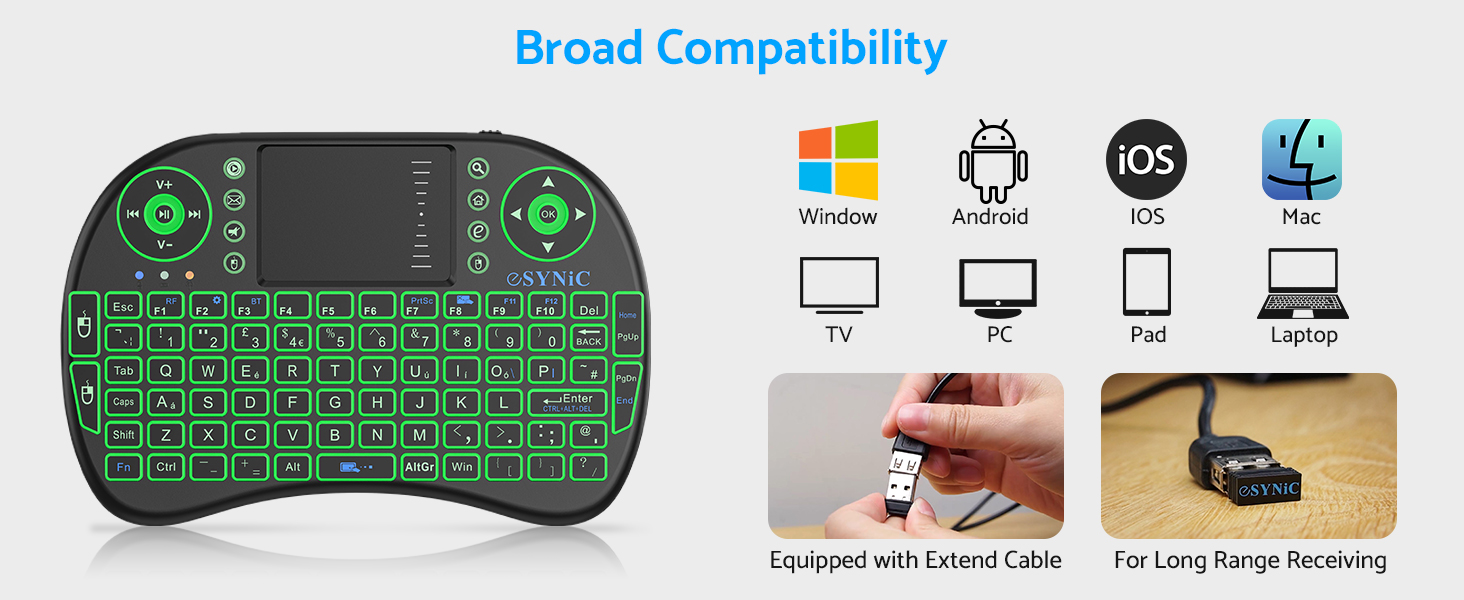
Image: A user holding the eSynic Mini Keyboard while interacting with a TV screen, showcasing its ergonomic handheld design and the convenience of its multimedia keys for controlling media playback and navigation. Icons for various media controls are displayed.
Maintenance
Proper maintenance ensures the longevity and optimal performance of your eSynic Mini Keyboard.
- Charging: The keyboard features a built-in rechargeable lithium battery. When the battery is low, the indicator light will flash. Connect the keyboard to a USB power source using the provided cable. A full charge takes approximately 2 hours and provides 4-8 hours of continuous use, with a standby time of up to 60 days.
- Power Saving Mode: The keyboard has an intelligent power-saving feature with auto-sleep and auto-wake modes to conserve battery life. If inactive for a period, it will enter sleep mode. Press any key to wake it up.
- Cleaning: Use a soft, dry cloth to clean the surface of the keyboard and touchpad. Avoid using liquid cleaners or abrasive materials.
- Storage: When not in use for extended periods, turn off the keyboard to conserve battery. Store it in a cool, dry place away from direct sunlight and extreme temperatures.
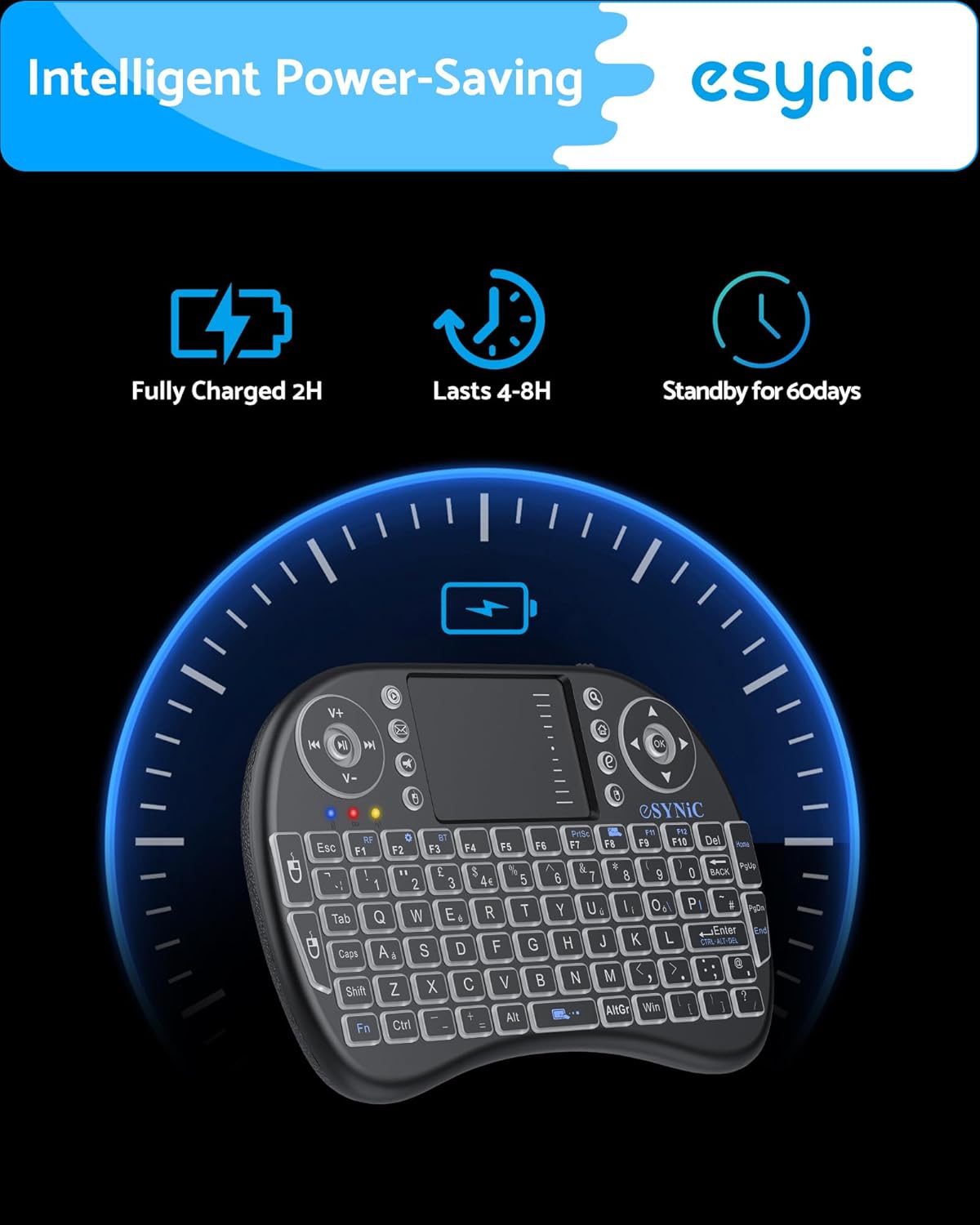
Image: The eSynic Mini Keyboard with a graphic illustrating its intelligent power-saving features. It shows that the keyboard can be fully charged in 2 hours, lasts 4-8 hours in use, and has a standby time of 60 days.
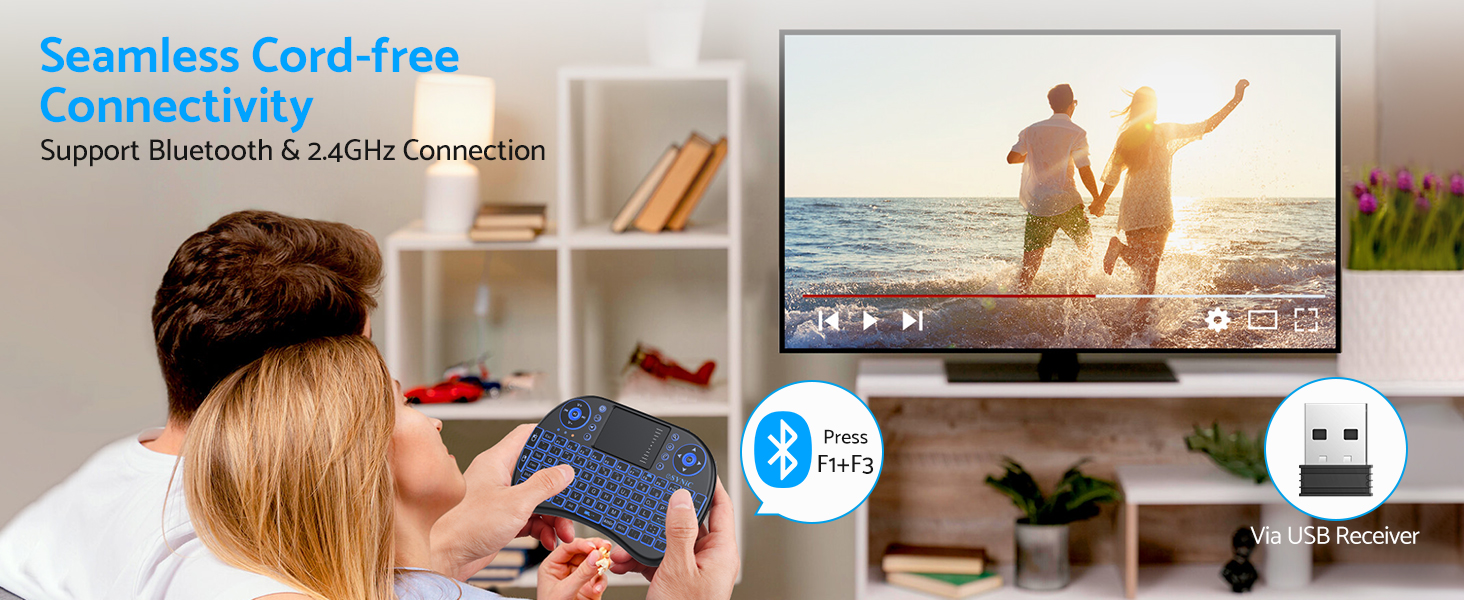
Image: The eSynic Mini Keyboard on a desk next to a laptop, highlighting its power-saving mode and longer standby time. The image indicates it has a rechargeable lithium battery and features auto-sleep and auto-wake modes.
Troubleshooting
If you encounter issues with your eSynic Mini Keyboard, please refer to the following common problems and solutions:
| Problem | Possible Cause | Solution |
|---|---|---|
| Keyboard not responding. | Low battery; Keyboard is off; USB receiver not properly connected; Out of range; Device not recognizing receiver. | Charge the keyboard; Turn on the keyboard; Re-insert the USB receiver firmly; Move closer to the device (within 15 meters); Try a different USB port; Restart your device. |
| Touchpad erratic or unresponsive. | Low battery; Interference; Incorrect DPI setting; Dirty touchpad surface. | Charge the keyboard; Move away from other wireless devices; Adjust DPI by pressing "Fn" + "Spacebar"; Clean the touchpad with a soft, dry cloth. |
| Backlight not working. | Backlight is off; Low battery. | Press "Fn" + F2 to turn on/cycle backlight; Charge the keyboard. |
| Bluetooth pairing failed. | Keyboard not in pairing mode; Device Bluetooth off; Incorrect pairing code. | Ensure keyboard is in pairing mode ("Fn" + F1); Turn on Bluetooth on your device; Re-enter the pairing code carefully. |
Specifications
| Feature | Detail |
|---|---|
| Brand | eSynic |
| Model Number | zKB063 |
| Connectivity Technology | Bluetooth, 2.4GHz USB Wireless |
| Keyboard Layout | QWERTY (92 keys) |
| Touchpad | Multi-finger Touchpad with adjustable DPI |
| Backlight | RGB (Red, Green, Blue) |
| Power Source | Rechargeable Lithium Battery |
| Battery Life | 4-8 hours (usage), up to 60 days (standby) |
| Charging Time | Approx. 2 hours |
| Product Dimensions | 16 x 2 x 10 cm |
| Item Weight | 170 g |
| Compatible Operating Systems | Android, Linux, Windows, Mac, iOS (limited functionality for some iOS devices) |
| Compatible Devices | Laptop, Smart TV, PC, Phone, Tablet, Android TV Box, Xbox 360, PS3, Raspberry Pi, HTPC/IPTV |
Warranty and Support
eSynic products are designed for reliability and performance. For any issues or support needs, please contact eSynic customer service. Information regarding warranty periods and support channels can typically be found on the official eSynic website or through your point of purchase.
Please retain your proof of purchase for warranty claims.
For further assistance, visit the eSynic Store: eSynic Official Store
Related documentszKB063


Ask a question about this manual
Ask about setup, troubleshooting, compatibility, parts, safety, or missing instructions. Manuals+ will review the question and use this page’s manual context to help answer it.