
Introduction
The Logitech Wireless All-in-One Keyboard TK820 is designed to integrate typing, touch, and gestures into a single device for efficient computer control and navigation. This manual provides instructions for setting up, operating, maintaining, and troubleshooting your keyboard.

Image: Top-down view of the Logitech Wireless All-in-One Keyboard TK820, showcasing its integrated keyboard and large touchpad.
Setup
- Install Batteries: The keyboard requires 4 AA batteries, which are included. Open the battery compartment on the underside of the keyboard and insert the batteries, ensuring correct polarity.
- Connect the Unifying Receiver: Locate the Logitech Unifying receiver. Plug this small USB receiver into an available USB port on your computer.
- Power On: Turn on the keyboard using the power switch, typically located on the side or back.
- System Recognition: Your computer should automatically detect and install the necessary drivers. The keyboard is compatible with Windows 7 and Windows 8 operating systems.
Note: This keyboard does not feature an integrated storage slot for the Unifying receiver. Please store the receiver safely when not in use or during transport.
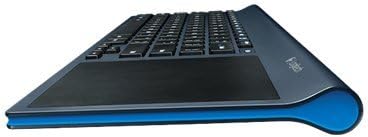
Image: Side profile of the Logitech TK820 keyboard, illustrating its slim design and ergonomic curve.
Operating Instructions
Typing
- The keyboard features Perfect Stroke and Incurve keys designed for comfortable and fluid typing.
- Standard QWERTY layout with function keys (F1-F12) and media controls.
- To activate secondary functions on the F-keys (e.g., media controls, volume), press and hold the Fn key simultaneously with the desired F-key.
Touchpad Navigation
The integrated large touch surface allows for precise cursor control and gesture-based navigation.
- Cursor Movement: Slide one finger across the touchpad to move the cursor.
- Left Click: Press the bottom-left area of the touchpad or tap once with one finger.
- Right Click: Press the bottom-right area of the touchpad or tap once with two fingers.
- Scrolling: Slide two fingers up or down to scroll vertically. Slide two fingers left or right to scroll horizontally.
- Zoom: Pinch in or out with two fingers to zoom.
- Windows 8 Gestures: The touchpad supports various Windows 8 gestures for enhanced navigation, including swiping from edges for charms bar, app switching, and more. These gestures are also compatible with Windows 7.

Image: A user's hand demonstrating interaction with the large integrated touchpad on the Logitech TK820 keyboard.
Maintenance
Battery Replacement
When the keyboard's battery indicator light signals low power, replace the 4 AA batteries. Ensure the keyboard is powered off before replacing batteries. Dispose of used batteries responsibly according to local regulations.
Cleaning
To clean the keyboard and touchpad, use a soft, lint-free cloth. For stubborn dirt, slightly dampen the cloth with water or a mild electronics cleaner. Avoid using harsh chemicals, abrasive materials, or excessive moisture, as these can damage the device.
Troubleshooting
- No Response from Keyboard:
- Ensure the keyboard is powered on.
- Check battery levels and replace if necessary.
- Verify the Unifying receiver is securely plugged into a working USB port on your computer.
- Try plugging the Unifying receiver into a different USB port.
- Move the keyboard closer to the Unifying receiver to rule out range issues.
- Touchpad Not Responding or Inaccurate:
- Ensure the touchpad surface is clean and free of obstructions.
- Restart your computer.
- Check for any software updates for your operating system or Logitech drivers (if installed).
- Intermittent Connection:
- Avoid placing the keyboard near other wireless devices or large metal objects that may cause interference.
- Ensure the Unifying receiver is not obstructed.
Specifications
| Brand | Logitech |
| Model Number | 920-005108 |
| Wireless Type | 2.4 GHz Radio Frequency |
| Operating System Compatibility | Windows 7, Windows 8 |
| Power Source | Battery Powered |
| Batteries | 4 AA batteries (included) |
| Item Weight | 1.9 pounds |
| Product Dimensions (LxWxH) | 16.9 x 1.8 x 7.9 inches |
| Color | Black |
| Material | Rubber |
Warranty and Support
For detailed warranty information, please refer to the documentation provided with your product or visit the official Logitech support website. Logitech provides customer support for product inquiries, technical assistance, and warranty claims.


