
1. Introduction
The Bose Companion 20 Multimedia Speaker System is designed to deliver rich, natural sound for your computer, tablet, or other audio devices. Featuring proprietary integrated signal processing and TrueSpace stereo digital processing circuitry, this system provides a wide, lifelike two-channel soundstage from just two speakers, eliminating the need for a separate bass module.
What's in the Box:
- Two Bose Companion 20 Speakers
- Control Pod
- 3.5mm to RCA Audio Cable
- Power Supply and Cord

Image 1.1: The Bose Companion 20 Multimedia Speaker System, featuring two sleek silver speakers and a compact control pod.
2. Product Features
The Companion 20 system incorporates advanced technologies to enhance your audio experience:
- TrueSpace Stereo Digital Processing Circuitry: Reproduces a wide, natural soundstage from only two speakers, bringing more life to music, games, and videos.
- Integrated Signal Processing: Ensures lifelike performance at almost any volume level.
- Advanced Port Design and Driver: Delivers powerful low-note performance and full, natural sound without a dedicated bass module.
- Active Electronic Equalization: Balances low, mid, and high frequencies for more natural tone and clarity.
- Unique Control Pod: Provides easy access to volume adjustment, single-touch mute, a headphone jack, and an auxiliary audio input for connecting additional devices.

Image 2.1: A cutaway view of a Bose Companion 20 speaker, illustrating the internal acoustic design and driver placement for optimized sound delivery.
3. Setup
Follow these steps to set up your Bose Companion 20 Multimedia Speaker System:
- Speaker Placement: Position the left and right speakers on either side of your computer monitor or listening area. Ensure they are placed on a stable, flat surface.
- Connect Speakers to Control Pod: Connect the cables from each speaker to the corresponding ports on the back of the control pod.
- Connect Control Pod to Audio Source: Use the provided 3.5mm audio cable to connect the control pod to the headphone jack or audio output of your computer, tablet, or MP3 player.
- Connect Power: Plug the power supply into the control pod, then plug the power cord into a wall outlet.
- Power On: The system will power on automatically once connected to power. The control pod's LED indicator will illuminate.
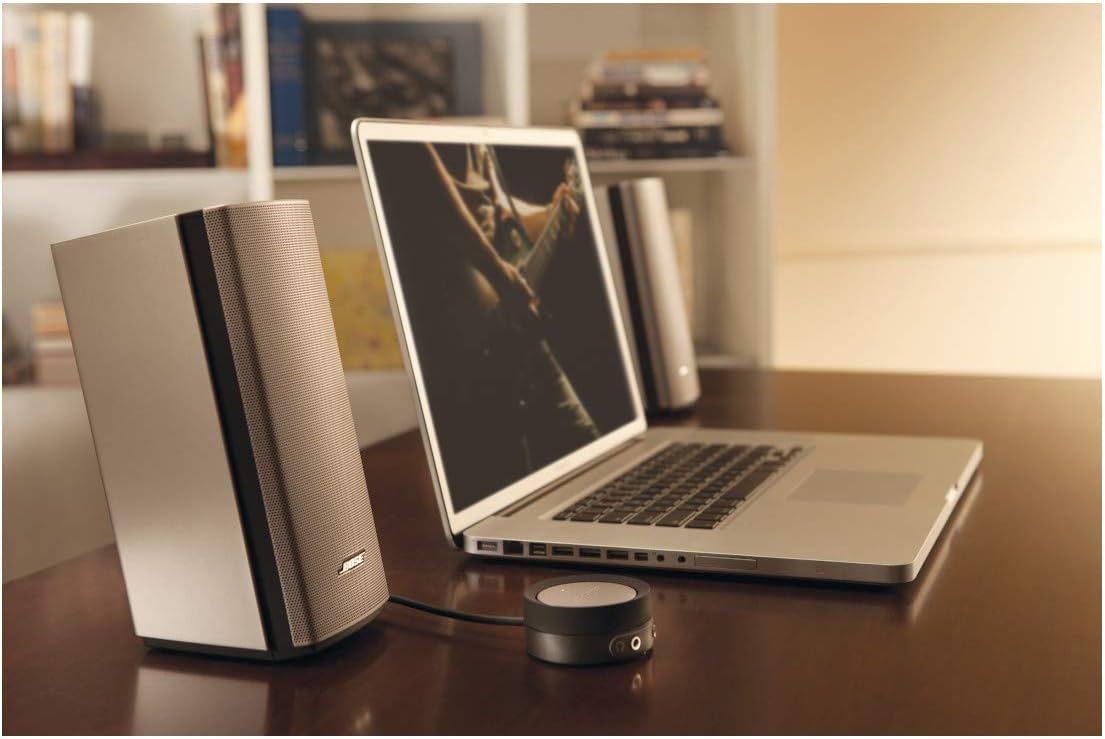
Image 3.1: The Bose Companion 20 speakers and control pod positioned alongside a laptop, demonstrating a typical setup for computer audio.
4. Operating Instructions
The control pod is the central interface for managing your audio experience:
- Power On/Off: The system powers on automatically when connected to power. To put the system into standby, lightly tap the center of the control pod. Tap again to resume playback.
- Volume Control: Rotate the outer ring of the control pod clockwise to increase volume and counter-clockwise to decrease volume.
- Mute/Unmute: Lightly tap the center of the control pod to mute the audio. Tap again to unmute. The LED indicator will change color to show mute status.
- Headphone Connection: Plug your headphones into the headphone jack located on the front of the control pod. This will automatically mute the speakers.
- Auxiliary Input: Connect a second audio source (e.g., an MP3 player or smartphone) to the auxiliary input jack on the front of the control pod. The system will automatically switch to this input when a device is connected.

Image 4.1: A detailed view of the control pod, highlighting its rotational volume control, single-touch mute function, headphone jack, and auxiliary input.
5. Maintenance and Care
To ensure the longevity and optimal performance of your speaker system, follow these care guidelines:
- Cleaning: Use a soft, dry cloth to clean the surfaces of the speakers and control pod. Do not use liquid cleaners, solvents, or aerosols, as they may damage the finish or internal components.
- Avoid Liquids: Keep the system away from water and other liquids. Do not expose it to dripping or splashing.
- Ventilation: Ensure proper ventilation around the speakers. Do not block any ventilation openings.
- Temperature: Avoid exposing the system to extreme temperatures, direct sunlight, or high humidity.
- Cable Management: Route cables carefully to prevent tripping hazards or damage.
6. Troubleshooting
If you encounter issues with your Bose Companion 20 system, refer to the following common problems and solutions:
| Problem | Possible Cause | Solution |
|---|---|---|
| No sound |
|
|
| Distorted sound |
|
|
| Intermittent sound |
|
|
7. Specifications
- Model Name: Companion 20
- Item Model Number: 329509-1300
- Speaker Type: Multimedia
- Special Feature: Volume Control
- Recommended Uses: For Computers
- Compatible Devices: Laptop, Personal Computer, Tablet
- Surround Sound Channel Configuration: 2.0
- Color: Silver
- Product Dimensions: 13.3"D x 11.1"W x 7.7"H
- Item Weight: 3.31 pounds (1500 Grams)
- Is Waterproof: FALSE
- Control Method: Touch (via control pod)
- Wireless Communication Technology: Bluetooth (Note: Primary connection is wired via 3.5mm)
- Speaker Size: 8 Inches
- Power Source: Corded Electric
- Number of Batteries: 1 Lithium Ion battery required (included)
- UPC: 017817551021
- Manufacturer: Bose
- Speaker Maximum Output Power: 20 Watts
8. Warranty and Support
The Bose Companion 20 Multimedia Speaker System comes with a Limited Warranty. For specific details regarding warranty coverage, duration, and terms, please refer to the warranty card included with your product or visit the official Bose website.
For technical support, service, or further assistance, please contact Bose customer service. You can typically find contact information on the Bose website or within your product packaging.
When contacting support, please have your product model number (329509-1300) and serial number ready.


