
1. Introduction
This manual provides comprehensive instructions for the setup, operation, maintenance, and troubleshooting of your Amazon Basics 7 Port USB 2.0 Hub Tower. This device expands your computer's USB connectivity, allowing you to connect multiple USB devices simultaneously and charge compatible devices.

Image 1.1: Front view of the Amazon Basics 7 Port USB 2.0 Hub Tower. The hub is black with the 'amazon basics' logo on the side, featuring seven USB ports arranged vertically on one face.
2. Package Contents
Please verify that all items listed below are included in your package:
- 1 x Amazon Basics 7 Port USB 2.0 Hub Tower
- 1 x 5V/4A Power Adapter
- 1 x USB 2.0 Cable (3 feet)
- 1 x Owner's Manual (this document)

Image 2.1: The Amazon Basics 7 Port USB 2.0 Hub Tower, its 5V/4A power adapter, and the 3-foot USB 2.0 cable, laid out on a white surface.
3. Setup Instructions
Follow these steps to set up your USB hub:
- Connect the Power Adapter: Insert the DC plug of the 5V/4A power adapter into the 'DC 5V' port on the back of the USB hub. Plug the power adapter into a standard wall outlet. This step is crucial for providing sufficient power, especially when connecting high-power devices or charging.
- Connect to Your Computer: Connect the square end (USB Type B) of the included USB 2.0 cable into the 'Input' port on the back of the USB hub. Connect the rectangular end (USB Type A) of the cable into an available USB port on your computer (laptop or desktop).
- Plug-and-Play: The hub is designed for Plug-and-Play installation. Your operating system should automatically detect and install the necessary drivers. No additional software installation is typically required.
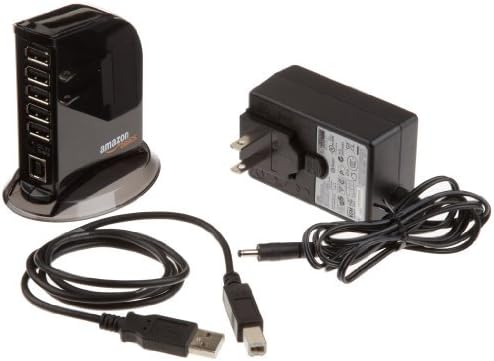
Image 3.1: A schematic diagram illustrating the connections for the USB hub, showing input from a laptop/desktop via USB Type B and output to various devices like USB flash drives, external HDDs, keyboards/mice, tablets, and smartphones via USB Type A.

Image 3.2: The Amazon Basics USB hub connected to a laptop, with multiple USB devices plugged into its ports. A red indicator light is visible on the top of the hub.
4. Operating Instructions
Once the hub is set up, you can begin connecting your USB devices.
4.1 Connecting Devices
Simply plug your USB devices (e.g., flash drives, external hard drives, keyboards, mice, printers) into any of the available USB ports on the hub. The hub features five standard USB 2.0 ports and two dedicated fast-charging ports.

Image 4.1: The USB hub with several cables connected to its ports, indicating multiple devices are in use. The hub is positioned next to a laptop.
4.2 Data Transfer
The hub complies with USB 2.0 specifications, offering data transfer speeds of up to 480Mbps. This is suitable for most peripherals and data transfer needs.
4.3 Charging Capabilities
The hub provides power output as follows:
- Standard USB Ports (5 ports): Maximum output of 500mA per port.
- Fast Charging Ports (2 ports): Maximum output of 1.5A per port.
- Total Output: The maximum total output across all 7 ports is 20W (5V/4A).
Important Note:
When using the hub for charging devices like iPads/Tablets or for high-power devices (e.g., external hard drives), ensure the 5V/4A power adapter is connected. Insufficient current may lead to slow charging, device malfunction, or other operational failures.

Image 4.2: The Amazon Basics USB hub with a smartphone connected to one of its fast-charging ports, indicating active charging. A red indicator light is visible on the hub.
5. Maintenance
To ensure the longevity and optimal performance of your USB hub, follow these simple maintenance guidelines:
- Cleaning: Use a soft, dry cloth to clean the exterior of the hub. Do not use liquid cleaners or aerosol sprays.
- Storage: When not in use, store the hub in a cool, dry place away from direct sunlight and extreme temperatures.
- Handling: Avoid dropping the hub or subjecting it to strong impacts. Do not attempt to disassemble the unit.
6. Troubleshooting
If you encounter issues with your Amazon Basics USB hub, please refer to the following common solutions:
- Device Not Recognized:
- Ensure the USB hub is securely connected to your computer and the power adapter is plugged in.
- Try connecting the device directly to your computer's USB port to confirm the device itself is functioning.
- Try connecting the device to a different port on the hub.
- Restart your computer.
- Slow Charging or Insufficient Power:
- Always ensure the 5V/4A power adapter is connected to the hub when charging devices or using high-power peripherals.
- Verify that the device you are charging is compatible with the hub's charging specifications (500mA for standard ports, 1.5A for fast-charging ports).
- Avoid connecting too many high-power devices simultaneously if the total power draw exceeds 20W.
- Intermittent Connection:
- Check all cable connections for looseness.
- Ensure the USB cable connecting the hub to the computer is not damaged.
- Avoid placing the hub near sources of strong electromagnetic interference.
7. Specifications
| Feature | Description |
|---|---|
| Brand | Amazon Basics |
| Model | B00DQFGJR4 |
| Color | Black |
| Hardware Interface | USB 2.0 |
| Number of Ports | 7 (5 standard USB 2.0, 2 fast charging) |
| Data Transfer Speed | Up to 480Mbps |
| Standard Port Output | 500mA per port |
| Fast Charging Port Output | 1.5A per port |
| Max Total Output | 20W (5V/4A) |
| Compatible Devices | Tablets, Laptops, Desktops, USB peripherals |
8. Warranty and Support
For warranty information and customer support regarding your Amazon Basics 7 Port USB 2.0 Hub Tower, please refer to the official Amazon Basics website or contact Amazon customer service directly. Details can typically be found on the product's listing page or within your Amazon account's order history.
You can visit the Amazon Basics Store for more information: Amazon Basics Store


