
1. Product Overview
The L-COM UMC-201 is a USB to RS-232 converter cable designed to provide a reliable connection between devices with a USB port and those requiring an RS-232 serial interface. This cable facilitates data communication for various industrial and scientific applications, enabling modern computers to interface with legacy serial devices.
Key Features:
- USB A Plug to D Sub 9 Position Plug (DB9 Male)
- Cable Length: 1 meter (approximately 3.28 feet)
- RoHS Compliant
- Black Jacket Color
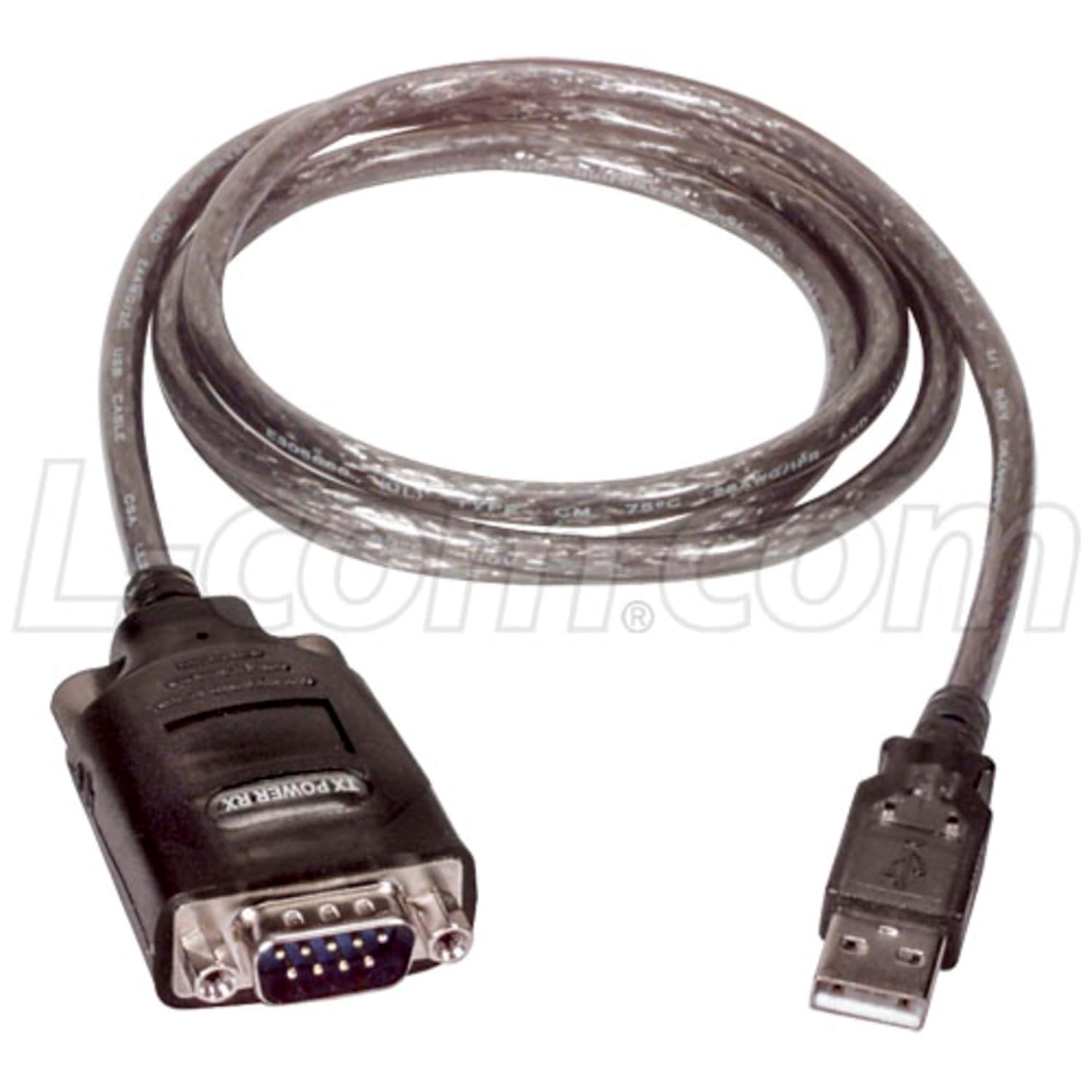
Figure 1: L-COM UMC-201 USB to RS-232 Converter Cable. This image displays the full length of the black cable with a USB-A connector on one end and a DB9 male RS-232 connector on the other.
2. Setup Instructions
Follow these steps to properly set up your L-COM UMC-201 converter cable.
- Driver Installation: Before connecting the cable, ensure that the necessary drivers for the USB to RS-232 converter are installed on your computer's operating system. Drivers are typically provided by the operating system or can be downloaded from the L-COM website. Refer to your operating system's documentation for driver installation procedures.
- Connect to Computer: Insert the USB-A connector of the UMC-201 cable into an available USB port on your computer.
- Connect to Device: Connect the DB9 male RS-232 connector of the UMC-201 cable to the RS-232 serial port of your peripheral device (e.g., modem, printer, industrial equipment). Ensure a secure connection.
- Verify Connection: After connecting both ends, your operating system should recognize the new serial port. You can verify this in your device manager (Windows) or system information (macOS/Linux). The converter will typically be assigned a COM port number.
Figure 2: Close-up of the USB-A connector. This image highlights the USB-A male connector, which plugs into the computer's USB port.
Figure 3: Close-up of the DB9 RS-232 connector. This image shows the 9-pin D-sub male connector, which connects to the serial device.
3. Operating Instructions
Once the L-COM UMC-201 cable is set up, you can begin using it for serial communication.
- Identify COM Port: Determine the COM port number assigned to the UMC-201 converter by your operating system. This can be found in Device Manager (Windows) under "Ports (COM & LPT)".
- Configure Software: Open your serial communication software (e.g., PuTTY, Tera Term, HyperTerminal, or custom application). Configure the software to use the identified COM port and set the appropriate serial communication parameters (baud rate, data bits, parity, stop bits, flow control) to match those of your connected serial device.
- Initiate Communication: Once configured, initiate communication through your software. The UMC-201 cable will facilitate the data transfer between your computer's USB port and the serial device.
- Data Indicators: The DB9 connector may feature LED indicators (TX/RX) to show data transmission and reception activity. Observe these indicators to confirm data flow.
Note: The specific communication parameters (baud rate, etc.) must match between your computer software and the serial device for successful data exchange. Refer to the documentation of your serial device for its required settings.
4. Maintenance
The L-COM UMC-201 converter cable requires minimal maintenance to ensure long-term performance.
- Cleaning: Keep the cable and connectors clean and free from dust and debris. Use a soft, dry cloth for cleaning. Avoid using liquid cleaners directly on the connectors.
- Storage: When not in use, store the cable in a cool, dry place, away from direct sunlight and extreme temperatures. Avoid sharp bends or kinks in the cable that could damage internal wiring.
- Inspection: Periodically inspect the cable for any signs of damage, such as frayed insulation, bent pins on the connectors, or loose connections. If damage is observed, discontinue use and replace the cable.
- Environmental Conditions: This cable is designed for indoor use in typical office or industrial environments. Avoid exposing it to excessive moisture, corrosive substances, or extreme vibrations.
5. Troubleshooting
If you encounter issues while using the L-COM UMC-201 converter cable, consider the following troubleshooting steps:
- No Device Recognition:
- Ensure drivers are correctly installed. Check Device Manager for any unknown devices or errors.
- Try a different USB port on your computer.
- Restart your computer after driver installation.
- Communication Errors:
- Verify that the COM port number in your software matches the one assigned by the operating system.
- Confirm that all serial communication parameters (baud rate, data bits, parity, stop bits, flow control) are identical between your software and the connected serial device.
- Check the physical connections at both the USB and RS-232 ends for looseness.
- Ensure the serial device is powered on and functioning correctly.
- Intermittent Connection:
- Avoid using USB hubs if possible, or ensure the hub is powered.
- Check for electromagnetic interference from other electronic devices.
- Inspect the cable for physical damage.
If problems persist, consult the L-COM support resources or contact technical support.
6. Specifications
| Feature | Detail |
|---|---|
| Model Number | UMC-201 |
| Brand | L-com |
| Connector Type A | USB A Plug (Male) |
| Connector Type B | D Sub 9 Position Plug (DB9 Male RS-232) |
| Cable Length | 1 Meter (3.28 feet) |
| Jacket Color | Black |
| Cable Assembly Type | USB to Serial |
| RoHS Compliant | Yes |
| Package Dimensions | 9 x 6 x 1 inches (approximate) |
7. Warranty Information
L-COM products are typically covered by a limited warranty against defects in materials and workmanship. The specific warranty period and terms may vary. Please refer to the official L-COM website or your purchase documentation for detailed warranty information. Keep your proof of purchase for warranty claims.
This warranty does not cover damage caused by misuse, accident, modification, unsuitable physical or operating environment, or improper maintenance by you.
8. Technical Support
For technical assistance, driver downloads, or further inquiries regarding the L-COM UMC-201 converter cable, please visit the official L-COM website or contact their customer support:
- L-COM Official Website: www.l-com.com
- Refer to the website for contact numbers, email addresses, and support resources.
When contacting support, please have your product model (UMC-201) and any relevant purchase information ready.