Product Overview
The ASUS USB-BT400 is a compact USB adapter designed to provide Bluetooth 4.0 connectivity to your laptop or PC. It enables wireless communication with a wide range of Bluetooth-enabled devices, including printers, phones, headsets, speakers, keyboards, and controllers. This adapter supports Bluetooth Low Energy (BLE) for efficient power consumption.

Image: The ASUS USB-BT400 Bluetooth 4.0 USB Adapter, a compact device for wireless connectivity.
Key Features
- Most advanced Bluetooth 4.0 adapter, backward compatible with Bluetooth 2.0/2.1/3.0.
- Enables wireless communication with Bluetooth enabled computers, printers, phones, headsets, Speakers, keyboards, controllers, and more.
- Bluetooth low energy technology for energy saving wireless connectivity. FHSS (Frequency Hopping Spread Spectrum).
- Data Rates: Up to 3Mbps.
- Distance of Use: Over 10 meters in free space.
What's in the Box
- USB-BT400 adapter
- Warranty card
Setup
Installation
To install the ASUS USB-BT400 adapter, simply plug it into an available USB port on your laptop or desktop computer. The adapter is designed to be plug-and-play for Windows 10, 8, 7, and XP operating systems.
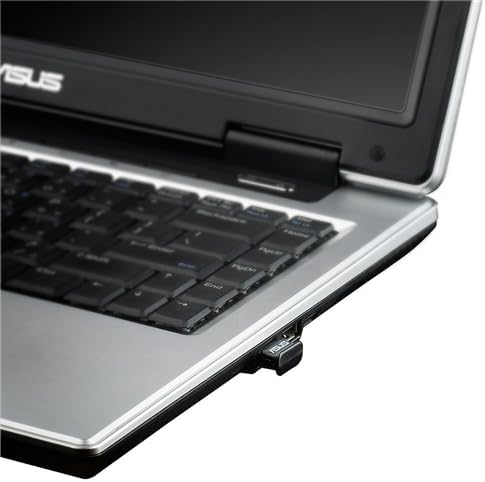
Image: The ASUS USB-BT400 adapter discreetly plugged into a laptop's USB port.
Driver Installation
While the adapter is often plug-and-play, it is recommended to ensure you have the latest drivers for optimal performance. If your PC does not automatically install the necessary drivers, or if you experience connectivity issues, you can download them from the official ASUS support website. Search for 'USB-BT400' on the ASUS support page.
If your computer has a built-in Bluetooth module, it is advisable to disable it via Windows Device Manager before installing the USB-BT400 to prevent potential conflicts and ensure the new adapter functions correctly.
Operating Instructions
Pairing Devices
Once the ASUS USB-BT400 adapter is installed and recognized by your system, you can begin pairing your Bluetooth devices. Follow these general steps:
- Ensure your Bluetooth device (e.g., headset, keyboard, phone) is in pairing mode. Refer to your device's manual for specific instructions.
- On your computer, navigate to the Bluetooth settings (usually found in 'Settings' > 'Devices' > 'Bluetooth & other devices' on Windows 10).
- Click 'Add Bluetooth or other device' and select 'Bluetooth'.
- Your computer will scan for nearby discoverable Bluetooth devices. Select your device from the list.
- Follow any on-screen prompts, such as entering a PIN or confirming a code, to complete the pairing process.

Image: Illustration of various devices connecting wirelessly via Bluetooth, highlighting the adapter's versatility.
The Bluetooth Low Energy (BLE) technology integrated into the USB-BT400 ensures energy-saving wireless connectivity, extending the battery life of your paired devices where applicable.
Maintenance
Care and Handling
To ensure the longevity and optimal performance of your ASUS USB-BT400 adapter, follow these simple maintenance guidelines:
- Keep the adapter dry and away from moisture.
- Avoid exposing the adapter to extreme temperatures.
- Clean the adapter gently with a soft, dry cloth. Do not use liquid cleaners or aerosols.
- Store the adapter in a safe place when not in use to prevent physical damage.
Troubleshooting
Common Issues and Solutions
- Device Not Found or Disconnecting:
Ensure the Bluetooth device is in pairing mode and within the 10-meter range. Check for potential interference from other wireless devices or physical obstructions. Reinstalling the latest drivers from the ASUS website can often resolve connectivity issues. - Lag or Delay with Paired Devices:
This can sometimes be caused by driver issues or interference. Ensure your drivers are up to date. If using USB 3.0 ports, try a USB 2.0 port or use a USB extension cable to move the adapter away from potential interference sources. - Windows 11 Driver Issues:
For Windows 11 users, the default driver selection might not work. You may need to manually select the Windows 10 driver from the ASUS website during installation. Disable any built-in Bluetooth adapters on your motherboard before installing the ASUS USB-BT400 drivers. - Performance Variation:
Actual data throughput and wireless coverage may vary due to network conditions and environmental factors, including the volume of network traffic, building materials, construction, and network overhead. This is normal and not indicative of a fault with the adapter.
Specifications
| Feature | Detail |
|---|---|
| Brand | ASUS |
| Model Number | USB-BT400 |
| Hardware Interface | Bluetooth, USB 2.0 |
| Data Link Protocol | Bluetooth V4.0 |
| Data Transfer Rate | Up to 3Mbps |
| Distance of Use | Over 10 meters in free space |
| Frequency Band | 2.4 to 2.4835GHz unlicensed ISM band |
| Compatible Devices | Laptop, Desktop, Headphone, Speaker |
| Product Dimensions | 16 x 19.47 x 8.1 inches |
| Item Weight | 2.72 ounces |
| Color | Black |
Warranty & Support
Warranty Information
The ASUS USB-BT400 adapter comes with a warranty card included in the packaging. Please refer to this card for detailed information regarding your product's warranty period and terms.
Customer Support
For further assistance, updated drivers, or detailed user guides, please visit the official ASUS support website. You can also refer to the Installation Manual (PDF) for additional setup instructions.


