
1. Introduction
The Cisco SPA122 is an Analog Telephone Adapter (ATA) and SIP Router designed to connect standard analog telephones or fax machines to an IP-based data network. This device enables the use of Voice over IP (VoIP) services, allowing you to make and receive calls over the internet. It features two FXS (Foreign Exchange Station) ports, supporting two analog devices simultaneously, and an integrated router for network connectivity.
2. Package Contents
Verify that your package contains the following items:
- Cisco SPA122 ATA SIP Router Unit
- Ethernet Cable
- Power Adapter
- Quick Start Guide (if included)
3. Setup
Follow these steps to set up your Cisco SPA122 device:
3.1. Physical Connections
- Connect to Power: Connect the power adapter to the SPA122's power port and then plug it into an electrical outlet. The power LED indicator should illuminate.
- Connect to Network:
- If using the SPA122 as a router: Connect an Ethernet cable from your broadband modem (DSL/Cable) to the Internet port on the SPA122.
- If using the SPA122 behind an existing router: Connect an Ethernet cable from a LAN port on your existing router to the Ethernet port on the SPA122.
- Connect Analog Devices: Connect your analog telephone(s) or fax machine(s) to the Phone 1 and/or Phone 2 ports on the SPA122 using standard telephone cables.
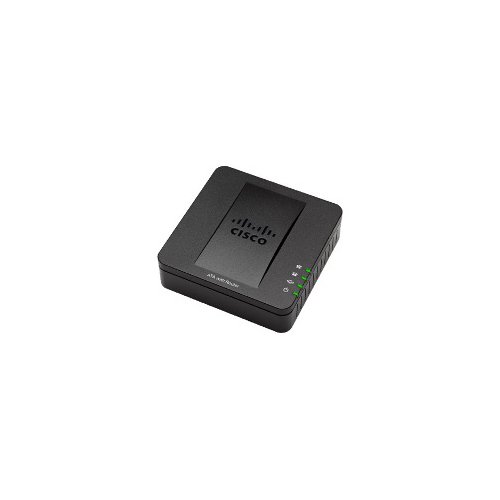
Image: Front and back view of the Cisco SPA122 ATA SIP Router, showing the power, Ethernet, Internet, and Phone ports.
3.2. Initial Configuration
The SPA122 typically requires configuration through its web-based interface. Consult your VoIP service provider for specific settings.
- Access Web Interface: Open a web browser on a computer connected to the same network as the SPA122. Enter the device's IP address (usually found in the Quick Start Guide or by checking your router's connected devices list) into the browser's address bar.
- Login: Enter the default username and password (commonly 'admin' for both, or as provided by your service provider).
- Configure SIP Settings: Navigate to the voice settings and enter the SIP server address, user ID, password, and other parameters provided by your VoIP service provider.
- Save and Reboot: Save your changes and reboot the device for the settings to take effect.
4. Operating the Device
Once configured, the Cisco SPA122 operates largely transparently, enabling your analog phones to function with your VoIP service.
4.1. Making Calls
Lift the handset of your connected analog phone. You should hear a dial tone. Dial the desired phone number as you normally would. The SPA122 will convert the analog signals to digital VoIP packets and route them through your internet connection.
4.2. Receiving Calls
When an incoming call arrives, your connected analog phone will ring. Answer the call by lifting the handset.
4.3. Using Fax Machines
Connect your fax machine to one of the Phone ports. Ensure your VoIP service provider supports T.38 faxing for reliable fax transmission over IP.
5. Maintenance
Regular maintenance helps ensure optimal performance and longevity of your SPA122.
- Firmware Updates: Periodically check the Cisco support website for firmware updates. Firmware updates can provide new features, security enhancements, and bug fixes. Follow Cisco's instructions carefully when performing updates.
- Cleaning: Keep the device clean and free from dust. Use a soft, dry cloth to wipe the exterior. Do not use liquid cleaners or aerosols.
- Ventilation: Ensure the device is placed in a well-ventilated area to prevent overheating. Do not block ventilation openings.
- Power Cycle: If the device experiences minor issues, a simple power cycle (unplugging the power adapter for 10 seconds and plugging it back in) can often resolve them.
6. Troubleshooting
This section addresses common issues you might encounter with the Cisco SPA122.
6.1. No Dial Tone
- Check Power: Ensure the power adapter is securely connected and the power LED on the SPA122 is illuminated.
- Check Phone Connection: Verify that the analog phone is correctly plugged into the Phone 1 or Phone 2 port.
- Check Network Connection: Ensure the Ethernet cable is securely connected to the Internet/Ethernet port and your network is active.
- Verify SIP Registration: Access the SPA122's web interface and check the status of your SIP lines. If they are not registered, re-verify your SIP configuration settings with your VoIP service provider.
- Reboot: Power cycle the SPA122 and your network equipment (modem/router).
6.2. Cannot Make or Receive Calls
- Check Dial Tone: Confirm you have a dial tone. If not, refer to the 'No Dial Tone' section.
- Verify SIP Configuration: Double-check all SIP account details (username, password, server address) in the web interface. Even a small typo can prevent service.
- Internet Connectivity: Ensure your internet connection is active and stable. Test by browsing a website on a connected computer.
- Firewall Issues: Your network firewall might be blocking VoIP traffic. Consult your network administrator or VoIP provider for required port forwarding or firewall exceptions.
6.3. Poor Call Quality (Echo, Jitter, Dropped Calls)
- Internet Bandwidth: Ensure you have sufficient internet bandwidth, especially during peak usage. VoIP requires stable bandwidth.
- Network Congestion: Other devices on your network might be consuming too much bandwidth. Consider implementing Quality of Service (QoS) settings on your router to prioritize VoIP traffic.
- Cables: Ensure all Ethernet and phone cables are in good condition and securely connected.
- VoIP Provider: Contact your VoIP service provider to check for any service-side issues or recommended settings for your specific network environment.
7. Specifications
Key technical specifications for the Cisco SPA122 ATA SIP Router:
| Feature | Description |
|---|---|
| Model Name | SPA122 |
| Product Dimensions | 5.91 x 5.91 x 1.97 inches (15 x 15 x 5 cm) |
| Item Weight | 0.04 Pounds (approximately 0.64 ounces / 18 grams) |
| Connectivity Technology | Ethernet |
| Ports | 2 x FXS (Phone), 1 x Internet (WAN), 1 x Ethernet (LAN) |
| Operating System (Firmware) | Cisco IOS (internal firmware) |
| Recommended Uses | Home, Small Office/Home Office (SOHO) VoIP applications |
| Manufacturer | Cisco Systems, Inc |
| Date First Available | July 14, 2014 |
8. Warranty Information
Warranty terms for the Cisco SPA122 ATA SIP Router are typically provided by the point of purchase or directly by Cisco Systems, Inc. Please refer to the warranty card included with your product or visit the official Cisco website for detailed warranty information specific to your region and purchase date. Keep your proof of purchase for warranty claims.
9. Support
For technical assistance, additional documentation, or advanced troubleshooting, please refer to the official Cisco support resources:
- Cisco Support Website: Visit www.cisco.com/go/support for product documentation, downloads, and support tools.
- Contact Your Service Provider: If you purchased the device through a VoIP service provider, they are often your primary point of contact for configuration and support related to their service.


